Manage Recipes
The HazMat Recipes offer the possibility to specify the required components for a manufactured product. The HazMat Recipe is used for the communication with the HSM system, so only the components that are a hazardous substances are specified. If a product has a recipe consisting of classified hazardous substances, it is possible to trigger the classification for the new product automatically from Business Central.
There are several ways to create a HazMat Recipe. First, it is possible to create a new recipe manually and select the HazMat Material to be produced and the corresponding hazardous substance components including a Portion %.
It is also possible to create a recipe in the background using the Production BOMs.
Finally, when using Yaveon 365 Manufacturing, the required data can already be entered in the Manufacturing Specification to automatically create a HazMat Recipe.
Important
To create recipes and transfer them to the HSM system, the HazMat Material in the recipe header needs a HazMat Material Type that has the value Product in the Type field. In general, you can use the HazMat Material Type to group HazMat Materials.
The different ways of creating Recipes are shown in the following:
Create HazMat Recipes manually
Open the overview of the HazMat Recipes.
Execute the action New and assign a number manually or from the number series stored in the Yaveon 365 HazMat Connect Setup.
In the General tab, select a HazMat Material Number for which the recipe is to be applied.
Create new lines and select a HazMat Material and a Proportion %.
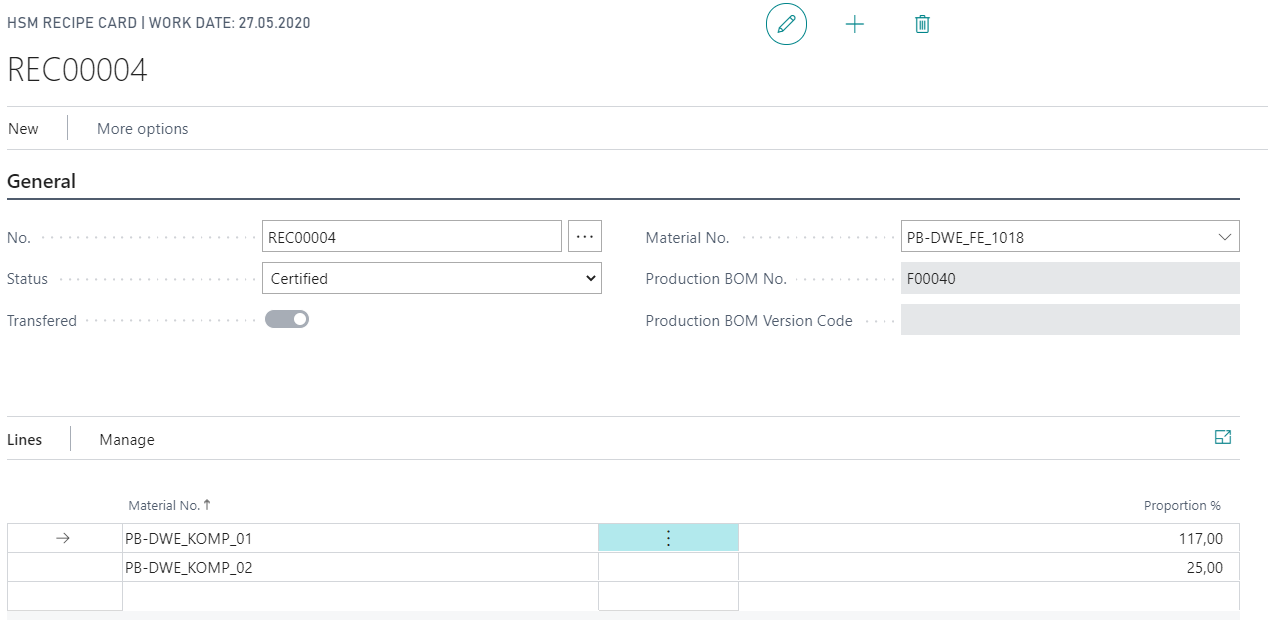
The Status can be set to Certified when all relevant components have been added. The certification creates a HazMat Task in the background.
Creation of HazMat Recipes based on Production BOMs
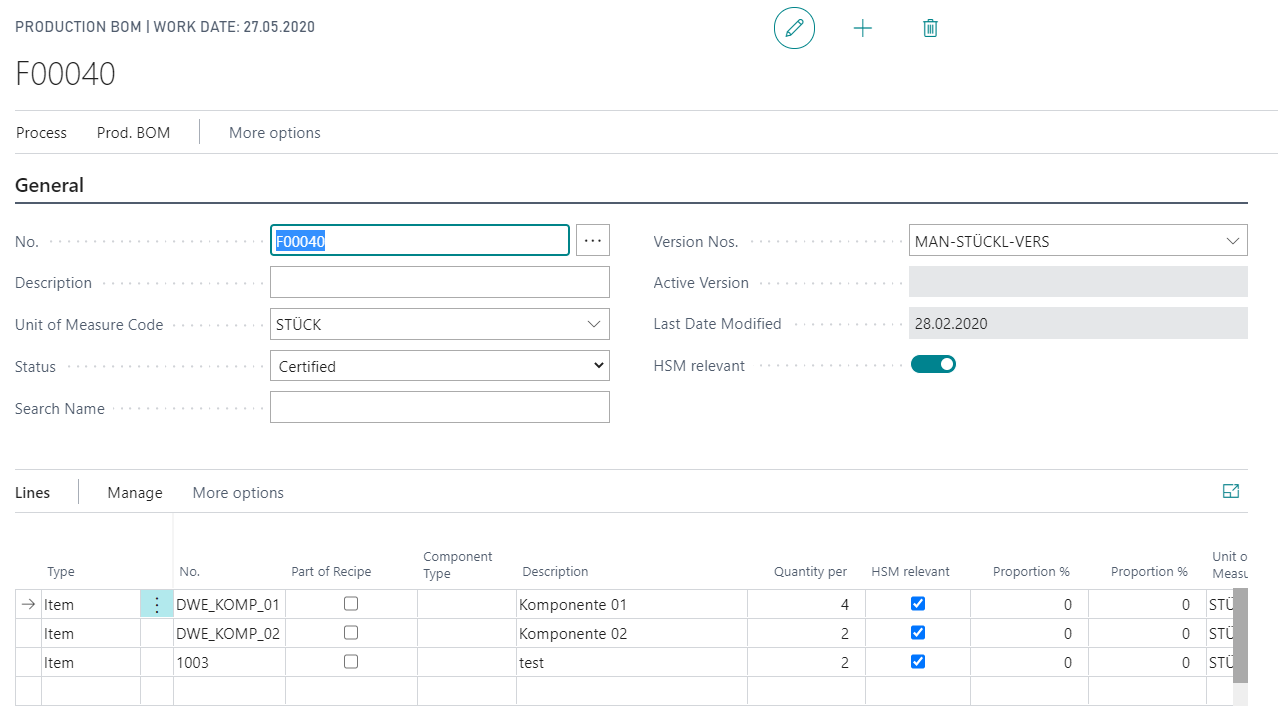
Open the Production BOMs and create a new Production BOM including the component lines. In the header of the production BOM, change the HazMat relevant field to the value Yes.
At line level, you can set a HazMat Relevant indicator and also assign a Proportion %. Only lines that have the value Yes in the HazMat Relevant field are transferred to the HazMat Recipe. In addition, the Proportion % field for these lines is automatically filled with the remaining proportion.
After all components have been entered, change the status of the BOM to Certified. The certification process creates a HazMat Recipe in the background and a HazMat Task for transfer to the hazardous substance management system.
Create HazMat Recipes based on Yaveon 365 Manufacturing Manufacturing Specifications
Open the Manufacturing Specifications and create a new Manufacturing Specification. Set the indicator HazMat relevant to the value Yes.
Set up the required component rows. If the selected item has a HazMat Item Material Link, the field HazMat relevant will be filled. By entering a component proportion or quantity, the Proportion % field is preset.
If the Manufacturing Specification is created completely, it can be certified. The certification process creates a Production BOM in the background and creates the corresponding HazMat Recipe and a HazMat Task for transfer to the hazardous substance management system.
Important
During the certification of a Manufacturing specification that is marked as HazMat relevant, it is reviewed that each item component marked as HazMat relevant also has a HazMat Item Material Link.