Feature-based item tracking assignment
With the help of Feature-based item tracking assignment, it is possible to influence the necessary input quantities (target values) of components based on the actual lot features (actual values). This means that the required quantity of a component may be smaller than planned, since the used lot has a particularly well-tested property. Or, conversely, it may be necessary to use a larger quantity of a component because the lot properties are inferior.
This functionality is also particularly suitable for the management of active ingredients based on lot properties. A prerequisite is that features are assigned to the production order or the underlying manufacturing specification.
Master data features are transferred from the item to the manufacturing specification and from there to the production order. The insertion of features into the production order is not executed directly from the item.
Important
If you want to use this functionality, you must ensure organizationally that the assignment of the lots to be used is only carried out using the Feature-based Item Tracking Assignment window. The lots must not be assigned directly in the production order, otherwise the functionality of the Feature calculation cannot be guaranteed.
Example
Data / Prerequisites
- The active ingredient feature is marked with Transfer to next level and a Next Level Calculation Type (for example Addidiv)
- Manufacturing Specification with
- active ingredient feature as header feature
- active ingredient feature as line feature in at least one line
- Inventory with the active ingredient feature (Actual Value of the lot).
Target values in production order
To produce 1 KG of the item "Pharma Bulk (active ingredient)", you normally need 0.07143 KG of the item "Active ingredient 30020" and 0.1 KG of the item "Active ingredient 30021". All other components need not be considered for this example. Due to the Features of the component items and their standard values, the final product contains 100 mg of active ingredient 1 and 200 mg of active ingredient 2.
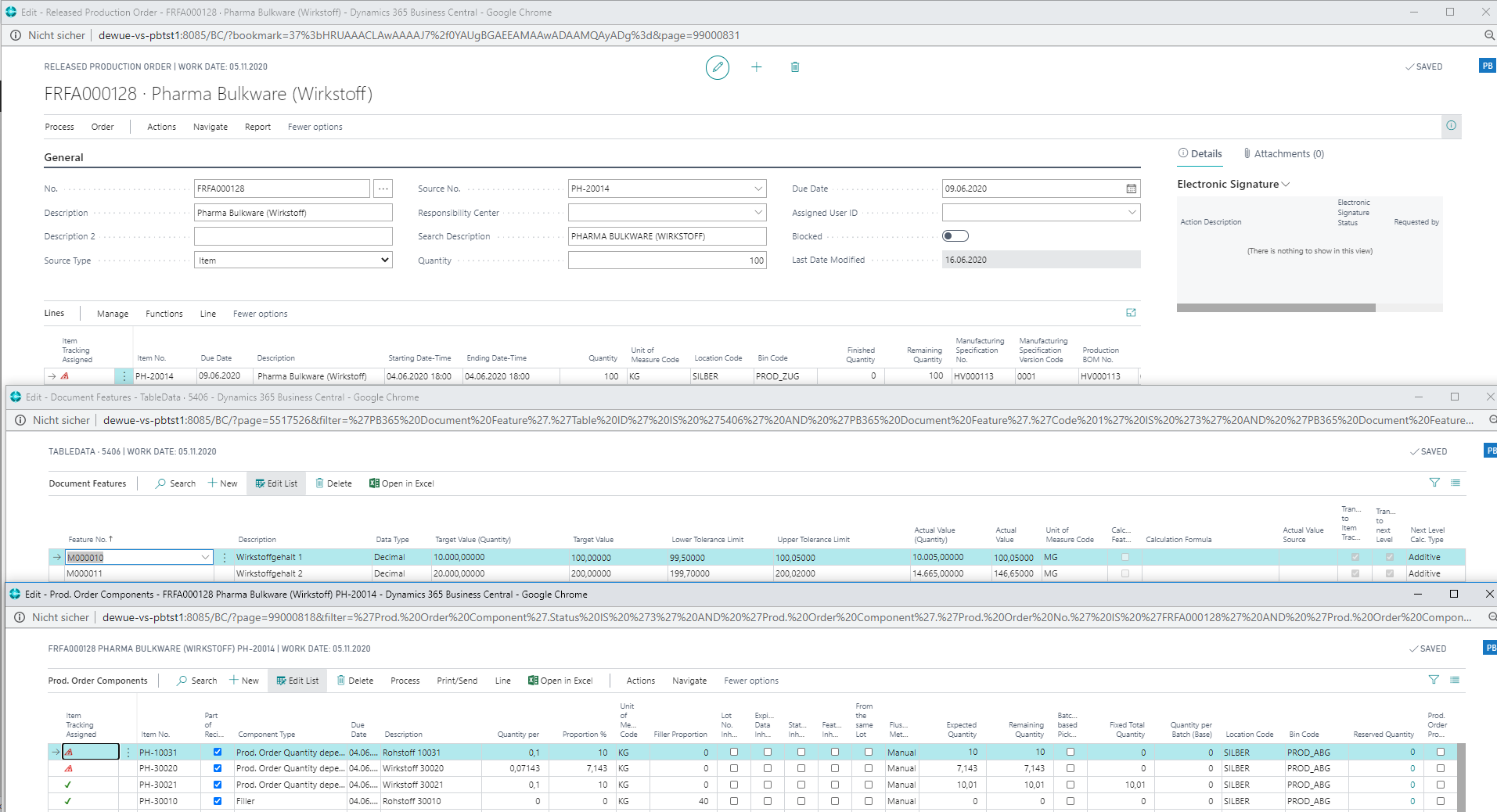
Lot selection and determination of actual values
During work preparation, you can now specifically select the raw material lots that you want to use. The system accesses the actual feature values of the lots and helps you to achieve the specified target values as accurately as possible.
in the production order call the Feature-based item tracking assignment.
In the Assigned quantity field in the header, you see the total of the quantities that you have assigned to the components. This quantity refers to the unit displayed here.
In the middle area, you see features of the PO line - that is, the finished product and thus the feature values that are to be achieved by the lot assignment. The actual value of the feature for the final product is displayed in column Actual value. The value is automatically calculated from the values of the assigned component lots.
In the lower area, you see the individual components that are necessary for production, or the lots of components that are on inventory. You can change the view using the actions Item Tracking or Components.
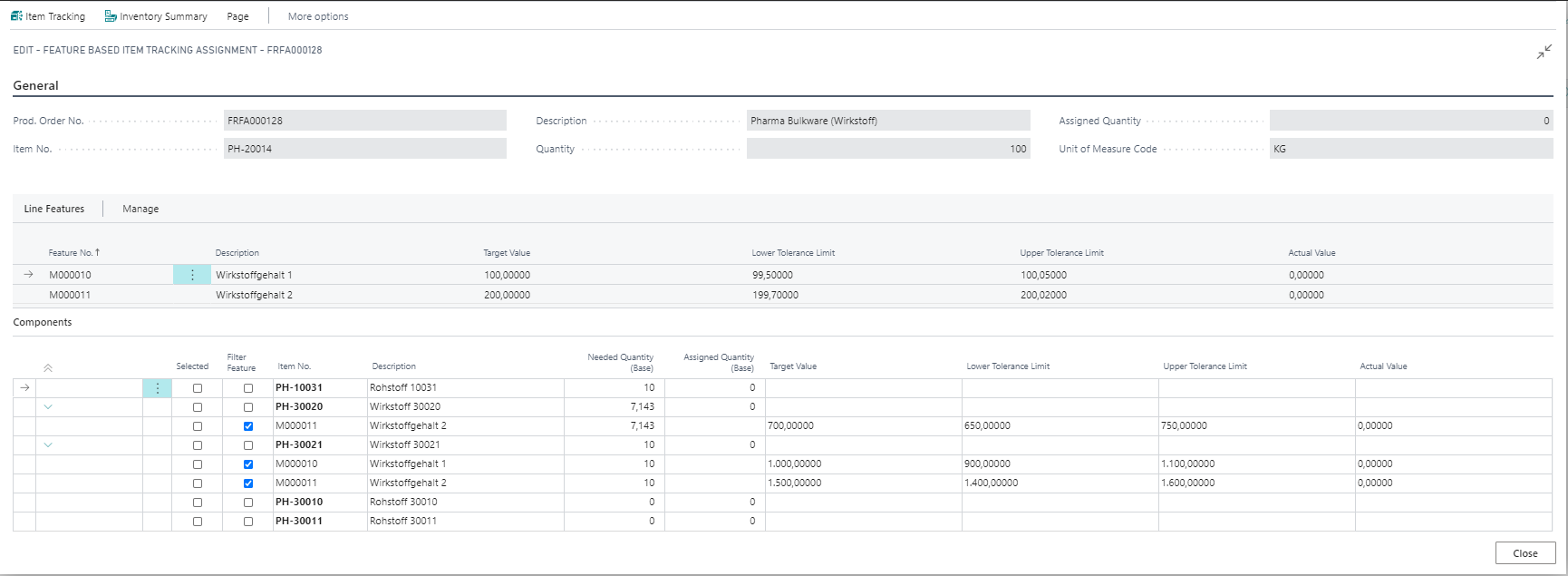
mark a component as selected and switch to the Item Tracking view to specify the lots you want to use for production. Only item trackings that have the feature marked as Filter Feature (Components view) are displayed.
enter the required input quantities in the Quantity (Base) or Quantity (Lot Unit of Measure) field. Depending on these entries, the Assigned Quantity and the Actual value (component) are updated. Change the quantities until the Actual value (component) is as close as possible to the Target value (component) and the component quantity does not vary greatly. In the area of the Features for the PO line, the actual value is updated based on your selection.
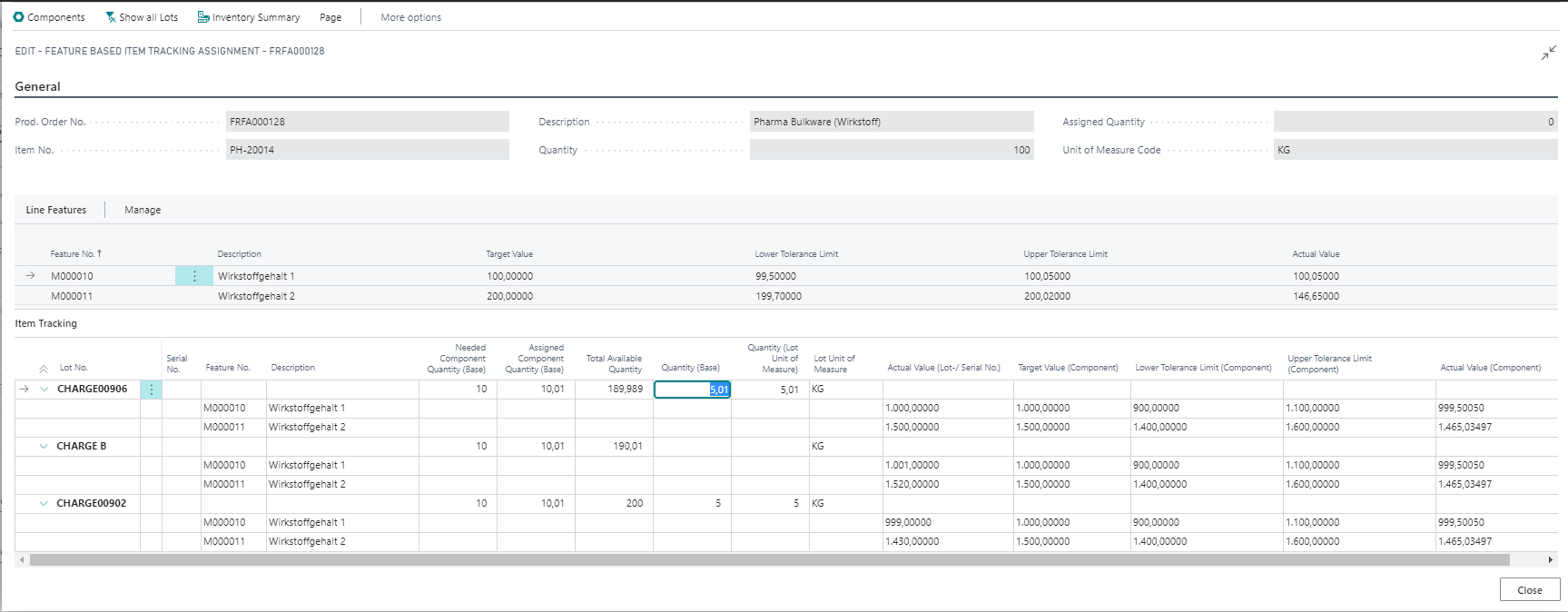
repeat this procedure with all components to achieve the target feature values. You have thus made the optimum selection of available lots.
- the feature values achieved may mean that the required quantity of the component differs from that originally planned. The required quantity of the component is adjusted accordingly. You can now use the Calculate Filler Quantities action to adjust the quantities of the filler components so that the recipe is 100% again.
Important
The posting method "Backwards" for components cannot be used in combination with active ingredient management. When you post backwards, the quantity to be posted is calculated using component quantity * produced quantity. The new required quantity (Planned quantity) due to lot quality is therefore ignored.