Import of Document Texts for the Yaveon 365 Text Module
The Import Document Texts report can be used to import texts for the Yaveon 365 Text Module. The texts can be imported for master data, e.g. items, vendors or customers, as well as for transaction data, e.g. sales orders and purchase orders.
Create Document Texts Import Template
The import is made from an Excel file. This must contain a specific format depending on the target table, that means the columns in the Excel file must be in a certain order. The Excel file can be created using the task Create Document Texts Import Template. This task creates one Excel file with several tabs, one for each target table, and the relevant fields.
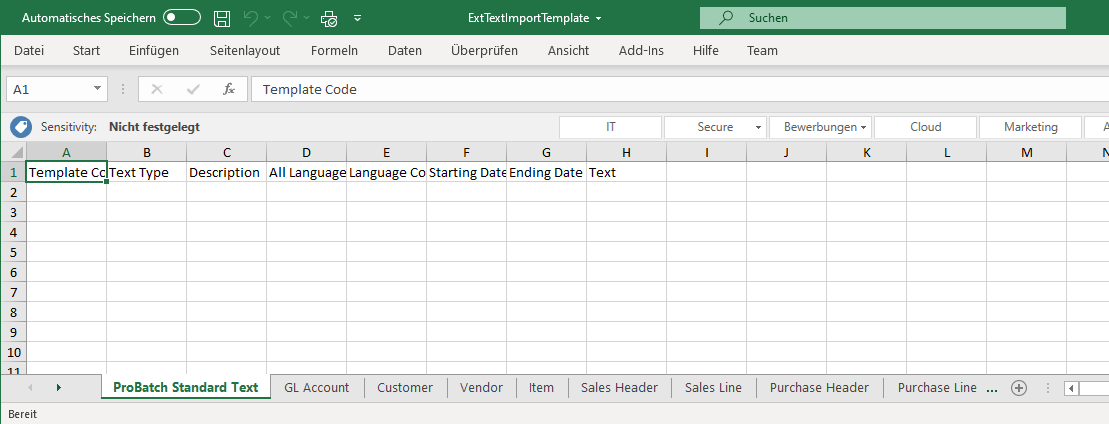
Example: Import Standard Texts
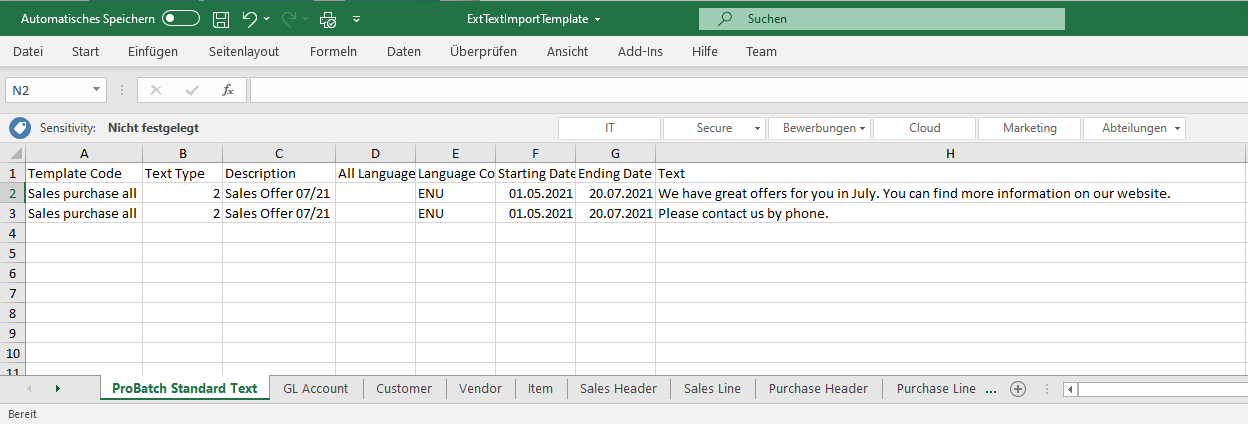
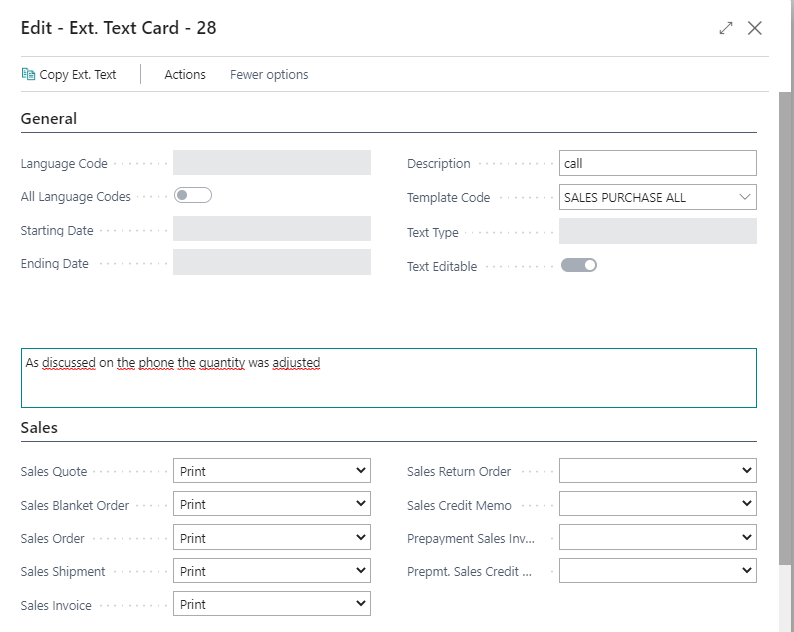
The Yaveon 365 Standard Text is filled as followed:
| Field | Description |
|---|---|
| Template Code | Code of the document text template that is assigned to this document text. The template code is used to set the fields for display/print control. |
| Text Type | Text type of the document text. The following values are permitted: - 1 or header text - 2 or footer text The column must be omitted, for example, when importing the item texts (that is, the text type column must not exist in the Excel file). |
| Description | Description of the document text |
| all languages / language code | The text can be valid for all (insert yes in the column all languages) or for a specific language. |
| Starting date, Ending date | Starting and Ending date of the validity of the document text. |
| Text | Text of the document text. The text can have a maximum length of 250 characters. To Import Document Texts with more characters, the Excel file must contain several lines, each containing the same values in the other columns. These lines must be contained in the Excel file in sequence. |
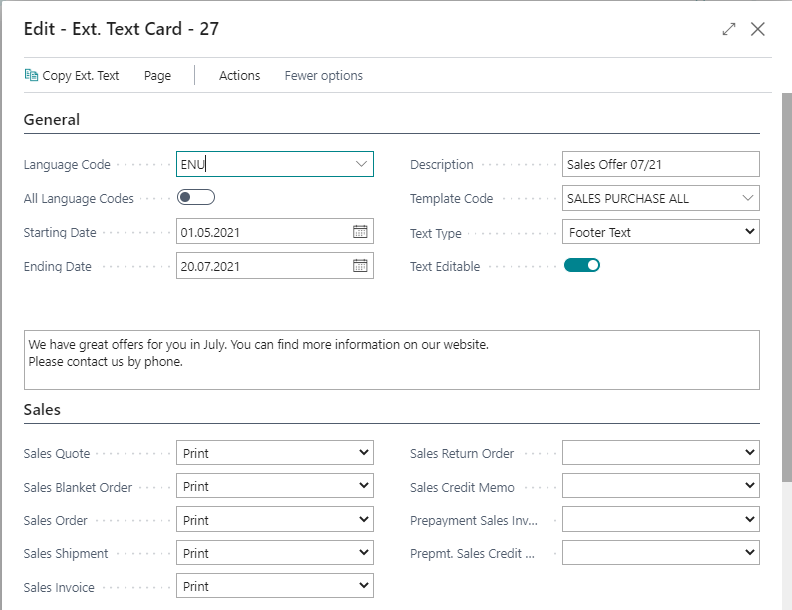
Example: Import Text of a sales line
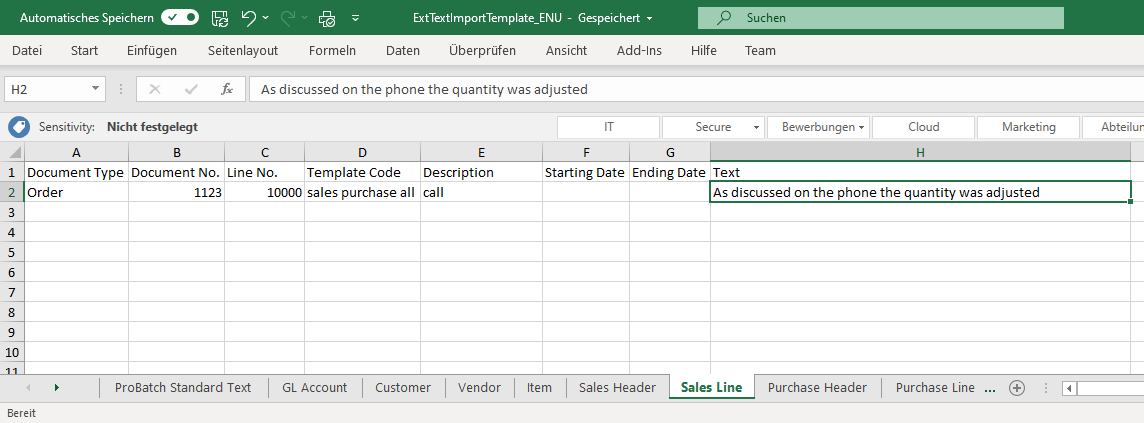
The Sales Line is filled as followed:
| Field | Description |
|---|---|
| Document Type | Inset the document type |
| Document No. | Document No. to which the text belongs. |
| Line No. | Document line no. to which the text belongs. |
| Template Code | Code of the document text template that is assigned to this document text. The template code is used to set the fields for display/print control. |
| Description | Description of the document text |
| Text | Text of the document text. The text can have a maximum length of 250 characters. To Import Document Texts with more characters, the Excel file must contain several lines, each containing the same values in the other columns. These lines must be contained in the Excel file in sequence. |
Import of Document Texts
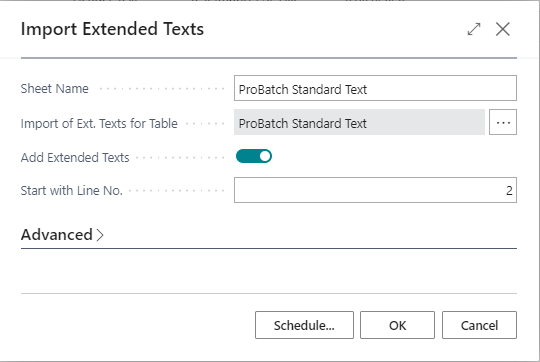
To start the import of the texts, start the Import Document Texts function. The following options are available in the request window Import Document Texts:
| Field | Description |
|---|---|
| Sheet Name | Here you must write the Excel sheet name that contains the data to be imported. |
| Import of Document Texts for Table | Select the assigned table for which the texts are to be imported. |
| Add Document Texts | If this field is marked, then already existing texts for the respective master data record are not deleted and the texts contained in the file are created additionally. |
| Start with Line No. | This field can be used to specify the Line number from the Excel sheet from which the import is to take place. Example: The first row in the sheet is a header row. It is imported from line no. 2. |
After confirming with OK, a file selection dialog opens for selecting the Excel file containing the texts. When selected the file, the texts will be imported.
The Excel Sheets have to be imported individually.