Rule-based Traffic Lights
The rule-based traffic lights provide the ability to tag records in a list that meet certain conditions. Based on defined rules, the data sets are highlighted with stored images (= traffic light) depending on defined field values.
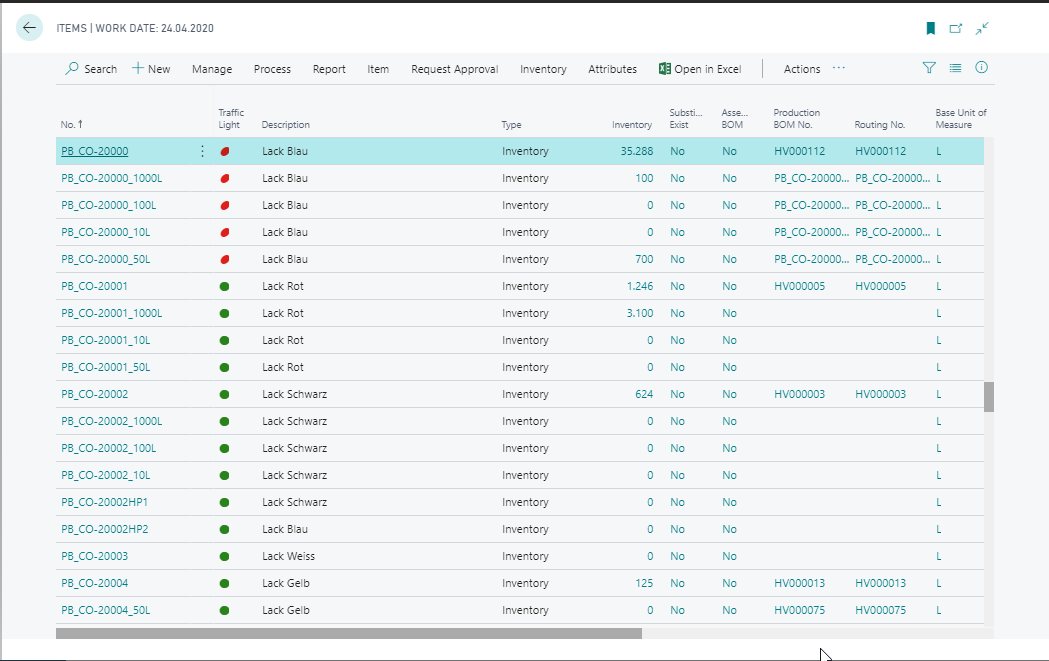
For example, in a purchase line, the remaining order quantity can be displayed in color or blocked items can be marked in the item overview.
Define Traffic Lights
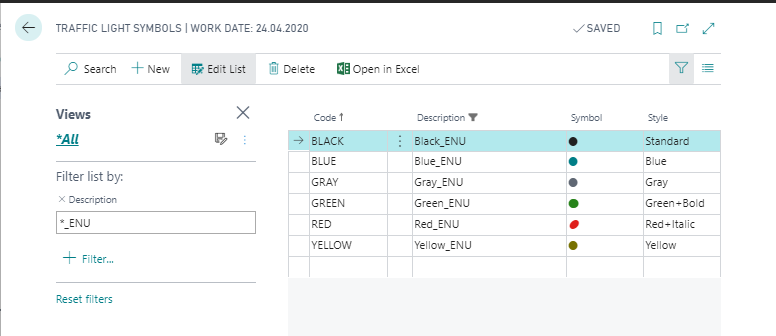
Before Traffic Light Control Rule Groups can be defined and used, symbols have to be created in the table Traffic Light Symbols.
- Open the Traffic Light Symbols and click New to create a new data record.
- Fill in the fields Code, Description, Symbol and Style. The same symbol can be represented by choosing a style in different colors.
Define Groups for rule-based Traffic Lights
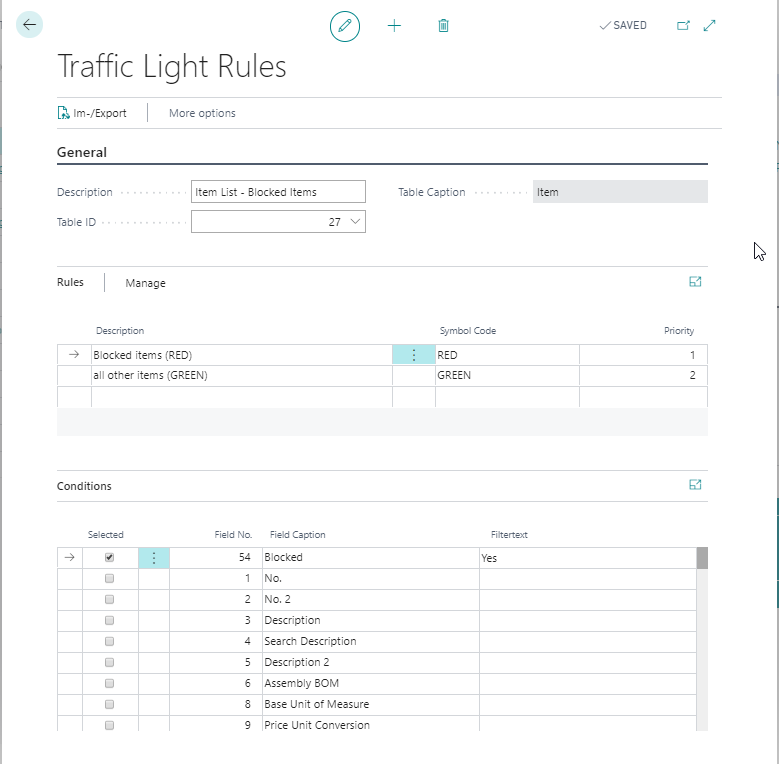
Traffic light control rule groups define which traffic light sign is displayed under which conditions.
- Click New in the Traffic Light Rule Groups table to create a new data record.
- In the General section, enter a Description and select the Table ID for which the traffic light is to be used.
- In the section Rules, assign one or more traffic lights in the field Symbol Code and provide them with a Priority
Note
OR statements are setup by creating multiples rules with same Symbol Code.
- In the Conditions section, the fields of the Table ID are listed. Enter a Filter Text for which the rule should be applied and mark the field as Selected.
Note
Any number of fields can be selected and field values combined to achieve complex queries on the data. Selected fields are moved up in the view.
Use the rule-based Traffic Lights
The Traffic Light Control Group has to be actived and selected in the respective page.
In the following pages the Traffic Light Control is integrated as a standard. When invoked, the rule groups are filtered so that only the rule groups for that table are displayed.
- Item List
- Inventory Summary
- Purchase Lines
- Vendor List
- Sales Lines
- Customer List
- Item Tracking Summary
- Yaveon 365 Lot No. Information (requires app Yaveon 365 Lot Management)
- PO Planning Overview (requires app Yaveon 365 Manufacturing)
- PO Component Availability List (requires app Yaveon 365 Manufacturing)
- Whse. Shipment Control Center (requires app Yaveon 365 Warehouse Management)
Export and import of traffic light control rules
Using the Im-/Export action, your traffic light control rules can be exported and imported as an XML file. When exporting, additional filters can be set, e.g. to export only one rule category or a special rule. The import takes place via the generated XML file. In the field Delete existing rules you can define what should happen to existing rules:
- No: existing rules are not deleted
- Same description: if there is already a rule for the table with the identical description, it will be deleted (and newly created)
- Same table: for the table to which one or more rules are imported, all existing rules are deleted
- All rules: all existing rules are deleted