Purchase Tolerances
With the definition of purchase tolerances, it is possible to define percentage deviations that should be accepted in case of over- or under-delivery. In the Yaveon 365 Sales and Purchase the tolerances for under- and over-delivery can be defined with regard to individual items, item tolerance groups, vendors and vendor tolerance groups. This feature is especially helpful in situations with bulk materials, where an exact quantity measurement is not possible.
Over- and Under- deliveries do not effect purchase prices or discounts. Only the line amount is adapted.
Note
Please note that Over- and Under-deliveries may contradict prepayments.
Note
Due to the installation of the Yaveon 365 Sales and Purchase App the BC standard functionality of Over-Receipt Codes is deactivated.
Item Purchase Tolerance Groups
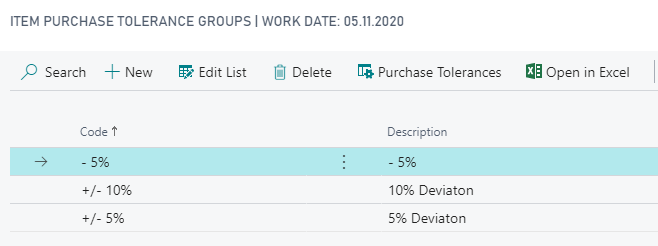
You can define Purchase Tolerances with Item Purchase Tolerance Groups. The effort of data maintenance is reduced, because it is possible to do the setup for these groups instead of defining the tolerance for every single item.
You have to define all necessary groups in the page Item Purchase Tolerance Groups.
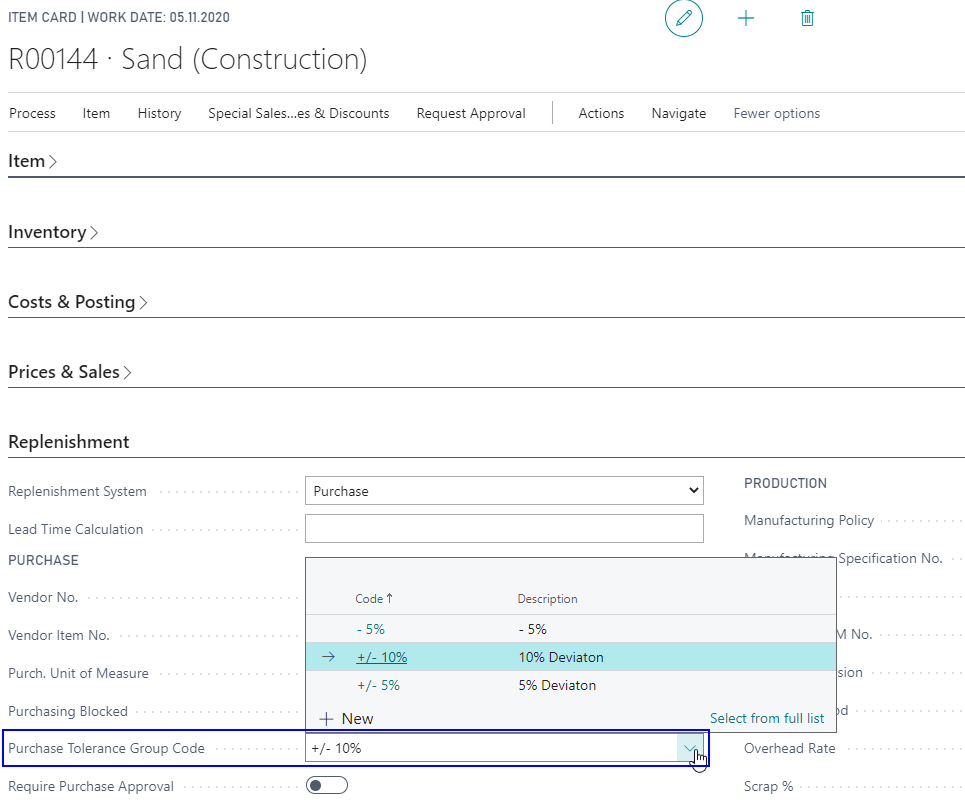
You can assign those groups to the items subsequently, in the Item Page.
Vendor Purchase Tolerance Groups
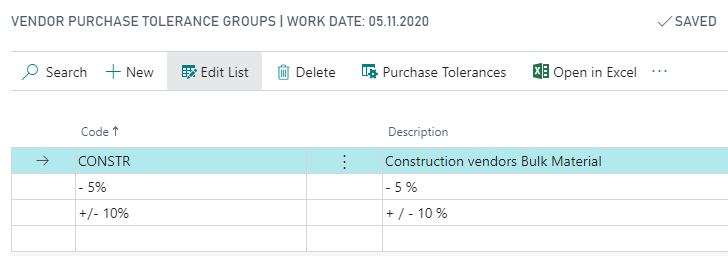
You can also define Purchase Tolerances with the help of Vendor Purchase Tolerance Groups. This also helps to reduce the effort of data maintenance.
You have to define all necessary groups in the page Vendor Purchase Tolerance Groups.
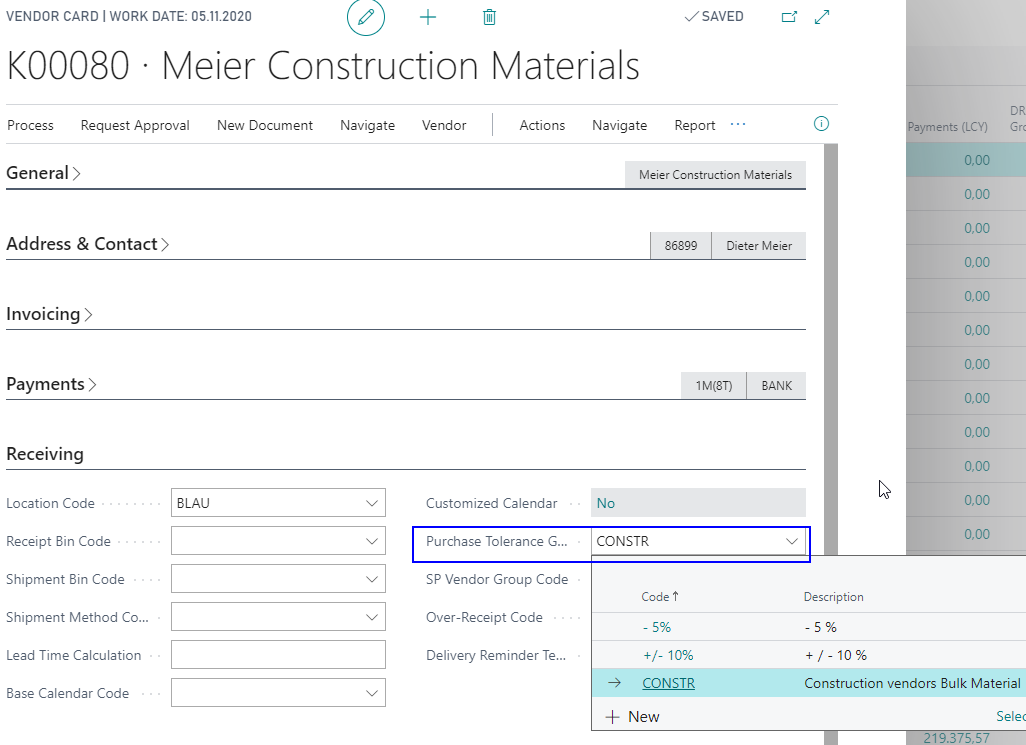
You can assign those groups to the vendors subsequently, in the Vendors Page.
Setup of Purchase Tolerances
In the Page Purchase Tolerances you can define for which item and / or which vendor an under- or over-delivery should be accepted.
In the page header you can filter the lines using various criteria. The Purchase Type Filter and Purchase Code Filter specify if the setup for a specific vendor, a vendor tolerance group, all vendors or without filter (Option None) is displayed. The Type Filter and Code Filter specify if the setup for a specific item, an item tolerance group, all items or without filter (Option None) is displayed. When entering a Starting Date Filter only lines with this specific starting date are shown. To see all lines from a starting date on you can use the BC Filter-Logic (for example 01.01.2010..).
You can set up different tolerance scenarios. For example, if all Bulk Construction Materials are delivered by bulk truck, there will be tolerances in the weight. Hence, you can arrange with your Construction Vendors, that those materials, e.g. Sand, have an Upper and Lower delivery tolerance of 10%. You can define this for every single vendor, or you can put those vendors into a Vendor Purchase Tolerance Group, as this is part of your standard contract with them.
Note
If you have more than one setting for a specific vendor-item-combination, then the specific setting has a higher priority.
- Vendor priority: Vendor No. > Vendor Tolerance Group > All Vendors
- Item priority: Item No. > Item Tolerance Group > All Items
For example, if the item 4711 has 1% Upper Tolerance for All Vendors, but 3% for Vendor No. K0815, and a Purchase Order for K0815 with Item 4711 is created, then the field Upper Tolerance % in the Purchase Line will be 3%.
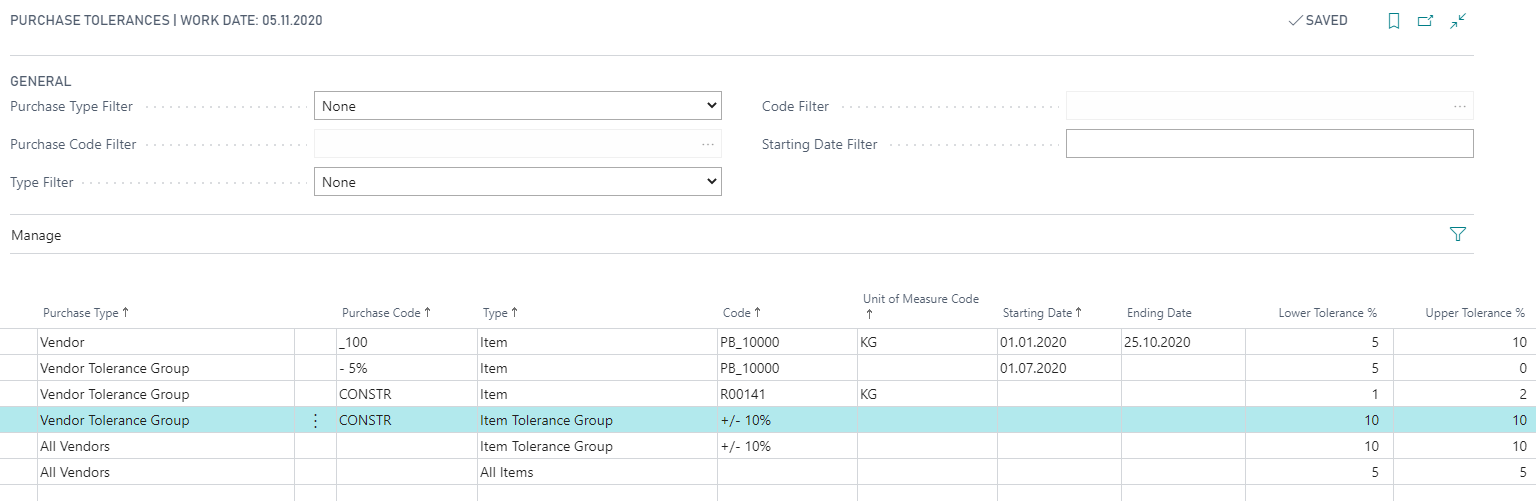
The setup fields are described in detail in the following table:
| Field | Completion | Description |
|---|---|---|
| Purchase Type | Manually | This field contains the purchase type of the purchase tolerance. The purchase type defines if the purchase tolerance is for an individual vendor, for a vendor purchase tolerance group or for all vendors. |
| Purchase Code | Optional | Depending on the selected Purchase Type you can define the vendor or vendor tolerance group for which the tolerance is valid. If the purchase type is All Vendors, you cannot select a purchase code. |
| Type | Manually | This field contains the Type of the purchase tolerance. The Type defines if the purchase tolerance is for an individual item, for an item purchase tolerance group or for all items. |
| Code | Manuell | Depending on the selected Type you can define the item or item tolerance group for which the tolerance is valid. If the type is All Items, you cannot select a code. |
| Variant Code | Optional | This field contains the variant code for the item. If you leave this field blank, the purchase tolerance will be valid for the item and any other unspecified variants (related to the same item). |
| Unit of Measure Code | Optional | This field contains the unit of measure code for which the purchase tolerance will be valid. If you leave the unit of measure code field blank, the purchase tolerance will be valid for all unit of measure codes. You can use this field, for example, to set up a special purchase tolerance for purchase in larger units than the unit size in which you keep the item on inventory. |
| Starting Date Ending Date |
Optional | You can use the Starting Date field if you want a tolerance to be valid only after a particular date. To specify that a tolerance should be valid during a specific period, enter the Ending Date as well. If you leave the Starting Date field blank, the purchase tolerance will be valid as soon as you implement it and will remain in effect until the Ending Date or until you delete the line. If both fields are empty, the tolerance is valid indefinitely. |
| Lower Tolerance % | Optional | This field contains the Lower Tolerance in Percent, which you accept from your vendor. When posting an under delivery which is within this tolerance, the Purchase Line will be closed. More information is provided in the following chapters. |
| Upper Tolerance % | Optional | This field contains the Upper Tolerance in Percent, which you accept from your vendor. An Upper-Shipment is possible within this tolerance Limit. More Information is provided in the following chapters. |
Note
When you create a Purchase Line in a Purchase Document, the fields Lower Tolerance % and Upper Tolerance % are filled according to this setup. You can change those preset values manually. This is helpful, if in this individual case the tolerance is undesired.
Processing Under- and Over delivery in Purchase
As stated before, depending on the purchase tolerance setup, the fields Lower Tolerance % and Upper Tolerance % in the Purchase Line are filled with the tolerance percentages. Based on those tolerances, and the Quantity of the Purchase Line, the system will calculate if the received delivery is in the tolerance or not. If it is inside the tolerance, it will accept the delivery as complete, it will change the field Quantity and recalculate the line amount with the new quantity. In case of a part delivery below the tolerance, it will handle it as a part delivery and not change the Quantity.
Depending on your logistics setup, the receiving process can differ:
Under- and Over-delivery in locations with Warehouse Receipt
Decisive for the Under- or Over Delivery is the adaption of the field Quantity to Receive in the Warehouse Receipt Document.
When adjusting the Quantity to Receive manually the Delivery Status changes to Complete Delivery if the entered quantity is within the tolerance. This also means that if you want to post a partial delivery within tolerances you have to change the delivery status to part delivery manually.
The Quantity of the Item Tracking Lines will be reduced automatically if only one item tracking line has been entered. If there is more than one line, you have to change those manually. If the delivered quantity is higher than the original quantity, you have to raise the quantity in the Item Tracking Lines manually.
Under- and Over-delivery in locations with Inventory Put-Away
Decisive for the Under- or Over-Delivery is the adaption of the field Quantity to Handle in the Inventory Put-Away. When posting the Shipment within tolerance the Purchase Order and the quantity of the Item Tracking Lines will be adjusted automatically.
Under- and Over-delivery in locations without logistics
As there are no logistic activities necessary you can directly adjust the quantity in the field Quantity to Receive in the Purchase Order. If the under- or over-delivery is within tolerance the field Quantity is reduced or increased.
When adjusting the Quantity to Receive manually the Delivery Status changes to Complete Delivery if the entered quantity is within the tolerance. This also means that if you want to post a partial delivery within tolerances you have to change the delivery status to part delivery manually.
The Quantity of the Item Tracking Lines will be reduced automatically if only one item tracking line has been entered. If there is more than one line, you have to change those manually. If the delivered quantity is higher than the original quantity, you have to raise the quantity in the Item Tracking Lines manually.
Over- and Under-Delivery for Drop Shipments
Over- and Under deliveries are also processed for Drop Shipments. When posting, the tolerances of the Sales Order are used to check, if the shipment is in the tolerance. For details see Over- and Under-Delivery for Drop Shipments in the help for Sales Tolerances.