ABC classes
Creation of ABC classes
In the table ABC Classes, you can define any classes to control the bin search within the Put-away Zone Order. The assignment of an ABC Class to an item is made in the item zone data table.
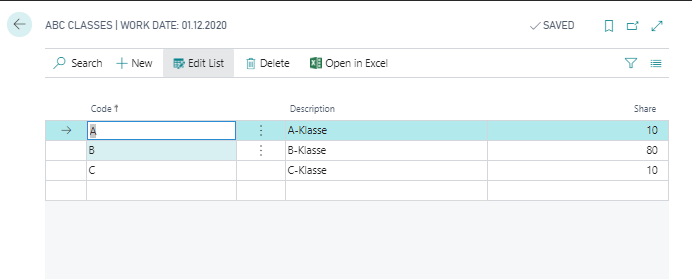
With the action New you can create a new line. You must then assign a Code and store a Description. The Share field forms the basis for the default calculation of ABC classes.
Important
Avoid using Business Central filter operator characters in ABC class codes, such as <, >, &, |, *, ?, .., or @. These characters are interpreted as filter operators by Business Central, which can cause unexpected results when this code is used in filters or posting rules.
ABC class wksh. templates
The system supports you when recalculating ABC Classes. To do this, you must first define an ABC Class Wksh. Template. You can use the New action to create a new line and then define Name and a Description. The system fills the other two fields automatically.
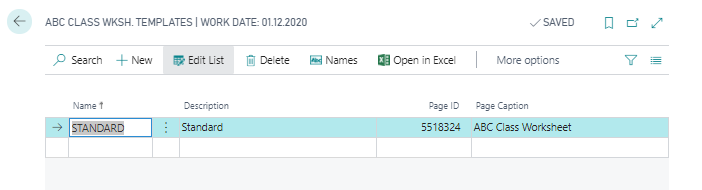
You can then use the Names action to define the parameters relevant for the calculation. Here you can define several different default names for which proposals can later be calculated. Using New, you can also add lines here. Enter a suitable Name and Description for the default name. Furthermore, you must define for which Location the template is to apply and define in the field Calculate per with the option values Location and Zone whether the ABC class is calculated for the entire location or for each zone. You can also optionally set a filter on the zones to be considered in the Zone Code Filter field. Finally, you must define whether the Calculation Base should be the Quantity or the No. of Movements.

Using this function, you can periodically redefine the classification based on the movements carried out in the warehouse and supported by the system.
ABC class worksheet
The actual calculation takes place in the ABC Class Worksheet. Here you can now select a template using the Name field. You can then use the action Create Worksheet to perform the calculation for the current worksheet by entering Starting Date and Ending Date. When you call this function, the existing data is deleted.
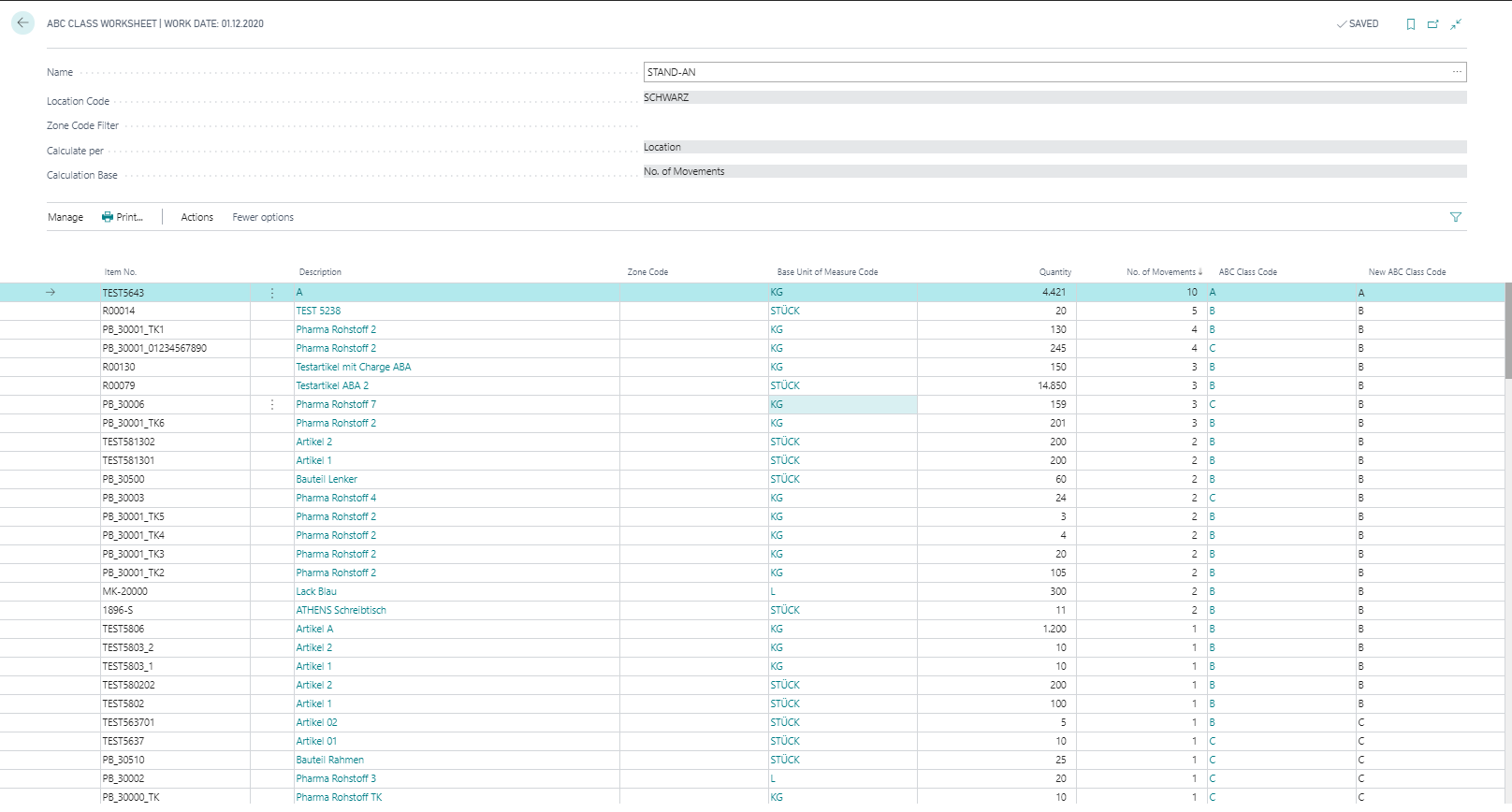
For the calculation, all registered picking movements within the specified time period and the specified location and optionally specified zones are taken into account. The data determined in this way is output per item in the proposal. The quantity always refers to the base unit of the item.
From line one, the system assigns the corresponding ABC class to the lines until the proportion specified in the Share field of the ABC class is exceeded in relation to the total quantity or number of movements. The system always assigns the last record that exceeds the proportion. The following is an example calculation for the ABC classes A (share % = 20), B (share % = 60) and C (share % = 20) for a quantity = 1000:
| Quantity | Quantity cumulated | Share cumulated | ABC class |
|---|---|---|---|
| 120 | 120 | 12 | A |
| 90 | 210 | 21 | A |
| 85 | 295 | 29,5 | B |
| 80 | 375 | 37,5 | B |
| 75 | 450 | 45 | B |
| 70 | 520 | 52 | B |
| 68 | 588 | 58,8 | B |
| 67 | 655 | 65,5 | B |
| 67 | 722 | 72,2 | B |
| 65 | 787 | 78,7 | B |
| 63 | 850 | 85 | B |
| 54 | 904 | 90,4 | C |
| 51 | 955 | 95,5 | C |
| 45 | 1000 | 100 | C |
You can edit the existing lines in the worksheet or insert new lines. You can recalculate the ABC class for all existing lines at any time using the action Recalculate ABC Class.
With the action Update ItemZone Data the data records of the worksheet can be transferred to the Item Zone Data. In doing so, existing data records are updated or new data records are created.
You can also create a printout of the worksheet using the Print action.