Feature Search
The feature search allows you to search for:
- Items
- Manufacturing Specifications
- Routings
- BOM’s
- Development Recipes
- Item Tracking Information
- Production Orders
- Work Center
- Machine Center
- Inspection Plans
or specifications with certain properties or features.
Note
Search criteria will be unlocked depending on the installed apps. For example, if only the app ProBatch 365 Base is installed, only items are available as search criteria.
Create a Feature Search Template
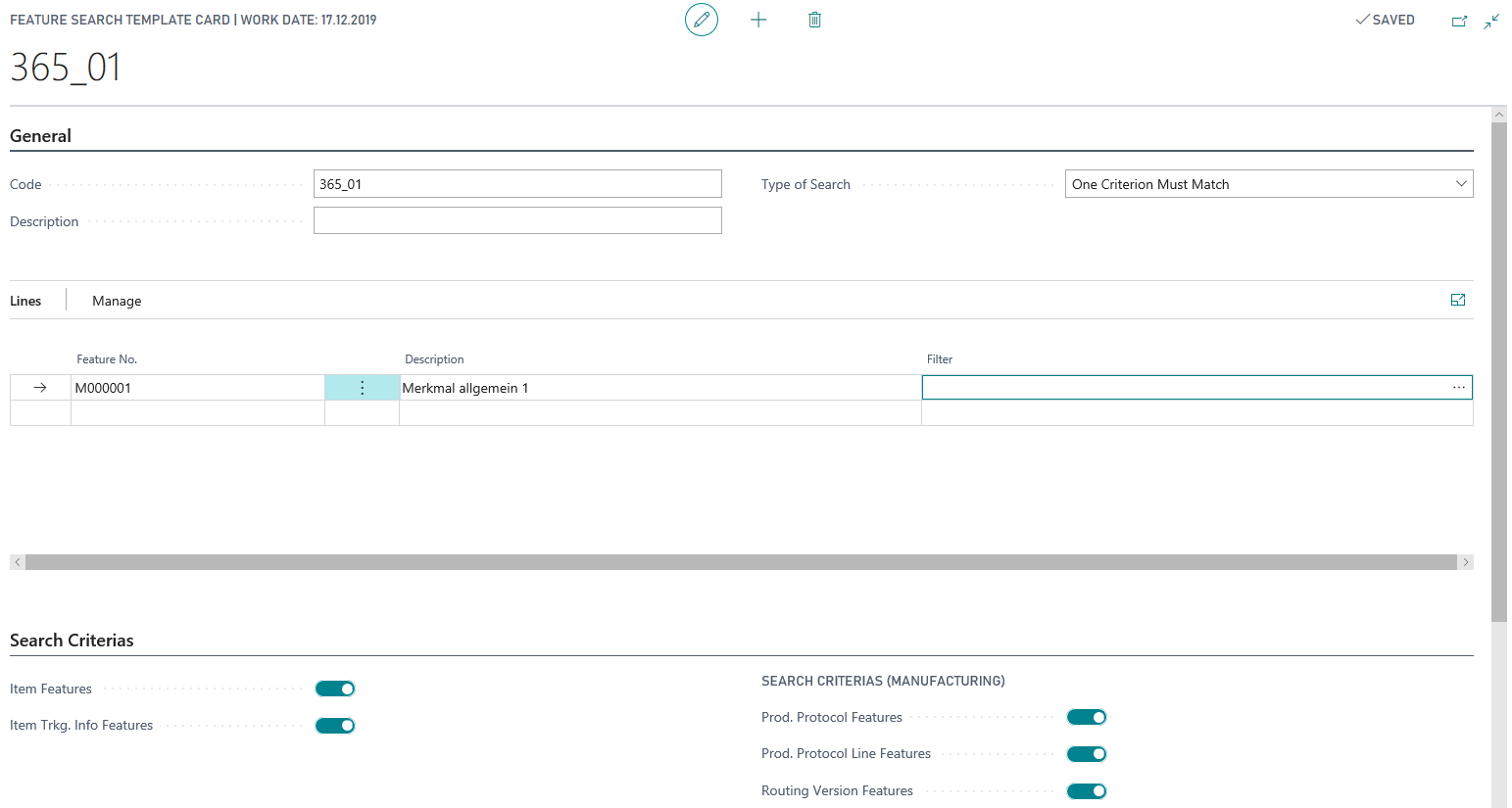
To make the performance of recurring searches easier, feature searches can be saved as templates. You can assign these in the Template Code field.
First, you have to assign a Code and a Description to the Feature Search Template and decide whether all or at least one search criteria must match in order to return a result. The InfoTab Search Criterias is used to define which data records you want to look for.
In the lines, you can enter the Features and the feature values that are to be transferred as default values to the feature search.
Note
A template card for the feature search can also be created starting from the Feature Search card. By clicking on Save the current settings for the feature search are transferred to the template. Furthermore, it is possible to save a customized template by modifying the template code.
Feature Search using Feature Search Template
The Template Code field is used to select the template to be applied. After selecting, the defined description, search criteria, characteristics and the associated filters are adopted. These can then be adjusted afterwards.
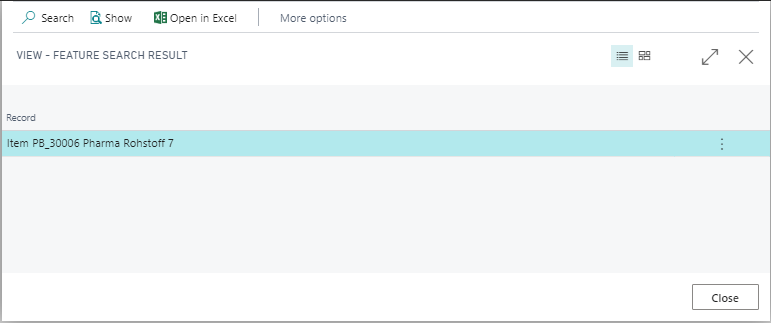
When using the action Search the features with the filter values are shown.
Manual Feature Search
The manual feature search, allows you to enter features and then search in a similar way to the search with templates.