Set up and change users and passwords
You must create each user who is to be authorized to execute an electronic signature as an Electronic Signature User. Add a user ID. The name is displayed automatically.
The individual users can be combined to Yaveon user groups. These can be used in the rules. Thus, the signature does not have to be given by an explicit user, but by a user of a group (e.g. "Laboratory employee" or "Qualified Person").
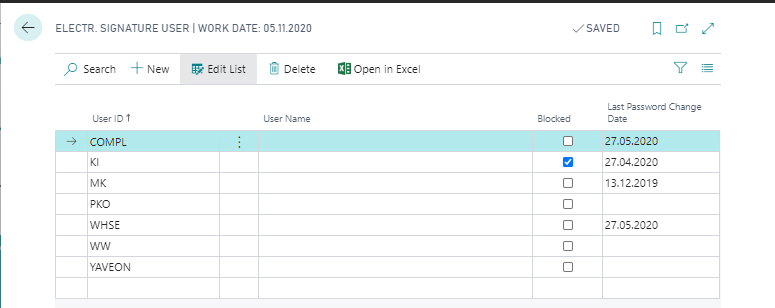
The Blocked field is set if the user of the electronic signature is blocked. A blocked user may no longer execute a signature. The user is automatically blocked if he or she has reached the permitted number of Wrong Logins till Blocking. The user can also be blocked manually by checking this flag. To unlock the user, this check mark must be removed.
Important
Since this field is one of the critical fields, a field authorization should be set on it in any case.
The last password change date field shows the date on which the user last changed its password. For more information on this, see the PB365 Compliance Setup:
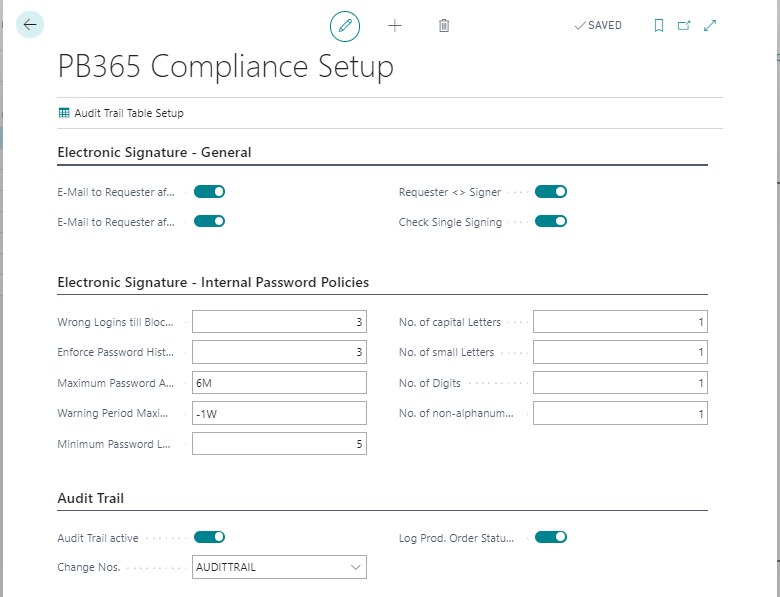
Here you can create guidelines that must be followed when assigning a new password for the electronic signature.
| Field | Description |
|---|---|
| Wrong Logins till Blocking | Here you can enter the number of wrong logins after which the user should be blocked. Each time an incorrect password is entered, the number of times this occurs is stored in the background. When the number specified here is reached, the user is blocked. After the user has entered his or her password correctly, the number of incorrect logins is reset to 0. |
| Enforce Password History | Here you can specify the number of previous passwords that may not be reassigned. The maximum number of previous passwords that can be locked is 12. |
| Maximum Password Age | Here you can enter the time period after which the password must be changed. You can use all common date formulas. |
| Warning period max. password age | Here you can enter when the user should be notified that his password is about to expire. If you enter "-2W", for example, this means that a message will be issued to the user two weeks before the password expires. |
| Other Fields | In the fields Minimum Password Length, No. of capital letters, No. of small letters, No. of Digits and No. of Non-Alphanumeric Characters you can define how the newly assigned password should be composed. |
To change or initialize the password, use the Change Electronic Signature Password task.
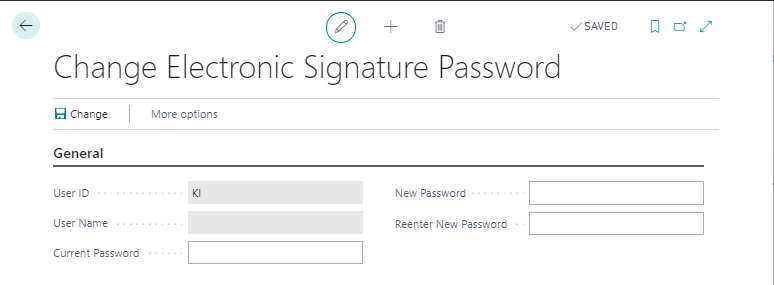
Enter a New password and confirm it. The password is saved by Change.