Working with the electronic signature (example)
The procedure for requesting an electronic signature or submitting an electronic signature is almost identical for all processes to be set up. The following process flow can therefore be used as an example.
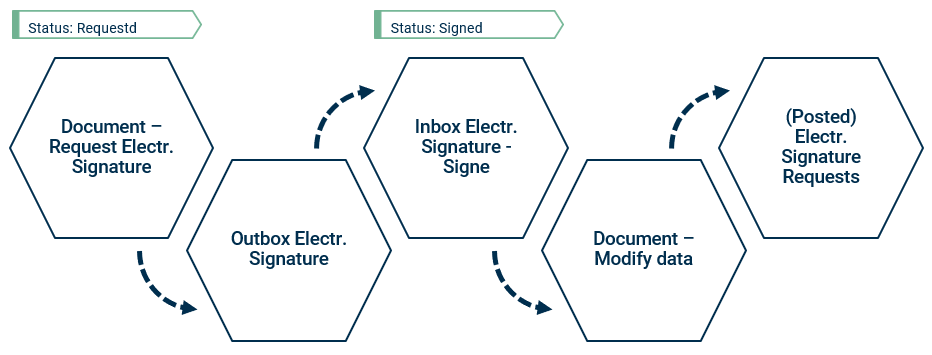
This section explains the functionality of the electronic signature using the example of the action Manufacturign - Modify Prod. Order components. By setting up this electronic signature rule, you want to ensure that changes to the production order BOM can only be made if an electronic signature is obtained from authorized users.
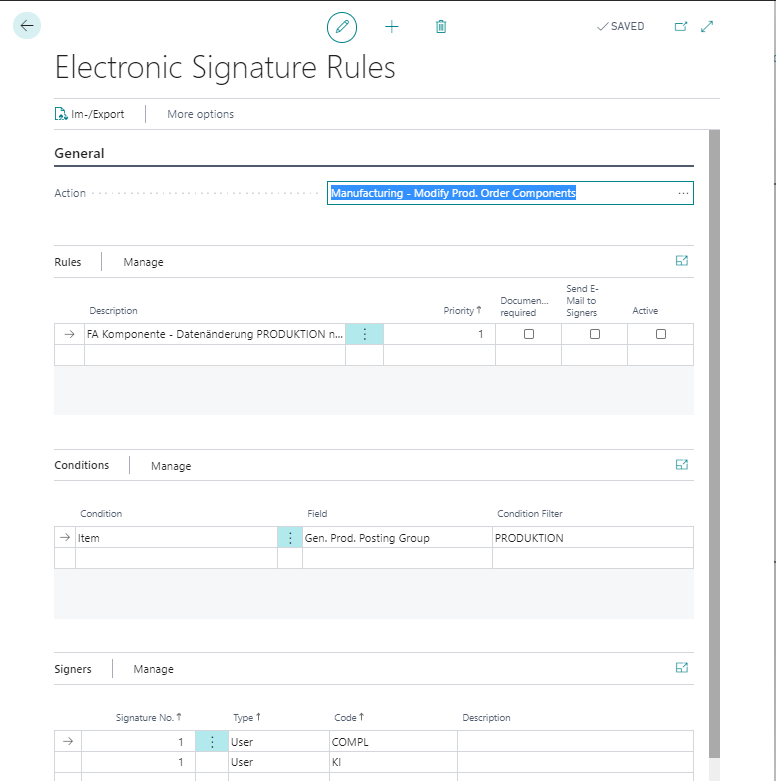
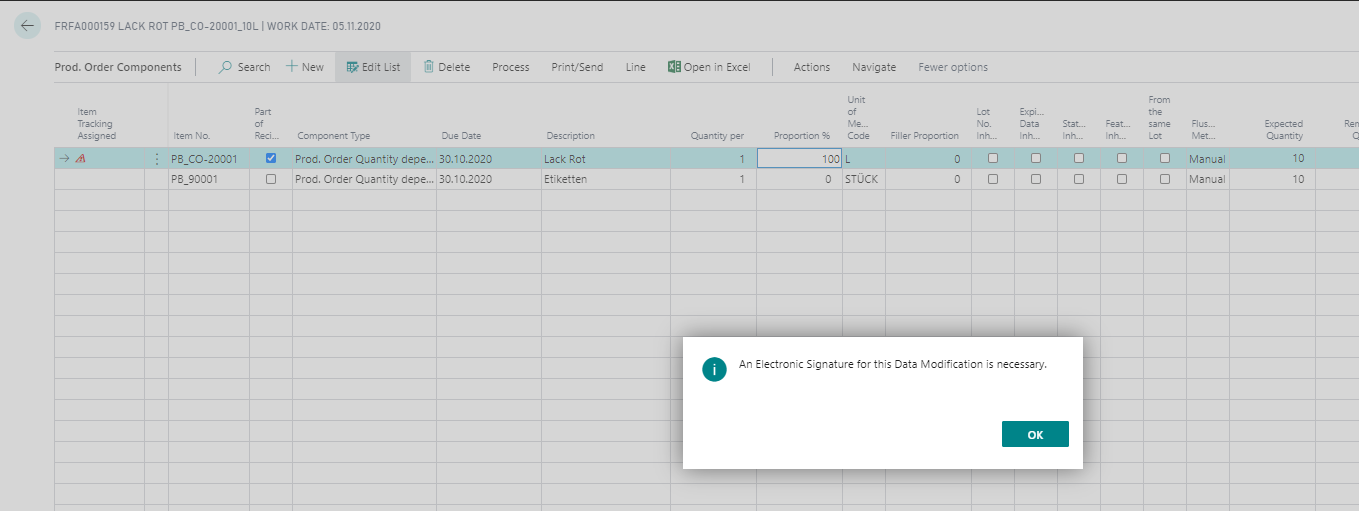
In the example, the signature should only be necessary for production orders for an item with the product posting group PRODUCTION. The signature can be executed by one of two users. When you change data in the PO components (item number, unit of measure code, routing link code, variant code, posting method, location code, bin code, component quantity), the system displays the following message:
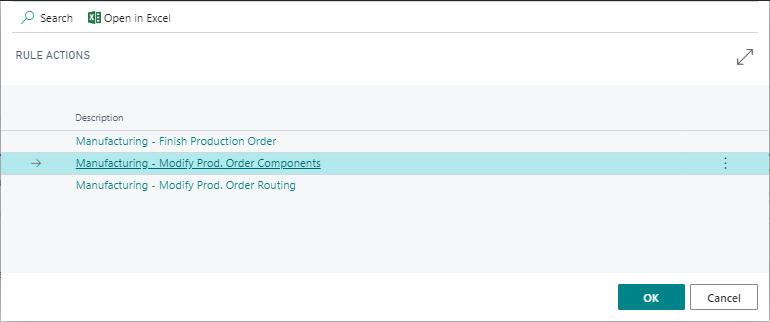
To request the electronic signature, use the action Request electronic signature in the info box in the production order. This action can be called up in all windows in which it may be necessary to request an electronic signature. In this case, an overview then appears in which you must choose whether you want to request the signature because of a data change of component or routing in the production order or because you want to change the production order status. Now select the option Manufacturing - Modify Prod. Order Components.
Requesting the electronic signature has the following effects:
- In the InfoBox Electronic signature a data record is created in which the action concerned and the requester can be seen.
- The InfoBox Electronic signature contains the field Electronic Signature Status. Here you can see whether this was requested, signed or rejected.
- The person(s) who have to provide the signature will receive a corresponding e-mail if this has been set in the actions.

The Outbox Electronic Signature window displays all the signatures you have requested. This means that you can always keep track of all approvals.
It is possible to cancel the request for a signature. This may be necessary, for example, because you want to make further changes to the document. To cancel a requested signature, you must call the action Cancel Electrical Signature Request in the InfoBox Electronic Signature. This action can also be triggered in the Electronic Signature Request Card info box.

You will find all signatures to be executed by you in the window Inbox Electronic Signatures in a central place. If you call up Show document data, the system displays an overview of all field contents that were valid at the time of the request. The original values are always contained here - the source document may already have been changed instead.
Once you have checked all the data, you can submit your confirmation via the action Sign in the Inbox electronic signature. This is also possible by calling the Sign function in the Electronic signature InfoBox directly in the document concerned.
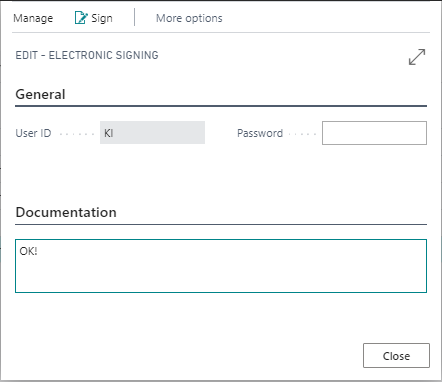
- The user ID is preset with your user.
- Please enter your password afterwards.
- If documentation is required, you must enter it here.
- The process is completed when you click on the Sign action.
Signing the document has the following effects:
- The requested line disappears from the Electronic Signatures input.
- The signature entry can be called from the document.
- The Status Electronic Signature changes to Signed.
- The Request Status may still vary if additional signatures are required. If no further signatures are required, the status in the document changes to signed.
- The document can be posted if all necessary signatures are available.
- If this has been set up, the requester receives an e-mail.
If you want to reject the signature, you can do this by calling Reject.
The rejection is treated similar to a signature if the rule has Documentation required = TRUE. If this is the case, a password as well a comment indicating why the request is denied are mandatory.
User Name, Date and comment are similarly saved in a signature record related to the document.
If it is set up, the requester receives an e-mail about the rejection.
To call up historical data on the signatures that have been executed or rejected, you can use the Electr. Signature Requests window.