Create filling items
A prerequisite for creating filling items is that the base item ("bulk") to be used for the filling items has already been created. Starting from this base item, you can then use the following steps to create one or more filling items:
- call the action Generate filling item on the item card to create a filling item
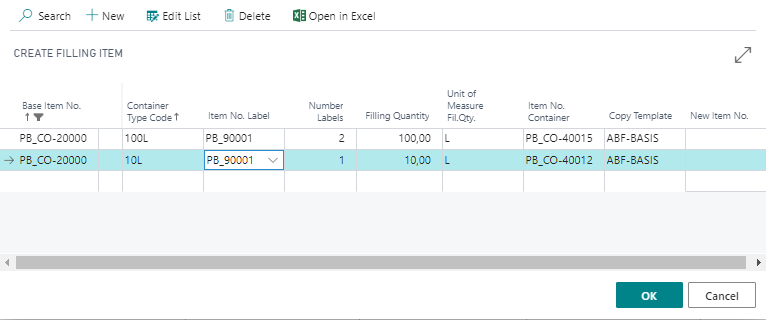
- in the Generate Filling item window, use the +NEW action to add one or more lines.
- for each combination of Base item No. and Container Type Code a filling item can be created. The other fields are filled by selecting the container type code.
- the numbering of the filling item can be defined in the ProBatch 365 Manufacturing Setup in the field Filling item Number Series.
- with OK the defined filling items are created.
The manufacturing specification including bulk items, label items if necessary and container items if necessary is created automatically. The status of the manufacturing specification can be defined in the ProBatch 365 Manufacturing Setup in the field Manufacturing Specification Status.
In addition, you can see the corresponding Base Item Number and the Container type on the item card of the filling item. The Base item number is entered in the base item.