Specification Sections
In order to structure the specification clearly and to be able to distinguish between different subject areas on the system side, the specification is divided into so-called specification sections.
Since the structure of a specification section is usually identical in all specifications, the structure is defined neutrally within the specification section and can then be used for all specifications in the sense of a template.
Creating a specification section
Create the specification section as follows:
+NEW creates a new specification section.
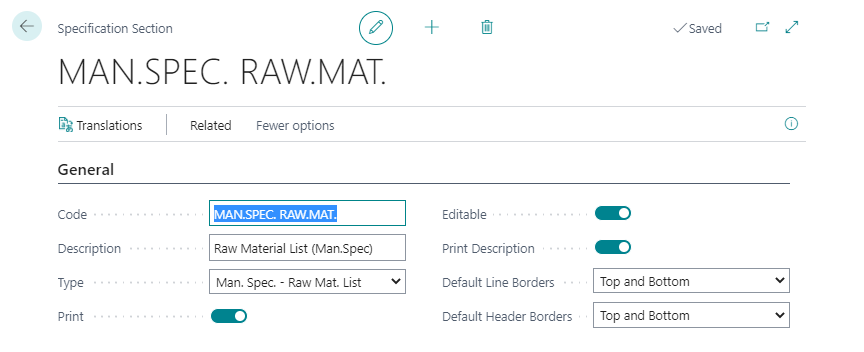
Enter a meaningful code and a description. This description can be printed on the specification report. You can translate the description into any language by entering the corresponding translation in the translation table in connection with the respective language code.
Enter the type that is valid for this specification section. Depending on the selected type, further fields will be visible which can be entered. The description of these can be found below.
In the Print field, you can define whether the specification section is printed in the specification. This setting can be changed in the specification.
The Editable field specifies whether the specification section may be changed after it has been inserted into the specification.
Select Print description if the description (or the translation of the description) of the specification section is to be printed on the specification.
In the Standard line frame field, you specify whether and how a frame is to be printed around the specification lines on the specification report. The following options are available:
"blank" (No frame is printed).
Top (only one line is printed above the line)
Bottom (only one line is printed below the line)
Bottom and Top (one line is printed above and one line is printed below the line)
If the specification section contains the value Freetext in the Type field, this setting can be changed within the specification for each specification line.
In the field Standard header frame you define whether and how a frame around the heading line of the specification section is to be printed on the specification report. This setting cannot be changed within the specification. The following options are available:
"blank" (No frame is printed).
Top (only one line is printed above the line)
Bottom (only one line is printed below the line)
Bottom and Top (one line is printed above and one line is printed below the line)
In the Section fields area, you define which columns are to be displayed in the specification or define the layout of the columns for the printout of the specification report. Depending on the type, different fields can be selected. See below for a description.
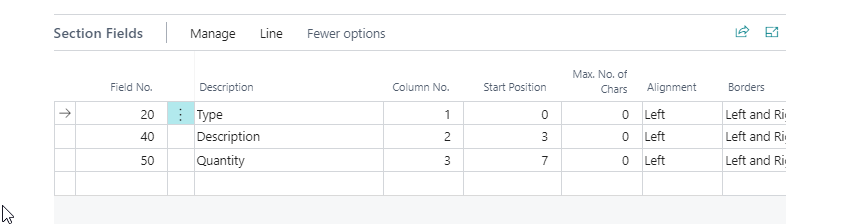
Enter the field number to be displayed or printed in the specification. The fields available for selection depend on the type selected.
The description is automatically applied depending on the field no. selected. The description can be changed manually. If no column heading is to be printed, this field can also be left blank. You can translate the description into any language by entering the corresponding translation in the Translation table in connection with the respective language code.
Use the Column no. field to determine the order of the columns in the specification or the specification printout.
Use the Start position field to specify the start position in centimetres for the respective column. The start position can thus be used to determine the column width on the specification report. The specified column width has no effect on the display in the specification mask but is used exclusively for the design of the printout.
You can set a max. number of characters for the respective field. The limit specified here will be checked when entering the data in the specification and an error message will prevent the number of characters from being exceeded.
Via the allignment you define whether the text in the respective column is printed left- or right-justified.
You can use the borders field to set whether and how a frame is to be printed for the respective column. The following options are available:
"blank" (no frame is printed)
Left (only one line is printed on the left side of the column)
Right (only one line is printed on the right side of the column)
Left and Right (A line is printed on the left and right side of the column)
Specification section - Type: Manufacturing specification lines
If you select the type = manufacturing specification lines and use this specification section within the specification, it is possible to copy the current version of the manufacturing specification lines into the specification.
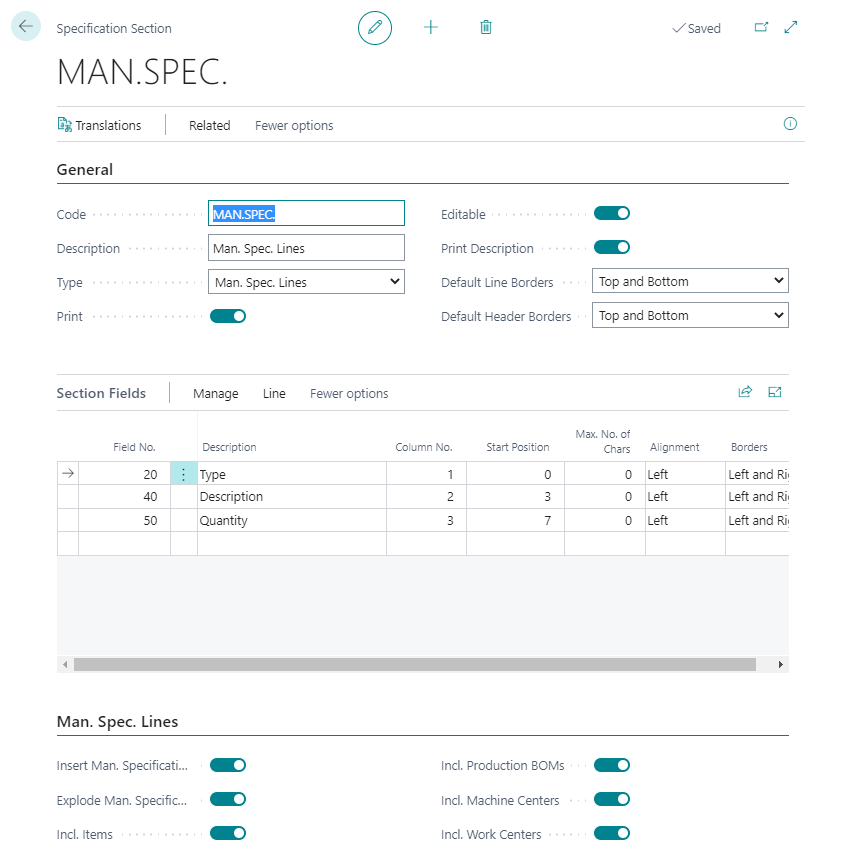
In the info tab Manuf. Spec. lines, you specify which data from the manufacturing specification lines are to be copied into the specification.
Insert manufacturing specification automatically: If you set a flag in this box, the current version of the manufacturing specification is automatically copied into the specification when you insert the specification section.
Explode manufacturing specification automatically: If you set a flag here, existing manufacturing specifications are automatically exploded when copying and the complete multi-level structure is thus copied into the specification.
Incl. items: If you check this field, manufacturing specification lines with the type item are copied into the specification.
Incl. bills of material: If you activate this field, manufacturing specification lines with the type BOM are copied into the specification.
Incl. work centres: If you activate this field, manufacturing specification lines with the type work center are copied into the specification.
Incl. machine center: If you activate this field, manufacturing specification lines with the type machine center are copied into the specification.
Specification section - Type: Manu. Spec. Raw Material List
If you select the type = Manu. spec. Raw Material List and use this specification section within the specification, all raw materials are shown within this specification section based on the underlying manufacturing specification structure.
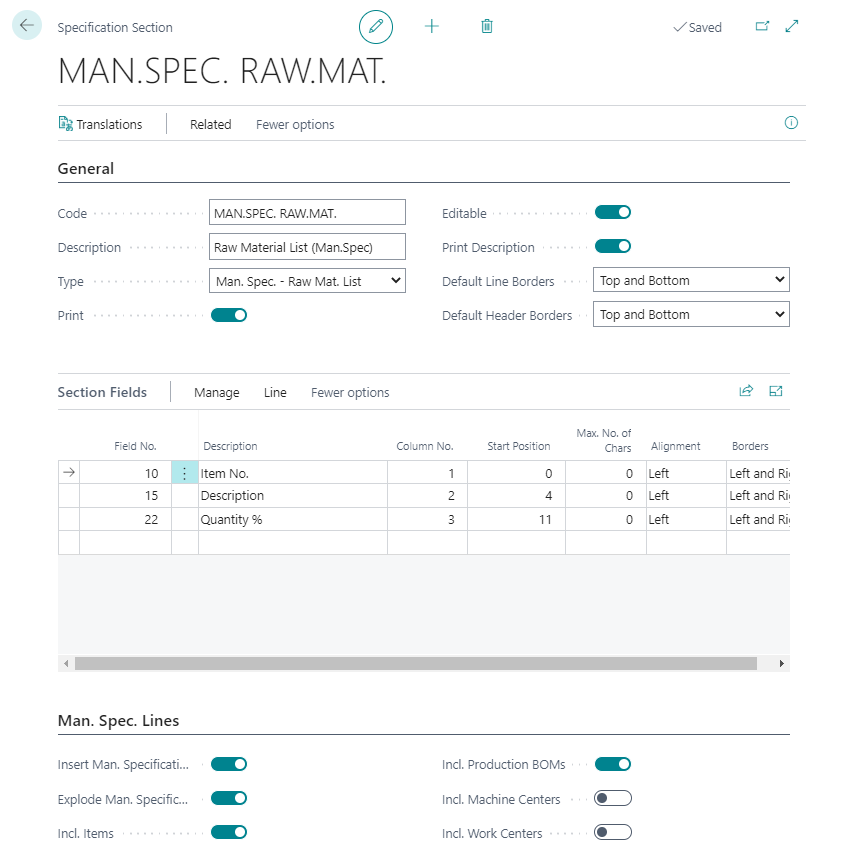
In the Manu. Spec. Lines tab, you define which data from the manufacturing specification lines should be copied into the specification. The settings correspond to those of Type = Manufacturing specification lines.
Specification section - Type: manufacturing specification features
If you select the type = Manu. Spec. Features and use this specification section within the specification, you can manage manufacturing specification features within the specification.
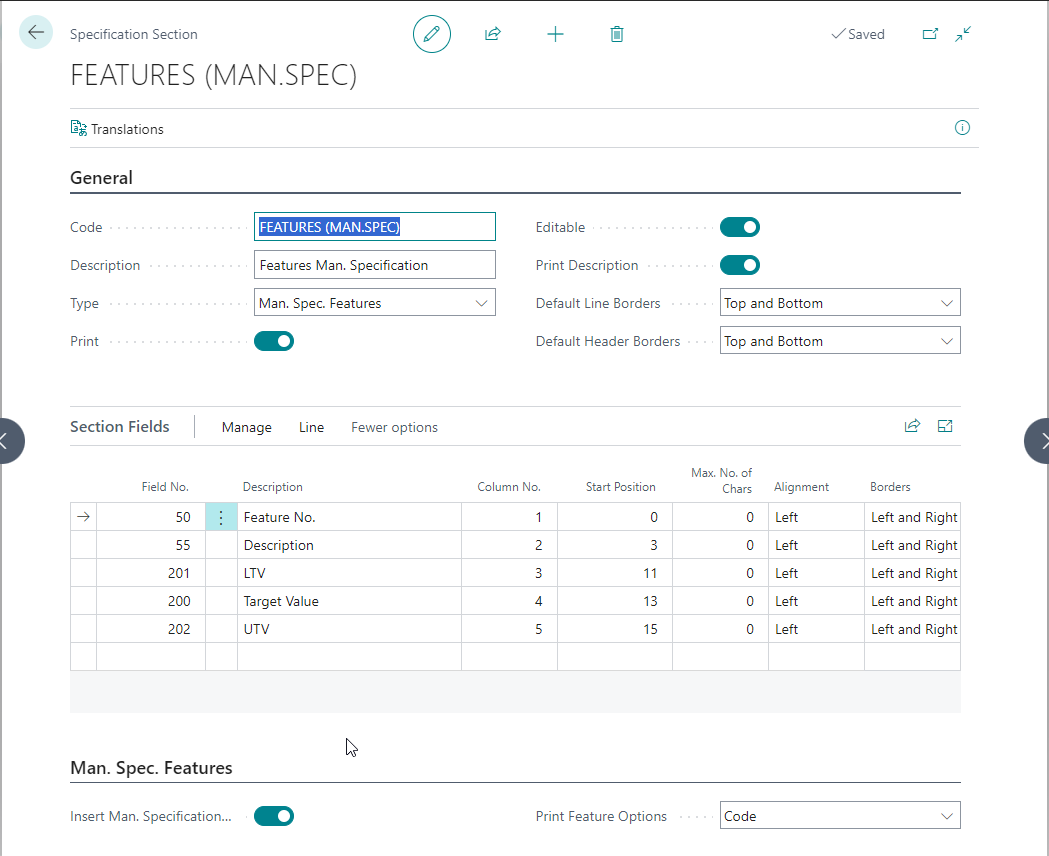
With the setting Enter manufacturing specification features automatically, existing features can be copied automatically when inserting this specification section into the specification. If you have not activated the field, you can assign any features from the feature master data to this specification section within the specification.
The field Print Feature Options controls if option values of features are printed with their code or the assigned description of the option value.
Specification section - type: Dev. Recipe Lines
If you select the type = Dev. Recipe Lines and use this specification section within the specification, it is possible to copy the current version of the development recipe into the specification.
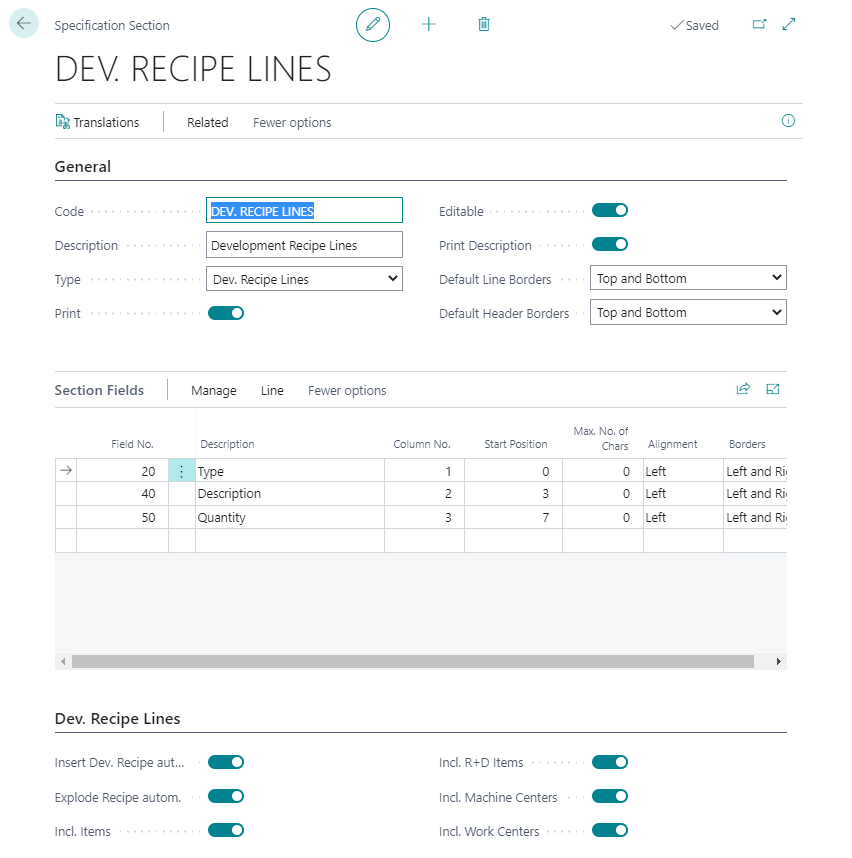
In the info tab Dev. Recipe Lines you define which data from the development recipe lines should be copied into the specification.
Insert development recipe automatically: If you tick this box, the current version of the development recipe is automatically copied into the specification when the specification section is pasted.
Explode recipe autom.: If you place a tick in this field, any existing assemblies are automatically exploded when copying and thus the complete multi-level structure is copied into the specification.
Incl. item: If you check this field, development recipe lines with the type Item are copied into the specification.
Incl. R+D Item: If you activate this field, development recipe lines with the type R+D item are copied into the specification.
Incl. work center: If you activate this field, development recipe lines with the type work center are copied into the specification.
Incl. machine center: If you activate this field, development recipe lines with the type machine center are copied into the specification.
Specification Section - Type: Dev. Recipe Raw Mat. List
If you select the type = Dev. Recipe Raw Mat. List and use this specification section within the specification, all raw materials will be shown within this specification section based on the underlying development recipe structure.
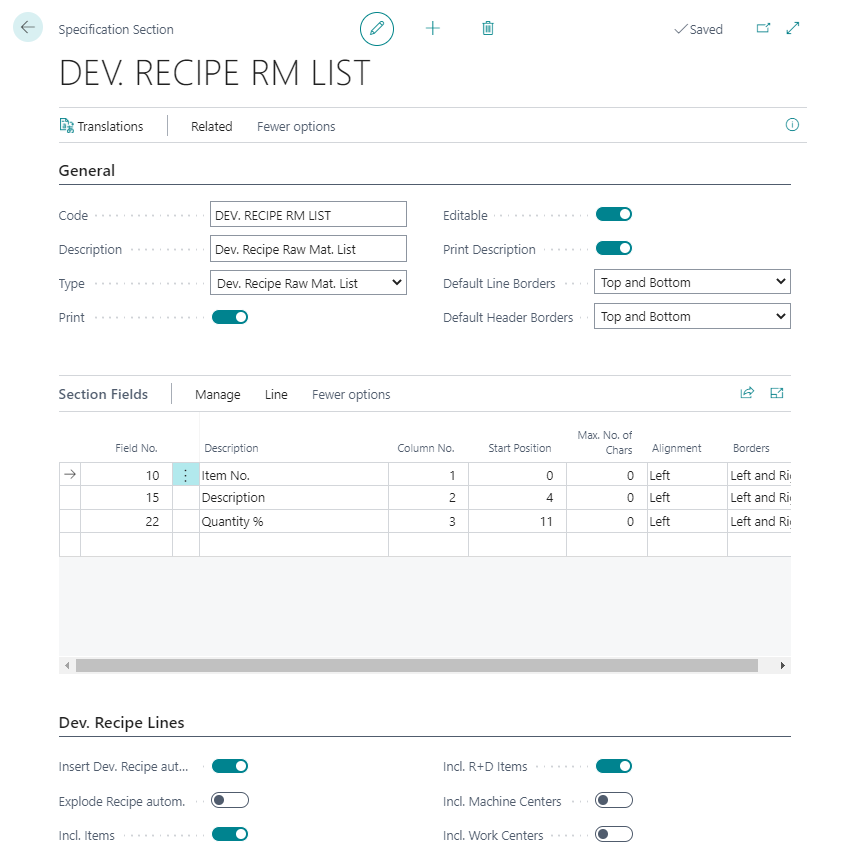
In the info tab Dev. Recipe Lines you define which data from the development recipe lines should be copied into the specification. The settings correspond to those of the type = Dev. Recipe Lines.
Specification Section - Type: Dev. Recipe Features
If you select the Type = Dev. Recipe Features and use this specification section within the specification you can manage R+D recipe features within the specification.
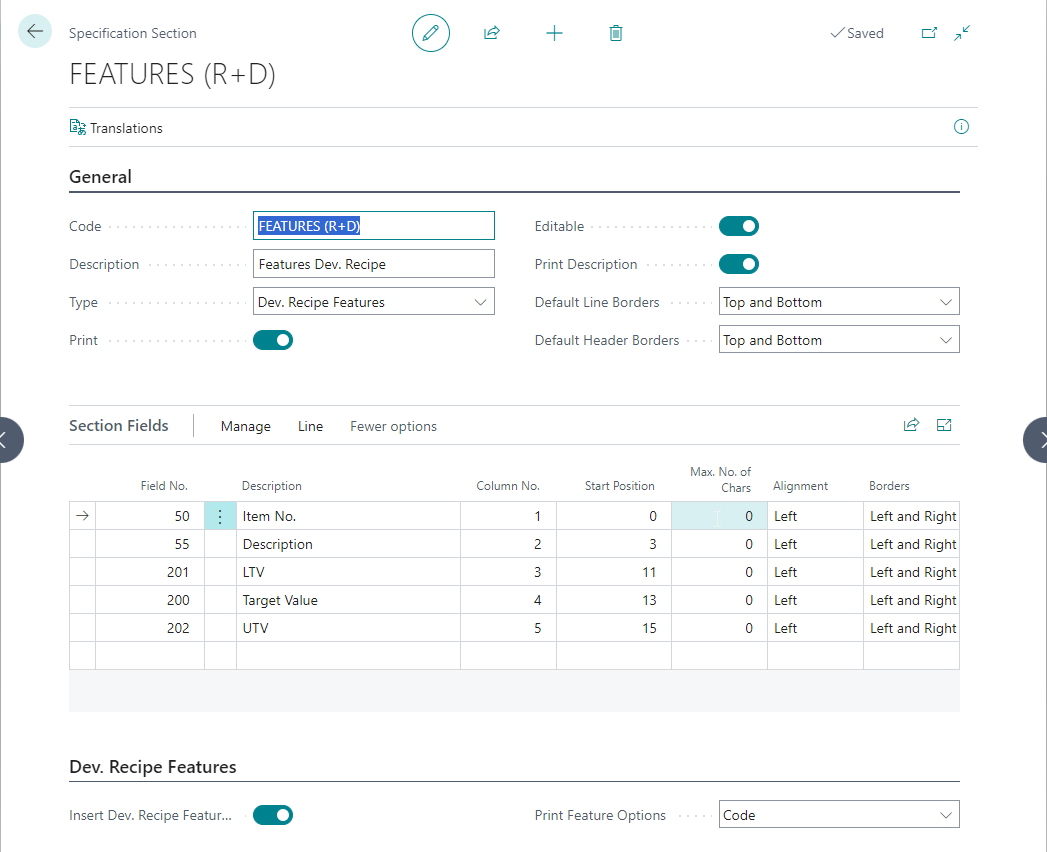
With the setting Adv. rec. features automatically existing features can be copied automatically when inserting this specification section into the specification. If you have not activated the field, you can assign any characteristics from the characteristic master to this specification section within the specification.
The field Print Feature Options controls if option values of features are printed with their code or the assigned description of the option value.
Specification section - type: Texts
If you select the type = texts and use this specification section within the specification, you can assign any number of text modules in any number of languages to this specification section.
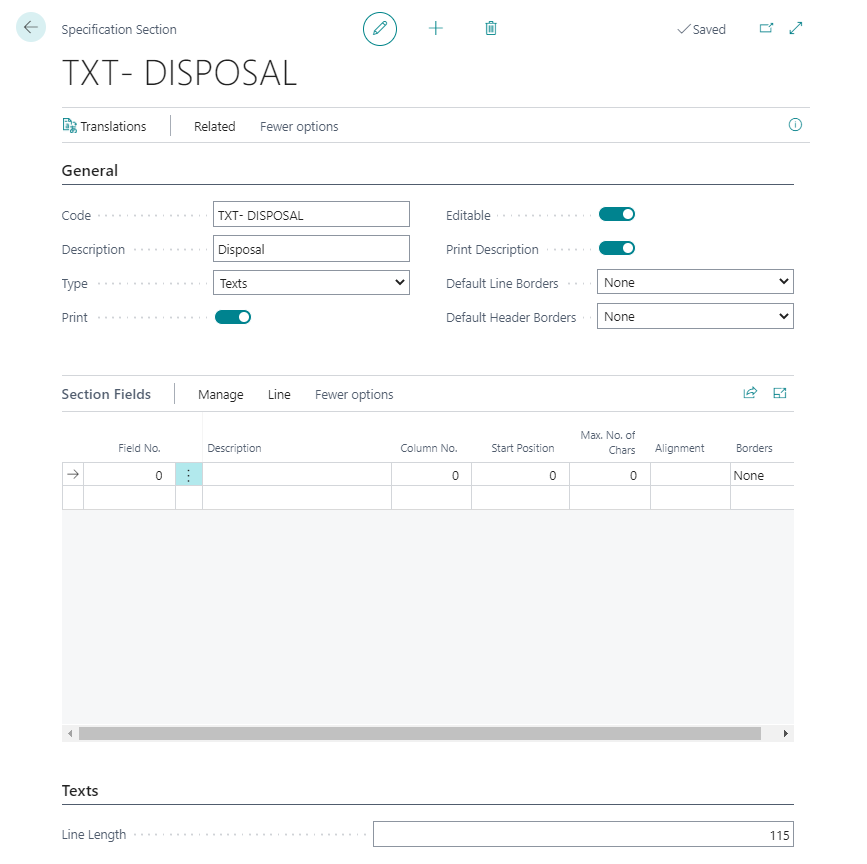
In the Texts info tab, you also have the option of specifying the line length in the text module. For specification sections with the type texts, it is recommended to work without frames.
Specification section - type: Free Texts
In contrast to the specification section with the type = Texts, where language-dependent text modules can be used, in many cases there is also the requirement that data that can be freely entered in the specification should be entered or printed out in the form of tables. This requirement can be fulfilled via the type = Free Text.
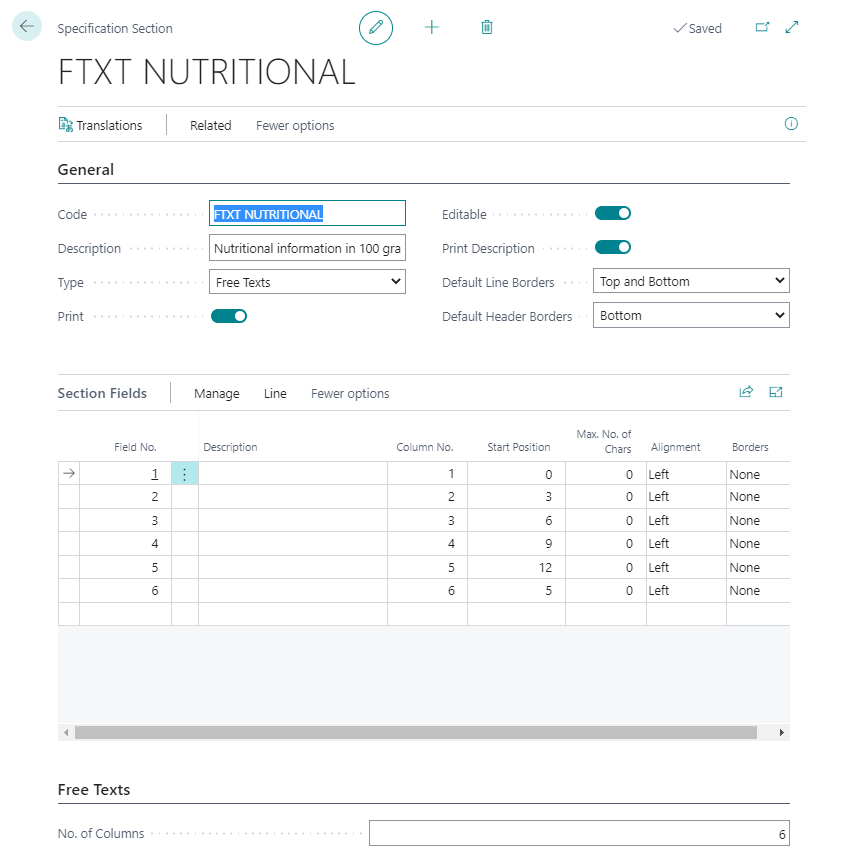
In the infotab Free Texts you can specify the number of columns required. After specifying the number of columns (max. 20), a line is automatically generated for each column in the lines info tab. If the columns are to have headings in the specification, you must enter these in the Description field (and store a translation if required).
Specification Section - Type: Item Features
If you select the Type = Item Features and use this specification section within the specification you can manage Item Features within the specification.
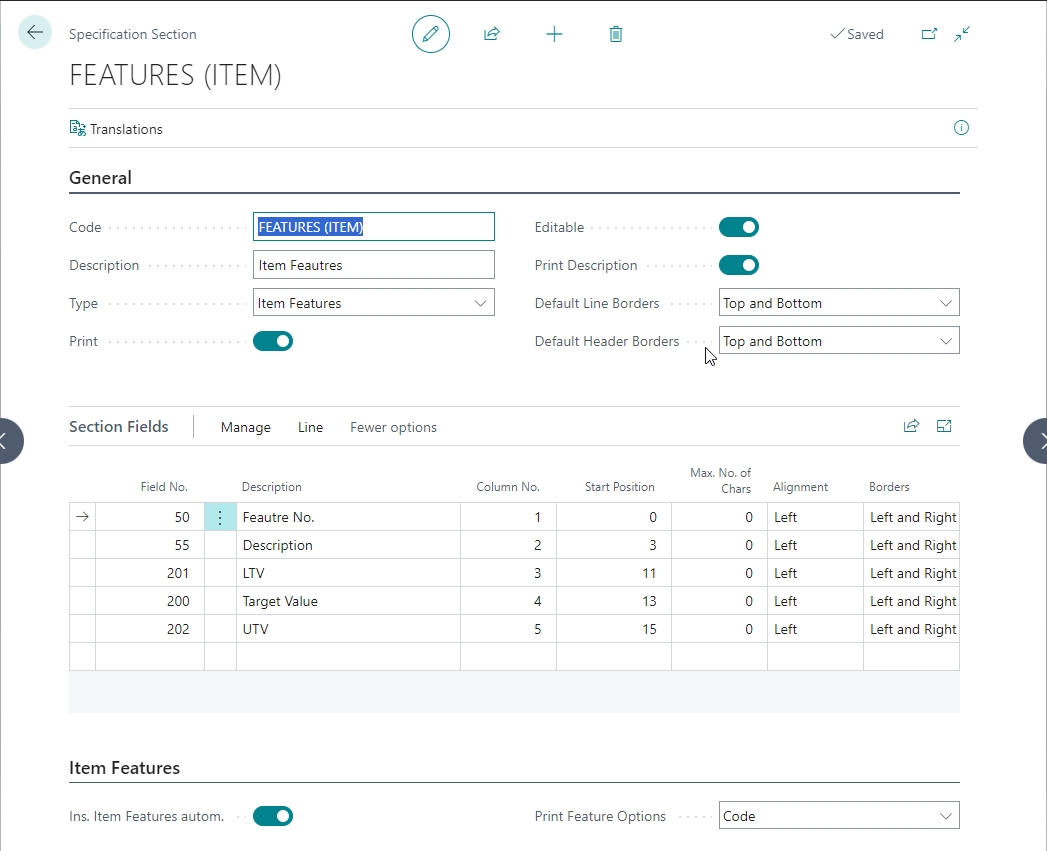
With the setting Insert Item Features autom. existing features can be copied automatically when inserting this specification section into the specification. If you have not activated the field, you can assign any Feauture from the Features master data to this specification section within the specification.
The field Print Feature Options controls if option values of features are printed with their code or the assigned description of the option value.
Specification section - Type: Inspection Plan Lines
If you select the type = Inspection Plan Lines and use this specification section within the specification, it is possible to copy the current version of the inspection plan into the specification.
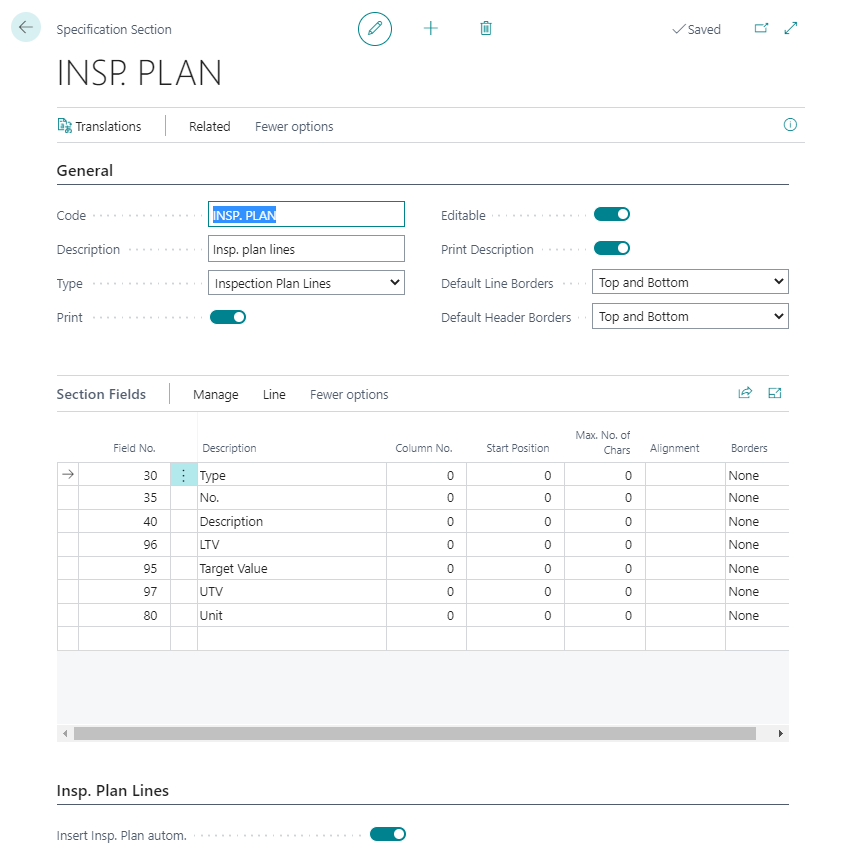
If you check the box Insert Insp. Plan autom., the current version of the inspection plan is automatically copied into the specification when the specification section is inserted.
Specification section - type: BOM/Routing Lines
If you select the type = *BOM/Routing Lines and use this specification section within the specification, it is possible to copy the current version of the Bill of Materials/Routing Lines into the specification.

In the info tab BOM/Routing Lines you define which data from the bill of material/routing lines are to be copied into the specification.
Insert BOM/Routing Lines automatically**: If you tick this box, the current version of the BOM/routing is automatically copied into the specification when the specification section is inserted.
Explode BOM/routing lines automatically: If you tick this box, any existing assemblies are automatically exploded when copying and the complete multi-level structure is copied into the specification.
Incl. item: If you check this field, BOM/routing lines with the type item are copied into the specification.
Incl. Production BOMs: If you activate this field, BOM/routing lines with the type BOM are copied into the specification.
Incl. work centres: If you activate this field, BOM/routing lines with the type work centre are copied into the specification.
Incl. machine centers: If you activate this field, the system copies the lines of the BOM/Routing Lines with the type machine center into the specification.
Specification section - type: BOM raw material list
If you select the type = BOM raw material list and use this specification section within the specification, all raw materials will be shown within this specification section based on the underlying BOM structure.
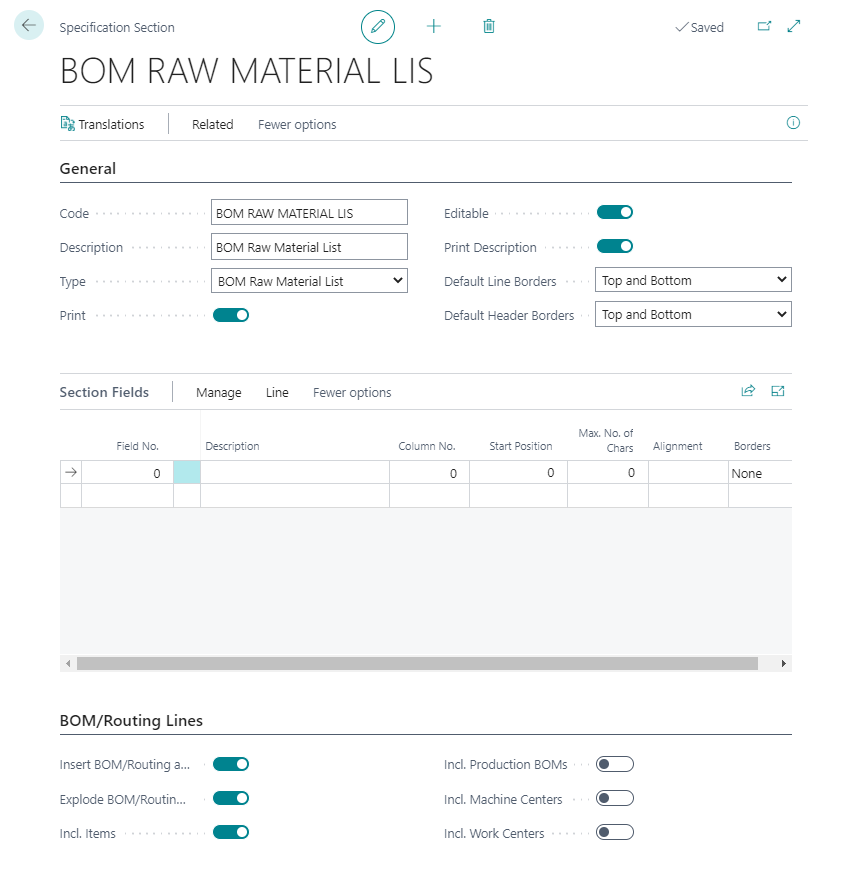
In the BOM/routing lines info tab, you define which data from the BOM lines are to be copied into the specification. The settings correspond to those of the Type = BOM/routing lines.