Exchange Packages
Setup
ProE-SCM 365 Dispatch & Packaging Setup
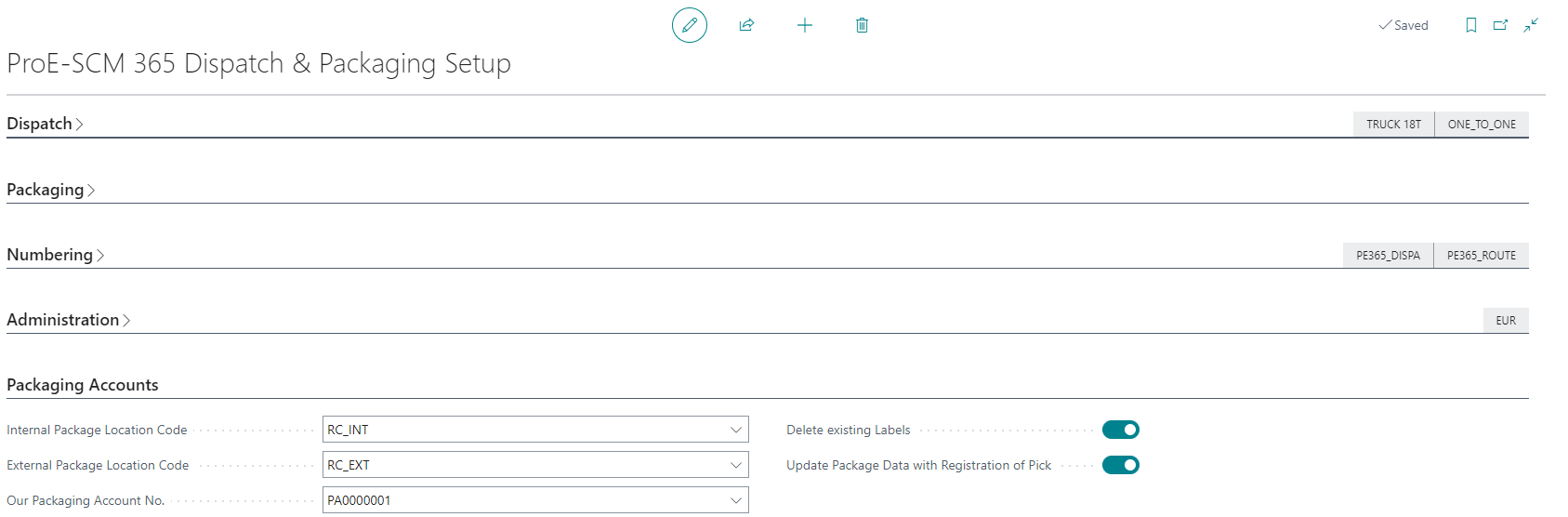
Within the ProE-SCM 365 Dispatch & Packaging setup, the following setups are available to you:
- Internal Package Location Code
- External Package Location Code
- Our Packaging Account No.
- Delete Existing Labels
- Update Package Data with Registration of Pick
If the package type is linked to an item, item movements also take place within Business Central in addition to the postings within the packaging account entries.
The Internal Package Location Code and the External Package Location Code are available for displaying the item movements.
The following internal item movements are processed via the Internal Package Location Code:
- Positive Adjustment of items, on receipt of Exchange Packages
- Negative Adjustment of items, for shipment of Exchange Package
Note
The Internal Package Location Code and the External Package Location Code must only be used by the Exchange Packages functionality. This locations must not be used for any other purpose.
The following item movements are displayed via the External Package Location Code:
- Positive Adjustment of items, for shipment of Exchange Packages
- Negative Adjustment of items, on receipt of Exchange Packages
Note
The External Package Location Code serves as a fictitious location for the Exchange Packages currently held by your partners.
Use the Our Package Account No. field to specify the package account against which the packaging movements relating to your company are to be posted.
Delete existing Labels allows you to send changes to the Exchange Packages from Warehouse Shipment to the Dispatch order, even if ProE-SCM 365 labels have already been printed.
If you are working with the warehouse pick, you can use Update Package Data with Registration of Pick to set that the picked load carriers are transferred directly to the Dispatch order.
Package Types
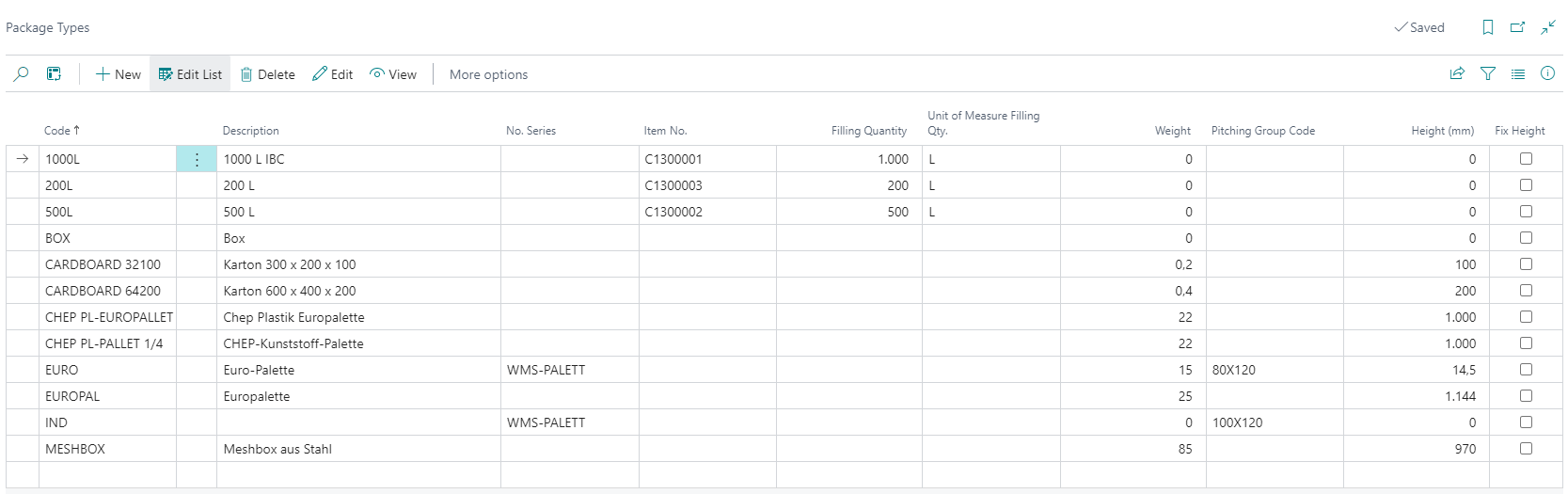
The package types replace the load carrier types and the ProE-SCM 365 Packages and contain all the essential fields that were previously available in the two tables. The following fields are decisive for returnable packaging:
- Account Type
- Type
- Item No.
- Package Location Code
- Package Bin Code
Use the Account Type to determine whether the package type should be a Exchange Packages or not. To mark the package type as a Exchange Packages, select the Reusable option.
The Type determines against which package account the package type is to be charged. The following options are available:
- Shipping Agent
- Customer
- Vendor
- Dispatch Order Address
In the Item No. field, you can enter an item that is linked to the package type. Depending on the setting in the item type (Inventory or non-inventory), item ledger entries are also created in addition to the package account entries.
If the package type is linked to an item of the type Inventory, you can use the Package Location Code and Package Bin Code fields to specify the location and bin via which the postings should be made internally.
Packaging Accounts
In the packaging accounts, you enter all business partners with whom you want to exchange Exchange Packages.
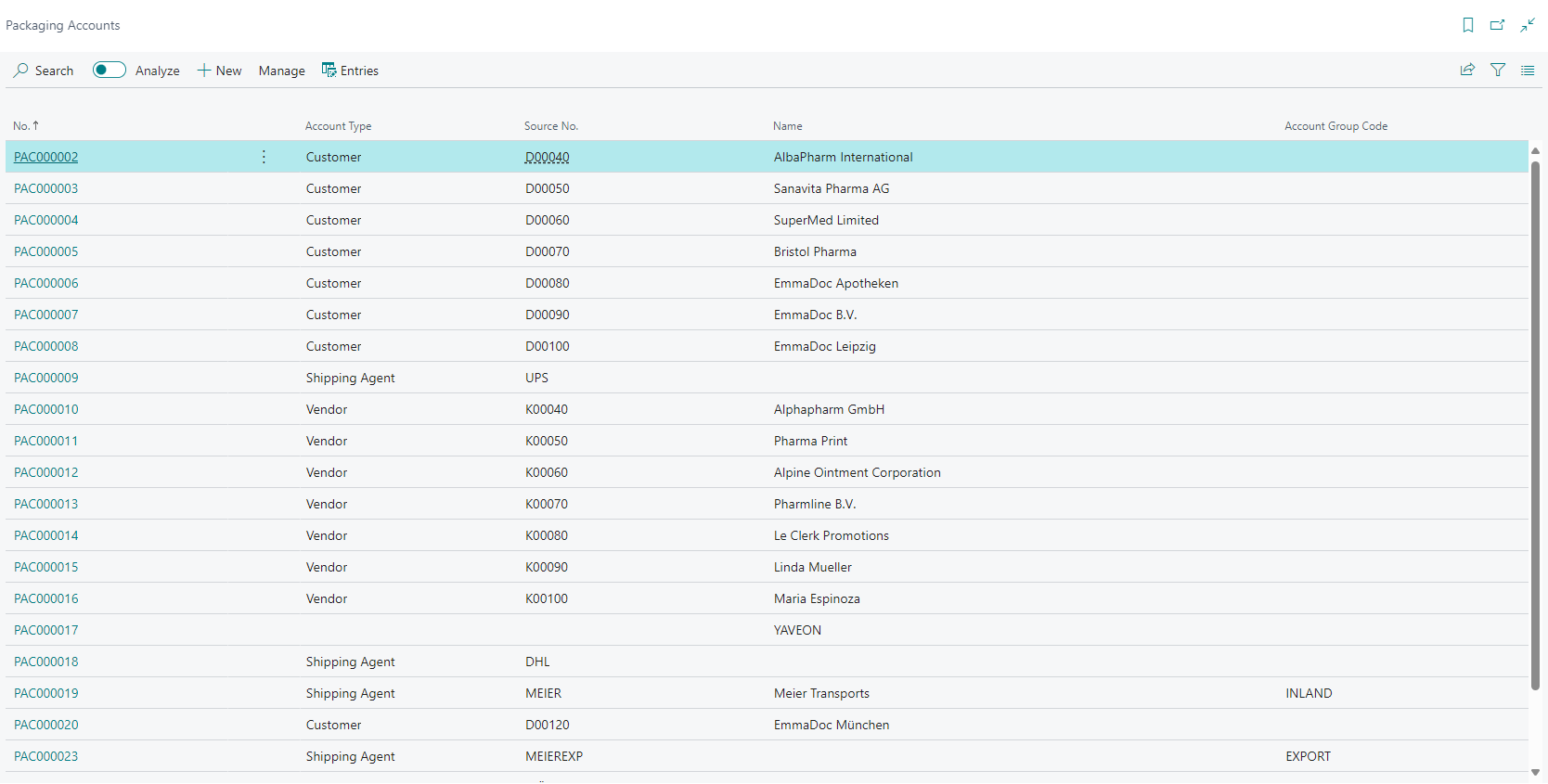
You can create packaging accounts for customers, vendors and shipping agents. To do this, fill in the Account Type and Source No. fields with the required information.
You can use the Account Group Code to group the packaging accounts, e.g. to display possible company structures.
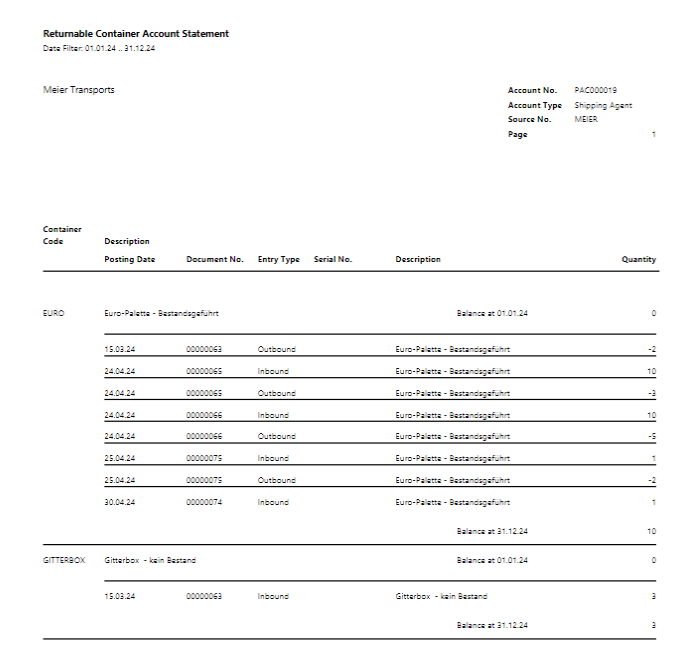
Within a packaging account, you can also print a statement that shows you the packaging account entries cumulatively.

Exchange Packages in a dispatch order
You can use the Exchange Package Types function in the dispatch order to enter Exchange Packages.
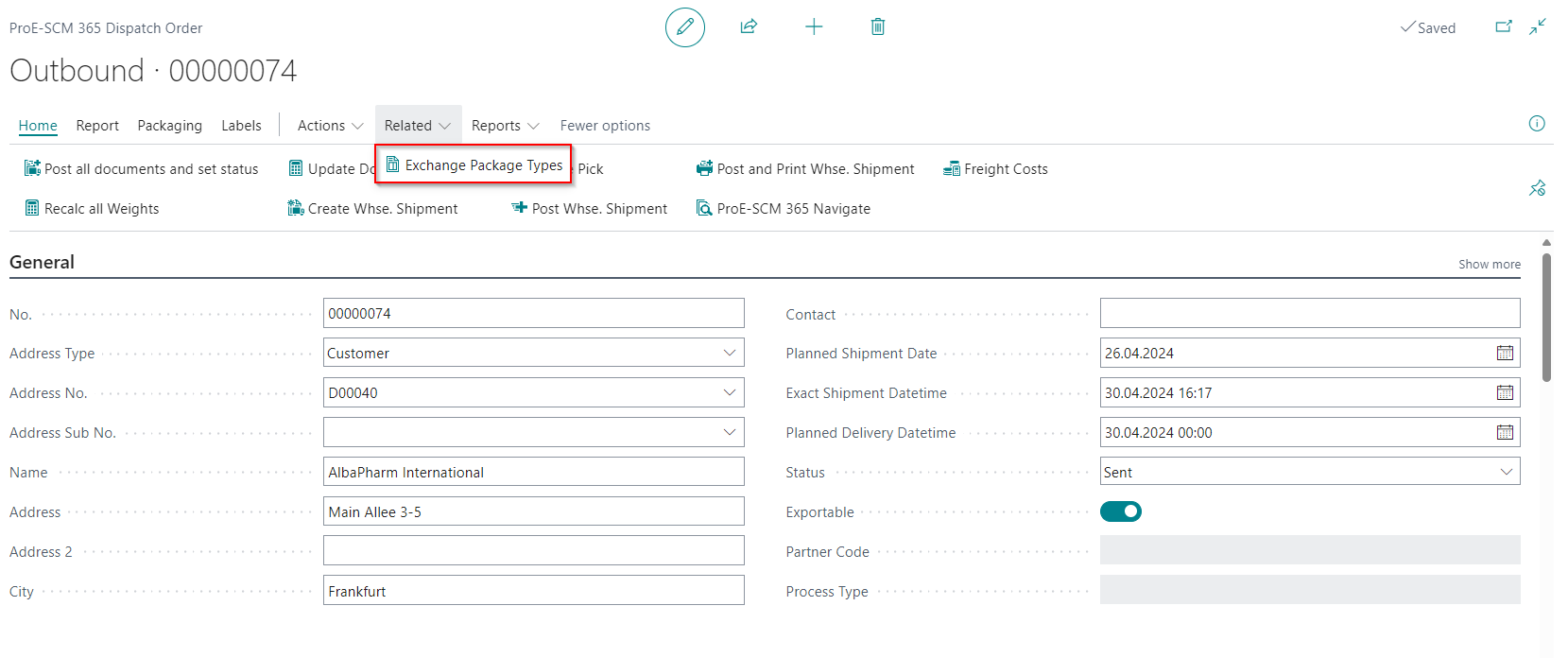
Within this function you can define which Exchange Packages you have received from which business partner and which Exchange Packages you have shipped.
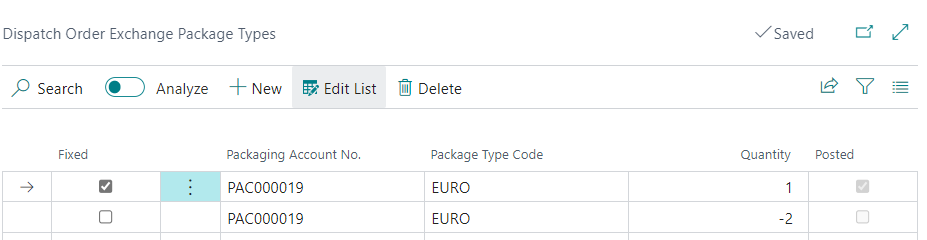
In the Packaging Account No. field, select the business partner who is to be debited or credited.
Enter the Exchange Packages in the Package Type Code field.
You can now use the Posting Type and the Quantity field to determine the quantity that you either ship or receive.
The Posted field shows you whether the line has already been posted.
Use Fixed to specify whether a row should be retained despite the automatic Exchange Package proposal being executed. Manually entered information that is not fixed or posted is deleted when the automatic Exchange Package proposal is executed.
Automatic exchange package proposal
If you have entered packages in the ProE-SCM 365 Dispatch Order, you can have the Exchange Packages calculated automatically.
To do this, the Aut. Calculation of Exchange Packages field must be set in the ProE-SCM 365 dispatch schema.
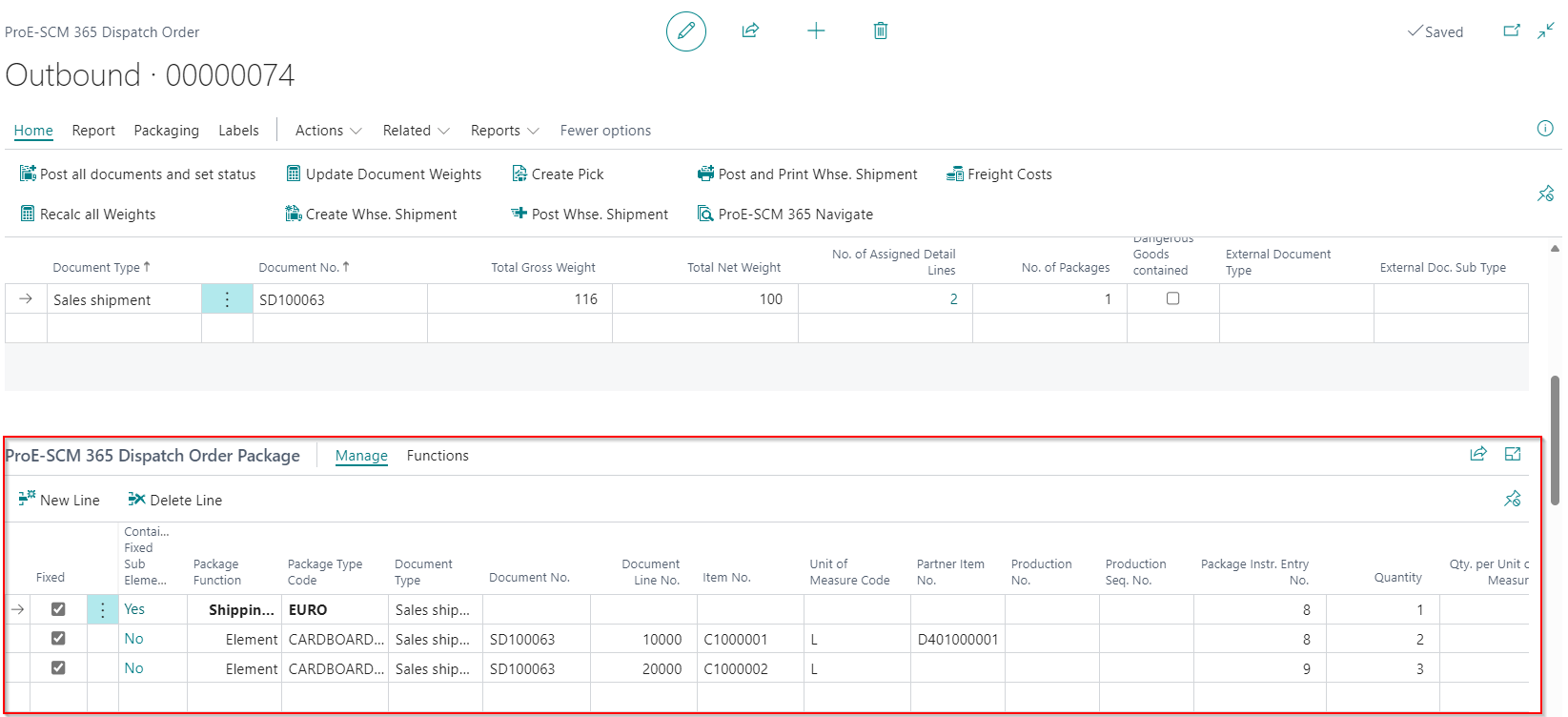
The packages of the type Reusable are automatically transferred to the Exchange Package Types when the status of the dispatch order is set to the status that is set up in the Aut. Calculation of Exchange Packages in the dispatch schema.
Note
For the automatic Exchange Package proposal, please note which setup is available for the package type. Depending on the Type (Customer, Vendor, Shipping Agent or Dispatch Order Address), the Packaging Account No. field is filled within the Exchange Packages Types.
If, for example, the package type is set to Shipping Agent and no carrier is stored on the dispatch order, no Exchange Package Types are created.
Posting of Exchange Packages
By setting the status in the dispatch order to Sent, the Exchange Package is automatically posted.
Package account entries are always created as a result of the posting.

Depending on whether it is a shipment or a return, the Our Package Account (from the ProE-SCM 365 Dispatch & Packaging setup) and the package account selected in the Exchange Package Types are posted.
If the Package Type is linked to an item of the type Inventory, in addition to posting the Package Account Entries, there is also a transfer between the Internal Package Location Code and the External Package Location Code.
Note
If a Package Location Code is stored for the package type, this is used instead of the External Package Location Code for the transfer.

Transfer Load Carriers from Warehouse Shipment to Dispatch Order
Load carriers that are added in a warehouse shipment can be transferred to a dispatch order.
In the Element Package Type Code fields, you can specify whether other packages are used for packaging in addition to your load carrier. The Filling Qty. indicates the quantity packed in an element package type.
Note
These fields can be filled automatically if you use a ProE-SCM 365 packaging instruction.
The LC Transferred field shows whether the load carrier has already been transferred to the dispatch order.

Manual Transfer
If you have added load carrier lines to the Warehouse Shipment, you can add them to the dispatch order using the Transfer Data to Dispatch Order function.

The ProE-SCM 365 dispatch order package lines are then created in the dispatch order. If you have also selected an Element Package Type Code and a Filling Qty. element lines are created in addition to the load carrier lines.
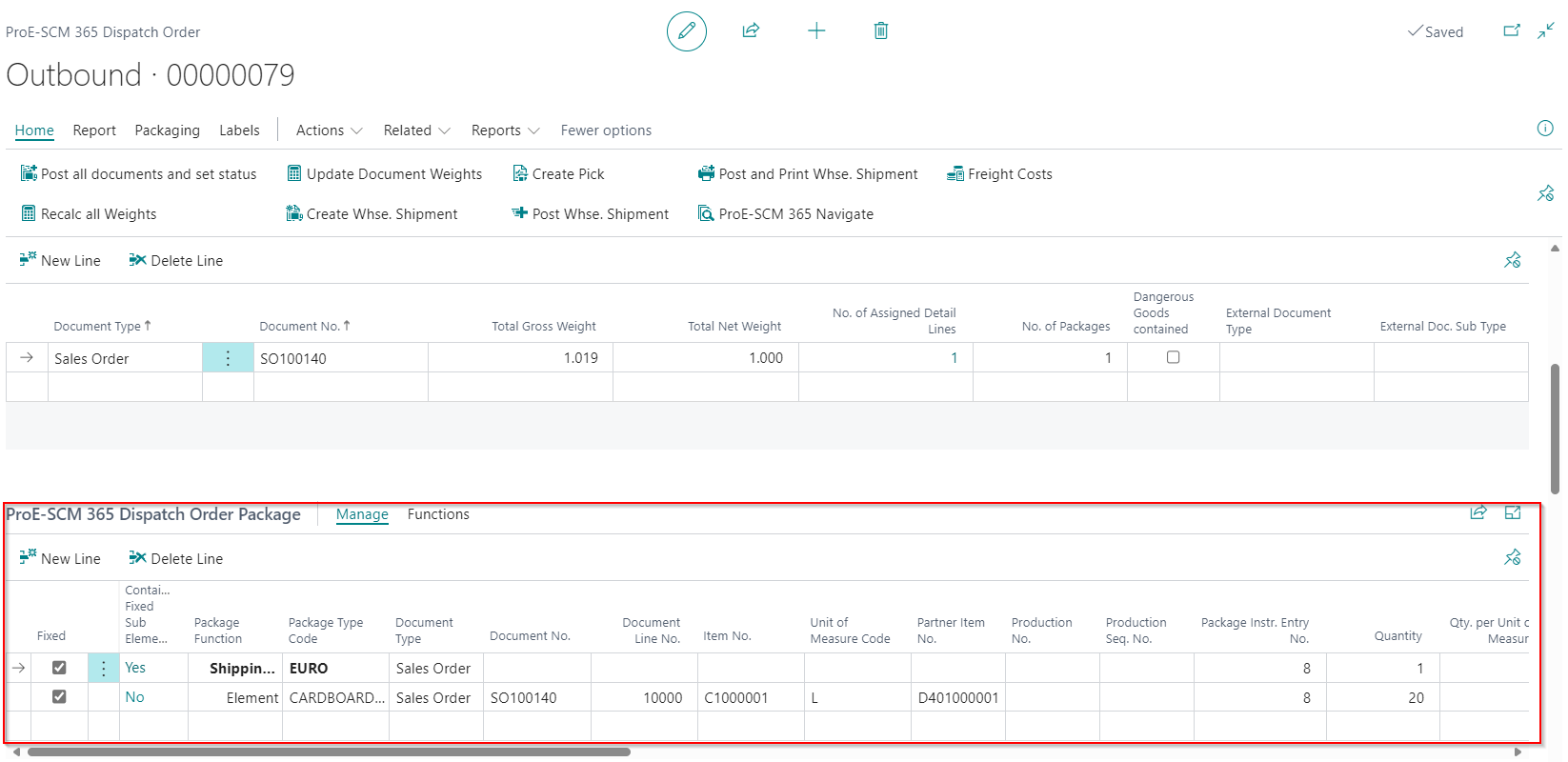
Automatic Transfer
If you have activated the Update Package Data with Registration of Pick option in the ProE-SCM 365 Dispatch & Packaging setup, the load carriers are automatically transferred to the dispatch order when the picking is registered.
Note
The ProE-SCM 365 packaging instructions are also applied. Additional manual use of the Element Package Type Codes is only possible retrospectively in this case.