Organize Safety Data Sheets
For the shipment of dangerous goods it is necessary to provide safety data sheets. Safety data sheets are managed and created outside of Business Central in the Hazardous Substance Management System (CHEMDOX or epos). The existing safety data sheets can be retrieved and these can also be sent automatically by Business Central.
Retrieve Safety Data Sheets for inspection
There are several ways to retrieve safety data sheets:
- By calling Request SDS Status/Version, information about the Safety Data Sheet version and status are requested from the HSM system and stored in the HazMat Material. At the request page, filters can be set for the fields of the HazMat Material.
- The Request SDS Material allows the safety data sheet to be retrieved as a pdf file from the HSM system. On the request page, several filters can be set on the fields of the HazMat Material.For each HazMat Material the safety data sheet is retrieved for all selected regions.
- The Request SDS Internet Output retrieves detailed information on the safety data sheet and stores it on the corresponding HazMat Material. If a new SDS Version is set by the retrieval, the result is that when the SDS shipping request is called, all deliveries that took place within a year are supplied with the new SDS version again.
- The Request SDS Sales Shipment enables you to create a material safety data sheet for a specific sales shipment subsequently by selecting an Item.
Create the Customer Mapping
To be able to dispatch the SDS from Business Central, first HazMat Customer Mappings have to be created. The HazMat Customer Mapping assigns a unique customer code for all customers and shipment addresses, that will be transmitted to the HSM system. In the Yaveon 365 HazMat Connect Setup, the field Synchronize Customer Mapping can be used to automatically create an entry in the HazMat Customer Mapping for new customer profiles. This also transfers changes made to the customer base to the HazMat Customer Mapping.

- For manual creation, first open the HazMat Customer Mapping.
- Select the desired customer or shipment address via the fields Customer No. and Ship to Code. The selection transfers the information from the customer to the Customer Mapping.
- The field HazMat Customer Code can be filled automatically from a number series. The number series is set up in the Yaveon 365 HazMat Connect Setup in the field HazMat Customer Codes.
- You can define different recipients for the different regions using the action Document Recipients. Select the Document Type SDS to do so. Alternatively, you can also choose the shipping type Print. In this case, the safety data sheet is printed out on the printer that has been configured. Using the Region Code, different recipients can be set up for different receiving regions.

Automated sending of Safety Data Sheets
To be able to send E-Mail via Business Central you need to setup E-Mail Accounts. After you have created the E-Mail account you need to open the E-Mail Scenarios by clicking on Navigate - Email Scenarios. On this new page you execute the action Assign scenarios and then choose Safety Data Sheet.
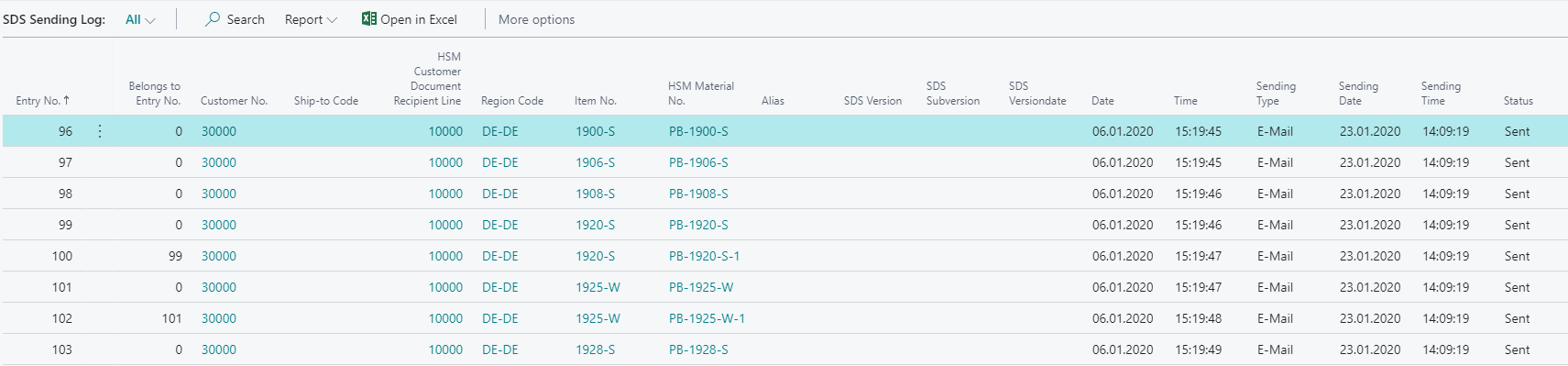
To get an overview of all safety data sheets that need to be sent, you can use the background processing SDS Shipping. This function creates entries in the SDS Sending Log. In the SDS Sending Log, shipped HazMat Materials, which contain the value SDS Shipping Obligation in the field SDS Shipping, are listed for each recipient. These shipping entries use the Status field to indicate whether the safety data sheet has already been sent, the sending has accounted an error, or whether the entry still has the status Open and is therefore unprocessed.
With the function SDS Sending all open entries or only selected entries of the SDS Sending Log can be sent.