Yaveon 365 HazMat Connect Setup
This table contains the main information that is needed for the module to run. With the installation of the app the following data are created initially. If necessary, these can be revised:
No. Series:
HSM System
The connected external HSM system can be selected in the HSM System field. This definition controls the displayed fields at different places.
epos
To connect an epos installation, the fields epos User Name and epos Web Service URL have to be filled in. In addition, the password for epos has to be stored through the action Change Password.
CHEMDOX
To connect a CHEMDOX installation, the fields CHEMDOX Token and CHEMDOX Web Service have to be filled. The relevant values can be extracted from the CHEMDOX Administration.
Standard Product Export
To retrieve data from CHEMDOX, a product export has to be set up in the CHEMDOX administration. By opening the HazMat Product Exports you can maintain the product exports that have been created in CHEMDOX manually or you can retrieve them with the action Collect Product Exports. In this field you can specify the product export to be used for the query.
CHEMDOX Export Path
The fields of the tab CHEMDOX Export Path will be filled when the app is installed. The contents can be obtained from the product export file.
HazMat Integration
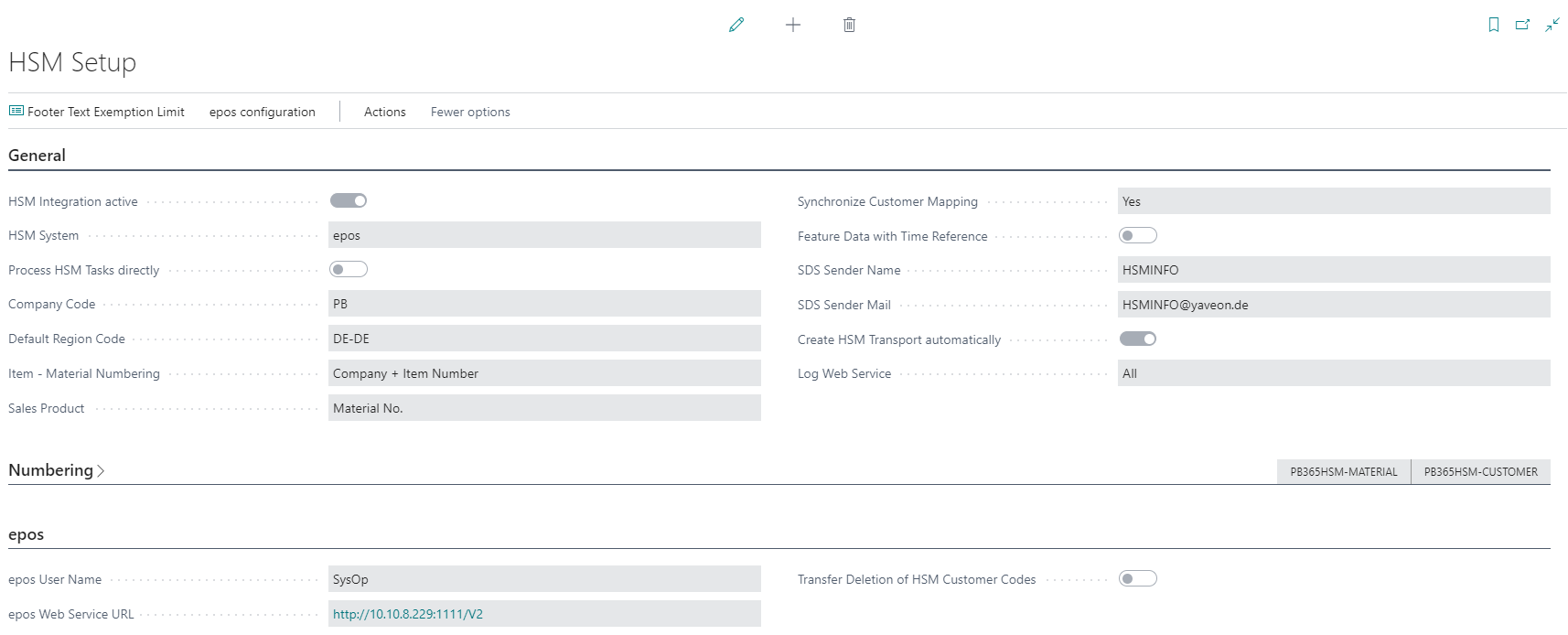
The HazMat Integration Active field is used to control centrally whether the different interfaces to other modules of Business Central should be activated. If the field is not activated, all data can be set up within Yaveon 365 HazMat Connect and the interface to the external HSM system can be addressed, but no HazMat Shipment Entries for the creation of dangerous goods transports are created.
Process HazMat Tasks directly
Activate the Process HazMat Tasks directly field if you don't want to run HazMat Tasks manually. If the function is not activated, a HazMat Task is only created but not processed.
Tip
If this field is not activated, each interface task has to be manually initiated for processing.
Important
To enable direct processing, the setting Enable Task Scheduler needs to be set on the Business Central Server.
Create HazMat Transport automatically
The field create HazMat Transport automatically can be used to control that a HazMat Transport is automatically created when a shipment is posted. For more information, see also dangerous goods shipping.
Log Web Service
With the field Log Web Service you can control in which case actions are logged by the Web Service. If All or Error is selected here, the processing of a HazMat Task will be logged in the HazMat Task Log with request, answer and error text.
Retention policies / Deletion of HazMat Task Log
Administrators can define retention policies to specify how frequently they want Business Central to delete outdated data in tables that contain log entries and archived records.
For example, cleaning up log entries can make it easier to work with the data that's actually relevant. Policies can include all data in the tables that is past the expiration date, or you can add filter criteria that will include only certain expired data in the policy.
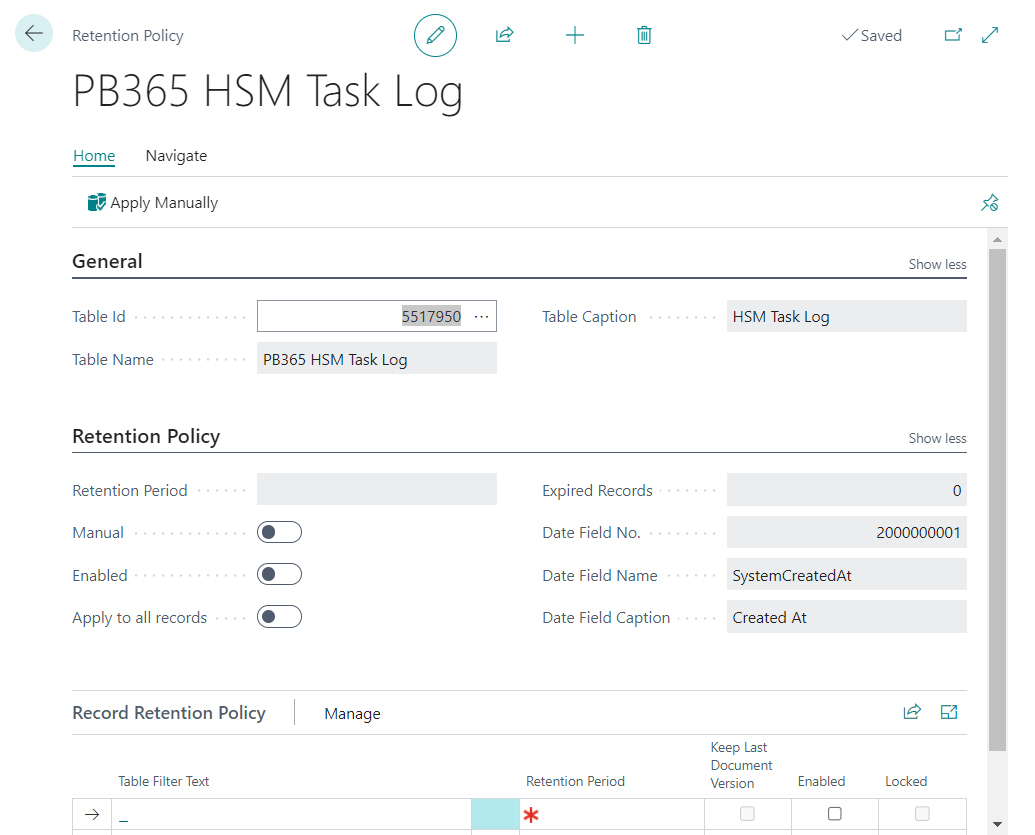
The table 5517950 - HazMat Task Log has been added to the retention policies, allowing it to be purged periodically and automatically, if desired.
For more information on retention policies, see the Business Central Help.