Output with load carriers
If you want to store your finished products to be manufactured on load carriers in your warehouse, you can use the Output Registration. To be able to use this screen, you must first create at least one Output Registration Worksheet Name. You can use this table to define any number of templates to represent different variants of the actual return (for example, for different production lines).

You must first enter a Code and a Description and then you can specify the following settings:
| Field | Description |
|---|---|
| Create load carrier | If this field is checked, then load carrier data is recorded. The fields Load Carrier Type, Unit of Measure Code and finished quantity are then preassigned in the dialog according to the item data. It is possible to change the data. |
| Assign load carr. no. manually | If this field is marked, the Load Carrier No. can be assigned manually in the dialog. However, this only allows you to post a single load carrier per transaction. If the field is not selected, the load carrier number is assigned automatically from the number series defined for the Load Carrier Type. The load carrier number is then not displayed. |
| Record no. of load carrier | If this field is selected, several load carriers can be created with one booking. This field can only be set if Assign Load Carr. No. manually is not set. |
| Create whse. activity | Depending on the logistics equipment of the location used, selecting this field either creates a inventory movement or a put-away. |
| Print label | If the field is marked, either load carrier labels (when entering load carriers) or product labels are printed. |
Note
The fields Load Carrier Type / Load Carrier Type Code referenced here keep their names, but their lookup opens the unified Package Types page (Yaveon 365 Library). See Load Carrier Types for details.
In order to use the entry function, you can call up the Output Registration mask. When you call up the page, the system first checks whether several templates exist. If this is the case, a list of templates is displayed from which the user must select a template to be used.
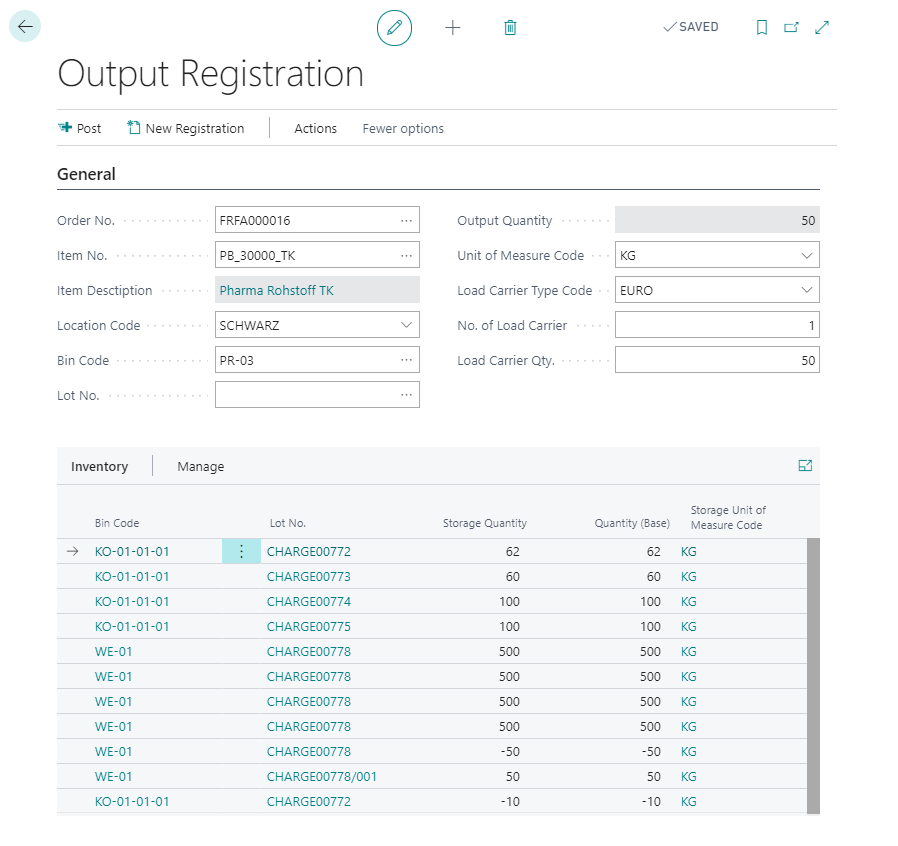
In the mask, the production order to be used must first be selected in the field Order No.. At this point the selection can be made via the lookup functionality or by entering a barcode in the format "FA-000000@10000". You can then maintain the required data using the fields Load Carrier Qty. and No. of Load Carrier. The field output quantity can then not be edited and is calculated from the two fields mentioned above. In addition, the mask in the lower area displays the current stock levels of the item to be reported.
Once you have finished entering the data, you can call up the activity Post to post the outputs. With the activity New Registration, the fields are cleared (for example, incorrect data entered) and you can start entering data again.