Load carrier
In the Yaveon 365 Warehouse Management you have the possibility to manage load carriers. Load carriers (or also transport aids, storage aids, loading aids or loading equipment) serve as aids for transporting goods in your warehouse. Load carriers can be created and assembled at various points in the system.
A separation into load carriers is possible from the warehouse receipt, in the course of a manufacturing output for a production order or for stock already in the system using the separation of load carriers.
Load carrier types
You can freely define the load carriers used in your company in the Load Carrier Types table. Use the New action to create a new line and define a Code and a Description for the load carrier type. You can add a second descriptive line in the Description 2 field. In the No. Series field, you can assign a number series to be used for this load carrier type.
Note
Since the Returnable Container feature is permanently active from Yaveon 365 13.0 (Business Central 28.0), load carrier types are no longer a separate table. They are records on the unified Package Types page in the Yaveon 365 Library app — see Package Types. The Load Carrier Types page still opens the relevant filtered view of the Package Types list, so the fields and actions described below remain valid. Throughout the warehouse processes, fields named Load Carrier Type or Load Carrier Type Code also keep their names; their lookup opens the same Package Types list.
The Load Carrier Type flag marks a package type as usable as a load carrier in warehouse processes. Only package types with this flag set are visible through the Load Carrier Types page. You can additionally activate the Container Type flag to indicate that the package type can be used as a container type — for example, for lot-based container tracking or as a container size in filling and decanting processes.
The Item No. field links an inventory item to the package type so that the packaging material can be handled in inventory. In Yaveon 365 Manufacturing the linked item is added to the bill-of-material line of the filling item, and in dispatch and packaging processes it is the item that is consumed from inventory when a dispatch order is released. Item UOM Code is a read-only field that shows the base unit of measure of the linked item. Use No. of Labels to define how many label copies are printed by default when a load carrier label is generated — useful when a label must be attached to multiple sides. Assign a Pitching Group Code to group package types that share the same bin capacity; together with the bin class, the pitching group determines how much space a load carrier occupies in a bin during put-away.
The Weight is taken into account when calculating the total weight of the load carrier (weight of load carrier + weight of load) and is used, for example, when searching for a suitable bin during a put-away.
You can also store the Height (mm) of the load carrier type without load (e.g. 144 mm for a euro pallet). The height defined here is taken into account when calculating the total height. If the Fix Height field is activated, the height of the load is not taken into account when calculating the height of a load carrier. This means that the height of the load carrier is independent of the load, like IBCs. If the field is deactivated, the system can calculate the height using the fields Qty. per Layer (base) and Layer Height (mm) of the item.
Use Length (mm) and Width (mm) to define the full outer dimensions of the load carrier type. For load carriers that enclose items, use Usable Height (mm), Usable Length (mm), and Usable Width (mm) to specify the available interior dimensions. The Max. Load Capacity (kg) field defines the maximum weight the package can hold; it is printed on load carrier and dispatch labels and, in dispatch and packaging processes, limits the weight that can be assigned to a carrier package. The Required Space field defines how much loading space one package of this type occupies. It is summed up in the dispatch order so that the total required space can be determined and used to select the right shipper and freight cost.
The Filling Quantity and Unit of Measure Filling Qty. fields define the standard quantity, and its unit of measure, that goes into one package of this type. These values are used in lot management to create filling items and to split a dispatch quantity into the corresponding number of packages. The Color field stores a color identifier that can be printed on labels or used for visual identification.
In the Yaveon 365 Warehouse Management FastTab, the Unit of Measure Code field specifies the unit of measure that represents one full load carrier. This is used in the item unit-of-measure setup so that the system can determine how many items make up one load carrier unit.
For exchange package (returnable container) settings — including Account Type, Type, Package Location Code, and Package Bin Code — see Package Types.

From the Load Carrier Types list, you can use the Create Load Carrier action to create one or more empty load carriers in the system. This is useful when you want to pre-create load carriers — for example, to print labels before goods arrive — without any inventory being assigned yet.
When you run the action, a request page opens with the following options:
| Field | Description |
|---|---|
| No. of Load Carrier | Specifies how many load carriers to create. The minimum value is 1. If you enter a value greater than 1, the Load Carrier No. field is cleared automatically, as individual numbers must then be assigned via the number series. |
| No. Series Load Carrier | Specifies the number series used to generate load carrier numbers. The field is pre-filled from the number series defined on the selected load carrier type. Either this field or Load Carrier No. must be filled before you can confirm. |
| Load Carrier No. | Specifies a specific load carrier number to assign manually. If you enter a number here, No. of Load Carrier is automatically set to 1. If the number already exists in the system, an error is shown. |
| Print Load Carrier Label | If activated, a load carrier label is printed for each created load carrier. |
The Merge Records action on the Package Types list allows you to consolidate two package type entries into one. All references to the merged record — such as load carriers, warehouse entries, and activity lines — are updated to point to the remaining record.
Load carrier groups
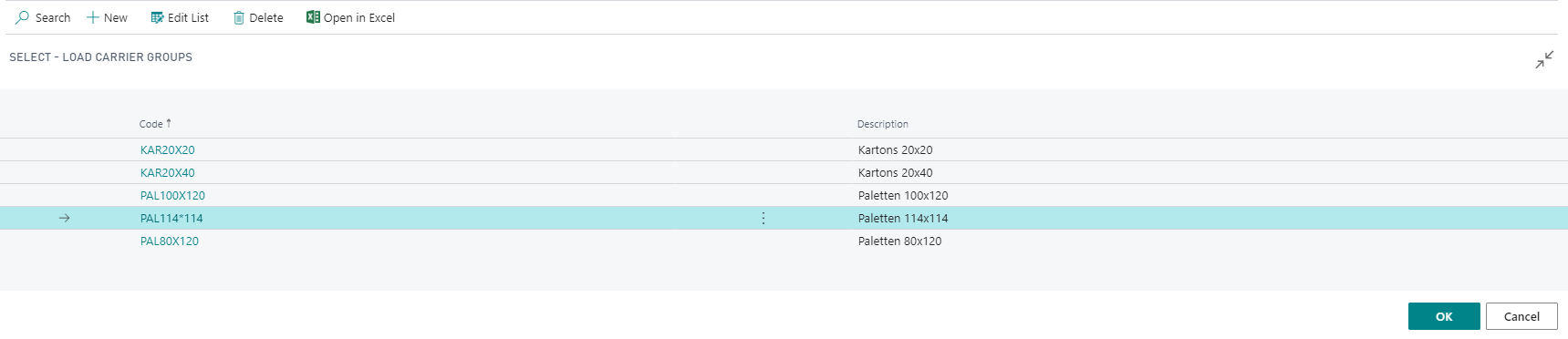
Load carrier types that are identical in terms of storage space must be grouped together using Load Carrier Groups, since control in the warehouse takes place via the load carrier group. Using the New action, you can also create a new line here and then specify a Code and a Description for the load carrier group.
Load carrier activities
Using Load Carrier Activities, it is possible to execute and monitor stock movements of complete load carriers in the location: For each withdrawal movement of a complete load carrier, the system generates a Load Carrier Whse. Activity. Load carrier whse. activity lines are created in the following processes:
- Create put-away
- Create pick
- Create whse. movement from replenishment
- Create whse. movement
- Create whse. movement from replenishment worksheet
- Create production provision
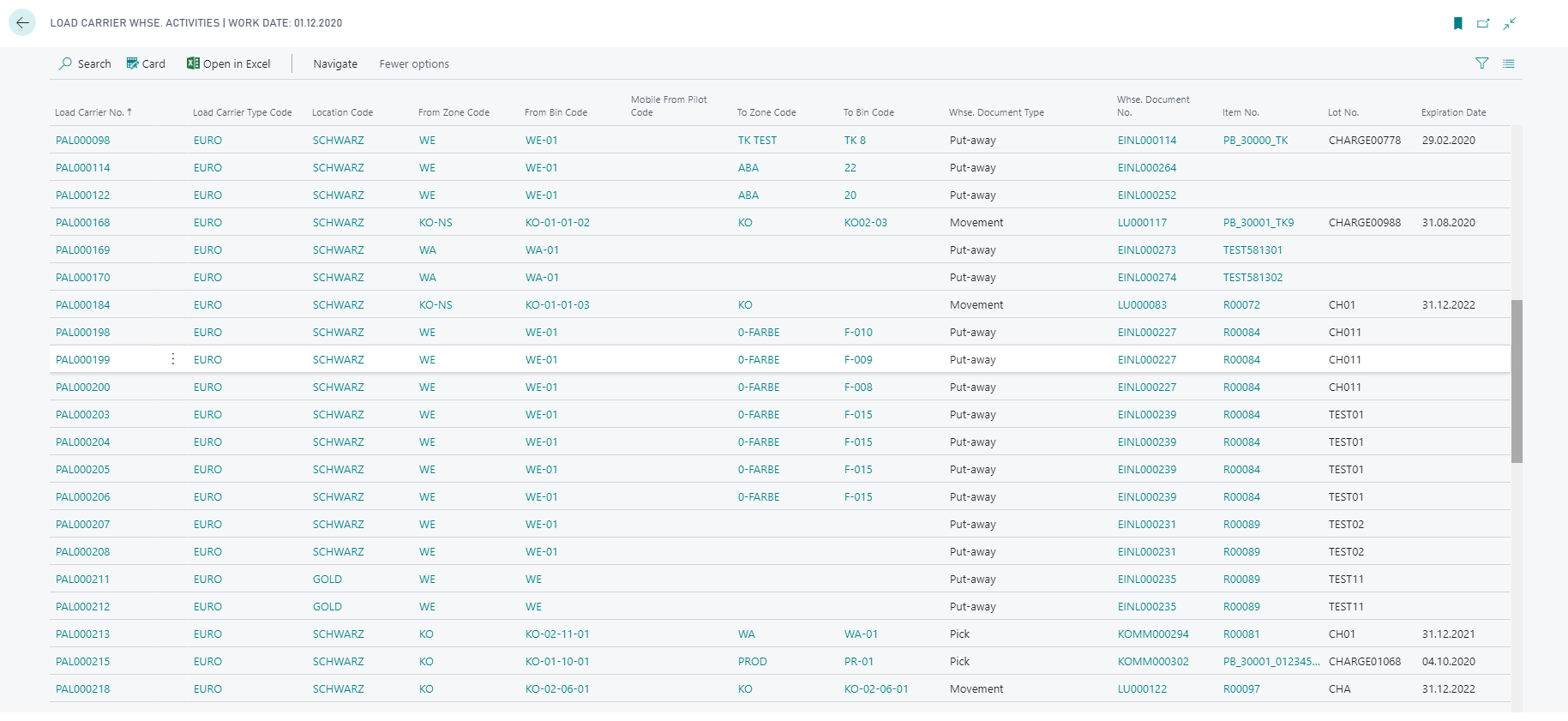
Each entry contains a reference to the assigned warehouse activity. You can also access the warehouse activity directly via the Card action. In addition, you can view further information on the load carrier to be moved via the action Load Carrier or (re-)print a label via the action Load Carrier Label.
Note
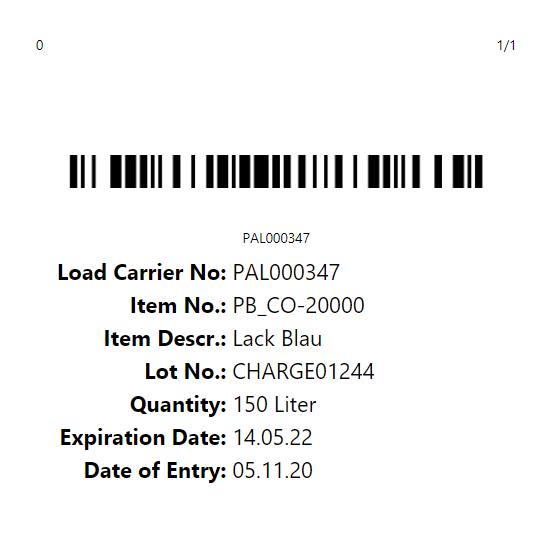
When the The Feature changed the barcodes from the legacy format to a GS1 Barcode. feature is active, load carrier labels are printed in GS1 format. You can configure the physical appearance of the GS1 barcode (resolution, width, height) in the Barcode Parameters setup in the Yaveon 365 Warehouse Scanning.
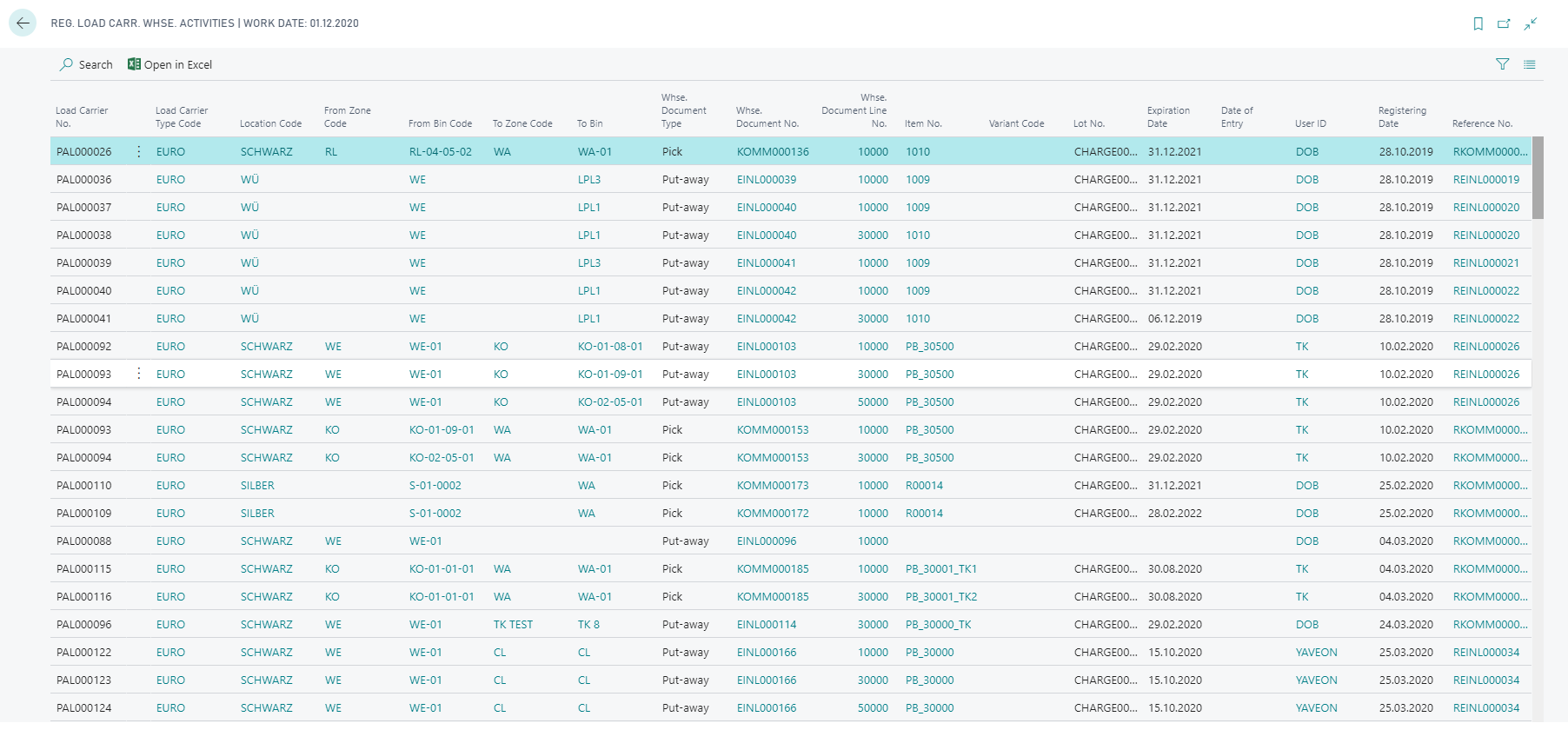
When warehouse activities are registered, the load carrier activities are also registered. These can be viewed under Reg. Load Carr. Whse. Activities.
Note
To control load carrier warehouse activities, use the Mobile Pilot Code at the bin and the Yaveon 365 Mobile.
Delete empty load carriers
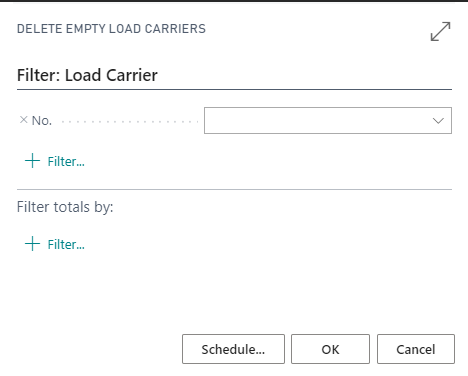
You have the option of removing empty load carriers from the system. To do this, use the call Delete Empty Load Carriers.
Load carriers remain in the system even after complete removal of the items on them. This makes it possible to work with fixed labeling of load carriers. The load carriers already in the system can be reloaded with items at any time, for example, when generating load carriers in warehouse receipt.
However, if you always use new numbers to identify the load carriers, you can use this report to remove existing empty load carriers from your system. Defective labels or load carriers can also be taken into account in this way.
Note
Load carriers whose inventory have been shipped with a transfer order and are still in transit are not deleted by the report, even if they are displayed as empty. These load carriers are still required for the warehouse receipt at the destination location.
Changing the height of a load carrier
The height of a load carrier can be changed on the Load Carrier card when the warehouse employee is allowed to do so. Use the field Allow height change load carrier on the warehouse employee to decide whether a user can change the height of a load carrier.
Note
A Report Calculate Load Carrier Height to recalculate the height of existing load carriers is available.
Block Movement
By using the Block Movement field on the load carrier card, you can block the load carrier from being used in warehouse functions. The following options can be selected:
- Inbound: No inventory can be posted to the load carrier.
- Outbound: No inventory can be removed from the load carrier.
- All: Inventory can neither be posted to nor removed from this load carrier.
- empty: There is no restriction.
Furthermore, the options Inbound, Outbound and All prevent the load carrier from being moved.