Object Inspection
In addition to items and inspection equipment, objects can also be inspected.
Creation of Objects
- You can create a new Object Card with the action New.
- In the field No. you can automatically assign the next free number from the number series by pressing Enter. Alternatively it is possible to enter a number manually.
- You must then select a type. The following types are available:
| Type | Description |
|---|---|
| "Empty" | Manual maintenance |
| Work Center | Capacity units of production |
| Machine Center | Capacity units of production |
| Resource | Object of resource management |
| Fixed Asset | Object of the asset accounting |
| Location | Storage locations of logistics |
- depending on the selection, an existing object can be referenced in the ID field. If the Type is not filled, you can fill the fields ID, Description and Description 2 manually. Otherwise, the descriptions are copied from the respective ID and can be adjusted.
In the Inspection Interval field, you can enter the time interval after which the object is to be checked again. Enter a date formula here, for example, 3M for a inspection interval of three months or 1Y for a year. In the object card, you can see when the next object inspection is due and when the last object inspection took place in the fields Date last Inspection and Date next Inspection.
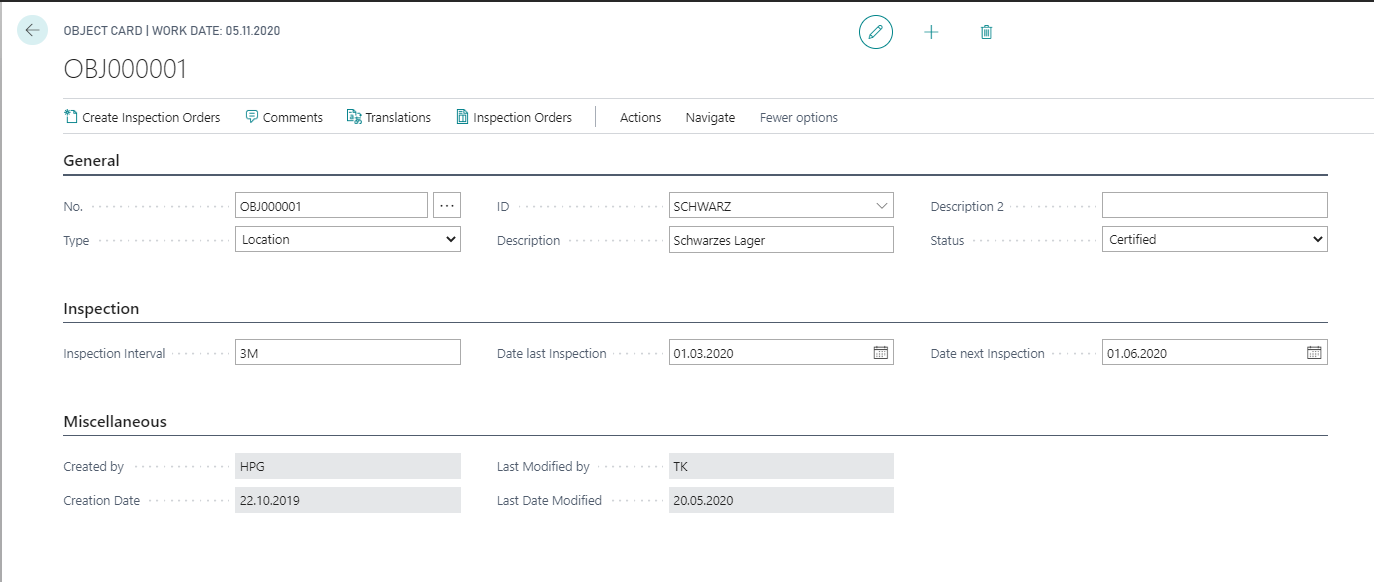
Inspection of Objects
At the objects, you can create a new inspection order for an object by using the action Create Inspection Orders. To create an inspection order, you must have a certified Inspection Plan for the object. The inspection plan must also contain a inspection group with the Inspection Source System.
Note
When you create inspection plans for objects, you must make sure that the Inspection Source is System. Inspection groups with a different inspection source are ignored.
Note
The action Create Inspection Orders leads to the creation of an inspection order if only inspection orders with the status Finished or Cancelled exist for the object. Otherwise, the message "Necessary inspection orders have already been created" is displayed.
Regular inspections of Objects
The prerequisite for batch processing Object inspections is that the inspection interval and the corresponding date fields are maintained. You can use batch processing to create the required inspection order for all objects that occur in a particular period. If you only want a preview of the upcoming inspection orders, you must leave the field Create Insp. Orders deactivated. If you want the inspection orders to be created directly, you must activate the field. If, for example, the inspection orders for the next 4 weeks should already be created, you can enter the value equal to 4W in the field Date formula Date next Inspection filter.
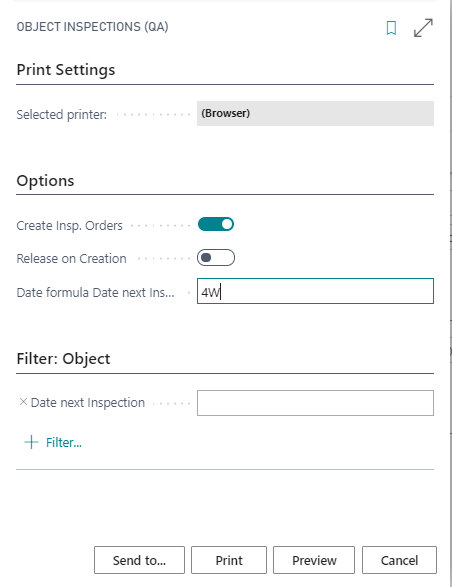
The processing of Inspection Orders of Objects
The processing of inspection orders that refer to objects differs in only a few aspects from Inspection Order that refer to items or inspection equipment. It is important to note that status changes of inspection orders have no effect on the status of the object. If you want to change the status of an object, for example from inspection to blocked, you must do this manually. The Date last Inspection and the Date next Inspection of the object is only reset when the inspection order is finished.
Further functions
In addition to the actions already mentioned for creating inspection orders, the following calls are available:
- You can define Translations and Comments for the object.
- You can use the action Inspection Orders to display both finished and created inspection orders and you can also open and edit them using the action Card.