Yaveon 365 Compliance Setup
In the Yaveon 365 Compliance Setup you will find basic settings for the Yaveon 365 Compliance app.
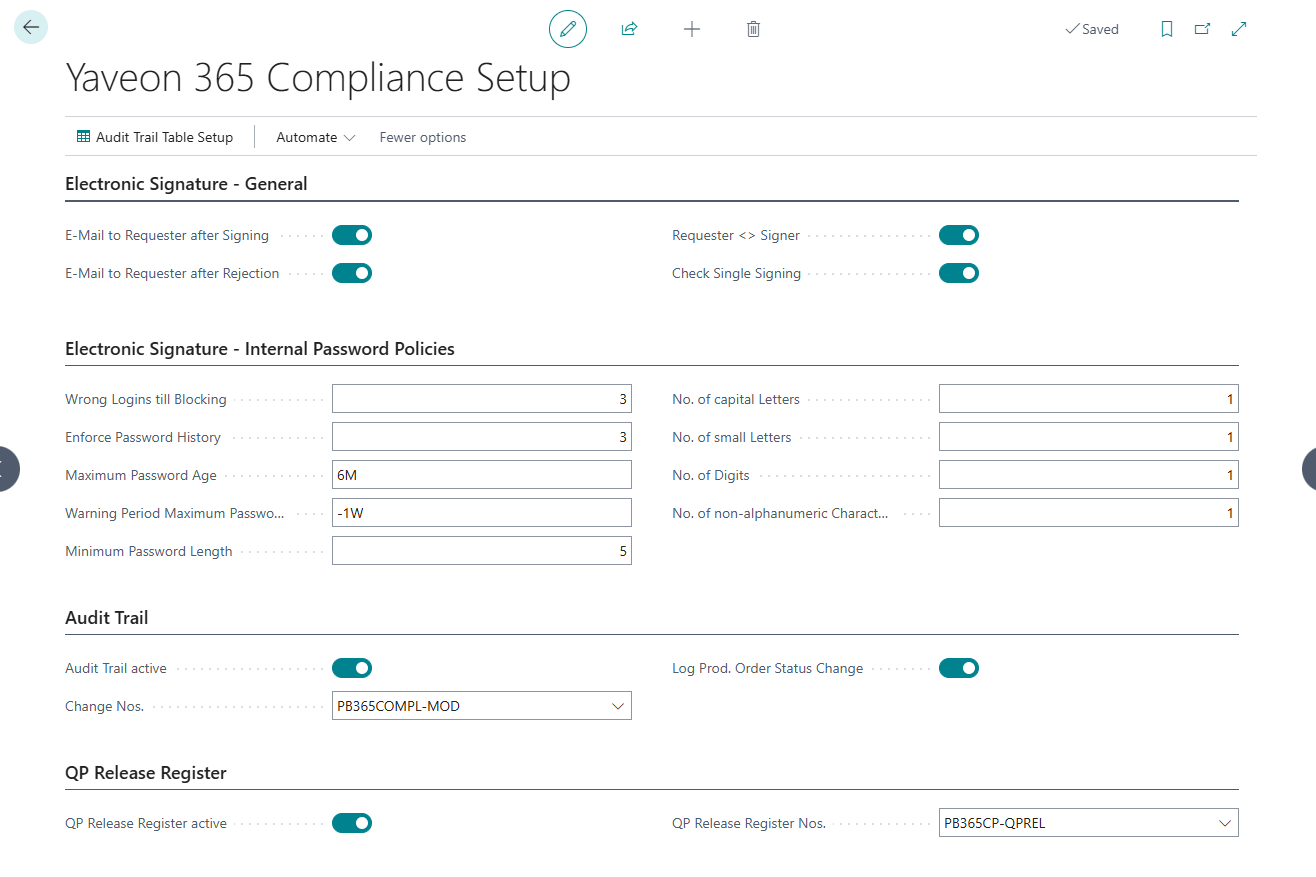
The following fields are relevant for the Electronic signature:
| Field | Description |
|---|---|
| E-mail to requester after signature | Here you can define that an e-mail is sent to the person requesting the electronic signature as soon as the request has been signed. They can then continue with the process. |
| E-mail to requester after rejection | Here you can define that an e-mail is sent to the person requesting the electronic signature as soon as the request is rejected. They can then correct the data. |
| Requester <> Signer | If this field is activated, it is ensured that the request for an electronic signature cannot sign this request itself. This ensures that the dual control principle is maintained. |
| Check single signature | If this field is activated, it is ensured that multiple users must also sign in the case of multiple signatures. This means that "User X" cannot sign twice, for example, even though "User X" is in two signature groups. |
| Wrong Logins till blocking | Here you can enter the number of incorrect logins after which the user should be blocked. Each time an incorrect password is entered, the number of times this occurs is saved in the background. If the number specified here is reached, the user is blocked. Once the user has entered their password correctly, the number of incorrect logins is reset to 0. |
| Enforce Password History | Here you can specify the number of previous passwords that may not be reassigned. It is possible to block a maximum of 12 previous passwords. |
| Maximum Password Age | Here you can enter the period after which the password must be changed. You can use all common date formulas. |
| Warning Period max. Password Age | Here you can enter when the user should be notified that their password is about to expire. For example, if you enter "-2W", this means that a message will be sent to the user two weeks before the password expires. |
| Further fields | In the fields Minimum Password length, No. of capital letters, No. of small letters, No. of Digits and Number of Non-alphanumeric characters you can define rules for a new password. |
For the Audit Trail the following setups can be made:
| Field | Description |
|---|---|
| Audit Trail activated | To document data changes using the audit trail, you must first activate the field Audit Trail activated. |
| Log PO status change | If this is NOT set, the status change is not logged. If it is marked, audit trail entries are written during the status change. The specification of a change reason is currently not supported for status changes. |
Here you can also call up the Audit Trail table setup. Further information is described in chapter Audit Trail Setup
The following settings are available for the QP Release Register:
| Field | Description |
|---|---|
| QP Release Register active | Activates the automatic creation of entries in the QP Release Register. |
| QP Release Register Nos. | Number series for the gap-free assignment of numbers in the QP Release Register. |
In addition, the status for which entries are to be created in the QP Release Register must be marked as QP Release Register relevant in the Item Tracking Info Status.