Customize Labels
With Corporate Design, the various labels in documents can be customized very easily. Labels can be, for example, document or field names.
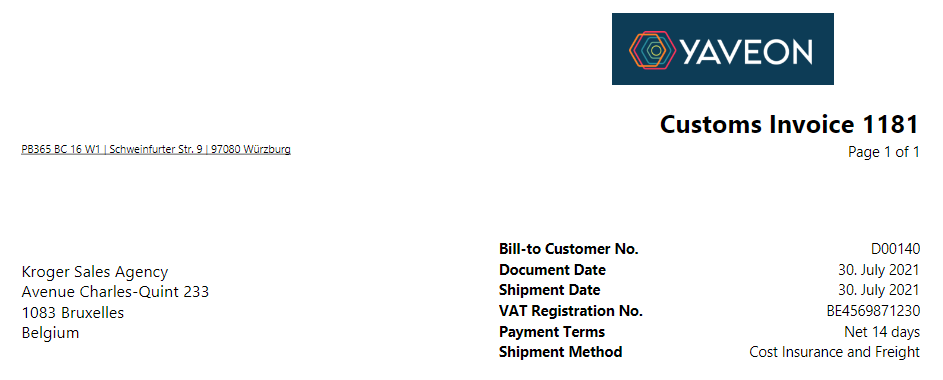
For example, the label ProForma Invoice can be changed to the label Customs Invoice. For the adjustment switch to the CD Labels table. Here a filter can be set on the document label Proforma Invoice. Afterwards the Value of the Language code EN can be changed to Customs Invoice. This changes the label in this language.


Labels in the Field Configurator
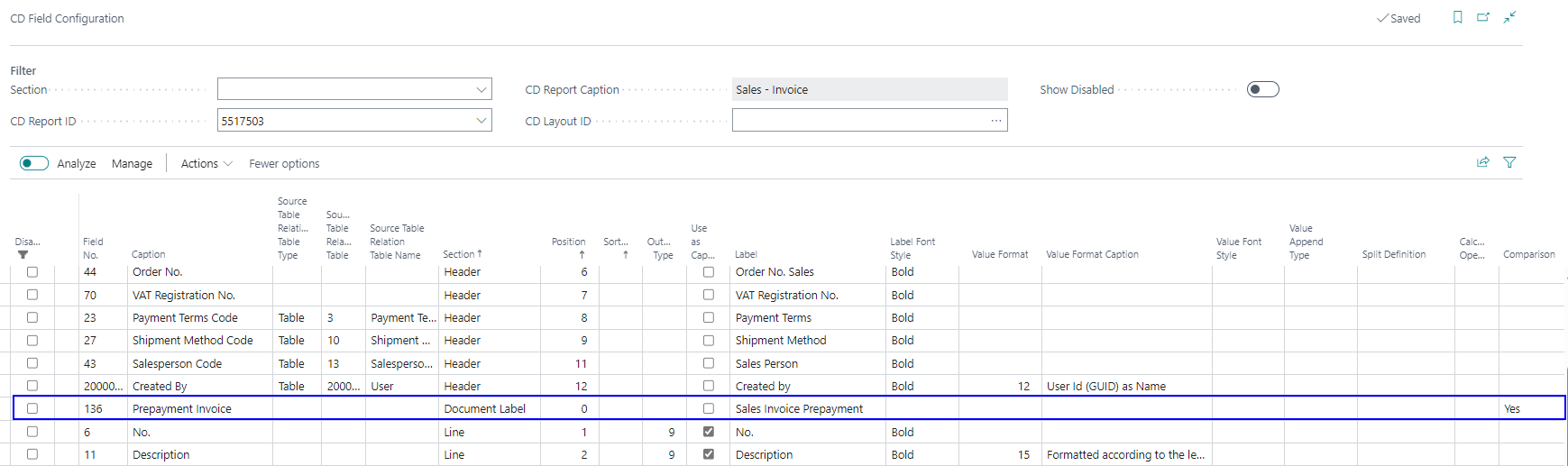
The Field Labels can be set up in the column Labels for every line in the CD Field Configuration.
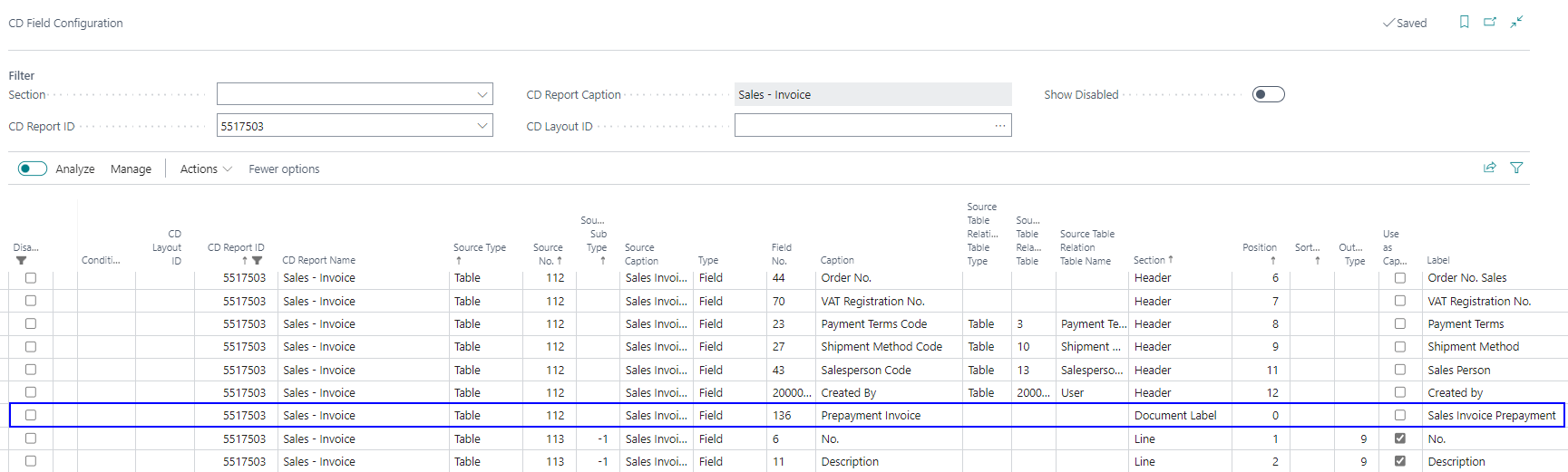
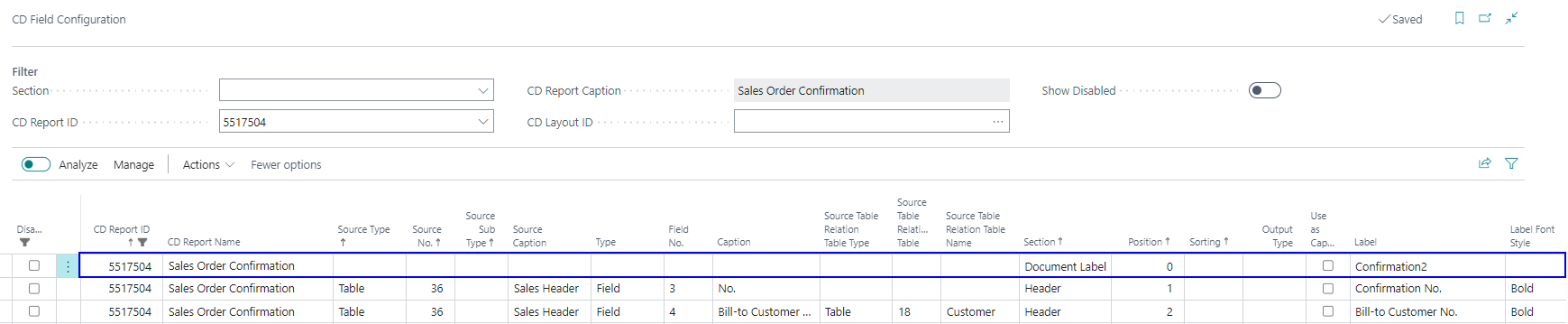
The Document Labels can also be set up in the CD Field Configuration. A line has to be set up with the CD Report ID filled, the Section set to Document Label and the Label filled with the document label from the CD Labels table.
Labels in the report- and custom-specific setup
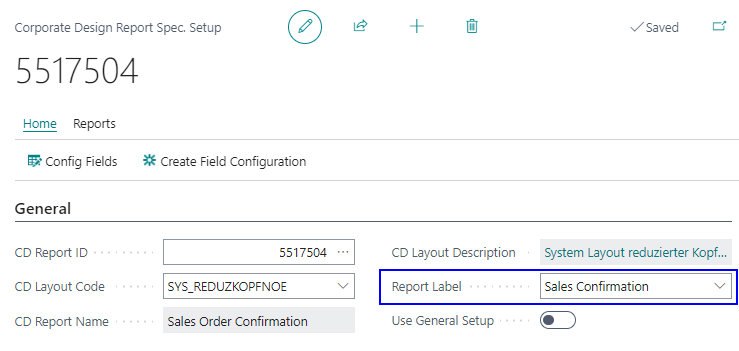
If no Document Label is set up in the CD Field Configuration, the setup from the field Report Label in the Corporate Design Report-Specific Setup or Corporate Design Custom Specific Setup is used.
Note
The label is initialized in the report-specific setup.
Labels with yes/no condition
Document Labels in the CD Field Configuration can also be set up using a Yes/No condition. The setup differs from other condition setups.
If a document label is determined via the CD Field Configuration, then this is always used primarily. If nothing is set up or the condition does not apply, then the document label from the report-specific or custom-specific configuration is used. Several entries are possible, whereby the first entry with a positive condition or without a condition is used.
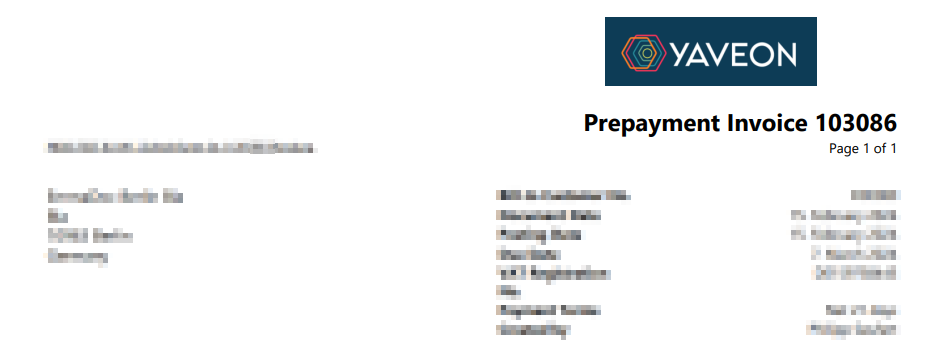
With the initialization, a setup already exists in the system. If the field 136 Sales Invoice Prepayment in table 112 Sales Invoice is Yes, then the document label Prepayment Invoice is printed instead of sales invoice. For a field-by-field walkthrough of this setup, see Example 5 in Use conditions.