Use conditions
With Corporate Design you can control whether a field is printed on a document based on a condition. The field is printed only when its condition is met, which lets you show or hide information depending on the data in the document.
A condition evaluates a field of the document using one of the following Comparison options:
- Empty / Not Empty — checks whether the field itself has a value.
- Yes / No — checks whether a boolean field is set to Yes or No.
- Decimal 0 / Not Decimal 0 — checks whether a decimal field has the value 0.
- Contains / Contains not — compares the field against a fixed value stored in CD Rec. Extensions.
The complete list of operators is documented in CD Field Configuration.
How conditions work
A condition is built from the following elements:
- A Text Constant with Label Type Condition, created in CD Labels. It is the name that links the parts of the condition together.
- A printed line in CD Field Configuration — the field that should be printed. Its Condition field holds the Text Constant of the condition, so the line is printed only when the condition is met.
- A condition line in CD Field Configuration with Section = Condition. It defines which field is evaluated and with which Comparison. Its Label must match the Condition of the printed line.
For the Comparison options Contains and Contains not, the value the field is compared against is stored in CD Rec. Extensions with Source Type = Condition and Source No. = the Text Constant of the condition. The options Empty, Not Empty, Yes, No, Decimal 0 and Not Decimal 0 evaluate the referenced field directly and do not require an entry in CD Rec. Extensions.
There is one special case: when a condition controls the document label — the title printed on the document — the printed line and the condition line are combined into a single setup line with Section = Document Label. This is shown in Example 5.
Example 1: Empty / Not Empty — Print Shipping Agent or transit location
On a Transfer Order, either the Shipping Agent or the Transit Location should be printed in the header, depending on whether a shipping agent is assigned. If the Shipping Agent Code field is filled, the shipping agent is printed. If it is empty, the transit location is printed.
This is set up with two conditions (C001, C002) and two Empty / Not Empty comparisons.
1. Create the conditions in CD Labels
Create two new conditions in CD Labels:
- Text Constant C001, Label Type Condition
- Text Constant C002, Label Type Condition

2. Configure the fields in CD Field Configuration
Create four lines in CD Field Configuration.
The first line prints the Shipping Agent Code when condition C001 is met:
- Condition C001
- CD Report ID 5517509
- Source Type Table
- Source No. 5740
- Field No. 34
- Source Table Relation Table Type Table
- Source Table Relation Table 291
- Section Header
- Position 5
- Sorting 1
- Label Shipping Agent
- Label Font Style Bold
The second line prints the Transit Location when condition C002 is met:
- Condition C002
- CD Report ID 5517509
- Source Type Table
- Source No. 5740
- Field No. 27
- Section Header
- Position 5
- Label Shipping Agent
- Label Font Style Bold


The third line is the condition line for C001. It is met when the Shipping Agent Code is Not Empty:
- Source Type Table
- Source No. 5740
- Field No. 34
- Source Table Relation Table Type Table
- Source Table Relation Table 291
- Section Condition
- Position 0
- Label C001
- Label Font Style Blank
- Comparison Not Empty
The fourth line is the condition line for C002. It is met when the Shipping Agent Code is Empty:
- Source Type Table
- Source No. 5740
- Field No. 34
- Source Table Relation Table Type Table
- Source Table Relation Table 291
- Section Condition
- Position 0
- Label C002
- Label Font Style Blank
- Comparison Empty


Result
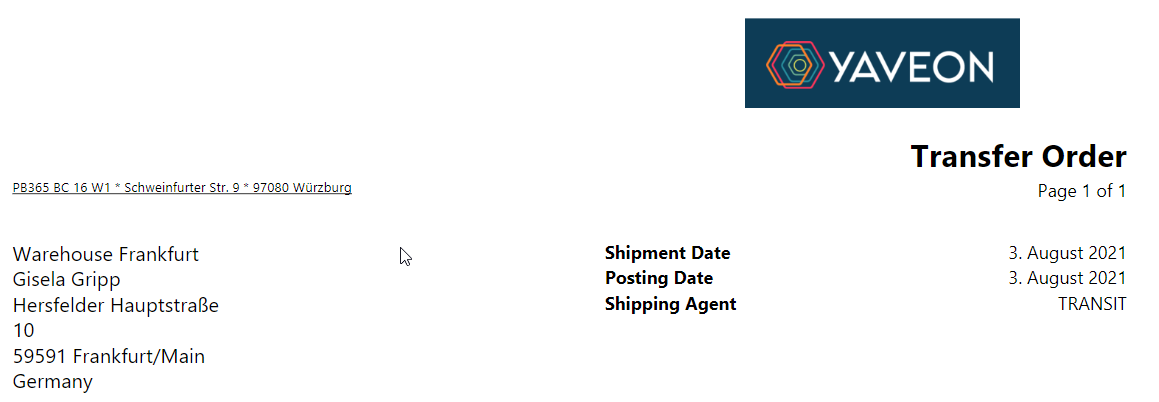
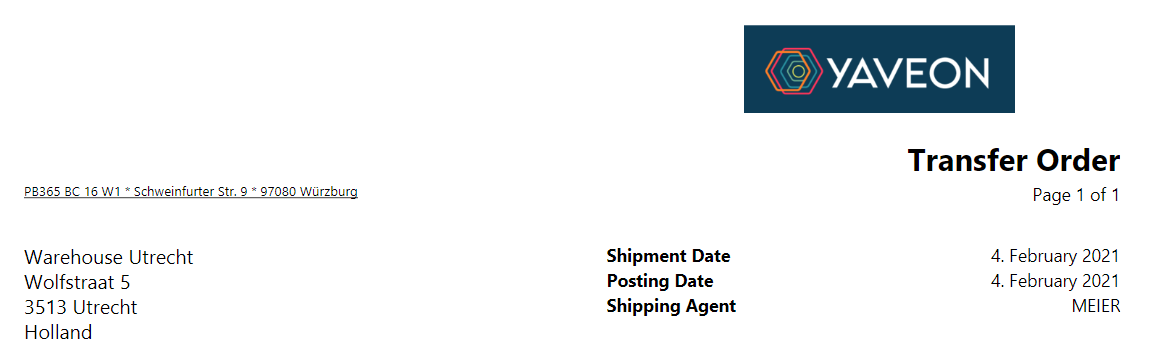
The printed transfer orders show the difference: when a shipping agent is assigned, the shipping agent is printed; when no shipping agent is assigned, the transit location is printed.
Example 2: Contains / Contains not — Print Payment Terms unless paid in cash
On a Posted Sales Invoice, the Payment Terms Code should be printed in the header only when the customer does not pay in cash. If the Payment Method Code is CASH, the payment terms must not be printed.
This is set up with a Contains not comparison: the Payment Method Code is compared against the value CASH stored in CD Rec. Extensions, and the payment terms are printed only when the field does not contain that value.
1. Create the condition in CD Labels
Create one new condition in CD Labels:
- Text Constant C003
- Label Type Condition
Important
The Text Constant must be unique across all condition setups in the company. The condition engine looks up condition lines by Label without filtering by CD Report ID — this means if the same Text Constant is used in two setups, the engine may find the wrong condition line regardless of which report is currently printing. Always use a distinct Text Constant for each condition. In this example, C003 is used because C001 and C002 are already in use in the first example.
2. Store the comparison value in CD Rec. Extensions
Create one entry in CD Rec. Extensions to hold the value the field is compared against:
- Source Type Condition
- Source No. C003
- Value CASH
3. Configure the fields in CD Field Configuration
Create two lines in CD Field Configuration.
The first line defines the field that is printed — the Payment Terms Code. It carries the condition C003:
- Condition C003
- CD Report ID 5517503
- Source Type Table
- Source No. 112
- Field No. 23
- Section Header
- Position 5
- Sorting 1
- Label Payment Terms
The second line is the condition line. It evaluates the Payment Method Code and compares it against the stored value using Contains not:
- CD Report ID 5517503
- Source Type Table
- Source No. 112
- Field No. 104
- Section Condition
- Position 0
- Label C003
- Comparison Contains not
Result
When the document is printed, the engine evaluates the condition line:
- If the Payment Method Code is CASH, the Contains not comparison is not met and the Payment Terms Code is not printed.
- If the Payment Method Code is any other value, the comparison is met and the Payment Terms Code is printed in the header.
Note
Contains and Contains not perform an exact match against the Value stored in CD Rec. Extensions, not a partial text search. Contains prints the field when the value matches exactly; Contains not prints it when the value does not match.
Note
If the value to be printed is in the line of a document, e.g. in the sales line, but the condition value is in the header of the document, e.g. in the sales order header, then it is possible to use a condition exactly as if the condition value were in the line of the document. To do this, the field in the document header must be specified as the condition value in the condition setup line.
Example 3: Decimal 0 / Not Decimal 0 — Print cash discount date or due date
On a Posted Sales Invoice, the header should show a payment date that depends on whether a cash discount applies. If the Payment Discount % is not zero, the Pmt. Discount Date is printed. If it is zero, the Due Date is printed instead.
This is set up with two conditions (C004, C005) and two Decimal 0 / Not Decimal 0 comparisons.
1. Create the conditions in CD Labels
Create two new conditions in CD Labels:
- Text Constant C004, Label Type Condition
- Text Constant C005, Label Type Condition
2. Configure the fields in CD Field Configuration
Create four lines in CD Field Configuration.
The first line prints the Pmt. Discount Date when condition C004 is met:
- Condition C004
- CD Report ID 5517503
- Source Type Table
- Source No. 112
- Field No. 26
- Section Header
- Position 6
- Sorting 1
- Label Cash Discount until
The second line prints the Due Date when condition C005 is met:
- Condition C005
- CD Report ID 5517503
- Source Type Table
- Source No. 112
- Field No. 24
- Section Header
- Position 6
- Label Payment Due
The third line is the condition line for C004. It is met when the Payment Discount % is Not Decimal 0:
- CD Report ID 5517503
- Source Type Table
- Source No. 112
- Field No. 25
- Section Condition
- Position 0
- Label C004
- Comparison Not Decimal 0
The fourth line is the condition line for C005. It is met when the Payment Discount % is Decimal 0:
- CD Report ID 5517503
- Source Type Table
- Source No. 112
- Field No. 25
- Section Condition
- Position 0
- Label C005
- Comparison Decimal 0
Result
When a cash discount is granted, the Pmt. Discount Date is printed in the header; when no cash discount applies (Payment Discount % is 0), the Due Date is printed instead.
Example 4: Yes / No — Print net or gross total depending on Prices Including VAT
On a Posted Sales Invoice, the total shown in the header should reflect how prices are entered. If Prices Including VAT is Yes, the Amount Including VAT is printed. If it is No, the net Amount is printed.
This is set up with two conditions (C006, C007) and two Yes / No comparisons.
1. Create the conditions in CD Labels
Create two new conditions in CD Labels:
- Text Constant C006, Label Type Condition
- Text Constant C007, Label Type Condition
2. Configure the fields in CD Field Configuration
Create four lines in CD Field Configuration.
The first line prints the Amount Including VAT when condition C006 is met:
- Condition C006
- CD Report ID 5517503
- Source Type Table
- Source No. 112
- Field No. 61
- Section Header
- Position 7
- Sorting 1
- Label Total (incl. VAT)
The second line prints the net Amount when condition C007 is met:
- Condition C007
- CD Report ID 5517503
- Source Type Table
- Source No. 112
- Field No. 60
- Section Header
- Position 7
- Label Total (net)
The third line is the condition line for C006. It is met when Prices Including VAT is Yes:
- CD Report ID 5517503
- Source Type Table
- Source No. 112
- Field No. 35
- Section Condition
- Position 0
- Label C006
- Comparison Yes
The fourth line is the condition line for C007. It is met when Prices Including VAT is No:
- CD Report ID 5517503
- Source Type Table
- Source No. 112
- Field No. 35
- Section Condition
- Position 0
- Label C007
- Comparison No
Result
When the invoice is posted with Prices Including VAT = Yes, the Amount Including VAT is printed as the total; when it is No, the net Amount is printed instead.
Example 5: Yes / No with a single setup line — Print a different document label on prepayment invoices
When a condition controls the document label — the title printed on the document — the printed line and the condition line are combined into a single setup line. The line has Section = Document Label and carries both the boolean field to evaluate and the label to print when the condition is met. No separate condition line and no CD Rec. Extensions entry are required.
This setup already exists after running the Init function (see Initial Setup): on a Posted Sales Invoice, if the Prepayment Invoice field is Yes, the document label Prepayment Invoice is printed instead of the default invoice label.
Configure the field in CD Field Configuration
Create one line in CD Field Configuration:
- CD Report ID 5517503
- Source Type Table
- Source No. 112
- Field No. 136
- Section Document Label
- Comparison Yes
- Label Prepayment Invoice
- Label Font Style Blank
Result
When the posted sales invoice is a prepayment invoice (Prepayment Invoice = Yes), the document label Prepayment Invoice is printed as the document title. For all other posted sales invoices the condition is not met, and the default label from the Corporate Design Report-Specific Setup is used.
Note
Several Document Label lines can be set up for the same report. The first line whose condition evaluates to Yes — or that has no condition — determines the printed label. If no line applies, the label from the Corporate Design Report-Specific Setup or Corporate Design Custom Specific Setup is used. See CD Label Example for more details.
Example 6: Apply condition column caption in line — Hide a line column and its caption on non-prepayment invoices
On a Posted Sales Invoice, a Prepayment % column should only appear in the line section when the document is a prepayment invoice. Without this feature, the condition already hides the value on the final invoice — but the column caption still prints as an empty header, which confuses readers. By enabling Apply condition column caption in line, both the value and the caption are hidden when the document is not a prepayment invoice.
1. Create the condition in CD Labels
Create one new condition in CD Labels:
- Text Constant C008, Label Type Condition
2. Configure the fields in CD Field Configuration
Create two lines in CD Field Configuration.
The first line prints the Prepayment % value in the line section when condition C008 is met:
- Condition C008
- CD Report ID 5517503
- Source Type Table
- Source No. 113
- Field No. 135
- Section Line
- Position [position of the column]
- Output Type [total number of line columns]
- Label Prepayment %
- Apply condition column caption in line Yes
The second line is the condition line. It evaluates the Prepayment Invoice field from the Sales Invoice Header and is met when the field is Yes:
- CD Report ID 5517503
- Source Type Table
- Source No. 112
- Field No. 136
- Section Condition
- Position 0
- Label C008
- Comparison Yes
Note
The condition field (Prepayment Invoice) is in the Sales Invoice Header (table 112), not in the Sales Invoice Line (table 113). This is a requirement of the feature: the Condition on a Line section setup line can only compare against a field on the Document Header. Comparing against a field in the document lines is not supported.
Result
- On a prepayment invoice (Prepayment Invoice = Yes): the condition is met. The Prepayment % value is printed in the line section and the column caption is visible.
- On a final invoice (Prepayment Invoice = No or empty): the condition is not met. Because Apply condition column caption in line is enabled, both the Prepayment % value and the column caption are hidden. Without this option, only the value would be suppressed and an empty column header would remain on the document.