Feature
The creation of features is done via Feature Card. A Feature Card can be called a "neutral" master data maintenance. The defined features are the basis for using the features for the master or document data.
Note
As soon as a feature is used in master data or documents, it is no longer possible to delete it.
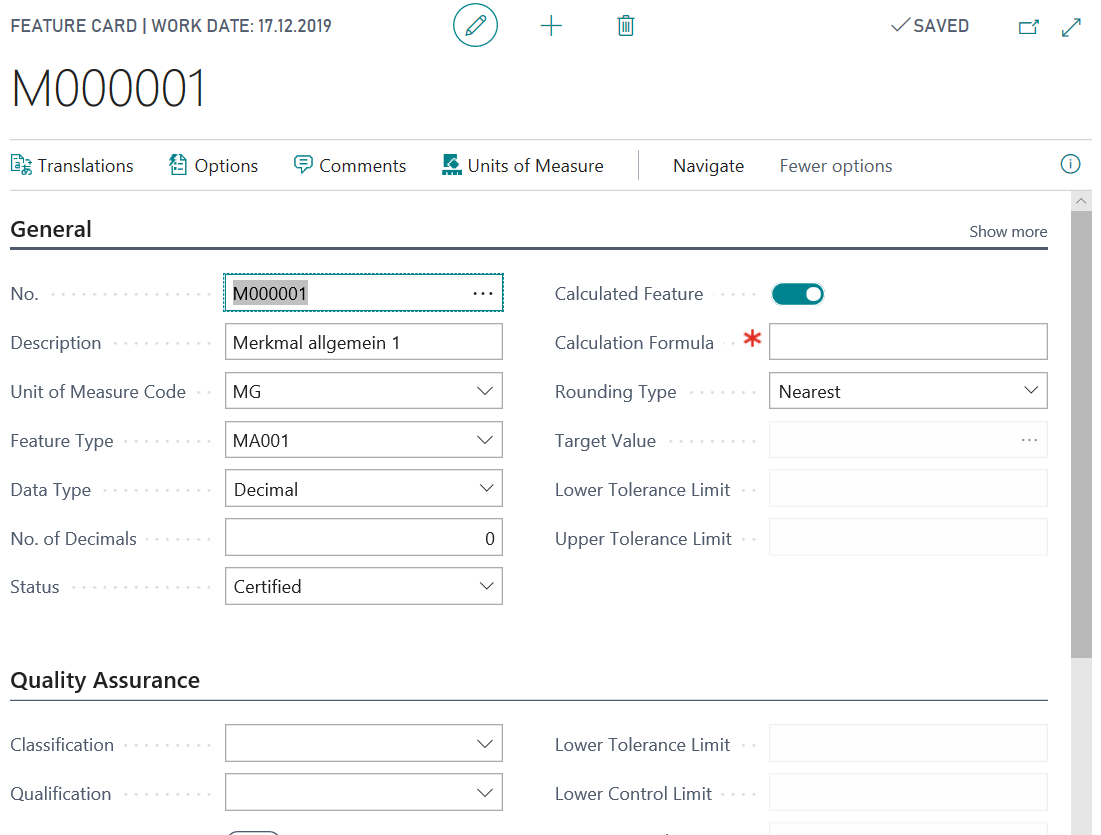
Create New Features
Open the Feature Card and create a new feature via +New. In the field No., the next free number from the number series from the Yaveon 365 Process Base Setup is selected.
Additionally a Description can be added.
Enter a Unit of Measure Code.
The Feature Type defines in which processes the feature is to be used (production, Research and Development and / or quality control)
A feature may possess the following data types:
- Decimal (Number of Decimals, Tolerance- and Control Limits can be added)
- Text
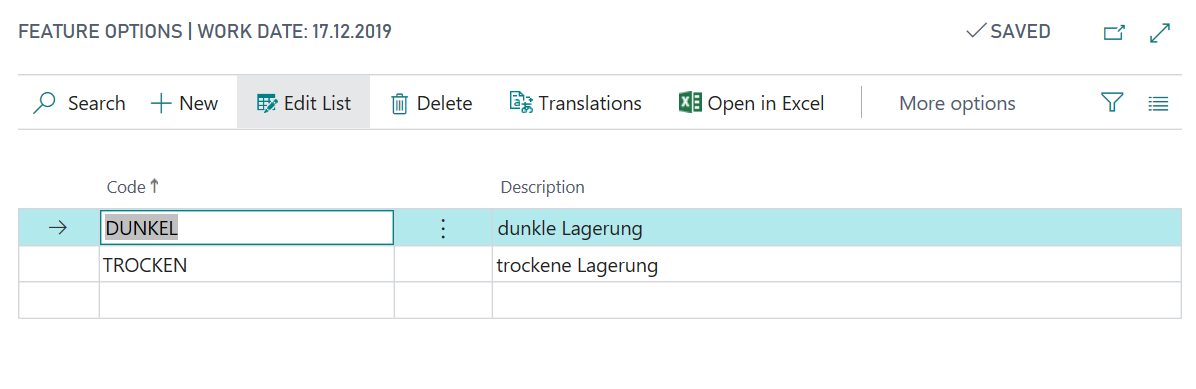
- Option (the options can be entered in the subtable Feature Options.)
- Boolean
- Date
Picture (the feature value is a picture, see Data Type Picture)
If the field Calculated Feature is set, the feature value is calculated due to other features or formulas. The Calculation Formula can be inserted. When assigning a feature to the master data (like item) the Calculation Formula is preset there but can be modified. For calculated features you must not enter a target value.
Examples:
- ING01 = ING02+ING03
M000028 = M000025M000026M000027
Note: If the feature code contains a “space”, the feature must be entered in square brackets []: (M0001+[M 0001])
You can see more information about the calculation formulas in chapter Calculation Formulas
- ING01 = ING02+ING03
You can enter a Rounding Type for Feature Values (Nearest, Up, Down).
A feature, that is marked with Transfer to next level is transferred to the next level (intermediate or end product) during development or production (recipe, manufacturing specification or production order). The Next Level Calc. Type field specifies how the feature is transferred if it occurs multiple times (i.e. in different components).
Depending on the data type, the following calculation types may be available:- Decimal: Additive / Average / Minimum / Maximum / Weighted Average (Weighted Average = Sum Target Value / Sum Component Quantities; so it doesn’t matter if the feature is quantity dependent or not)
- Boolean: Minimum / Maximum (Maximum: if at least one option is set to YES, then YES is transferred; Minimum: if at least one option is set to NO, then NO is transferred)
Date: Minimum / Maximum
For the data types Text, Option and Picture, the field Transfer to next level is not allowed; a Next Level Calc. Type cannot be entered for these data types.
You can add a Target Value, Lower Tolerance Limit and Upper Tolerance Limit. When assigning the feature to the master data (for example item ) these values are preset there but can be modified. You must enter the values according to the data type.
For calculated features you must not enter a target value!The Transfer To Item Tracking Field effects if the feature is an inspection feature and when the inspection order is completed, the determined feature value is transferred to the lot.
If Quantity dependent Calculation is selected, the target value calculation of the feature value in the manufacturing specification is quantity-dependent.
Examples of quantity-independent features (these are always calculated the same, regardless of how many items are manufactured): Viscosity, color tone, storage temperature, storage conditions, EAN number, length, width, height, QA release.
Examples of quantity-independent features: Energy (kcal), fat, sugar, ethanol, water, content of active ingredient, menthol, glycerin, vitamin A (beta-carotene), calcium, magnesium, etc.
The InfoTab Quality Assurance contains information that is relevant to quality assurance. The fields Target Value, Lower Tolerance Limit and Upper Tolerance Limit correspond to the fields in the InfoTab General. The fields are therefore also usable without quality control. For more information about these fields, see Yaveon 365 Quality Assurance.
In the InfoTab Miscellaneous information for creating and correcting the respective feature can be found (date and user).
To be able to use a feature, its status must be certified. You may not modify certified features. Certification or Undo of Certification can be secured with an electronic signature.
Data Type Picture
Features with the Data Type Picture carry a picture as their feature value — for example a hazard pictogram, a GHS symbol or a reference picture for a visual inspection.
If you set the Data Type to Picture, the Target Value (Picture) FactBox is shown on the Feature Card. Using the FactBox actions, you can Take the picture (camera of the device), Import it (picture file) or Delete it.
- On the Feature Card, set the Data Type to Picture.
- Import or take the picture in the Target Value (Picture) FactBox.
The following specifics apply:
- One target value picture can be stored per feature. A new import replaces the existing picture.
- The text field Target Value cannot be edited for the data type Picture, and the Lower/Upper Tolerance Limit are not available either.
- A Calculated Feature cannot have the data type Picture and vice versa. The system prevents both combinations with an error message.
- The field Transfer to next level is not allowed for the data type Picture.
- The picture can only be edited if the status is New or Under Development.
Warning
If the Data Type is changed from Picture to another data type later on, the picture in Target Value (Picture) is deleted — just like all other target values.
The target value Picture is transferred like any other feature value: to the Master Data Features, to the Document Features and, in quality assurance, to inspection plan lines, inspection order lines and certificate of analysis lines. Each level receives its own copy of the picture; a later change at the feature does not apply retroactively.
Picture at the Feature
You can store a Picture for each feature, regardless of the data type (for example a process photo, a pictogram or a label visualization). This picture is additional information only and is not the feature value; the feature value as a picture is covered by the Data Type Picture. The picture is managed via the Picture FactBox on the Feature Card.
- Using the FactBox actions, you can Import, Take or Delete a picture.
- Storing a picture changes neither the data type nor the feature value.
- If the feature has the status certified or closed, the picture, like all other fields, can no longer be edited. Reset the status to Under Development or New first.
Note
The picture is not copied automatically when the feature is used in master data and documents. It can be stored separately in the master data and document features if required.
Further feature data maintenance
- Translations: Translations can be defined for features. In the field Language Code the desired language can be selected and in the field Description the corresponding translation can be entered.
When using the feature in an inspection plan the translations of the feature are copied to the inspection plan as well and can be modified there for each document independently. - Options: As described above, the feature options can be stored here. If the data type of the feature is not equal to option, no entry is possible.
Translations can be defined for options.
When using the feature in an inspection plan the options and also the translations of the feature are NOT copied to the inspection plan and cannot be modified there per document. - Comments: Remarks on characteristics can be specified here.
- Test Equipment: A test equipment can be assigned to the feature. Detailed information on the test equipment is described in Yaveon 365 Quality Assurance.