Country-specific VAT ID, Account Assignment and Tax-Rate Determination
Choosing the determination logic
Business Central provides its own logic to handle several VAT registration numbers per customer. Yaveon 365 Sales and Purchase provides a more comprehensive logic that additionally determines the posting groups and your own company VAT registration number from the actual flow of goods. Only one of the two logics can be active at a time.
You choose the logic in the field Posting Group and VAT ID determination in the group Posting Group and VAT ID on the Yaveon 365 Sales and Purchase Setup page.
| Option | Effect |
|---|---|
| Business Central Standard | The Business Central standard logic determines the posting groups and the VAT registration numbers. The enhancements described on this page are switched off. |
| Yaveon 365 Advanced Logic | The country-specific determination of posting groups, partner VAT IDs and company VAT IDs described on this page is used. |
Fields and functions that require the Yaveon 365 Advanced Logic
If the field Posting Group and VAT ID determination is set to Business Central Standard, the following fields, actions and functions are not available:
| Page or function | Not available |
|---|---|
| Ship-to Address | VAT Registration No., VAT Registration Verified Date, VAT Registration Status |
| Order Address | VAT Registration No., VAT Registration Verified Date, VAT Registration Status |
| Countries/Regions | Company VAT Registration No., and in localizations where this field is not available the Company VAT-IDs action |
| Country Posting Grp. Setup | The page cannot be opened. An error message states that the Posting Group and VAT ID determination must be set to the advanced logic in order to use the Country Posting Grp. Setup. |
| Verify VAT IDs | The report cannot be run. An error message states that the report requires the advanced logic. |
| Sales and purchase documents | Miscellaneous Service |
| Change Business Posting Group | The Selection by Order Address action. The posting groups are no longer proposed from the Country Posting Grp. Setup either and must be entered manually. |
| Subcontracting Worksheet | The Miscellaneous Service option on the request page of the Carry Out Action Message action |
In addition, the posting group determination through the Country Posting Grp. Setup and the determination of the Company VAT Registration No. are not performed in sales and purchase documents. The Business Central standard determination is used instead.
Note
When you open the Yaveon 365 Sales and Purchase Setup page while Business Central Standard is selected, a notification points out that the advanced logic is available. Choose Deactivate in the notification to switch it off permanently. You can switch it on again in My Notifications.
Switching from Business Central Standard to Yaveon 365 Advanced Logic
The two logics store the country-specific VAT registration numbers of your customers in different places. The Business Central standard logic stores them per customer as alternative VAT registration numbers, the advanced logic stores them in the VAT Registration No. field of the Ship-to Address. When you switch the field Posting Group and VAT ID determination from Business Central Standard to Yaveon 365 Advanced Logic, you are therefore asked:
Do you want to merge existing Alt. VAT registration No. into related Ship-to addresses?
- Choose No to only change the setup. The existing alternative VAT registration numbers are kept, but they are no longer used.
- Choose Yes to additionally copy every existing alternative VAT registration number of a customer into the VAT Registration No. field of a Ship-to Address of that customer. The system proceeds as follows for each alternative VAT registration number:
- If the customer has Ship-to Addresses with the same Country/Region Code and an empty VAT Registration No., the alternative VAT registration number is written into all of them.
- Otherwise, if none of these Ship-to Addresses already contains the alternative VAT registration number, a new Ship-to Address is created with the Country/Region Code and the VAT Registration No. of the alternative VAT registration number. Its Code is derived from the Country/Region Code and a consecutive number, for example FR1, FR2.
Important
Merging changes master data. Run it in a sandbox first and check the result before you switch the productive environment.
Note
Switching from Yaveon 365 Advanced Logic to Business Central Standard does not transfer any data back.
Initial value after installation and update
The initial value of the field Posting Group and VAT ID determination depends on the data that already exists in the database. Two indicators are evaluated: whether a Company VAT Registration No. is entered for at least one country/region, and whether at least one customer has an alternative VAT registration number.
| Company VAT Registration No. exists | Alternative VAT registration No. exists | Update of an existing installation | New installation |
|---|---|---|---|
| No | No | Yaveon 365 Advanced Logic | Yaveon 365 Advanced Logic |
| Yes | No | Yaveon 365 Advanced Logic | Yaveon 365 Advanced Logic |
| Yes | Yes | Yaveon 365 Advanced Logic | Business Central Standard |
| No | Yes | Business Central Standard | Business Central Standard |
Note
A new installation in a database that still contains data of an earlier installation of the Yaveon 365 Sales and Purchase App is treated as a new installation, not as an update.
The Necessity of a VAT Registration Number
Due to European Tax Law it is necessary to print the Value Added Tax Registration Number (VAT-ID) of the customer on certain Sales Documents. This is mandatory for Sales Invoices and Credit Memos within the European Union. The VAT Registration Numbers of your company and the customers company number have to be printed. This is necessary for deliveries between business customers from one European country to another.
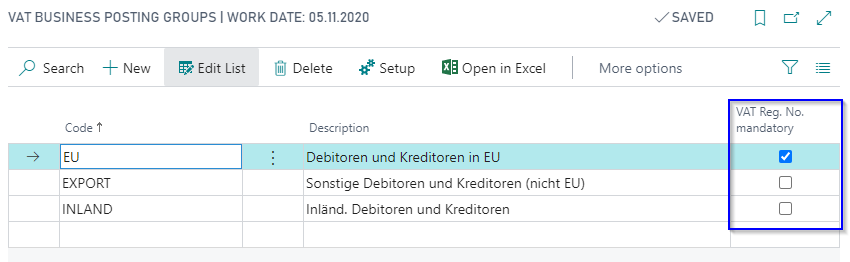
European Business customers have to be assigned a Posting Group with a mandatory VAT Registration Number. When inserting the Customer No. in a Sales Document, the system checks on the basis of the VAT Business Posting Group whether the VAT Registration Number is mandatory. If this is true the field on the Customer Card has to be filled to create the Sales Document.
To activate the check for an existing VAT Registration Number, you have to mark the flag VAT Reg. No. mandatory for the affected VAT Business Posting Group.
Note
The VAT Reg. No. mandatory check only applies to Sales Documents. When inserting a vendor on a Purchase Document, no equivalent check is performed — the VAT Reg. No. mandatory flag on the VAT Business Posting Group has no effect on purchase side documents.
Consideration of country-specific VAT-IDs
Note
Everything described in the following sections requires the field Posting Group and VAT ID determination to be set to Yaveon 365 Advanced Logic, see Choosing the determination logic.
Companies might have country-specific VAT Registration Numbers for international trade. The numbers must be printed on purchase and sales invoices due to the actual flow of goods.
Customers and vendors may also have several country-specific VAT Registration Numbers, which must also be printed on the documents due to the flow of goods.
In addition, it is necessary to consider the different national tax rates, because for the country-specific VAT Registration Number it is necessary to perform a sales tax registration.
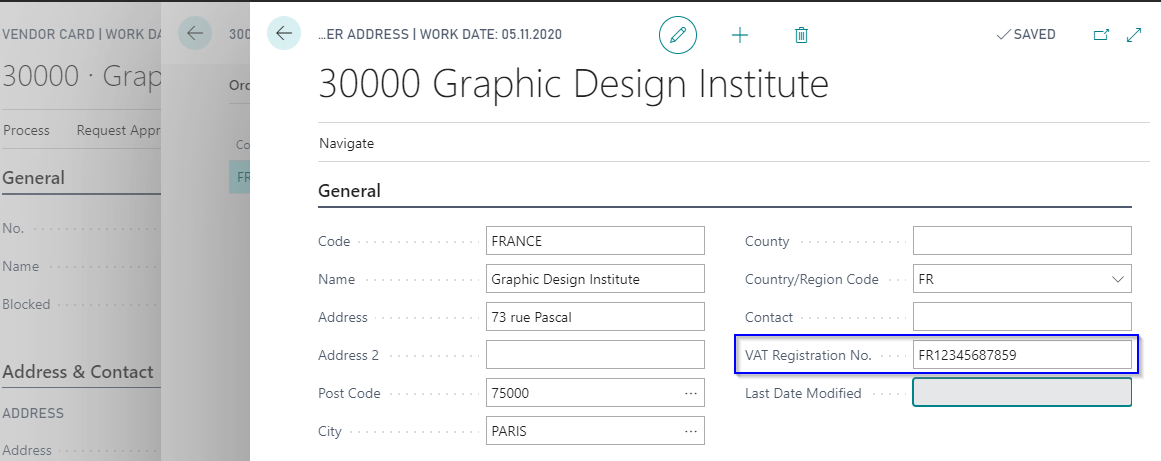
The Yaveon 365 Sales and Purchase App enhances the BC-Standard Account- and Tax-rate determination with the country code to reflect the actual flow of goods. For this, the Order Address of the vendor has been enhanced with a VAT Registration No. field. Here you can enter the country-specific VAT Registration Number.
The field has been added on the Ship-to Address of the customer as well.
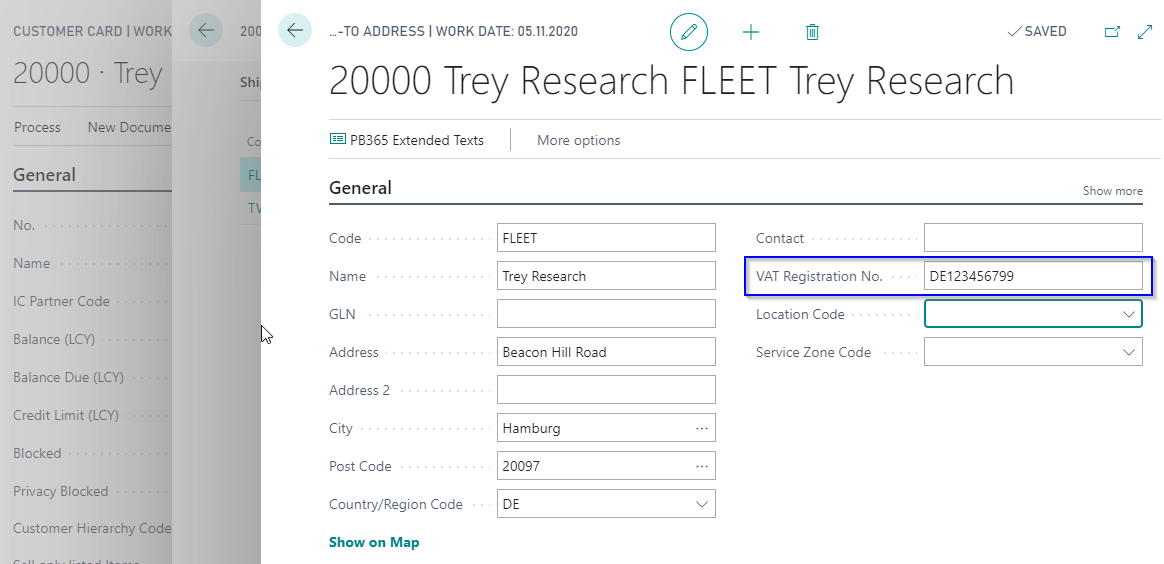
Through this addition you can manage the country-specific VAT Registration Numbers of your vendors and customers.
Note
The country specific VAT IDs are correctly added to all legally necessary documents. Since the Intrastat reporting is part of the country localizations of BC, the enhancement of the intrastat journal is only valid to be used in German localized databases. Please contact your Solution Center for national enhancement of Intrastat.
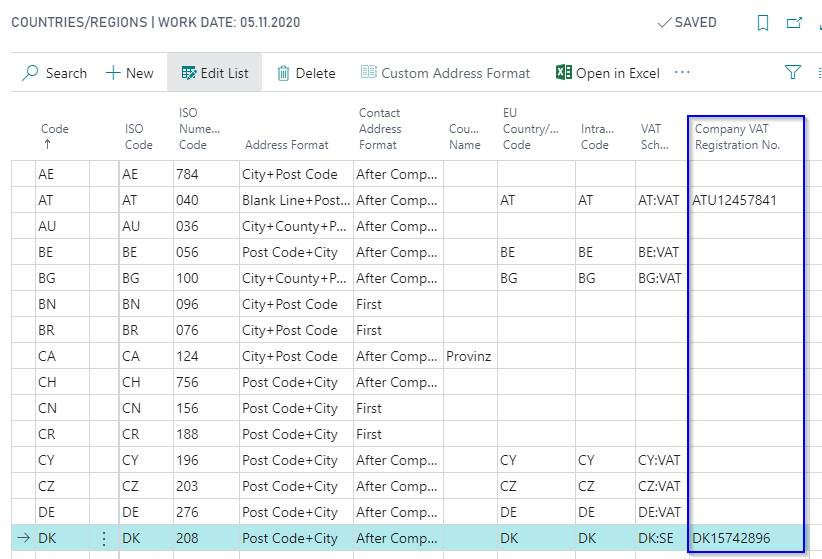
Furthermore, your company itself can own several country-specific VAT Registration numbers. To manage them the table Countries/Regions has been enhanced by the field Company VAT Registration No.
Note
In Business Central localizations where the Countries/Region table is system wide and not company specific, e.g. in the Swiss version, the Company VAT-ID field is not directly on the table. The field is outsourced to the Company VAT-ID per Company table, where it can be maintained. In this case, the Company VAT Registration No. field is not shown on the Countries/Regions page. Instead, the page offers the Company VAT-IDs action, which opens the Company VAT-ID per Company list for the selected country/region.
Note
To print the Company VAT Registration No on documents controlled by the Corporate Design functionality, the Replace VAT Reg. No. through Company VAT Reg. No. option must be enabled for the document, see Corporate Design - Yaveon 365 Sales and Purchase.
Check and verification of country-specific VAT IDs
Business Central includes the Verify VAT Registration No. function, which validates a single VAT Registration Number against the EU's VIES (VAT Information Exchange System) online service. The service must be configured and enabled in the EU VAT Registration No. Validation Service Setup. The result of each check — valid or invalid — is stored in the VAT Registration Log and can be reviewed from the Customer, Vendor, and Contact cards.
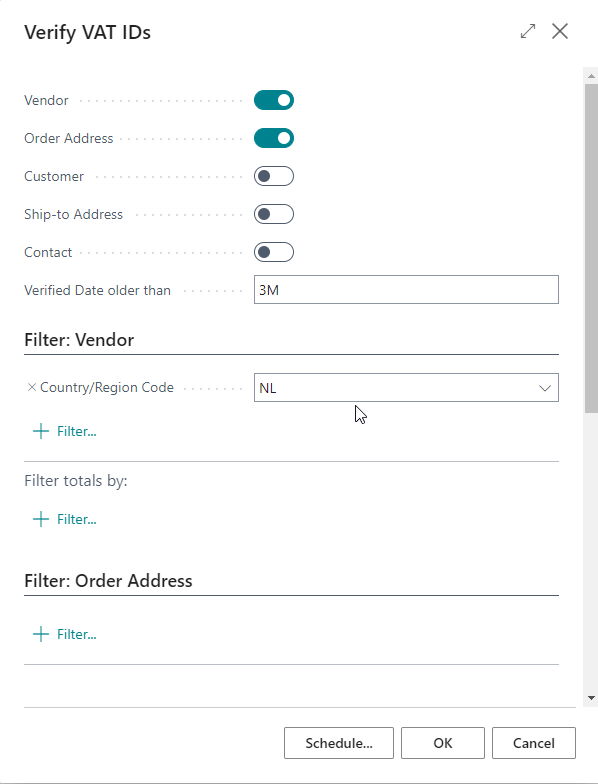
Yaveon 365 Sales and Purchase includes the function Verify VAT IDs, which gives the user the possibility to check and verify VAT IDs of multiple customers and vendors, including deviating VAT IDs which are listed with their ship-to and order addresses, at the same time. The Business Central standard function Verify VAT Registration No. is performed several times to check multiple VAT IDs. The results can be found in the VAT Registration Log.
The function offers multiple possibilities to filter the data records which are to be checked. Additionally, excluding counterparties, which have been checked within a defined time frame, is an option.
Note
This function is created as a report and designed to be used in a Job Queue. Please be aware that the VIES service may reject requests when the maximum number of concurrent requests — globally or per Member State — has been reached. If this occurs, the affected VAT numbers will not be validated and the check should be retried later.
Account Assignment of Business Posting Group and VAT Business Posting Group
The initial Account Assignment and determination of the tax is based on the VAT Bus. Posting Group and VAT Prod. Posting Group. Those depend on the customer or vendor and item.
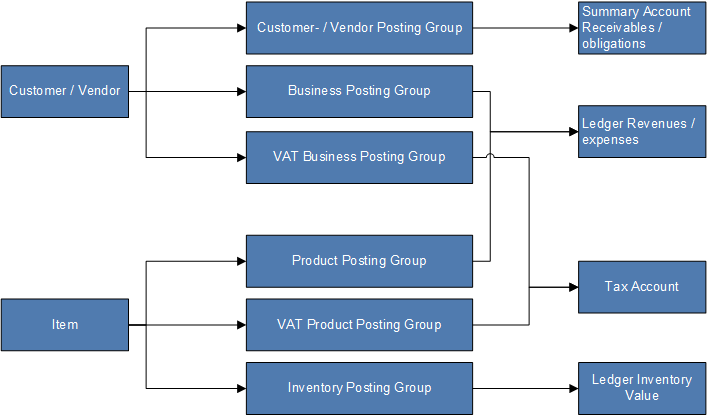
The Yaveon 365 Sales and Purchase App enhances the BC-Standard Account- and Tax-rate determination with the country code to reflect the actual flow of goods.
Crucial for the Account- and Tax-rate determination is the country where a shipment is delivered from and the country where it is finally delivered to. Additionally, the selected Shipping Method is relevant for the determination.
To map delivery scenarios, which deviate from the BC-Standard, the Country Posting Grp. Setup can be used.
The function, which determines the Account Assignment and tax rate for Sales and Purchase Documents cycles through the Country Posting Grp. Setup. If it determines a combination of setup fields that fit the delivery scenario it will replace the Gen. Bus. Posting Group and the VAT Bus. Posting Group in the document. As a result, the Account Assignment and tax rate will be changed.
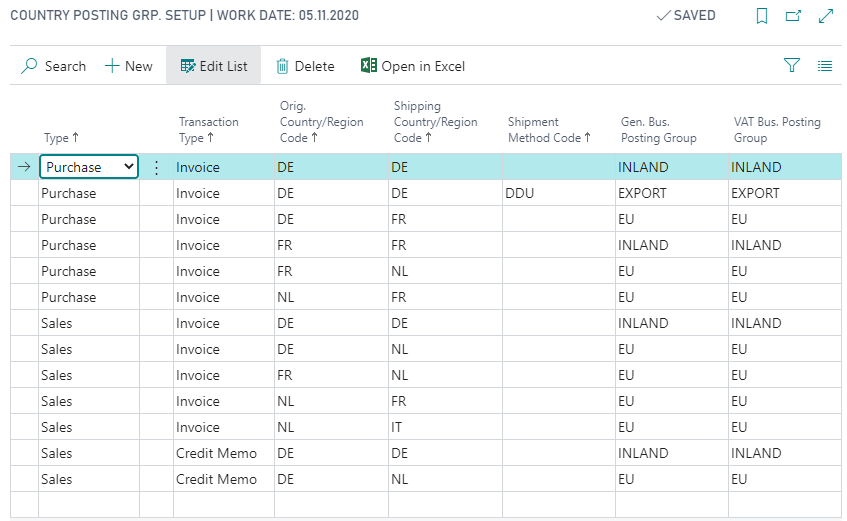
The function cycles through the Country Posting Grp. Setup in two steps:
- First, the function compares the parameters Type, Transaction Type, Country of Dispatch, Shipping Country/Region Code and Shipping Method with the parameters in the document.
- If no result is found it cycles through the Country Posting Grp. Setup again, with the parameters Type, Transaction Type, Country of Dispatch, Shipping Country/Region Code, with the parameter Shipping Method = empty.
If no result is found, the function is canceled and the Gen. Bus. Posting Group and the VAT Bus. Posting Group from the customer and vendor are used.
Note
The special features of business processes with Drop Shipment are not taken into account by the Country Posting Grp. Setup. Additionally, the company VAT-ID is also restricted to processes without Drop Shipment. Checking the VAT IDs and posting groups is always necessary and especially important for international drop shipment processes.
Note
The column Orig. Country was renamed to Country of Dispatch.
Special case: Miscellaneous Service
If a company provides a service for another company, e.g. third-party production, then there is no flow of goods. Thus, in these cases, the country-specific VAT ID and the country-specific tax rates may not be applied, as the Country Posting Grp. Setup currently does.
To reflect this case, the Miscellaneous Service field is included in the header of all purchase and sales documents. If this field is checked, the Country Posting Grp. Setup will not be used, i.e. the standard BC logic will be used to determine the Gen. Bus. Posting Group and VAT Bus. Posting Group. The determination of the VAT ID and Company VAT ID is also done using the BC standard.
Note
The Miscellaneous Service field is only shown if the field Posting Group and VAT ID determination is set to Yaveon 365 Advanced Logic, see Choosing the determination logic.
The field can be activated in the document headers as long as no document line is created. Once a document line is created, it is no longer possible to change it. The setup is valid for the whole document. The field value is transferred to subsequent documents, e.g. from the quotation to the order.
The field is initially deactivated. Exception is the creation of a purchase order from a Subcontracting Worksheet: for these purchase orders, the default value of the Miscellaneous Service field is controlled by a setup on the Yaveon 365 Sales and Purchase Setup page.
When you run the Carry Out Action Message action on a subcontracting worksheet line, the default value from the setup is proposed on the request page. You can change it there before the purchase order is created. This lets you decide — per subcontracting run — whether the resulting purchase order should follow the country-specific VAT logic (Miscellaneous Service = deactivated) or the standard BC logic (Miscellaneous Service = activated).
Example: Purchase Process (Miscellaneous Service = deactivated)
A German company purchases goods from a German vendor's location in France and ships the goods to the Netherlands.
- Shipment of items from: France (Buy-from Country/Region Code)
- Shipping to: Netherlands (Ship-to Country/Region Code)
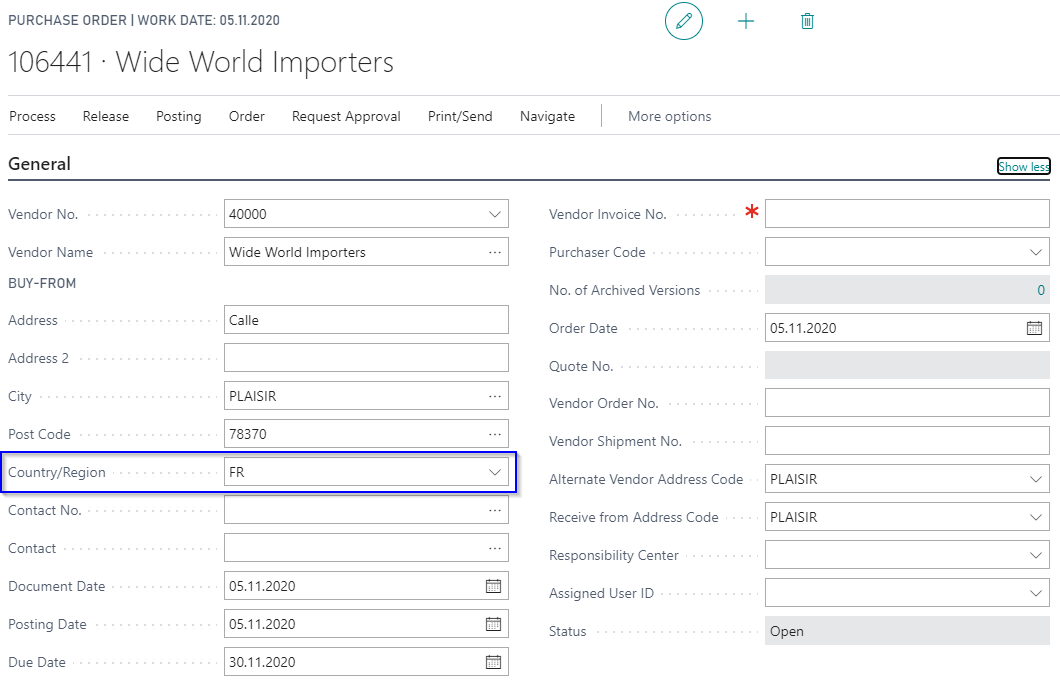
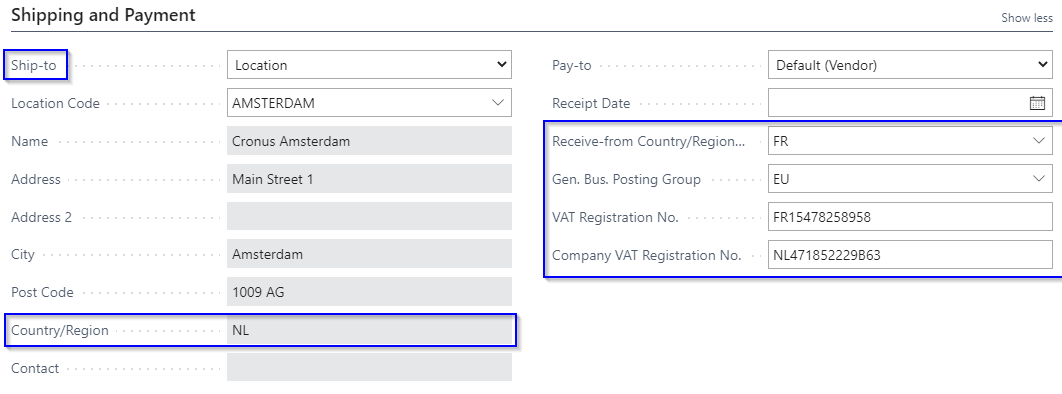
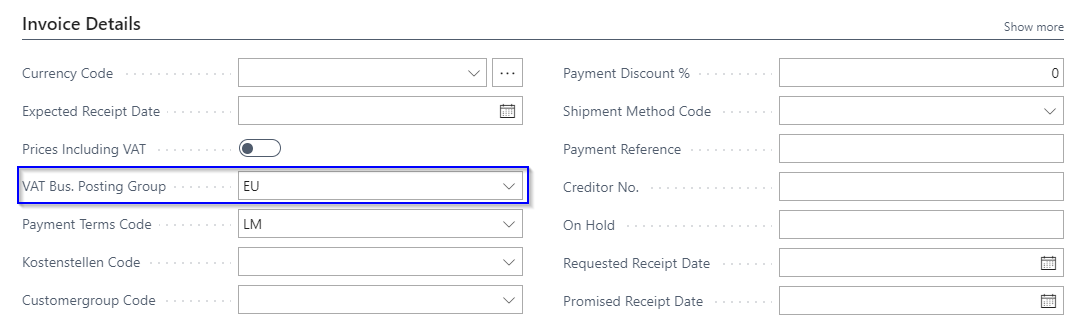
The field Receive-from Country/Region Code is used for detecting the right posting group. It is inserted when selecting the vendor and modified with the country of the Order Address and Ship-to Address if necessary.
According to the origin and shipping countries the system determines the Gen. Bus. Posting Group and the VAT Bus. Posting Group out of the Country Posting Grp. Setup and inserts them into the document header.
The VAT Registration No. of the vendor Order Address (Buy from) is inserted into the document header and will be printed on the documents.
The Company VAT Registration No. is not copied from the Company Information, but from the Countries/Regions table, due to the Ship to Country/Region Code.
Example: Sales Process
A German company sells goods from a location in the Netherlands to a customer with shipping address in Italy.
- Ship from: Netherlands (Ship-from Country/Region Code)
- Shipping to: Italy (Ship-to Country/Region Code)
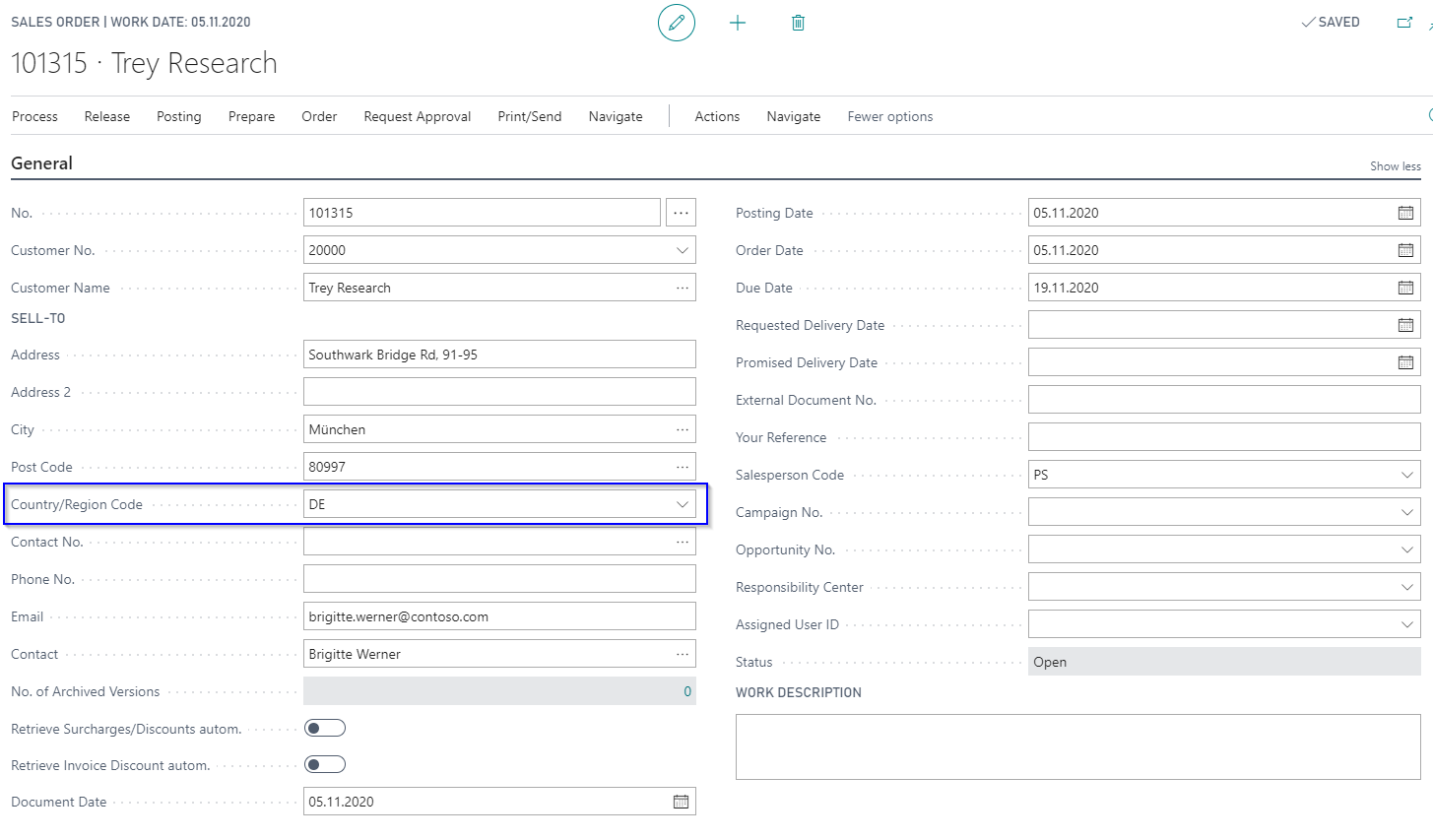
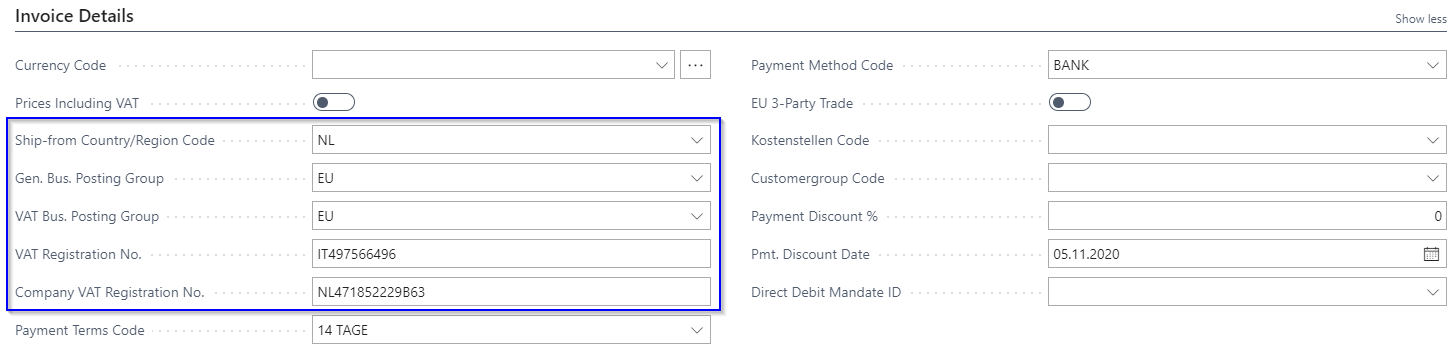
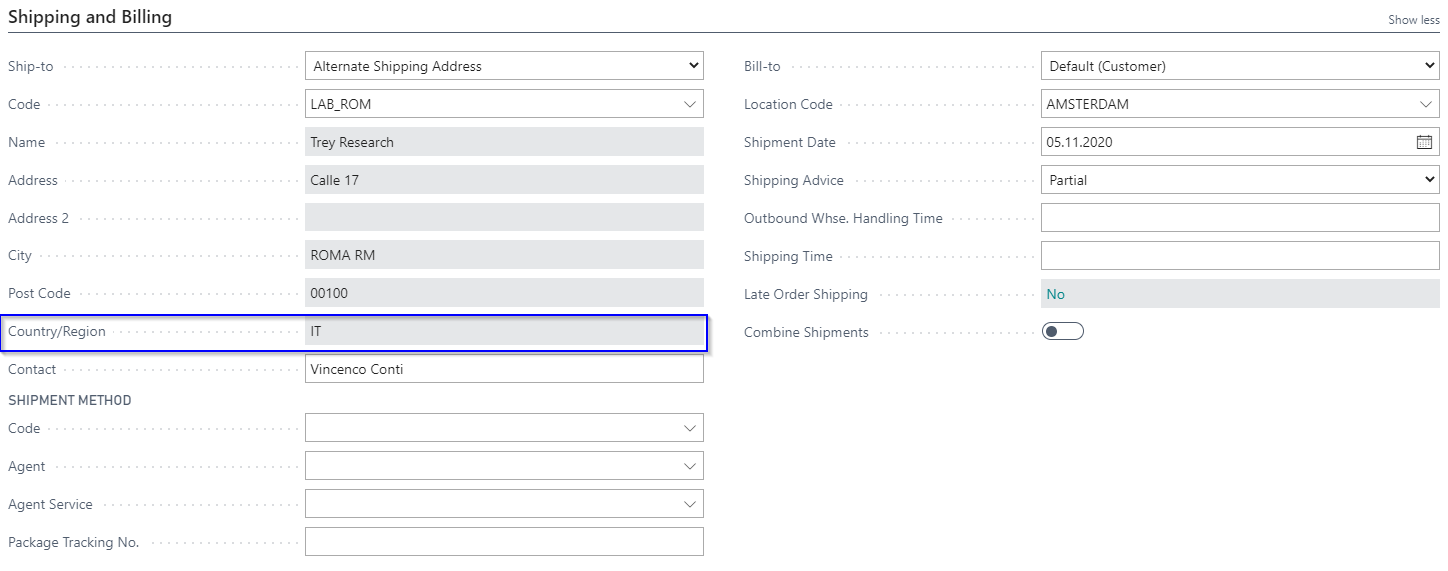
According to the origin and shipping countries the system determines the Gen. Bus. Posting Group and the VAT Bus. Posting Group out of the Country Posting Grp. Setup and inserts them into the document header.
The VAT Registration No. of the customers Ship-to Address is inserted into the document header and will be printed on the documents.
The Company VAT Registration No. is not copied from the Company Information, but from the Countries/Regions table, due to the Ship-from Country/Region Code of the Location.