Yaveon 365 Sales and Purchase Setup
In the Yaveon 365 Sales and Purchase Setup you can make general settings for the Yaveon 365 Sales and Purchase App.
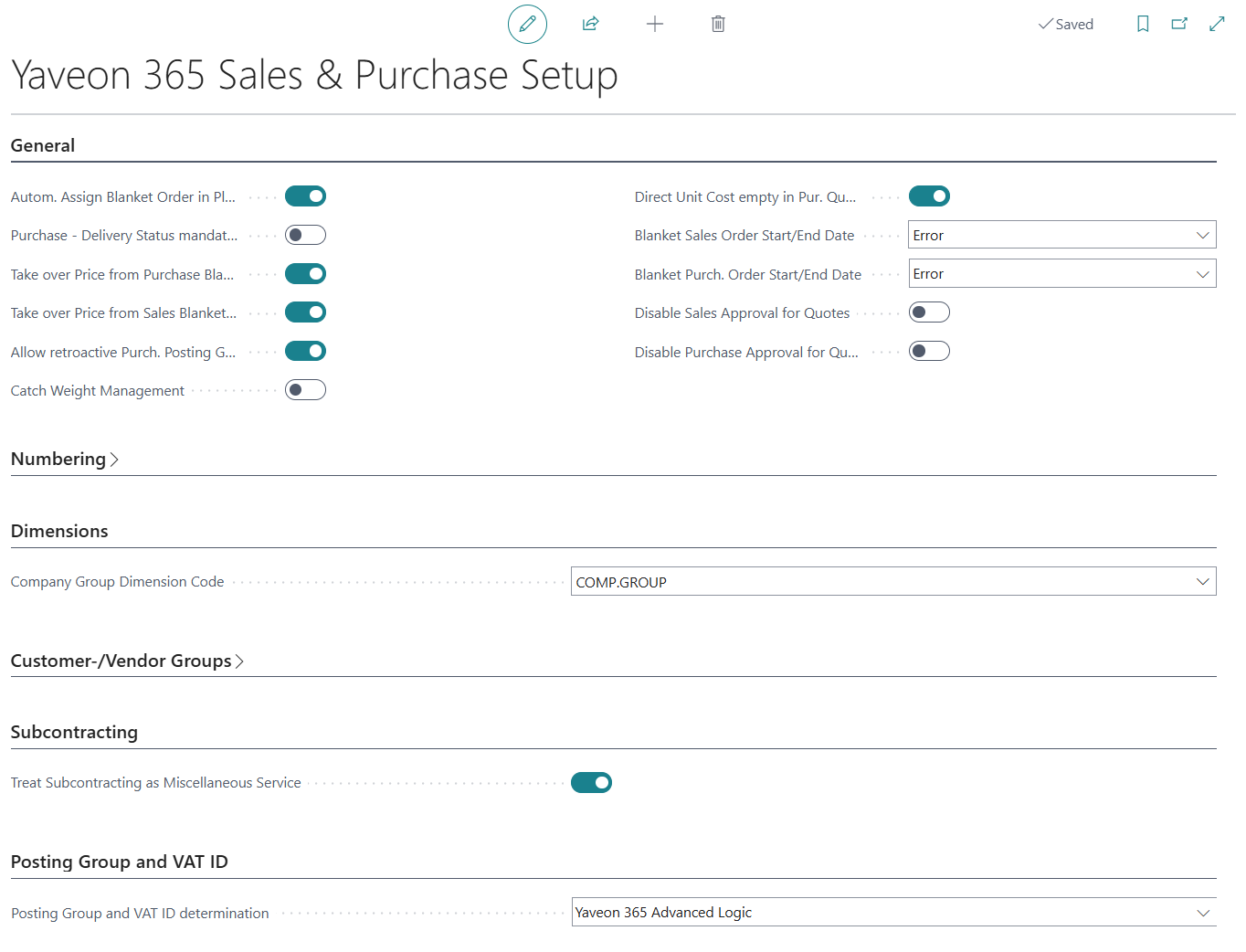
If the field Autom. Assign Blanket Order in Planning is activated, a Blanket Order will be automatically assigned in the Requisition and Planning Worksheet, see Contract Management in Requisition and Planning Worksheet.
If the field Take over Price from Sales Blanket Order is activated, the price for an item is copied from the Blanket Sales Order line into the Sales Order line. If the field is not activated, the established pricing method is used. If the field Take over Price from Purchase Blanket Order is activated, the same applies for Blanket Purchase Orders and created Purchase Orders.
Note
The Yaveon 365 Sales and Purchase App adds the option Yaveon 365 Blanket Order Pricing to the Price Calculation Method field on the pages Sales & Receivables Setup, Customer Price Group and Customer. The reason for this is, that the other price calculation methods are extended by the transfer of prices from the blanket order to the order. The option is only used programmatically in the background. It is therefore not possible to manually select this option, which results in an error message.
If the field Purchase - Delivery Status mandatory is activated, it is mandatory to choose a delivery status in Warehouse Receipt lines, before posting the receipt. The options are Part delivery and Complete delivery.
If the field Allow retroactive Purch. Posting Group Changes is activated, posting groups in Purchase Orders and unposted Purchase Invoices can be changed after the warehouse receipt has been posted. For more information, see Retroactive changing posting groups after receipt.
The field Treat Subcontracting as Miscellaneous Service controls the default value of the Miscellaneous Service flag on purchase orders that are created from a Subcontracting Worksheet. For more information on the effect of the Miscellaneous Service flag, see Special case: Miscellaneous Service.
In the field Posting Group and VAT ID determination you choose whether the Business Central standard logic or the Yaveon 365 Sales and Purchase logic determines the posting groups and the VAT registration numbers of customers, vendors and your own company in purchase and sales documents. The options are Business Central Standard and Yaveon 365 Advanced Logic. The setting controls which fields, pages and functions of the country-specific VAT ID determination are available. For more information, see Choosing the determination logic.
If the field Catch Weight Management is activated, the Catch Weight functionality is enabled, which allows quantities to be specified in two different units of measure. For more information, see Catch Weight in Sales and Purchase.
If the field Direct Unit Cost empty in Pur. Quote line is activated, the Direct Unit Cost Excl. VAT field in Purchase Quote lines is not prefilled with the last used price. This is especially useful for the Purchase Quote Manager.
If the field Disable Sales Approval for Quotes is activated, approval-requiring items can be entered in Sales Quotes even without a valid Sales Approval; instead of an error message, an informative notification appears. Likewise, if the field Disable Purchase Approval for Quotes is activated, approval-requiring items can be entered in Purchase Quotes and in the Purchase Quote Manager without a valid Purchase Approval. When the quotes are converted into other documents, the approval remains mandatory. For more information, see Disable Sales Approval for Quotes and Disable Purchase Approval for Quotes.
The fields Blanket Sales Order Start/End Date and Blanket Purch. Order Start/End Date control how the system reacts when a Sales Order or Purchase Order date falls outside the validity period of the corresponding Blanket Order. For more information, see Optional Validity Period.
A No. Series for the Purchase Quote Manager can be chosen in the field Purchase Quote Manager.
In the field Company Group Dimension Code, a specific Dimension Code can be selected to group companies into a company group. This can be used to create Blanket Sales Orders for more than one customer at a time. For more information, see Company Group and Alternative Customers for Sales Blanket Orders.
The Yaveon 365 SP Customer Groups and the Yaveon 365 SP Vendor Groups can be replaced by the data and connected to another table, through the Customer Group Field and Vendor Group Field. You can select a field from another table through the look-up function. When the field is selected, all data in the Yaveon 365 SP Customer Groups and Yaveon 365 SP Vendor Groups table is deleted and replaced by the data from the selected field.
Thereby, you can synchronize the Yaveon 365 SP Customer Groups from the Yaveon 365 Sales and Purchase App with the QA Customer Groups from the Yaveon 365 Quality Assurance App, for example. If a new group is added to the QA Customer Groups, it will automatically be part of Yaveon 365 SP Customer Groups. On the contrary, if a new group is added to the Yaveon 365 SP Customer Groups, it will not be added to the QA Customer Groups dataset.