Inspection Orders in Production and Warehouse Processes
Inspection orders can be opened and processed directly from the Output, Consumption, and Warehouse Receipt scanner dialogs. You do not have to leave the running process or search for the inspection order manually in the inspection order overview: the respective action directly opens the inspection groups of the inspection orders that belong to the selected document or line.
Recording actual values works identically to recording via the Inspection Order menu item, see Inspection Process.
Note
In addition to the Yaveon 365 Quality Scanning app, the production dialogs (Output, Consumption) require the Yaveon 365 Manufacturing Scanning app, and the Warehouse Receipt requires the Yaveon 365 Warehouse Scanning app.
General Behavior
The following applies to all process dialogs:
- Inspection orders with status Released or Inspection that belong to the selected line or document are opened.
- If exactly one inspection group exists, you are taken directly to the actual value recording for its inspection features. If there are multiple inspection groups, the inspection group selection is displayed first.
- If no matching inspection order exists, an empty list opens.
- The qualification check of the Yaveon 365 Quality Assurance app applies unchanged: actual values can only be recorded if the user has the qualification assigned to the inspection feature.
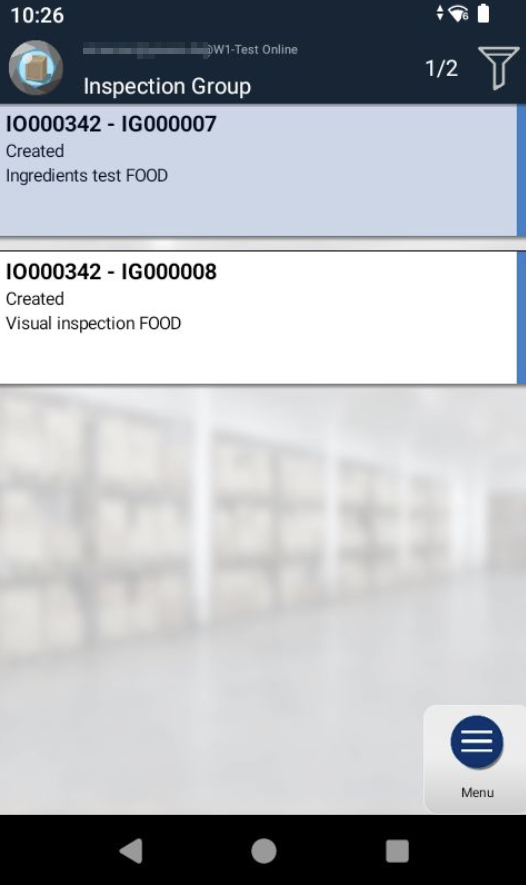
Production: Output
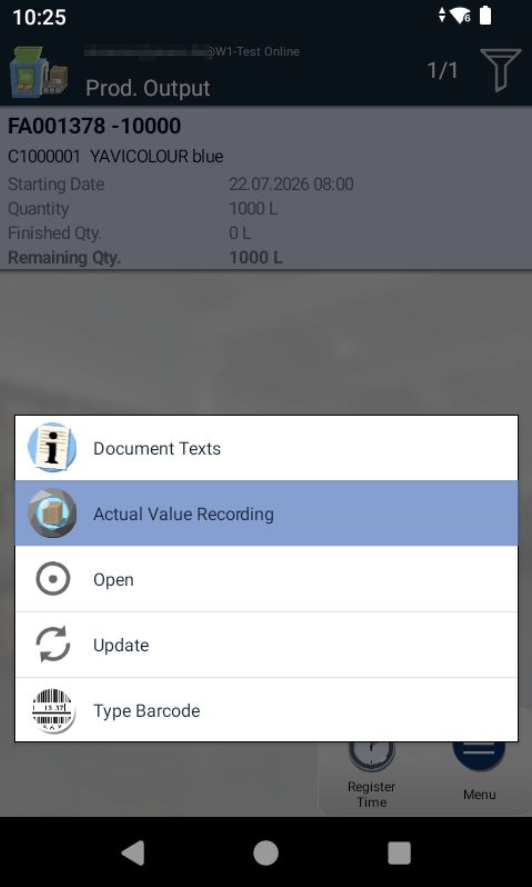
In the Output dialog, the Actual Value Recording action is available on the production order line. It opens the inspection groups of the inspection order that belongs to the production order line.
In addition, the actual value recording can be opened automatically:
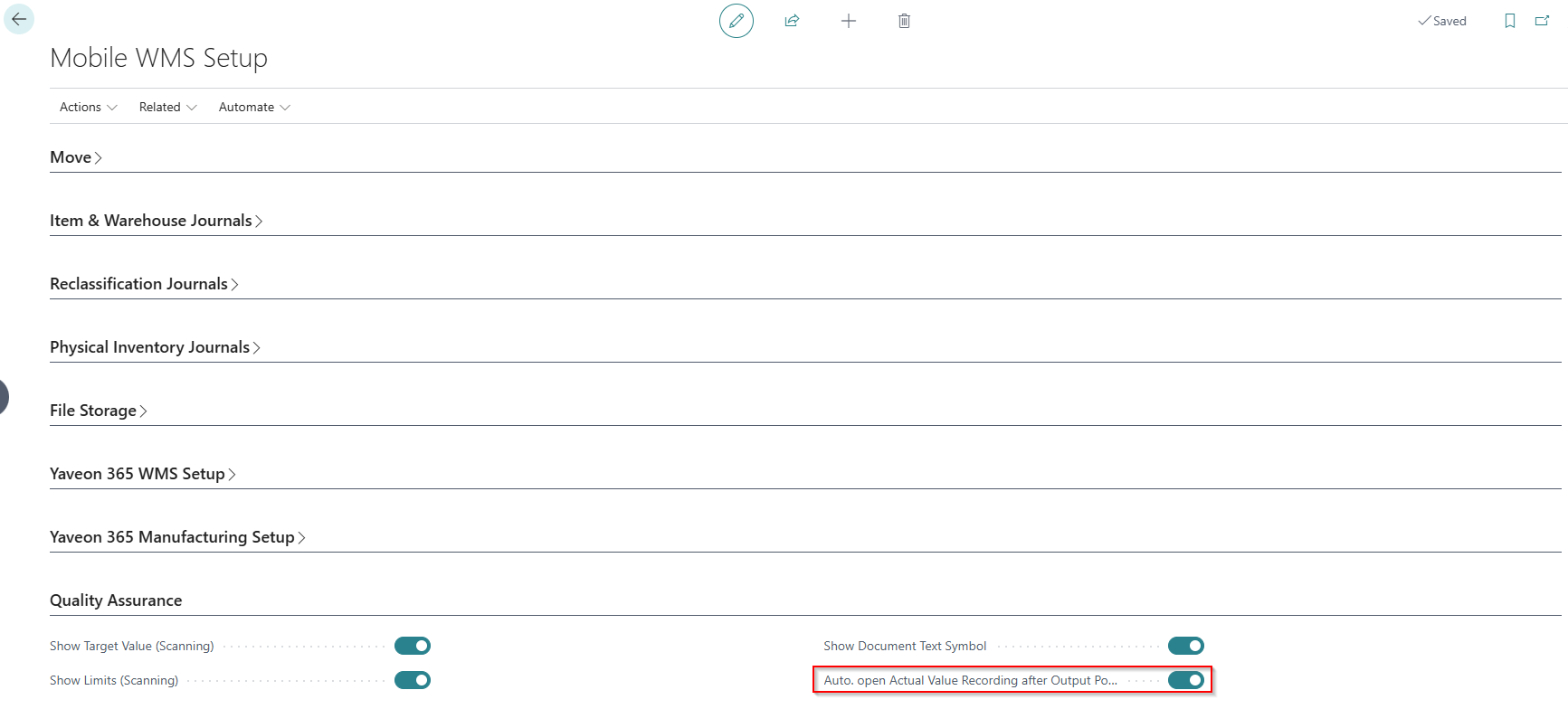
- In the Mobile WMS Setup, on the Quality Assurance FastTab, enable the Automatically open Actual Value Recording after Output Posting field (see Setup).
- Post an output on the scanner.
- After successful posting, the actual value recording for the related inspection order opens automatically.
Note
When the field is changed, the user needs to log out and log in again on the scanner for the change to take effect.
Note
The list also opens if no inspection order exists for the production order line — in this case it is empty.
Production: Consumption
In the Consumption dialog, the Inspection Order action is available both on the production order and in the line view. It opens the inspection groups of the inspection orders that belong to the production order or the selected line.
Grouping by Operations
The consumption lines are grouped by operations: for each operation with linked components, a grouping line is displayed, below which the assigned components appear indented. The grouping is a feature of the Yaveon 365 Manufacturing Scanning app and is also available without any quality module, see Production Consumption Registration.
On the operation line, a symbol indicates whether an in-process control (inspection order) exists for the operation:
| Symbol | Meaning |
|---|---|
| Camera | Open inspection order (status Released or Inspection) |
| Check mark | Finished inspection order |
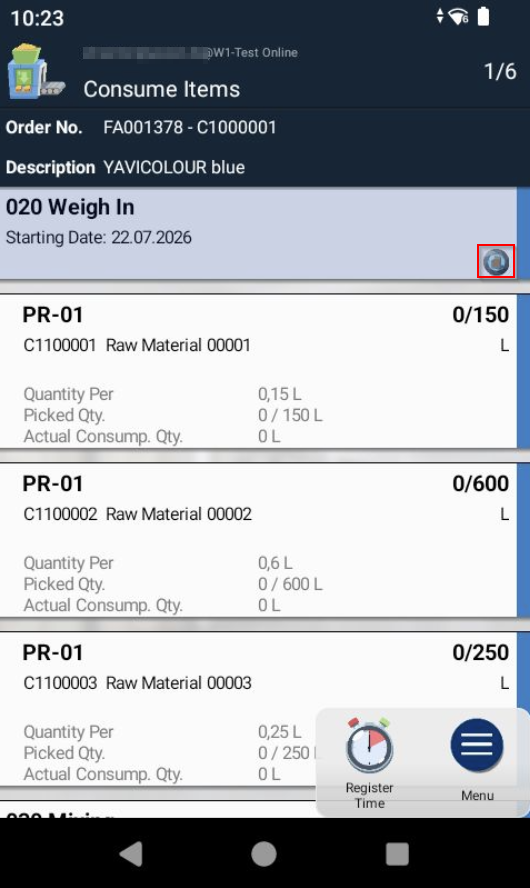
Using the Inspection Order action on an operation line, you directly open the inspection order of that operation and can perform the in-process control without leaving the Consumption dialog.
Warehouse Receipt
Two actions are available on the warehouse receipt lines:
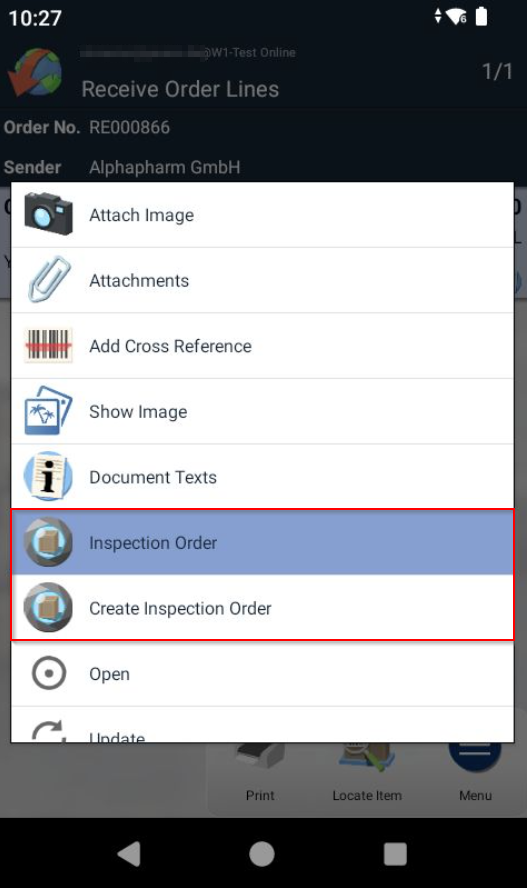
Opening an Inspection Order
The Inspection Order action opens the inspection groups of the inspection order that belongs to the warehouse receipt line. It is available both on the warehouse receipt document and on the individual line.
Creating an Inspection Order
Using the Create Inspection Order action, you manually create an inspection order for the selected warehouse receipt line. This requires a matching inspection plan for the item in the Yaveon 365 Quality Assurance app.
If registrations with a lot or serial number have already been recorded on the scanner for the warehouse receipt line, the action immediately transfers these not yet posted registrations (including lot no. or serial no. and quantity) as item tracking to the warehouse receipt line in Business Central. This always happens — regardless of the Item Inspection Level set in the inspection plan.
Important
The item tracking is saved in Business Central immediately when the Create Inspection Order action is run — not only when the warehouse receipt is posted. If registrations need to be changed or deleted on the scanner afterwards (for example, because of an incorrect entry), the item tracking that has already been saved is not adjusted automatically. In this case, first delete the item tracking lines of the warehouse receipt line and any inspection orders already created manually in Business Central before registering the line on the scanner again.
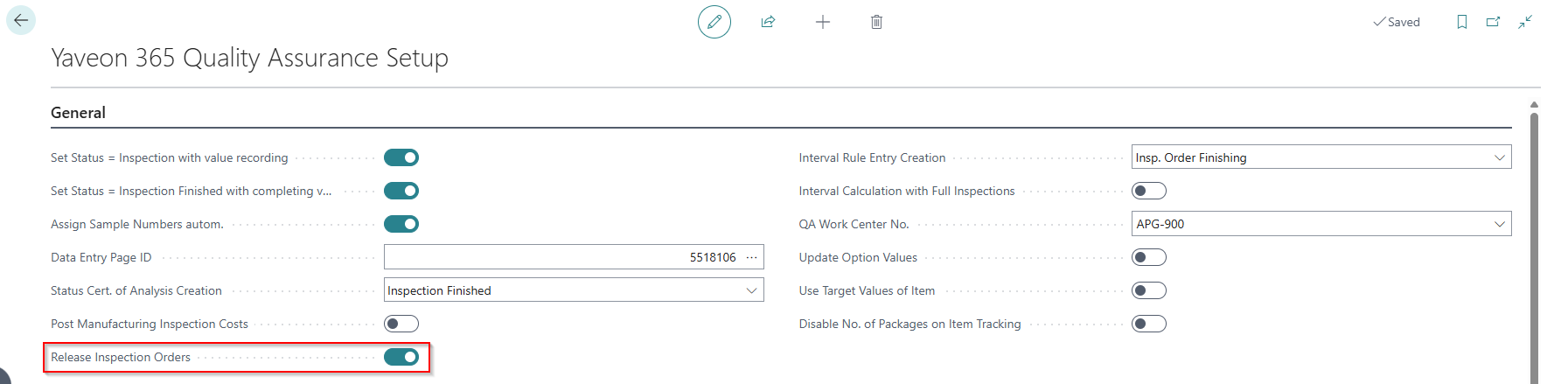
The status of the created inspection order depends on the Release Inspection Orders field in the Yaveon 365 Quality Assurance Setup:
| Setting | Behavior |
|---|---|
| Enabled | The inspection order is released and can be processed directly on the scanner |
| Disabled | The inspection order is created with status Created and must first be released in Business Central |
Note
Only released inspection orders are visible and can be processed on the scanner.
Inspection Orders at Lot or Serial Number Level
If the related inspection plan has the Item Inspection Level Lot (or Serial No.), creating the inspection order requires the lot or serial number from the transferred item tracking. One inspection order is created per registered lot or serial number.
Therefore, proceed in this order:
- Register the warehouse receipt line on the scanner and record the lot no. or serial no.
- Run the Create Inspection Order action.
Without a registered lot or serial number, the creation is canceled with the message No Inspection Orders were created because no Item Tracking was found.