Production Consumption Registration
- Open consumption dialog
- Open Production Order Line
- Selection of consumption line
- Record consumption data
- Register and post consumption
1. Open consumption dialog
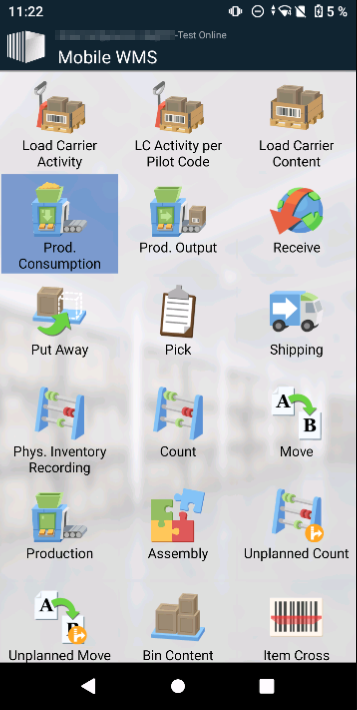
Consumption for Production Orders is recorded and posted via the Production Consumption dialog. It can be accessed through the main menu as an independent action. The Output Registration is recorded via a separate dialog.
2. Open Production Order Line
The consumption dialog opens with an overview of the available Production Order Lines.
The following criteria are the prerequisites for the availability in Yaveon 365 Manufacturing Scanning:
- Prod. Order needs to have the Status Released
- Prod. Order needs to have a Location Code
- The lines are visible until the Status of the Prod. Order is set to Finished
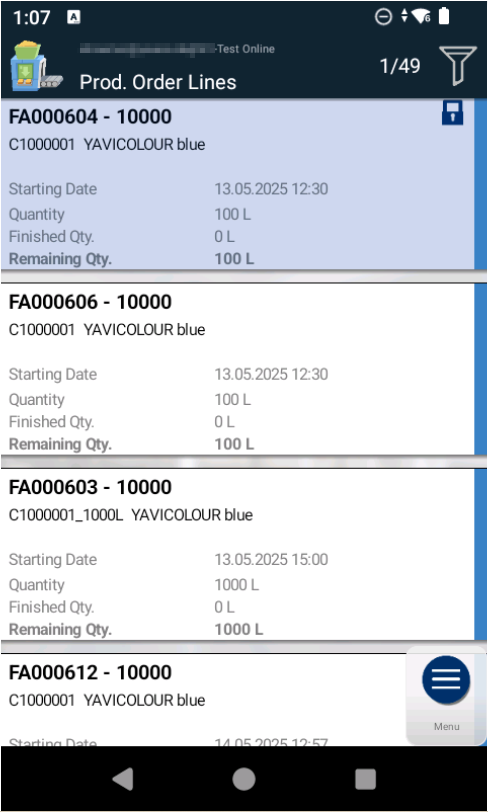
The first line of each record includes, if available, the Prod. Order No., Prod. Order Line No. and the Batch No..
The second line includes the Item No. and Item Description
Filtering Prod. Order Lines
The user can adjust the view through the use of the filter symbol.
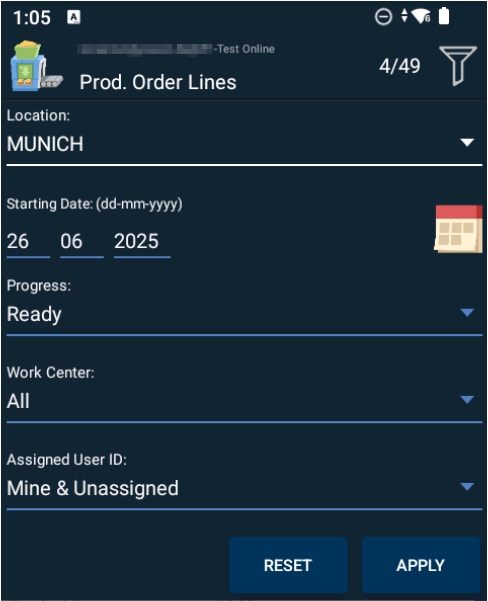
Location
All Prod. Order Lines corresponding to the Location in the filter can be seen
Starting Date
All Prod. Order Lines with a Starting Date smaller or equal to the Starting Date in the filter can be seen
Work Center
All Prod. Order Lines that include the Work Center in the filter at least once in their Routing can be seen
Assigned User-ID
There are the options, Mine & Unassigned, All and Only my orders. The view is adjusted accordingly.
Selection of Prod. Order Line
The line can be selected in a number of different ways.
- Manual Selection through the display
- Scanning a Product Label
- Scanning a Prod. Order No.
- Scanning a Prod. Order No. + Line No.
- Scanning a Prod. Order No. + Line No. + Operation No.
Scanning a given label either causes the view to be filtered or a particular line to be selected, depending on whether the scanned label corresponds to one or multiple Prod. Order Lines.
3. Selection of Consumption line
After having selected the Prod. Order Line, the corresponding items to be consumed are shown.
Grouping by Operations
The consumption lines are grouped by operations:
- For each operation that has components assigned via a routing link, a grouping line with the operation number, description, and starting date of the operation is displayed.
- The assigned components appear indented below their operation line.
- Components without a routing link are displayed at the top of the list without indentation.
- If the production order line has no routing, all components are displayed without grouping.
Using the Register Time action on an operation line, Setup Time and Run Time can be recorded directly for that operation — the operation selection is skipped, see Production Register Time.
Note
If the Yaveon 365 Quality Scanning app is also installed, the operation line shows a symbol when an inspection order (in-process control) exists for the operation, and the inspection order can be opened directly from the Consumption dialog. See Inspection Orders in Production and Warehouse Processes.
Displayed Information per Consumption Line
- (1) Bin Code
- (2) Item No. and Item Description
- (3) Actual Consumption Quantity / Expected Consumption Quantity
- (4) Unit of Measure
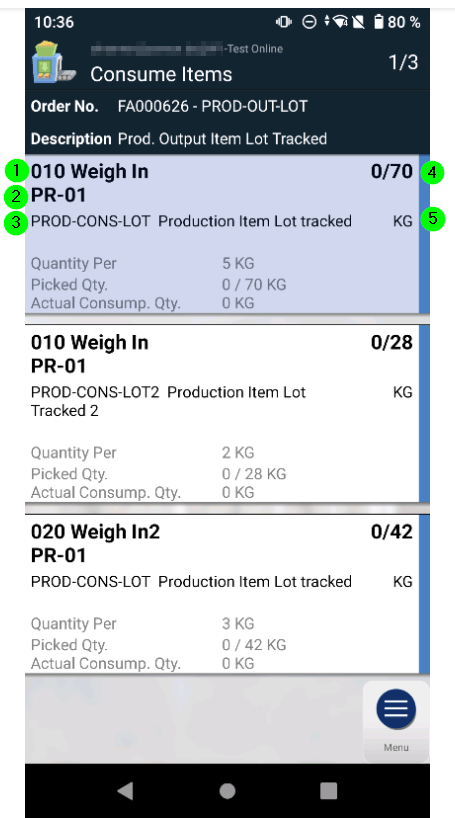
Select Item to be consumed
- Manual selection via the display
- Scanning a Product Label
- Scanning an LC Label (- Scanning an Operation No.)
Product Labels in the GS1-Format may contain various relevant information that can be interpreted when the correct consumption line is selected.
e.g.
- 01 - GTIN
- 10 - Lot No.
- 21 - Serial No.
- 93 - Item No.
- 97 - Load Carrier No.
Note
Scanning an Operation No. to select or filter the corresponding consumption lines is a planned but not yet an available feature.
Scanning an LC Label for Consumption Line Selection
An LC Label can be scanned directly on the consumption lines list to find and select the corresponding consumption line.
When an LC Label is scanned, the system evaluates the items on the Load Carrier against the available consumption lines:
- No match: If none of the items on the scanned Load Carrier match the Item No. of any consumption line, the message "No order line matched the scanned value." is displayed.
- Multiple matches: If items on the scanned Load Carrier match the Item No. of multiple consumption lines, a filter banner showing the Load Carrier is displayed in the header and the list is filtered to show only the matching lines. The consumption line must then be selected manually.
- Exact match: If exactly one item on the scanned Load Carrier matches the Item No. of exactly one consumption line, the line is automatically selected and the system continues as if the Load Carrier had been scanned after manual line selection (see LC Single Scan Consumption).
Note
If the scanned label cannot be interpreted as a GS1 or Yaveon Legacy label, it is treated as a linear barcode and read as a Load Carrier No.
The consumption line stays open for further registrations until the Status of the Production Order is set to Finished
If there are still registrations that need to be posted, then the consumption lines page will contain these upon reopening. Posted registrations are displayed at the bottom of the page.
4. Record consumption data
Recording the actual consumption happens in four or fewer queries.
- Bin Code
- Lot No.
- Load Carrier No.
- Quantity
- Register (Green Checkmark)
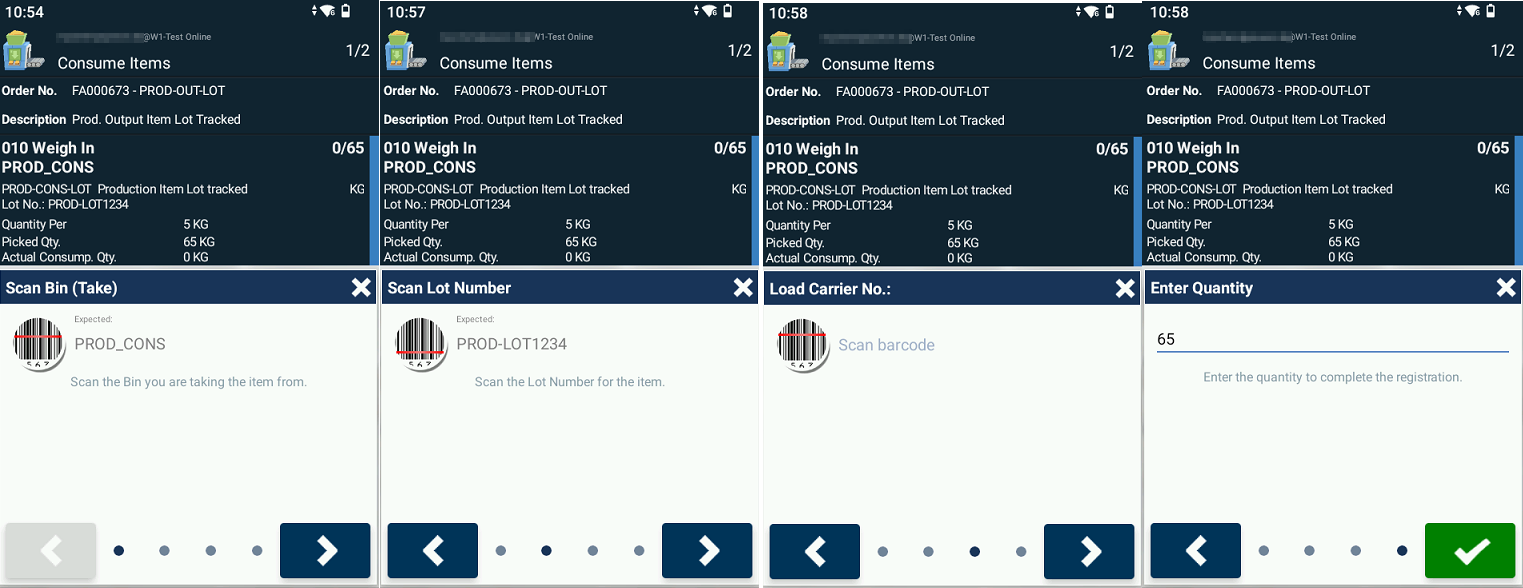
The query for the Bin Code is skipped for directed Locations. Non-mandatory queries can be skipped.
Confirmation of the last step causes a registration in Yaveon 365 Manufacturing Scanning.
Note
If a GS1 Label is scanned for the selection of a consumption line or in one of the queries, then the relevant contained information will be prefilled for confirmation in the corresponding queries.
LC Single Scan Consumption
The Enable LC Single Scan Consumption option in the Mobile WMS Setup (Manufacturing Scanning section) controls how Load Carriers are handled during consumption registration. The behavior differs depending on whether the option is enabled or disabled.
Enable LC Single Scan Consumption = Enabled
When this option is enabled, scanning a Load Carrier on the consumption lines page automatically registers all consumption lines that contain the scanned Load Carrier. If the quantity on the Load Carrier is less than or equal to the quantity to be consumed, the line is registered. Otherwise, the Load Carrier is pinned and the quantity must be confirmed manually.
- If a consumption line is completely fulfilled by the scanned Load Carrier, the line is registered and highlighted in green.
- If only a partial quantity of a consumption line is provided by the scanned Load Carrier, the partial quantity is registered and the line is highlighted in yellow.
This allows multiple consumption lines to be registered at once with a single scan — including partial registrations and mixed Load Carriers.
Enable LC Single Scan Consumption = Disabled
When the option is disabled, scanning a Load Carrier only filters the consumption lines list for the scanned Load Carrier. The consumption line must then be opened manually.
When a Load Carrier has been scanned beforehand or is entered during the line registration in the Load Carrier step, the Quantity step is prefilled with the quantity available on the Load Carrier instead of the full expected quantity of the line.
The Quantity can then be adjusted to consume less than provisioned or more than provisioned, as long as the quantity on the Load Carrier is sufficient.
5. Register and post consumption
Registrations
Registered consumptions can be viewed through the menu item Registrations, where they can be checked and, if necessary, canceled.
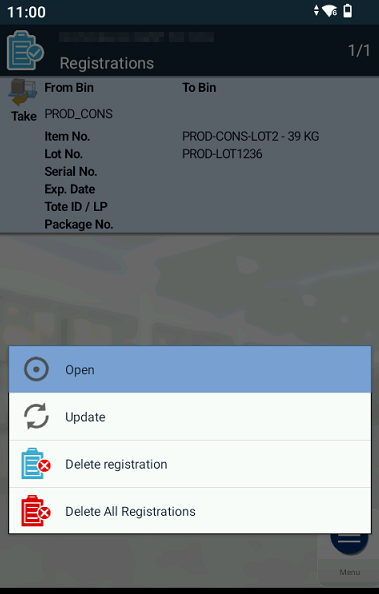
Post Consumption
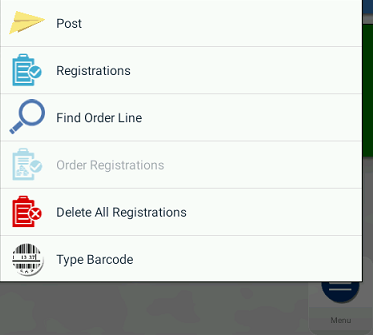
After having recorded all consumption entries, the registrations are transferred to Business Central and posted via the menu action Post.