Free Pick
If Free Pick is enabled on the location, the picker decides at the time of the take which inventory is used. Depending on the setup, the lot and/or take bin are not specified on the pick line and are not displayed on the mobile device. The setup and the creation of the pick lines are described in the chapter Free Pick of the Yaveon 365 Warehouse Management.

The general pick process on the mobile device is described in the chapter Pick; this chapter describes the differences for Free Pick lines.
Display of the Pick Lines
If a load carrier type is assigned to the item and the item has a unit of measure that matches the unit of measure of the load carrier type, the outstanding quantity on the pick line is additionally displayed as a number of pallets (rounded up to one decimal place).
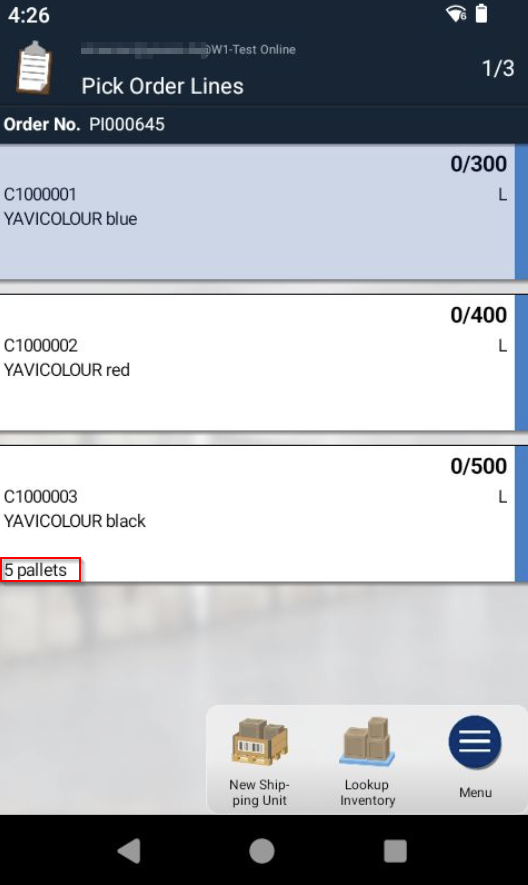
Take Process
The process for a Free Pick line is as follows:
- Select the pick line. The Load Carrier step opens without a default value.
- Scan a Load Carrier. The scanned Load Carrier is validated online: a fixed lot or a fixed bin must match the inventory of the Load Carrier, otherwise an error is displayed.
- The Lot and Bin steps are taken over from the Load Carrier and skipped; the Quantity step is pre-filled with the quantity.
- Confirm the quantity. The registration is created with Load Carrier, lot, take bin, and place bin, and the registered quantity is deducted from the outstanding quantity of the pick line.
For partial quantities, the remaining quantity stays on the pick line. The line can be opened again to register further takes — including from other bins or Load Carriers. This way, one planned line can be fulfilled from multiple sources.
The Load Carrier step is optional: if it is skipped, the bin and item data are registered as usual.
Lookup Inventory
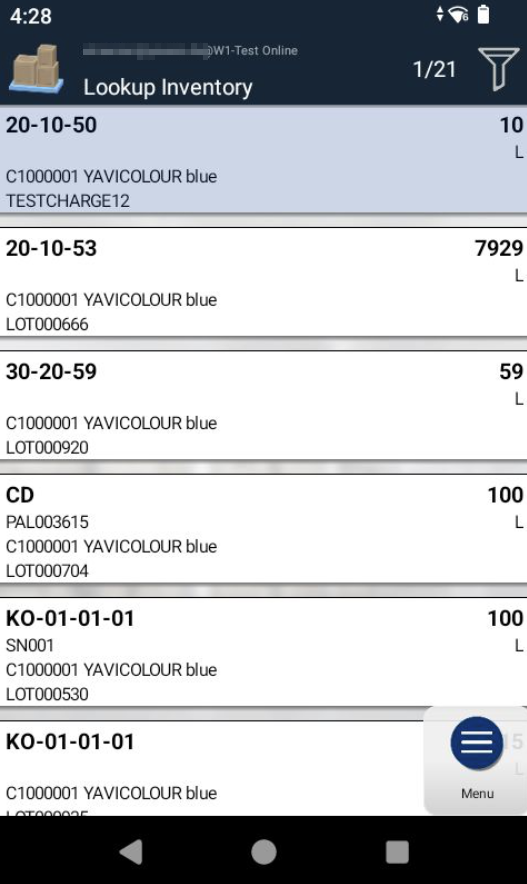
If the picker needs assistance with the selection, the function Lookup Inventory can be called from the menu of the pick line. It displays the inventory available for the line with bin, load carrier, lot, and quantity. Fixed values of the pick line (lot or bin) are applied as filters.

Scanning a Load Carrier in the Pick Lines View
As with the Load Carrier Exchange, a Load Carrier can also be scanned directly in the Pick Lines view (see Pick). If the inventory of the Load Carrier matches a Free Pick line (matching item and, if applicable, fixed lot or fixed bin), the Load Carrier is pinned and the matching lines are filtered.