Pick
The pick dialog is accessed from the main menu seen in the screenshot.
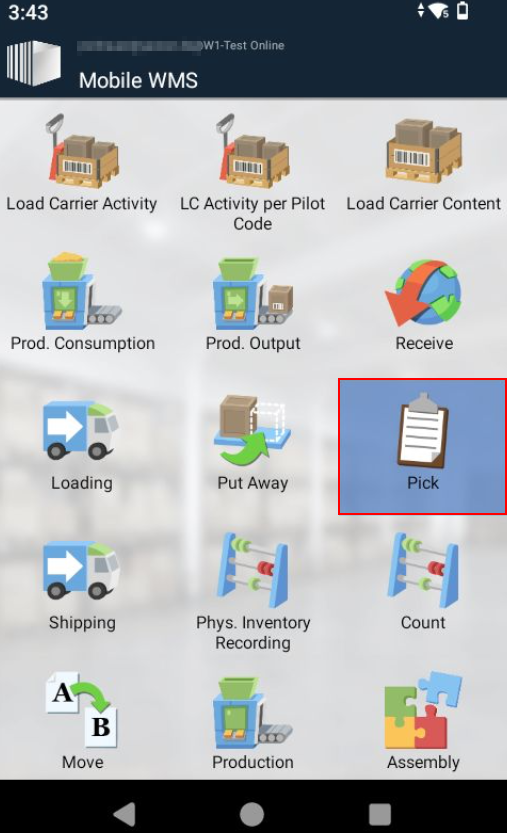
When the user activates the pick module an empty order list screen is displayed with the filter opened.
Pick List
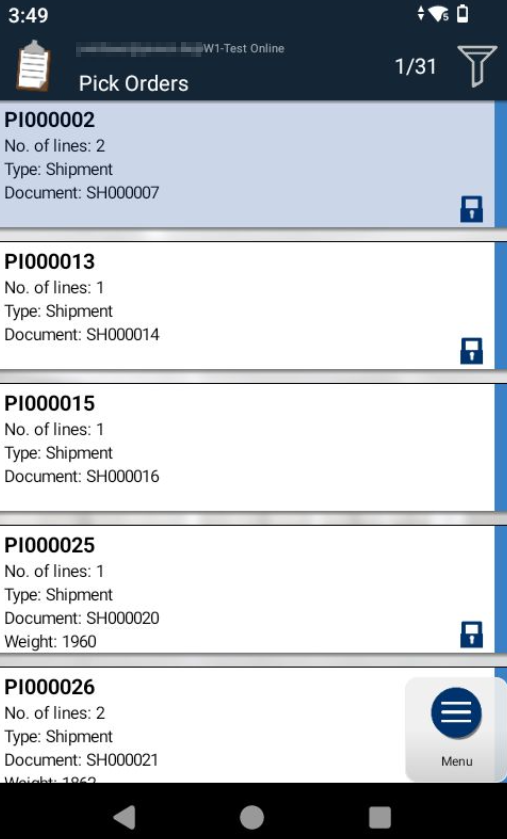
The order list shows the available pick orders within the selected filter. The orders are downloaded directly from Business Central.
The list can show orders of the following types:
- Warehouse picks
- Inventory picks
- Sales orders
- Purchase Return Orders
The work process on the mobile device is identical for all order types.
Selecting the right order
The user can use the scanner of the mobile device to select the correct order to work on. In the standard setup, the user can scan the barcode of one of the items to be picked. It is also possible to enter the item label manually via the menu. The mobile device will then filter the list of orders to only show the orders containing this item, typically resulting in a very limited set of orders.
Similarly, the user can scan a Load Carrier Label or enter its Load Carrier number manually via the burger menu to filter for the pick that contains this Load Carrier. Upon scanning a Load Carrier Label, only picks that contain lines with this Load Carrier are displayed. If only one pick contains the Load Carrier, this pick gets opened automatically.
Note
The filter functionality when scanning can be changed in the configuration file of the mobile device to allow filtering on any scanned value, such as an order reference number. The order is opened by tapping the order line in the list. Whether this needs to be done once or twice is defined in the configuration file for the mobile device; the default is double tap. When the line is opened, the order lines are downloaded to the mobile device.
Pick Order Lines
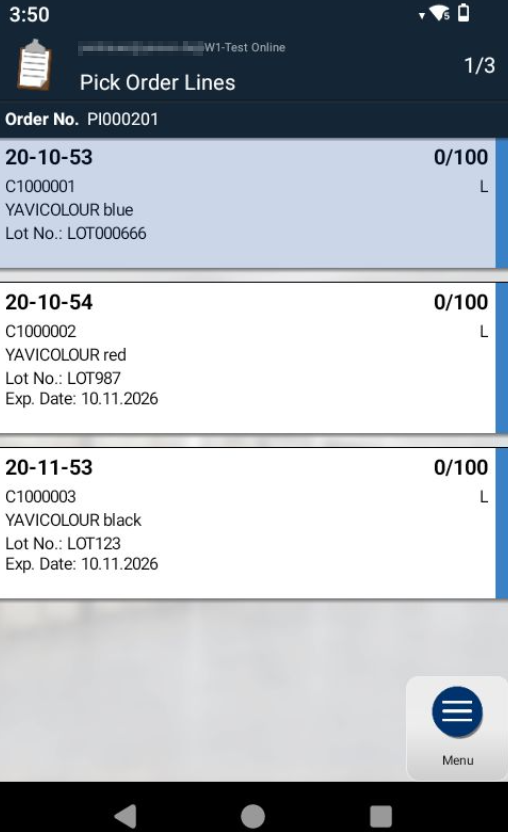
When the order lines have been downloaded to the mobile device, the order lines can be registered while the mobile device is disconnected from the server. For example, this is useful if the mobile device is used in an area without wireless network coverage (e.g., inside a container).
The order lines show the following information:
- From Bin Code
- Item No.
- Item Description
- From Load Carrier No.
- Take Quantity
- Unit of Measure
- Picture (not required)
The burger menu offers additional functionalities as it does in the other Warehouse dialogs.
The process for handling picks is as follows:
- Scan one of the items or load carriers → The corresponding order line is selected.
- Register values on the order line for picking:
- Bin
- Item data
- Quantity
After the quantity is confirmed, the line can be posted.
Selecting an order line
The fastest and most reliable way to select an order line is to scan the barcode of an item or a load carrier label.
If the barcode is not available, the user can simply tap the line twice. On devices with a physical keyboard, the up/down arrows can be used, and the order line can be opened by pressing the Enter button. This starts the registration process for the order line.
Bin Label Recognition
In the Pick Lines view, a Bin Label can be scanned. If the system recognizes the scanned value as a valid bin of the document's location, the bin is pinned and the list is filtered to lines with the matching From Bin. When opening a filtered line, the bin step is pre-filled and skipped.
Two values count as a valid bin: the Code of the bin and its Mobile Scan Code. The Mobile Scan Code is pre-filled with the bin code when a bin is created, is unique within a location, and is printed by the Bin Label report when the Barcode Option Scan Code is selected. For more information, see Bins.
The system resolves the scanned value to the bin it refers to. All subsequent steps, the registration and the posting in Business Central use the resolved bin code, not the scanned value.
The feature is enabled by default and requires no additional setup. The pin can be cleared as usual via the X in the pinned-value display.
Note
If a scanned value matches both a Load Carrier No. and a Bin Code, the Load Carrier takes priority. If the filter finds no matching line, a corresponding message is shown.
Note
When pinning and filtering the order lines in Pick, Movement and Put-Away, the scanned bin value is truncated to 20 characters. A Mobile Scan Code longer than 20 characters is therefore not found there. This limit does not apply in Physical Inventory.
Load Carrier Exchange
When Allow Load Carrier Exchange is enabled in the Mobile WMS Setup, a picker can scan a Load Carrier in the Pick Lines view that differs from the one assigned on the pick line — for example, when the suggested Load Carrier is inaccessible but another Load Carrier with matching inventory is at hand.
| Scanned Load Carrier | Result |
|---|---|
| Part of the inventory on one or more pick lines | Pinned; bin and item steps are pre-filled |
| Not part of any pick line, but carries matching Item No. and Lot No. | Pinned as an exchange; the pick line's Load Carrier is updated upon posting |
| Empty (not yet in inventory) | Pinned as a shipping unit (Pick & Pack) |
| No match, or exchange is disabled | Error |
Note
Allow Load Carrier Exchange is configured in the Mobile WMS Setup. When disabled, only the Load Carrier directly assigned to the pick line can be processed.
Note
If Free Pick is enabled on the location, an extended take process applies. It is described in the chapter Free Pick.
Registering Take Bin
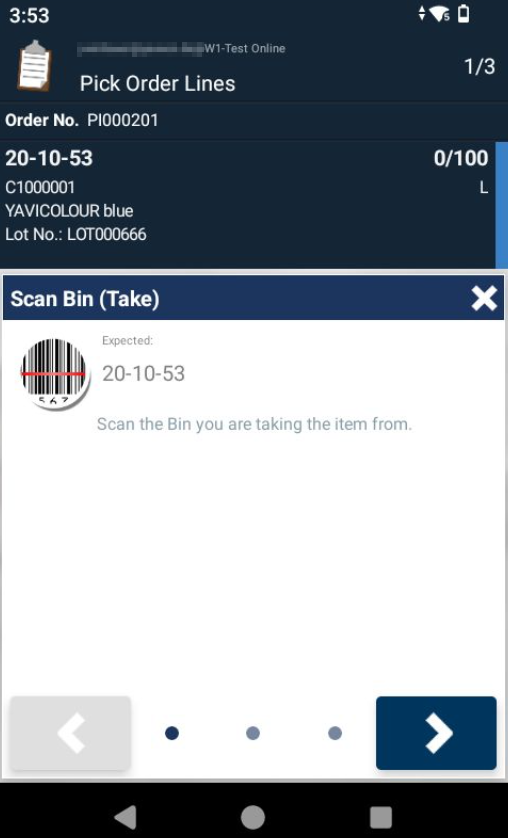
The Take Bin has to be scanned first.
When the load carrier label has been scanned in the order lines, the bin code does get prefilled with the correct value.
The Take Bin can be entered by its Code or by its Mobile Scan Code. Both values lead to the same bin; the resolved bin code is always what gets registered and posted. If the entered value cannot be matched to a bin of the document's location, an error message is shown.
When the registration is posted, a deviating take bin is validated again. It is accepted when one of the following conditions is met:
- The pick line carries the Change Bin flag.
- The entered bin is set up as a Transition Point.
- Allow different Bin is enabled for the mobile user.
If none of them applies, the posting is rejected with an error message.
Note
Scanning the Mobile Scan Code of the suggested bin does not trigger these checks. The value is resolved to the bin code of the pick line beforehand and therefore does not count as a deviation.
Registering Item Data - Take Line
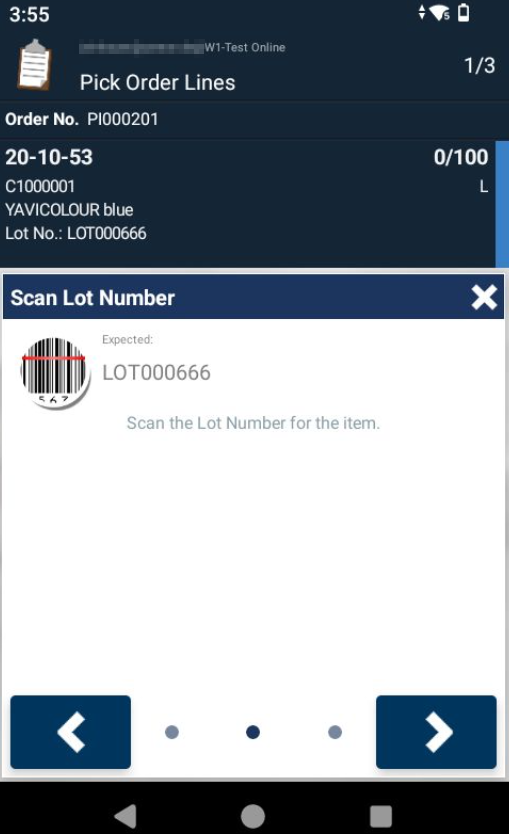
After scanning a bin, the item data needs to be captured. All previously displayed data from the Pick Header and from the item line are displayed at the top of the registration page.
If the load carrier label has been scanned in the order lines, the item information field gets prefilled with the information of the load carrier and skipped.
Lastly, the quantity is selected and filled. The quantity step is always preset with the outstanding quantity of the order line; the preset value can be overwritten.
Confirming the quantity brings you back to the order lines with the previously registered line being finished, if the entire quantity has been picked. If a partial pick has been registered the line can be processed again for the remaining quantity.
The To-Bin in the Registration displays the Shipment Bin Code that has been set up in BC.
Registrations Complete: Post or Adjust Pick Lines
After all lines have been registered, a confirmation request page opens in the Pick Order Lines:
“Confirmation Required. You have completed registrations on all order lines. Do you want to post the order?”
- Yes: The lines, together with the Warehouse Pick in Business Central, are registered.
- No: You stay in the Lines Overview and can adjust the registered lines, such as deleting lines or adjusting the quantities. After making negative adjustments or deleting registered lines, you can open them and register them again by filling in item information and quantities.
Product and Load Carrier labels can also be printed for the individual lines from the menu.
Important
If a Pick is updated in Business Central while a mobile user is actively working on the document, the mobile user must use the Update function from the menu or reopen the document so that the data on the device is updated.
Overpicking with Sales Tolerances
If an Upper Tolerance % is set on the sales line, you can pick more than the outstanding quantity of the pick line on the mobile device. Sales tolerances are part of the Yaveon 365 Sales and Purchase app; the setup is described in Sales Tolerances. Without an upper tolerance, you can enter at most the outstanding quantity.
The pick line still shows the outstanding quantity, for example 0/100. In the quantity step, you can enter a higher quantity. The mobile device then warns you that the expected quantity is exceeded, but accepts the entry.
The entered quantity is checked at two points:
| When | Check | Result if exceeded |
|---|---|---|
| Confirming the quantity in the quantity step | Is there enough available inventory in the take bin for the entered lot and load carrier? | Error message; the quantity must be corrected in the quantity step. |
| Posting the pick | Is the total of all registered quantities for one warehouse shipment line within the upper tolerance? | Error message, for example The quantity 115 is higher than the maximum quantity 110; the pick is not posted. |
The upper tolerance is therefore only checked when posting, and it applies to the warehouse shipment line, not to the individual pick line. The registered quantities of all take lines that belong to the same warehouse shipment line are added up, plus any quantity that was already picked for this line earlier. The total is compared in the base unit of measure with the quantity of the warehouse shipment line plus the upper tolerance. If the sales unit of measure differs from the base unit of measure, for example: 5 boxes of 20 pieces with an upper tolerance of 10 % allow at most 5.5 boxes, which is 110 pieces.
One or Several Take Lines per Warehouse Shipment Line
Where a too high quantity is detected depends on whether the warehouse shipment line is covered by one or by several take lines in the pick, for example because the same lot is stored in two bins or on two load carriers.
One take line: If the entered quantity exceeds the available inventory in the bin or on the load carrier, the error message already appears in the quantity step. If there is more inventory than the upper tolerance allows, the exceeded tolerance is only reported when posting.
A typical case is Inventory Rounding Pick = Load Carrier on the zone: the pick line is then already increased to the full load carrier quantity within the upper tolerance when the pick is created, for example 110 pieces instead of 5 boxes of 20 pieces. Because the load carrier holds no more, any higher entry is already rejected in the quantity step. For more information, see Zone and Sales Tolerances.
- Several take lines: Each line is only checked against its own inventory in the quantity step. That the lines together exceed the upper tolerance is only detected when posting.
Example: A warehouse shipment line of 100 pieces with an upper tolerance of 10 % (at most 110 pieces) is picked over two take lines of the same lot: 60 pieces from bin SH-01 and 40 pieces from bin KO-01. If 60 and 55 pieces are registered, each entry is valid on its own. When posting, the total is 115 pieces and posting is rejected. The registrations remain on the mobile device. If the registration of the second line is deleted and registered again with 50 pieces, the total is 110 pieces and the pick is posted.
Note
The total check when posting applies to picks that were created from a warehouse shipment.