Printing Setup
To print labels, printers and reports must be set up via either the Mobile Report Print Setup or the Cloud Print Setup.
We will use the Mobile Report Print Setup in the following description.
For information regarding the Cloud Print Setup, go to the Tasklet Online Help: https://taskletfactory.atlassian.net/wiki/spaces/TFSK/pages/78951442/Cloud+Print?atlOrigin=eyJpIjoiYWU2NzNkNDJjMTUxNDZiMjgxOTBjOTQ5Y2VkNzg3ZjkiLCJwIjoiYyJ9
Mobile Report Print Setup
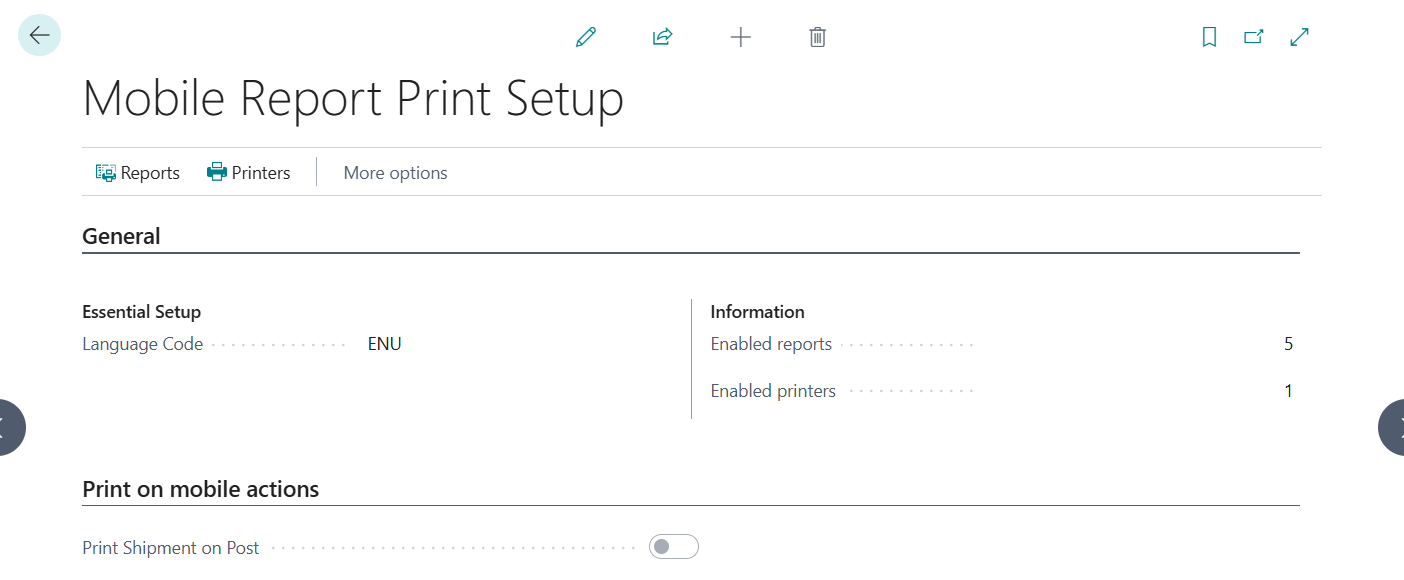
This setup contains the following information:
- General
- Language Code
- Enabled reports
- Enabled printers
- Print on mobile actions
- Print Shipment on Post
These are the basic settings, which include information regarding enabled printers and reports. They can be set up via the menu at the top of the page.
Mobile Reports
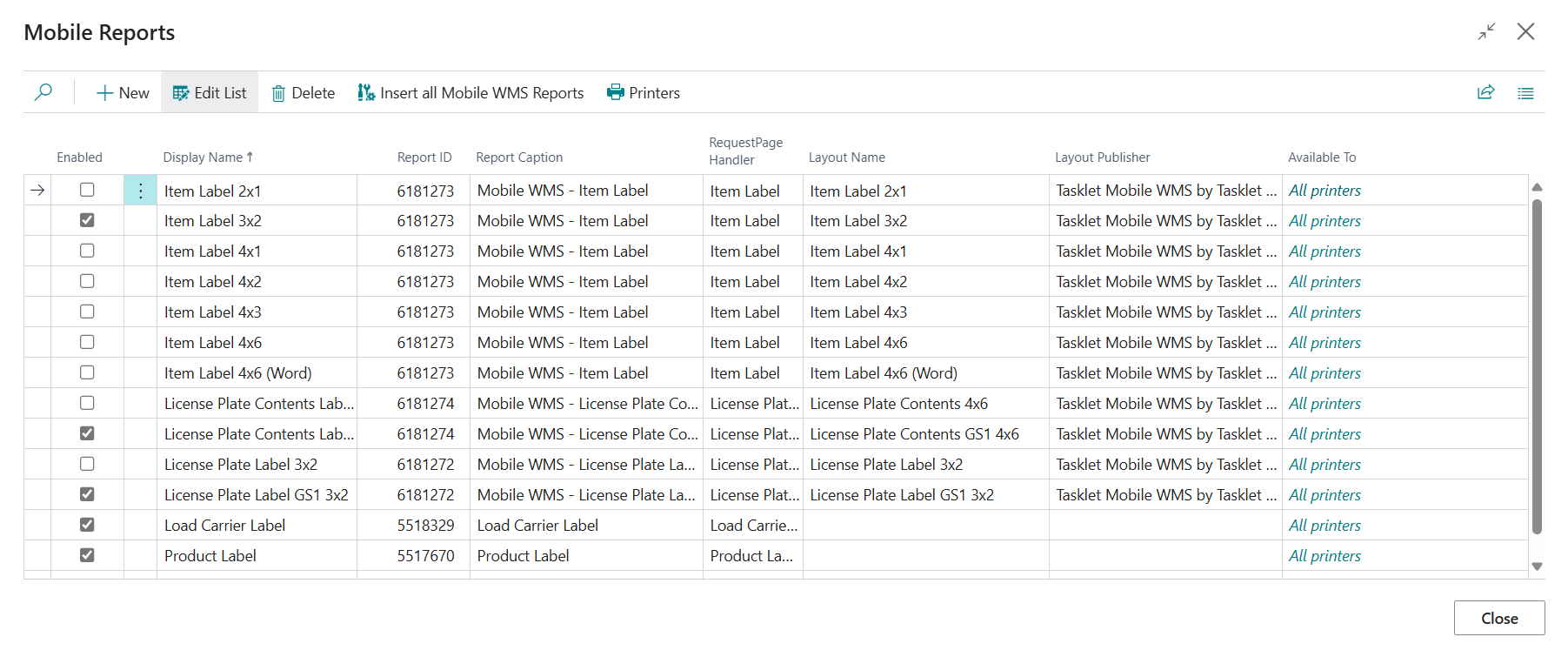
The Mobile Reports can be opened by clicking on the Report button in Mobile Report Print Setup.
This list presents the following options:
- Adding Reports
- Enabling Reports
- Selecting the Label Type
- Selecting the Layout Name
- Choosing printers the Report is available to
- Printers for each Report can be selected via the Available To Field or the Printers button at the top of the page.
Additionally, all available WMS reports can be added to the list by pressing Insert all Mobile WMS Report.
Note
This also adds reports that are not part of ProBatch and are not supported by our solution. Inserting all reports is not recommended.
For printing the delivery note from the Shipment Posting dialog, an entry for the report Warehouse Posted Shipment with the label type Delivery Note is created automatically during installation or update. At least one printer must be assigned to this entry so the delivery note can be printed. For more information, see Shipment Posting.
Mobile Printers

The Mobile Printers can be opened by clicking on the Printers button in Mobile Report Print Setup.
In this list, all available printers that are set up in the Printer Management page can be selected and enabled.
It is possible to set up printers for specific locations by filling in the location field.
Just like printers can be set up for specific reports from the Mobile Reports list, reports can be selected for individual printers by clicking Reports at the top of the page. The report list that opens is for the selected printer line and can be filled with an available report.
Note
When the The Feature changed the barcodes from the legacy format to a GS1 Barcode. feature is active, labels are printed in GS1 format. You can configure the physical appearance of GS1 barcodes (resolution, module width, height, width) in Barcode Parameters.
Date and Number Format on Labels
When a label is printed from the scanner, for example the load carrier label or the product label, Business Central assembles the label values, such as expiration date, date of entry and quantity. The regional format used for this determines the date format, the decimal separator and the thousands separator. For example, an expiration date is printed as 30.03.36 with de-DE and as 03/30/36 with en-US.
The regional format for labels printed from the scanner is determined in the following order. The first filled value is used:
- The Label Print Format Region field on the Mobile WMS Setup page, Library Scanning Setup FastTab. The value is selected from the list of regional formats, for example de-DE, en-US or fr-FR.
- Derived from the Language Code in the Mobile Report Print Setup, for example the language code DEU results in the format de-DE.
- If both are empty, the regional format of the scanner session is used. This is usually en-US.
If the Language Code in the Mobile Report Print Setup is already filled, no further setup is required. The Label Print Format Region field is only needed if the date and number format should differ from the printing language, for example English label captions with German date and number formats. The setting applies company-wide to all mobile users.
Note
Language and regional format are separate settings. The language determines the captions on the label, the regional format only determines how date and number values are displayed.
Labels printed directly in Business Central are not affected by this setting. They continue to use the regional format of the user who prints them.
The values are stored when the label is created. A change to the setup therefore takes effect with the next label, without restarting the scanner. Labels that have already been created keep their format, even when they are reprinted.
You can check the stored values without printing: Open the Labels page, select the label and choose the Data action. The Value column shows each value exactly as it is printed. For more information, see Labels and Label Entries.