Pick order
The Pick Order is used to determine the stocks to be withdrawn for pick and you can simulate the sequence that would be used to create a pick. To do this, enter the Item No. and the Location Code of the stock to be picked in the header of the screen. You can use the action Calculate Pick Order to have the system calculate a order.
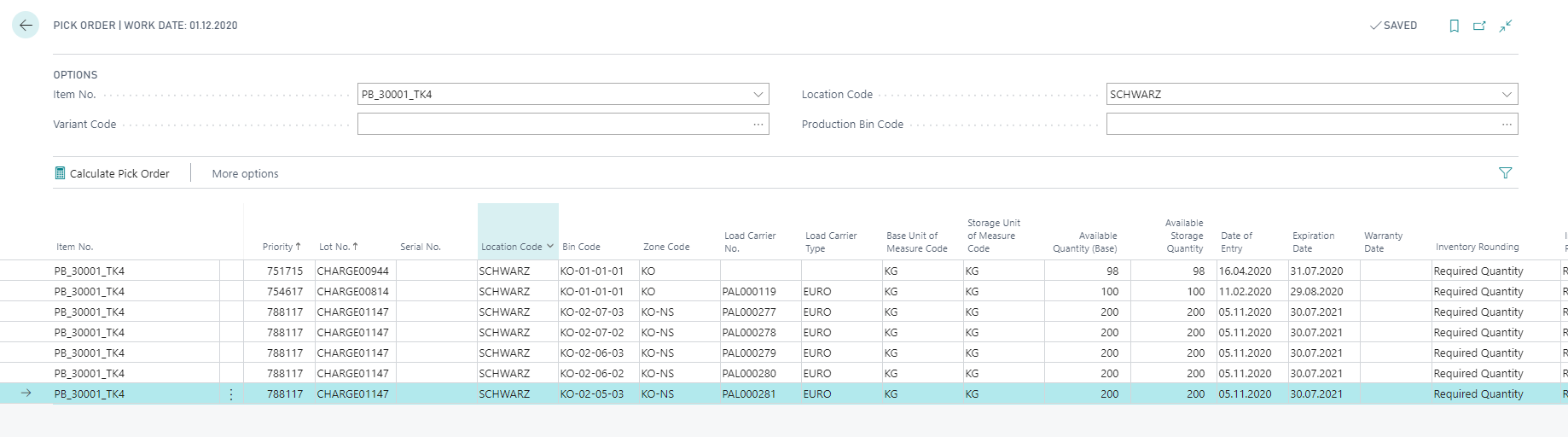
The control takes place via a calculated Priority. Stocks with a lower priority are considered first during picking. The priority is calculated using two factors:
- Date: According to the Picking Method (FIFO or FEFO), takes into account the receipt or expiry date of the available stock. For more information, see pick according to FEFO/FIFO.
- Weighting breakbulk: The field Weighting Breakbulk on the item card controls whether complete load carriers are preferred over breakbulk (partial) stock during picking. When configured, its value (in days) is added as a priority offset to the Date Value of partial load carriers, directly increasing their calculated priority value—making complete load carriers appear earlier in the pick order within the configured weighting window.
Using these two factors or fields on the item, the stock of a specific lot of the item in a specific bin is assigned a priority, according to which the stock is sorted and assigned in ascending order to determine the take bin.
Pick Order from Warehouse Shipment and Production Order Components
The pick order can be called up not only directly from the dedicated page, but also in context from other documents. Both the Warehouse Shipment for the selected shipment line and the Production Order Components of a released production order for the selected component provide a Pick Order action. This allows the calculated pick order to be viewed and influenced directly in the context of the respective document.
Manually selecting stock
You can use the Specified field to select individual stocks directly for pick and thus override the calculated pick order. Previously assigned stocks in the item tracking lines are taken into account. To select a partial quantity of an inventory line, use the Specified Quantity and Specified Qty. (Base) fields.
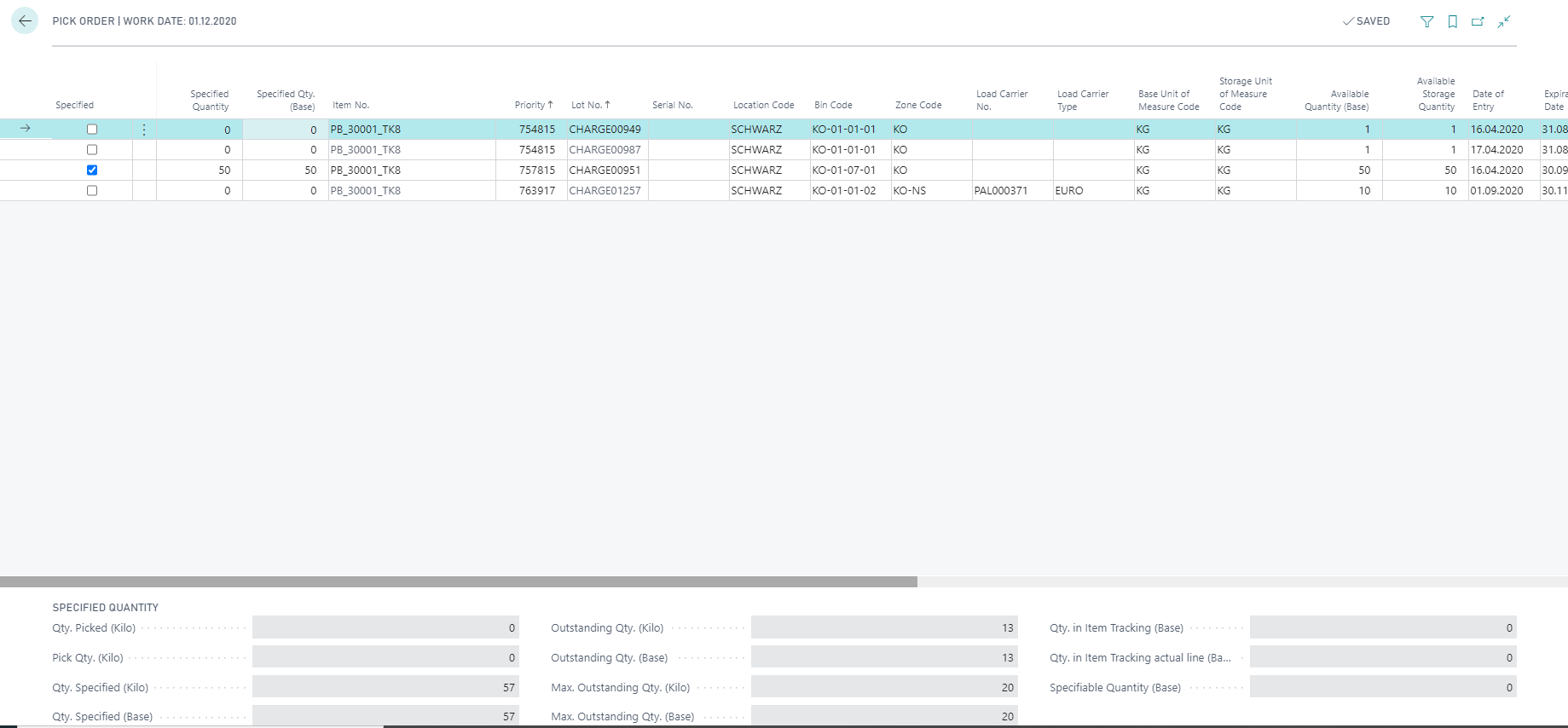
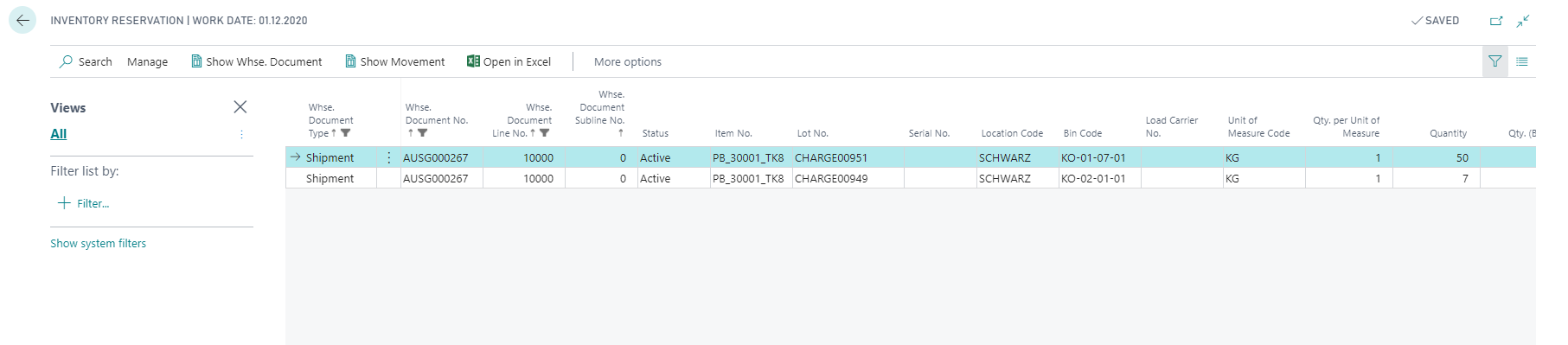
The selected stocks can then be viewed per line or per warehouse shipment using the action Inventory Specification Lines. The stocks defined using an inventory reservation are not available after being assigned to other documents and are transferred directly to pick without further calculation. This means that it is possible, for example, to specify a specific load carrier for pick even though it would not yet be picked according to the calculated order.
The Specified Quantity field is shown accordingly in the production order component lines as well as in the warehouse shipment lines, and indicates the quantity that was manually pre-selected via the pick order.
Note
This function is also available for components of a released production order as well as per assembly order line.
Note
The functionality of the Pick according to FEFO field at the location is overridden by installing the Yaveon 365 Warehouse Management.