Separation of load carriers in warehouse receipt
The Yaveon 365 Warehouse Management offers you the possibility to create Load Carriers in a warehouse receipt. Load carriers can be generated for individual lines or for the entire warehouse receipt. Use the function for creating load carriers for the lines for which you want to create load carriers. This enables you to process both lines with and without load carriers in a warehouse receipt.
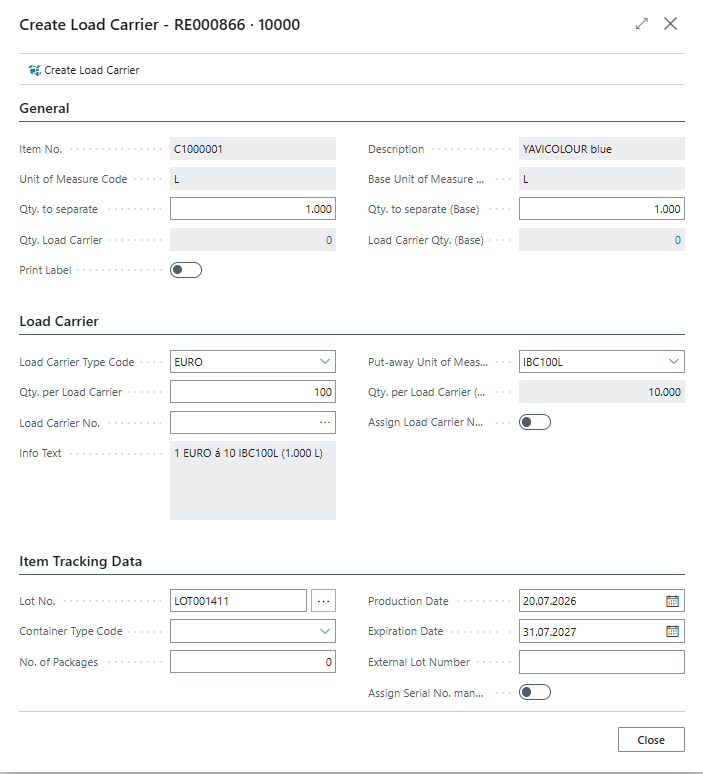
To create the load carriers in the warehouse receipt line, use the action Create Load Carriers. In the screen that opens, you can create load carriers for the current line.
Note
The fields Load Carrier Type / Load Carrier Type Code referenced here keep their names, but their lookup opens the unified Package Types page (Yaveon 365 Library). See Load Carrier Types for details.
In the fields Qty. to separate and Qty. to separate (Base) the quantity is displayed which has not yet been separated. If only a partial quantity is to be separated, you must reduce the value in one of the two fields. If a quantity has already been packed on load carriers, the fields Qty. Load Carrier and Qty. Load Carrier (Base) are filled accordingly. If you want to print load carrier labels, you must activate the Print Label field.
On the Load Carrier tab page, the Load Carrier Type Code, the Put-away Unit of Measure Code, the Qty. per Load Carrier and the Qty. per Load Carrier (Base) are filled initially for the item if maintenance has been carried out beforehand, and the fields can be changed if necessary. If this has not been done, the values can be added here.
In the example, the data has been maintained ready for the item. The put-away unit here is "bag", the quantity per bag is 50 kg, and with a quantity per load carrier of 10 bags, there are a total of 5 load carriers that the system proposes in the Info Text field. If the Assign Load Carrier No. manually field is activated, the system does not propose numbers based on the number series defined for the Load carrier type and you must assign the load carrier numbers manually using the Whse. Rcpt. Load Carrier Lines.
In addition, you also have the possibility to store item tracking data, such as the Lot No., here.
Once data maintenance is complete, the load carriers can be created using the action Create Load Carriers. The system displays a message that warehouse receipt load carrier lines were created.
Apply this function to all lines for which you want to create load carriers. Alternatively, you can also call up the action Create Load Carriers in the header and have the system automatically create load carriers for all lines. The system uses the values in the warehouse receipt lines that were filled according to the specifications in the item when the line was created.
Note
When receiving incoming Transfer Orders, existing load carrier information from the previously posted warehouse shipment of the sending location is transferred to the inbound warehouse receipt lines. In this case, it is no longer necessary to create load carriers manually. The transferred load carriers can be transferred and, if necessary, repacked in warehouse receipt using the load carrier lines.