Calculation and Row Total
In Corporate Design, simple calculations can be used, for example, to create totals or to multiply two fields.
Use calculation - multiplication of columns
To illustrate the setup for this, the gross weight for each item line in a sales shipment is calculated and printed as an example. The item line only contains the gross weight per unit, but not the total weight. For this reason, the quantity is multiplied by the gross weight per unit.
For this, a new Text Constant _GROSSWEIGHT with the Type Calculation must first be created in CD Labels. This will be used for the result of the calculation.

After that several lines have to be created in the CD Field Configuration.
Line 1 assigns the first field, Gross Weight per unit, to the calculation equation. The assignment is made using the Label and Calculation Operator fields.
- CD Report ID 5517508
- Source Type Table
- Source No. 111
- Type Field
- Field No. 34
- Caption Gross Weight
- Section Calculation
- Position 9
- Sorting empty
- Label _GROSSWEIGHT
- Calculation Operator Assignment


Line 2 multiplies the assigned Gross Weight per unit by the Quantity field. This is again done using the Label and Calculation Operator fields. It is important that the Position of line 1 and 2 match. The Sorting field decides the order of the arithmetic operation.
- CD Report ID 5517508
- Source Type Table
- Source No. 111
- Type Field
- Field No. 15
- Caption Quantity
- Section Calculation
- Position 9
- Sorting 1
- Label _GROSSWEIGHT
- Calculation Operator one * for multiplication


Line 3 prints the result of the calculation on the document as a column, and determines the column label.
- CD Report ID 5517508
- Source type Table
- Source No. 111
- Source Sub Type -1
- Type Calculation
- Field No. _GROSSWEIGHT
- Source Table Relation Table Type Calculation
- Section Line
- Position 9
- Output Type 9
- Use as Caption Yes
- Label Gross Weight
- Label Font Style Bold
- Value Format 10


The gross weight of the items is now printed on the sales shipment.
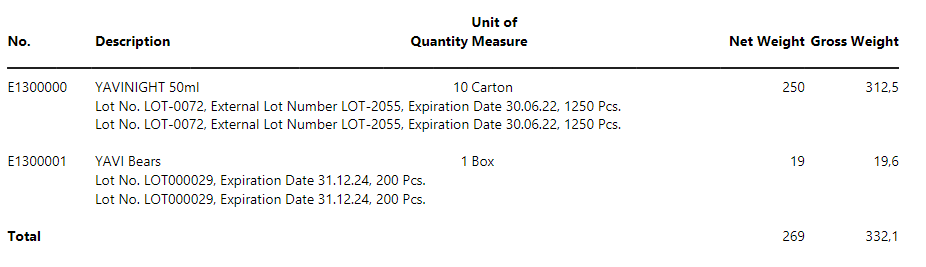
Calculate Row Total - based on a calculated column
To print the row total for the gross weight, as shown in the previous screenshot, the following assets are necessary. The summation of the net weight is done in the same way as for the gross weight.
Line 1 sums the individual values from the item lines of the variable _GROSSWEIGHT and prints them as Row Total at the end of the line section.
- CD Report ID 5517508
- Source Type Table
- Source No. 111
- Source Sub Type empty
- Type Calculation
- Field No. _GROSSWEIGHT
- Source Table Relation Table Type Calculation
- Source Table Relation Table empty
- Section RowTotals
- Position 9
- Sorting empty
- Output Type 9
- Label empty
- Value Format 10


Line 2 adds the identifier Sum to the first column of the sum line. Using the Value Append Type field and the Label as Value option, the label is inserted in the line, not in the line header.
- CD Report ID 5517508
- Source Type Table
- Source No. 111
- Source Sub Type empty
- Type empty
- Field No. empty
- Source Table Relation Table Type empty
- Section RowTotals
- Position 1
- Sorting empty
- Output Type 9
- Label Total
- Label Font Style Bold
- Value Format empty
- Value Append Type Label as Value


Calculate Row Total - based on a not calculated column
To calculate and print the Row Totals for a normal, non-calculated column, three setup lines are necessary in CD Field Configuration.
To explain the necessary setup, the Quantity of all lines in a Transfer Order is summed up and printed as an example.
For this a new Text Constant _QUANTITY_SUM with the Type Calculation must first be created in CD Labels. This will be used for the result of the Calculation. Furthermore a Label Quantity_Total of the Type Field Caption must be created, with a value in a Language, which can be used as a Label for the Row Total.
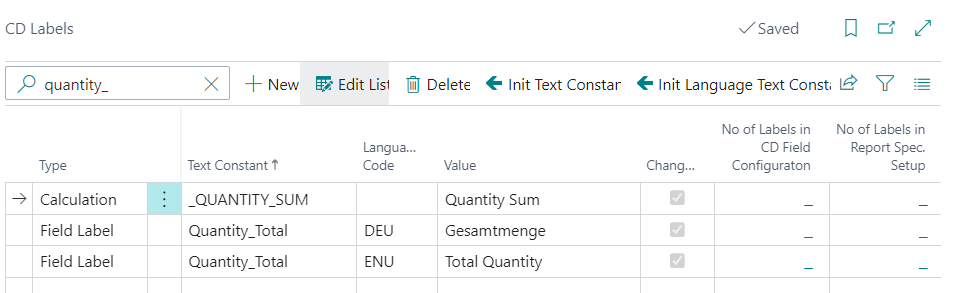
Line 1 in the Field Configurator assigns the values in the Quantity field to the _QUANTITY_SUM variable.
- CD Report ID 5517509
- Source Type Table
- Source No. 5741
- Source Sub Type -1
- Type Field
- Field No. 4
- Caption Quantity
- Source Table Relation Table Type empty.
- Section *Calculation
- Position 4
- Sorting empty
- Output Type empty.
- Use as Caption No
- Label _QUANTITY_SUM
- Calculation Operator Assignment


Line 2 sums the individual values from the item lines of the variable _QUANTITY_SUM and prints them as RowTotals at the end of the Line Section.
- CD Report ID 5517509
- Source Type Table
- Source No. 5741
- Source Sub Type -1
- Type Calculation
- Field No. _QUANTITY_SUM
- Source Table Relation Table Type Calculation
- Source Table Relation Table empty
- Section RowTotals
- Position 4
- Sorting empty
- Output Type 9
- Label empty


Line 3 adds the created label Quantity_Total to the first column of the summary row. Using the Value Append Type field and the Label as Value option, the label is inserted in the Line, not in the Line header.
- CD Report ID 5517509
- Source Type Table
- Source No. 5741
- Source Sub Type empty
- Type empty
- Field No. empty
- Source Table Relation Table Type empty
- Section RowTotals
- Position 1
- Sorting empty
- Output Type 9
- Label Quantity_Total
- Label Font Style Bold
- Value Format empty
- Value Append Type Label as Value


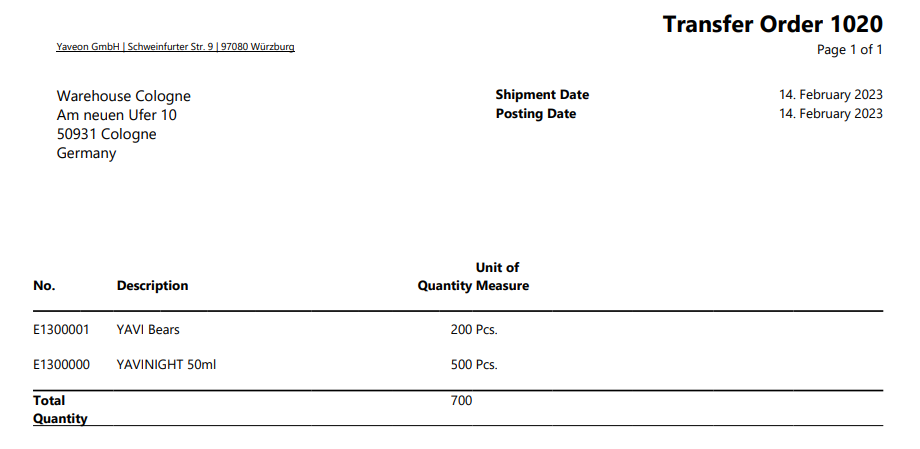
The result is the Total Quantity as Row Total in the Transfer Order.
Note
From Version 10.4 onward, calculated values can be printed in the Section Line Extension. For this to work, the field Position must have the same value as the field Position used for the calculation.