Corporate Design Custom Specific Setup
The customer-specific setup allows you to select a different layout for each combination of customer or vendor and document and to set up the values and fields according to customer requirements.
Note
For reasons of simplification, the term customer-specific is also used for setups, that are made for a vendor.

The list view provides an overview over the setups. The type of business partner and document for which a setup exists, and the selected layout.
A setup can be newly created or adapted via the action buttons in the menu. This opens the Card view. In the card of the customer-specific setup, the setups can be made for a combination of customer or vendor and document.
General tab
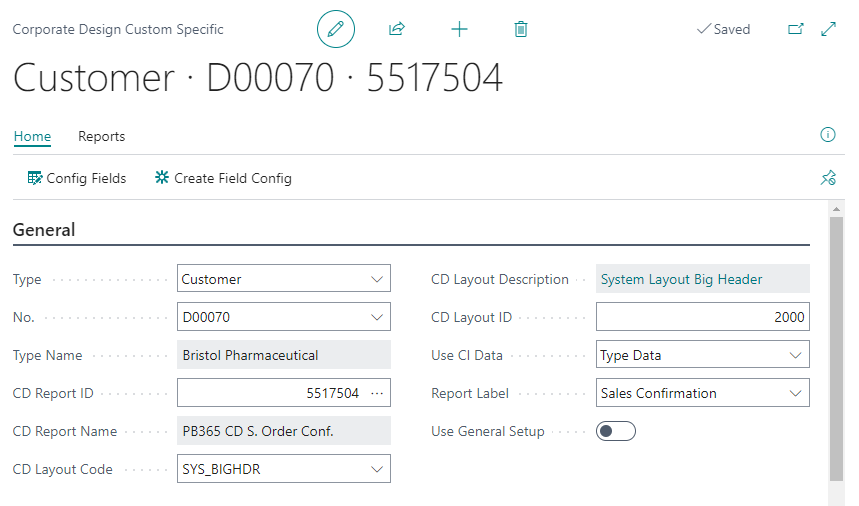
Type
In the field Type, you can select whether the setup is for a customer or vendor.
No.
The customer or vendor number can be selected in the field No..
Type Name
The field shows the name of the customer or vendor.
CD Report ID
In this field, you can select the document to which the setup applies.
CD Report Name
The field displays the name of the document selected in the CD Report ID field.
CD Layout Code
In this field you can choose the layout, that is used for the document.
CD Layout Description
Contains the name of the selected layout.
CD Layout ID
A layout ID is automatically entered here, e.g. 1000, 2000, or an existing layout ID can be entered manually. This ID is used in the CD Fields Configuration table to set up the fields and columns for this customer-specific document. To use the same field and column setups for multiple customer-specific documents, enter the same CD Layout ID in different customer-specific setups.
Use CI Data
With this field you can define which data is used in the footer, company address and as logo on the document. This is particularly relevant if you are acting on behalf of your own customer in dealing with other business partners. An example of this is the direct shipping of goods to a customer's customer, with the customer's warehouse shipment document.
Type Data
When this option is selected, the data of the customer or vendor for whom this document is created is used. The logo that is printed can be imported in the Picture FactBox. It replaces the logo from the table Company Information. The FactBox is displayed as soon as the Type Data option is selected.
Company Information
When this option is selected, the data is taken from the company information. This corresponds to the standard settings.
Defined
If this option is selected, all data can be entered individually. If you select this option, the call Show Address Buffer is displayed in the menu ribbon. Here you can enter all document data individually in the fields. In addition, the logo that is to be printed can be imported in the Picture FactBox in the Address Buffer Page.
Report Label
In this field you can select the Text Constant which is used as a label for this document. The selection is made from the table CD Labels. There Document Labels are maintained in several languages. Those can be extended there.
Use General Setup
If this option is activated, the settings for Report printing details from the ProBatch 365 Basis Corporate Design Document Setup are used. If this option is deactivated, you can individually customize the Report Print Details for this document.
Report Print Details tab
If the Use General Setup option is deactivated, the Report Print Details tab is displayed. Use this tab to set up the details for this document. The individual options are described in the page ProBatch 365 Base Corporate Design Documents Setup, in the Report Print Details tab. The Report Print Details are extended through the options from other ProBatch 365 Apps.
Functions
Config Fields
The CD Field Configuration can be called up via Config Fields in the menu ribbon. There you can define the fields and columns which should appear in the custom-specific-report. The called page will be filtered on the selected report and CD Layout ID.
Create Field Configuration
The function Create Field Configuration in the menu ribbon creates the setup for this report and CD Layout ID in the CD Field Configuration. The setup is the same as the setup from the Function Initialize, reduced to the setup of the selected report and CD Layout ID.
Show Address Buffer
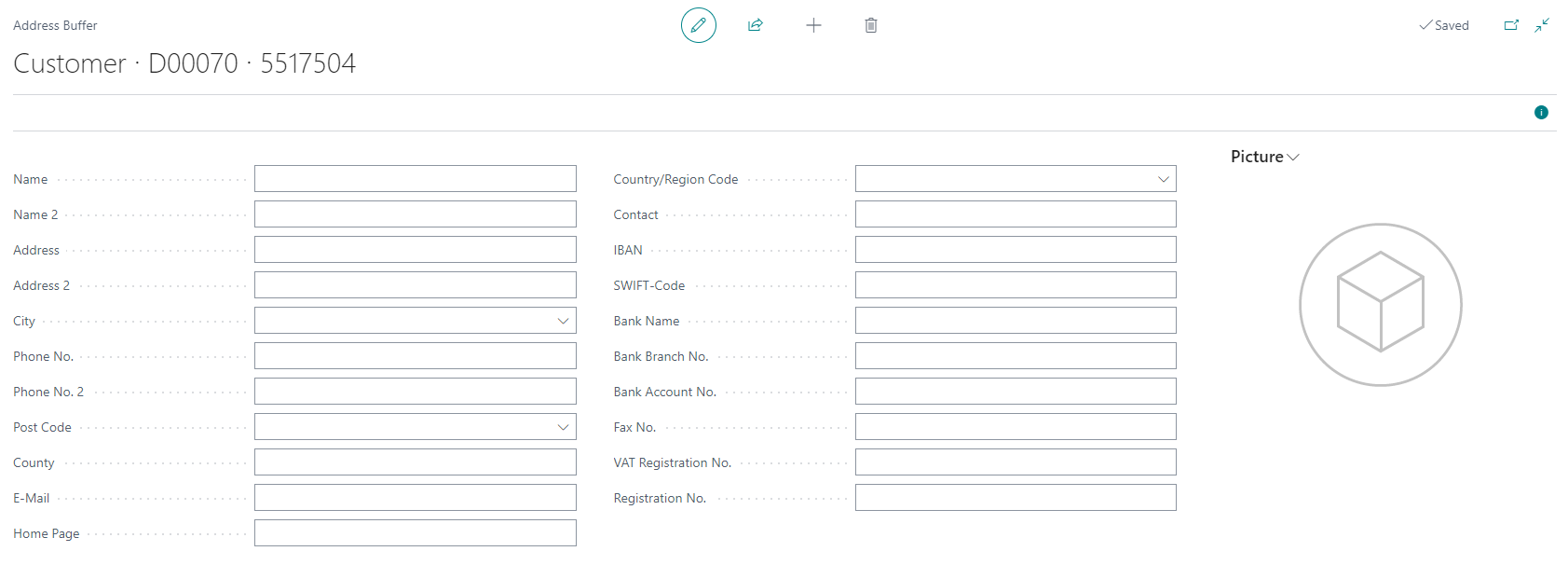
If the option Defined is selected in the field Use CI data, the page Address Buffer can be opened through the Action Show Address Buffer. The individual data for the document can be added in this page.
Test Print
With the function Test Print a test print can be started for the selected report. The function selects the first available document with this customer or vendor by default. This simplifies the test of the current setup.