Position numbers in document lines
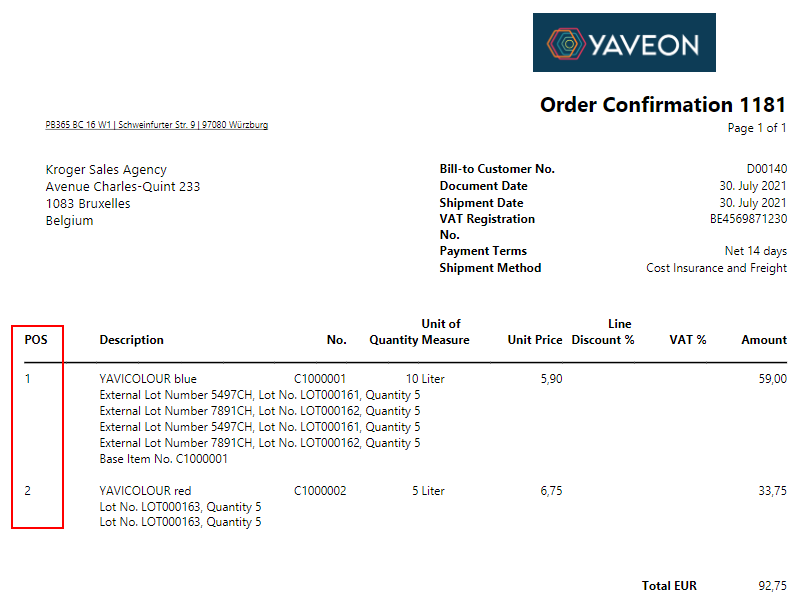
Corporate Design can be used to print position numbers on documents. These can be set up either report-specific or custom-specific. The following order confirmation shows an example of how the position numbers (POS) could look on a document:
Setup up to ProBatch 365 Version 4.0
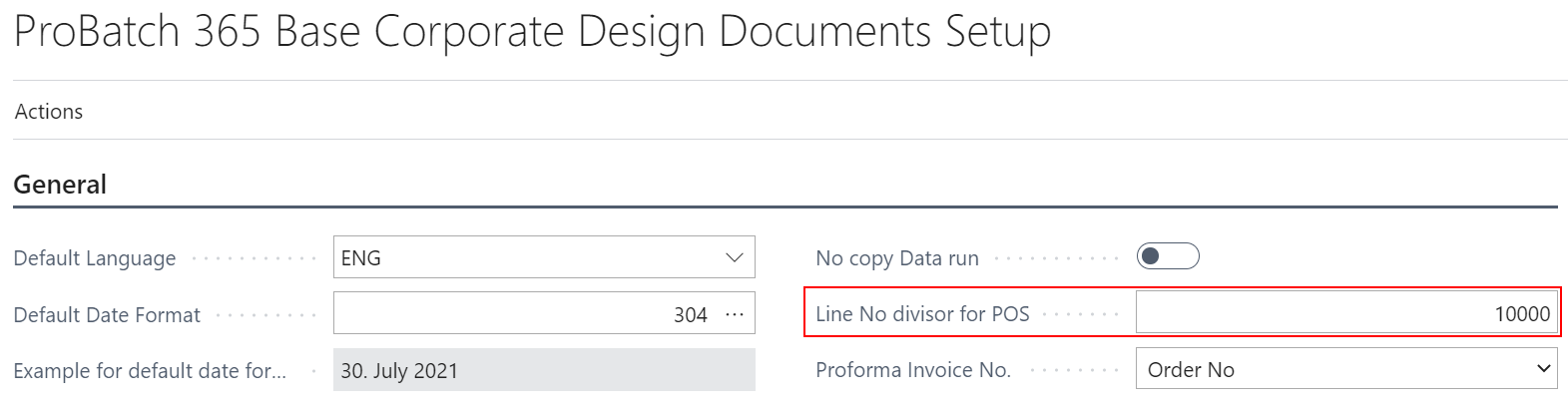
For the setup, a divisor for the item numbers must first be entered in ProBatch 365 Base Corporate Design Documents Setup, which is then generally valid for all reports. This divisor is needed because Business Central creates line numbers in increments of 10,000. This means that the first line in a document has the line number 10,000 by default, the second line in a document has 20,000, and so on.
A good divisor could therefore be 10,000, as shown in the following example:
Afterwards, in the CD Field Configurator the POS No. can be set up customer or report specific.
For this, as in the following customer-specific example, it is possible to filter on a document such as the order confirmation, as well as on a CD Layout ID. After that, the following setups are necessary:
- A new line must be created with Type Field and Field No. 4.
- In order for the POS to be printed in the first column of a line, a 1 must be entered in the Position field. Here it is to be noted that the other positions must then be overwritten and/or if necessary a position must be removed. In this example, the item number No. has been moved from Position 1 to Position 3.
- In the field Label, POS No. must be entered.
- In the Value Format field a 10, for As POS No, must be entered.


Caution
If new lines are inserted between existing lines in the document, then Business Central places the line number between the line above and below it. This means, for example, that a new line between 10,000 and 20,000 has line number 15,000. Accordingly, the POS No. in the example has the value 15,000 / 10,000 = 1.5. This is rounded to 2 accordingly. In this case, POS No. 2 would then exist twice on the document.
Setup from ProBatch 365 Version 4.0
From this ProBatch version on, the position number is no longer determined via the line number. The position number is now determined directly before printing the document via a FillFunction.
In the field Label for Position No. in the ProBatch 365 Base Corporate Design Documents Setup the format of the position number can be determined. %1 represents the position number itself, e.g. 1. As an example, if you append a colon to the end, %1: , then it will be appended to the number, e.g. 1: . The field is a link to the CD Labels table. There the format can be maintained in the Value column.
The position number is set up in the CD Field Configuration. The following fields must be filled here. The setup is exemplary for a sales order line.
- CD Report ID 5517504
- Source Type Table
- Source No. 37
- Source Sub Type -1
- Type Extra Field
- Field No. 5006
- Label Position No.
- Source Table Relation Table Type FillFunction
- Source Table Relation Table 5006
- Section Line
- Position 1
- Output Type 9
- Use as Caption Yes
- Label POS No.
- Label Font Style Bold
Note
To print position numbers only for a certain type of line, the Source Sub Type can be changed to 0, 1, 2.... For example, if you want to print position numbers only for the line type Item, then the Source Sub Type field must be changed to 2.