Text Module
The Text Module can be used to create texts, that are displayed on the screen and / or printed on the documents depending on various events.
These can be general texts, but also texts that are necessary for legal reasons. Texts can be defined for the complete supply chain or limited in their use (customer and vendor dependent item texts, country, language, etc.).
The Text Module offers you different types of texts. A distinction can be made between the following texts:
- Standard texts
- Texts for Master Data and
- Texts for documents or transaction data
Standard texts are texts that are generally not dependent on specific master data. They are thus item, vendor or customer-neutral and can be printed or displayed in various documents. Open the PB365 Extended Texts to open these texts.
Master data texts can be created for items, customers, vendors, machine centers, work centers, delivery addresses and inspection methods. These texts can be opened from the respective card. When entering a master record into a document, the text is displayed or printed when printing.
Texts for documents or transaction data are available in the documents for purchasing, sales, production, service, quality assurance ,warehousing and assembly. When working in documents, texts can be added in different ways:
- Automatically via a standard text
- Automatically via a master data text
- Manual addition as header text, footer or at the document line.
The automatically added texts are copied into the documents and can be openend and edited if necessary.
Note
Since the different types of texts do not differ, no distinction is made between these texts in the following description.
Note
The ProBatch 365 Base app provides the foundation for this functionality. Integration into the business areas, such as printing on a sales invoice, is done via the other ProBatch 365 apps.
Create Text Module Template Codes
For each text module, it can be defined whether it should be used in the areas of sales, purchasing, service, production, quality assurance, warehousing, reasearch & development or assembly. In addition, a distinction can be made between the usage types Print, Display or Print and Display.
- PRINT = Print on the documents
- DISPLAY = Pop-up window as internal note text for the employees
- PRINT AND DISPLAY = Pop-up window as internal note text, which is also printed on the document.
Note
The options for the business units (for example, quality assurance) are sometimes only available in combination with other apps.
In order not to make all these document settings for each individual text module, template codes can be defined that specify the areas and the type of use and pass the settings on to the text module. The inherited settings can then be changed independently of the template.
In the Ext. Text Template Codes, click New to create a new data record.
Enter a clear and descriptive Code in the section General.
In the sections for the individual documents, select whether the text should be printed, displayed or printed there and displayed. For some areas it is only possible to print the texts.
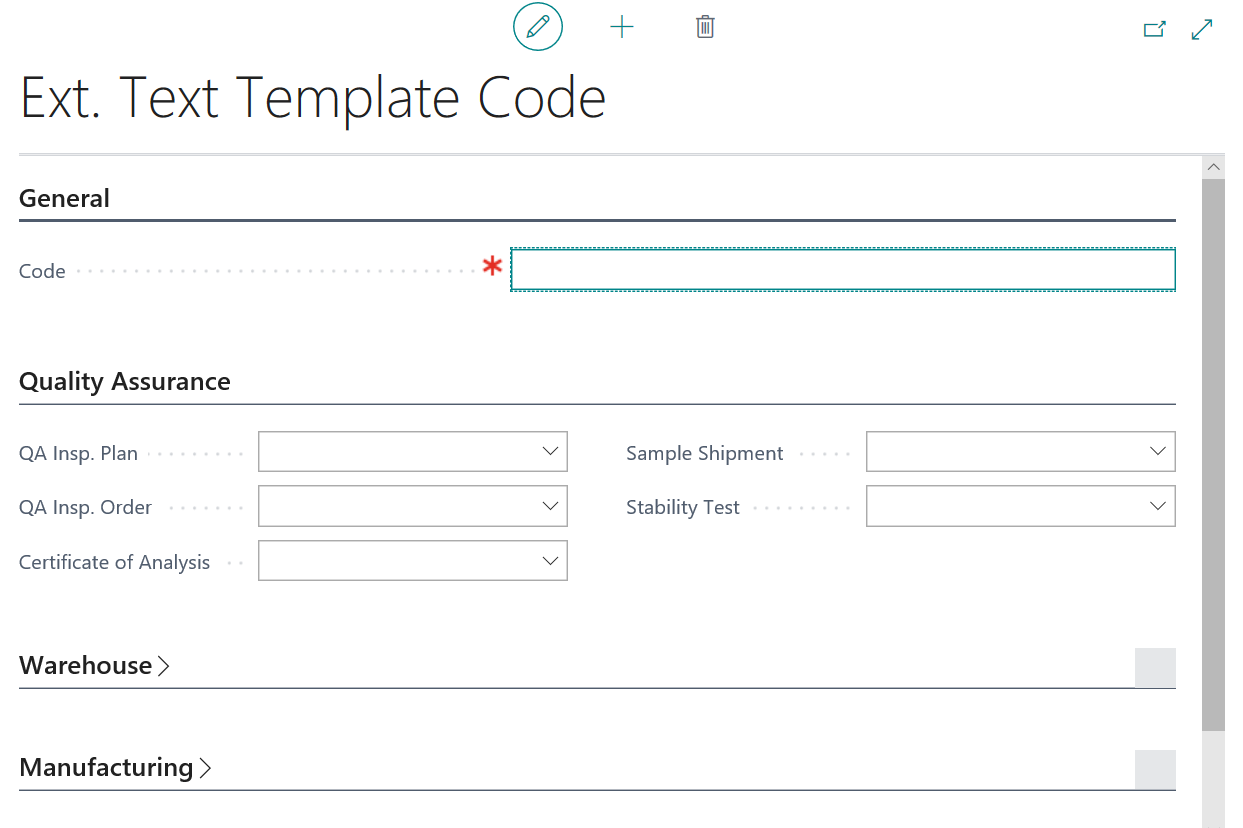
Text Module Using Template Codes
In the Ext. Texts of Master Data (for example, via the item card) or Ext. Texts for documents (for example, in the sales order), the Template Code can be subsequently selected. Its settings are transferred to the Extended Text and can be adapted independently there.
Creating Texts
Ext. Texts can be called from different places depending on their use:
- Standard texts (PB365 Extended Texts) can be opened directly via menu
- Master data texts via the master data cards and
- Document texts in the document
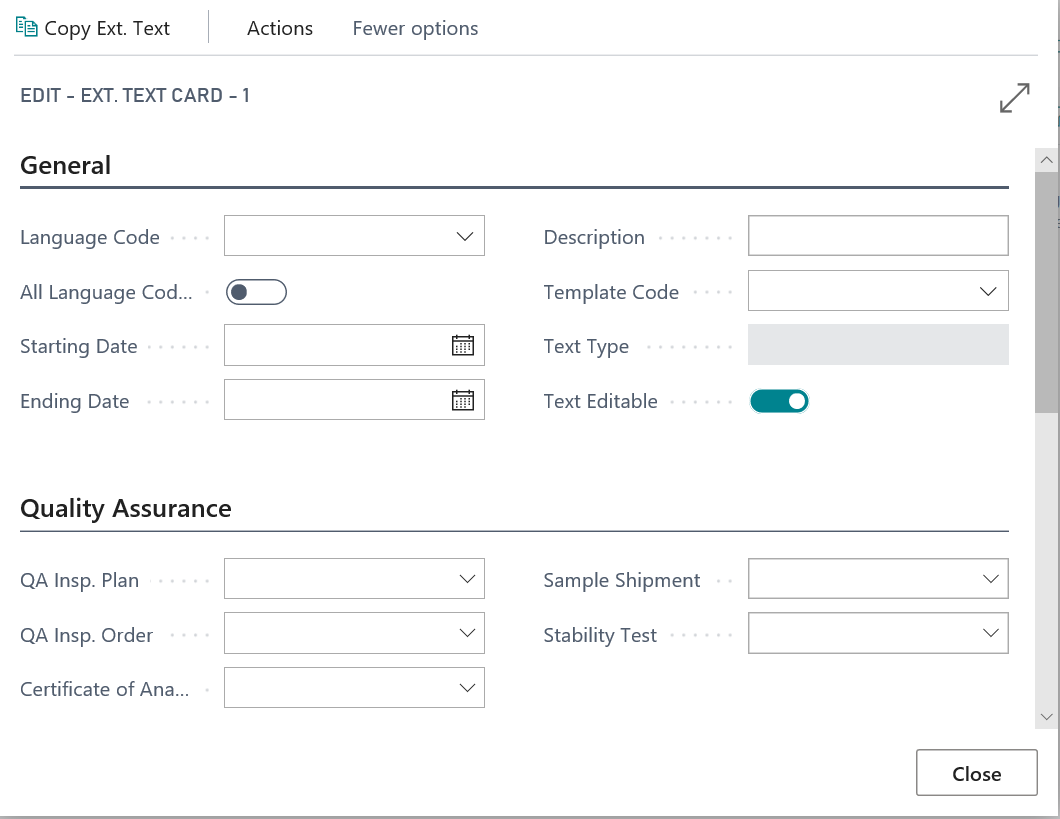
Open the PB365 Extended Texts and create a new text module with New.
If the text is in a specific language, select a Language Code. This characterizes the language of the text and causes the text to be printed or displayed only in purchase or sales documents that contain this language code. If the language code remains "empty", it will be pulled if the language code in the document is also "empty". It is recommended to maintain the language code.
If All Languages is selected, the text will be valid for all languages.
By entering a Starting and / or Ending you can define texts that are only valid within a certain period of time. Before or after this period, the texts are no longer printed or displayed. This can be useful, for example, for time-limited special offers or Christmas greetings.
Enter a short Description of the text module. The description is not printed.
The selected Template Code pre-sets the fields in the individual areas. The inherited settings can then be changed.
Select the Text Type. The following options can be selected here:
- Header text: A header text is printed in the document header in the defined documents.
- Footer text: A footer text is printed in the document footer in the defined documents.
- blank: An item text is printed in the document lines in the defined documents.
Note
When creating or transferring texts to a document (for example, an item line in the sales order), it is also possible to create a text at document line.
If you want to be able to edit the text for a document, set the indicator Text Editable. Otherwise, the original text can not be edited.
In the InfoTabs Sales, Purchasing, Service, Production, Quality Control, Warehousing and Assembly you will find the document in which you can work with texts as well as the usage type PRINT, DISPLAY or PRINT and DISPLAY
Note
Standard texts are not available for production, warehouse and assembly since only line-level text is possible there.
Example: The ProBatch standard text modules are not automatically inserted for Manufacturing specification and Production order. PB standard texts are not supported here. The fields are nevertheless shown so that you can create text templates for production and then adopt them via the copy function if required.
Note
Texts that are needed on the logistics documents Warehouse Shipment or Pick must be added in the sales order already. Subsequent entry in the Warehouse Shipment is not possible.
Note
Texts for ship-to addresses must be included in the sales order so that they can be printed on the warehouse shipment or picking!
In the text field, you can enter the text to be printed on the document or to be displayed via a pop-up.
When using the Corporate Design documents for creating / printing you can use HTML Tags to format the text here:
- text bold
- italic text
- underlined Text
crossed out Text- any combinations like bold, italic, underlined
In the InfoTab Usage, the customer and vendor filter areas are available, with the option of selecting a number, a country code or a group (dimension). As filter value you can enter several values at the same time.
Since it is possible to use filter criteria, you must ensure that the values must be entered according to the filter criteria. For example, if you have a customer whose number is "A & B", you must enter the filter in quotes ('A & B'). Otherwise the system filters for "A AND B".
Example: The standard text "Special Offers Autumn 2013" should be printed only for customers belonging to the group "DOMESTIC". In this case, the value of the field Sell to Customer No. or Purch. from Vendor No. is decisive in the Sales or Purchase documents.
Item texts in manufacturing specification and production orders
The following text modules for production can be stored in the item:
- Development Recipe (header) (text type must be header or footer text)
- Development Recipe (line) (text type must be empty)
- Manufacturing Specification (header) (text type must be header or footer text)
- Manufacturing Specification (line) (text type must be empty)
- Production order (line) (text type must be header or footer text)
- Production order (component) (text type must be empty)
The texts are copied from the item when the manufacturing specification is created or when the development recipe is converted to a manufacturing specification. When creating a new manufacturing specification version via the function of the same name, the texts must be updated manually. There is no automatic update so that manually added texts are not discarded.
The ProBatch standard text modules are not automatically inserted for Manufacturing specification and Production order. PB standard texts are not supported here. The fields are nevertheless shown so that you can create text templates for production and then adopt them via the copy function if required.
The texts entered in the manufacturing specification are passed on to the production order line or the production order components.
The validity period of the text modules is compared with the creation date.
Import of Extended Texts
Information regarding Data Migration of Extended Texts are described in chapter Import Extended Texts.
Change the Text Box Size
The size of the text box on the page in which the text modules are created and displayed can be adjusted. For this purpose, the ProBatch 365 Base Setup page contains the Text Box Size field. The available options are Standard and 1 to 5. The options correspond approximately to the number of lines specified below:
- Standard = 3 lines
- 1 = 5 lines
- 2 = 7 lines
- 3 = 9 lines
- 4 = 11 lines
- 5 = 13 lines
Note
This setup only applies to the Browser Client, not to the Mobile and Tablet Client.