Sales and Purchase Enhanced Blanket Order
Contracts represent an agreement with a customer or vendor. They are used to agree on large orders of a product or a service. The complete quantity can be delivered in several part deliveries and at a lower price. The defined Blanket Purchase and Sales Orders are used as templates for creating the part deliveries or shipments.
The Yaveon 365 Sales and Purchase App extends the BC standard functionality in several ways such as a validity period for contracts, enhanced notes for the Outstanding Quantity to Call-Off or a hint to existing contracts when planning or creating Purchase- or Sales Documents.
The following chapter is a supplement to the BC standard documentation, and describes all functions that have been developed to enhance the BC standard.
Create Blanket Purchase Orders and Blanket Sales Orders
Alternative Customers for Sales Blanket Orders
Associations or Company groups sometimes negotiate contracts that are valid for several or all companies within their group structure. ProBatch offers two opportunities to deal with these structures: Hierarchies and Company Groups.
If a selected customer is part of either a hierarchy or a company group, the user is asked, if the related companies should be used as assigned customers for the sales blanket order.
When creating an order from the blanket order, the user can decide, which of the assigned customers should be the selling entity for this business case.
Note
The Sell-to Customer, Ship-to and Bill-to information on the created Sales Order is taken from the selected assigned customer, while prices, line texts, and discounts are not recalculated and remain those of the Blanket Sales Order.
Optional Validity Period
It is often the case that contracts have to be defined with a validity period. During the agreed period the call-offs have to be finished completely.
For this you can use in tab Shipping and Payment the fields Starting Date and Ending Date in the header of the Blanket Purchase Order and Blanket Sales Order. Here you can enter the desired validity period. Those dates are copied to the lines of the documents and it is possible to modify it for every single line.
When creating a Purchase Order for a Blanket Purchase Order the system ensures that the date is within the validity period. For Purchase Orders the Expected Receipt Date is used.
When creating a Sales Order for a Blanket Sales Order the system ensures that the date is within the validity period. For Sales Orders the Shipment Date is used.
Note
If the item used on the Blanket Order requires an approval (see Sales Approval for items / Purchase Approval for items), the validity period of the Blanket Order must be covered by a matching entry in the Sales Approval Setup / Purchase Approval Setup. When an item is added to a line, the Starting Date and Ending Date on the Blanket Order Header are evaluated; when a line-level Starting Date or Ending Date is changed (or the line is otherwise modified, released, posted, or copied), the Line's dates are evaluated instead.
In the Yaveon 365 Sales and Purchase Setup, you can set whether or not the system allows an order outside the validity period of the Starting and Ending Date.
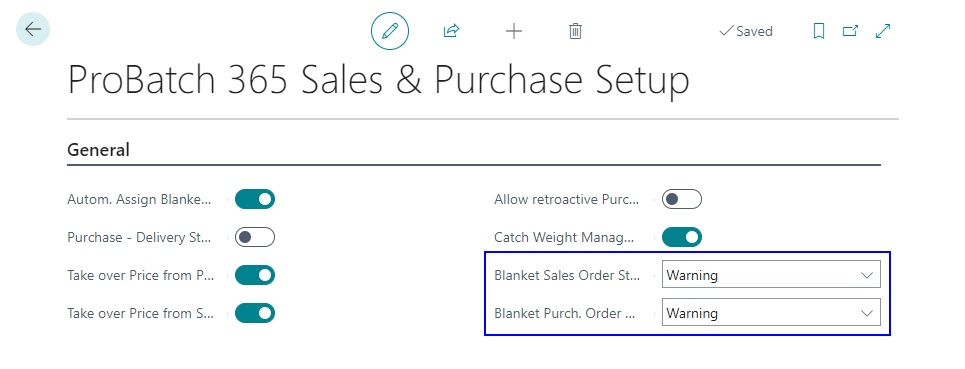
It is possible that the Shipment Date of Blanket Sales Orders is supposed to fall on a date outside the Validity Period. It is possible that the Expected Receipt Date of Blanket Purchase Orders is supposed to fall on a date outside the Validity Period.
In this case, the Blanket Sales Order Start/End Date or Blanket Purchase Order Start/End Date field determines what Results the System creates.
If the field is set to No warning, any Shipment Date / Expected Receipt Date can be inserted, even if it is outside the start and end date, without generating an error.
If the field is set to Warning, a Shipment Date / Expected Receipt Date can also be inserted that is outside the start and end date. However, a warning will appear indicating that the date is outside the period of the start and end date.
If the field is set to Error, no Shipment Date / Expected Receipt Date can be selected that is outside the start and end date. An error message also appears, indicating that the Shipment Date / Expected Receipt Date is outside the period of the start and end date.
Quantities
The Lines of the Blanket Purchase Order and Blanket Sales Order are enhanced with the following fields relating to the Call-Off-Quantities:
| Field | Completion | Description |
|---|---|---|
| Minimal Quantity to Call-Off | Optional | In this field you can enter a quantity that has to be at least called-off in one Purchase- or Sales Order. When creating a Purchase or Sales Order for a contract the system checks whether the entered Quantity is bigger than this defined Quantity. Exception: The last Call-Off for a contract can be smaller than this quantity. |
| Qty. in Call-Off Orders | Automatic | This field shows the Quantity (Out-standing Quantity of the Purchase or Sales Order), that is contained in Purchase- or Sales Lines with a relation to a Contract Document at the moment. |
| Outstanding Qty. to Call-Off | Automatic | This field shows the Quantity that is still outstanding for Call-Offs = Quantity – Quantity Shipped - Qty. in Call-Off Orders |
Partition of Quantity
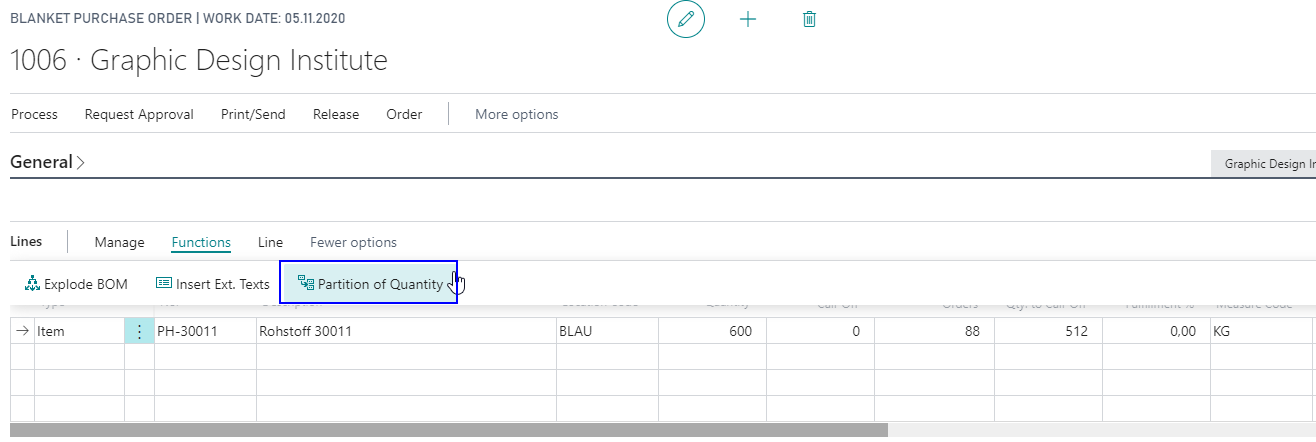
In the Blanket Order Lines the function Partition of Quantity assists you on splitting the Lines if the Blanket Order is valid for a long period and the called-off quantities should be divided over periods. This is of interest for the production and purchase planning processes.
To start the division, mark the line you want so split, an click on Partition of Quantity.
The Page Bl. Order Quantity Partition is opening up. The header of the Page shows some basic information from the Blanket Order, and the Quantity to part, the sum of the Parted Quantity and the Remaining Quantity.
With the View by Option, you can decide, over what type of period you want to split the Quantity. You can distribute the Quantity to part to several days, weeks, months, quarters or years within the validity period. This is done by entering the Quantity for the chosen period into the field Planning Quantity.
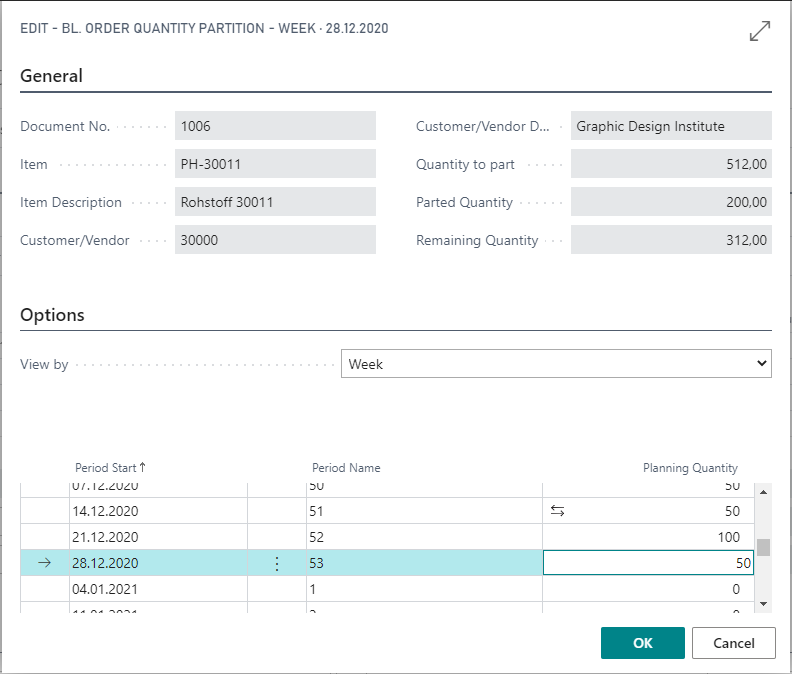
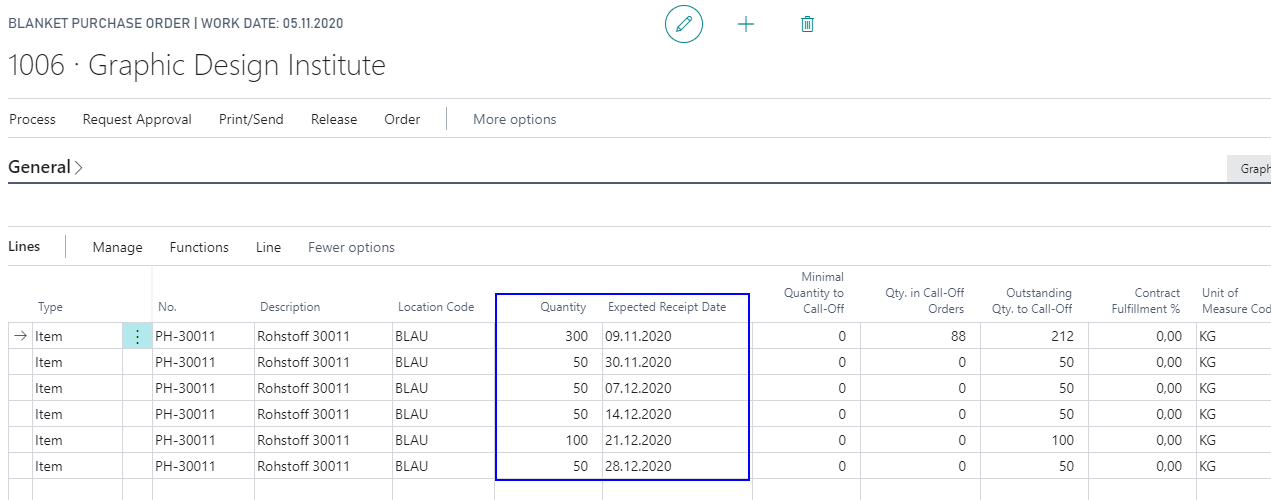
By closing the Page with Ok, the Line in the Blanket Order will be split up. When writing the quantities back to the purchase or sales lines the date where you have entered the quantities, is transferred as Expected Receipt Date (Purchase) or Shipment Date (Sales).
Contract Fulfillment %
In the field Contract Fulfillment % of the Blanket Purchase Order Line or Blanket Sales Order Line you can see the progress of the Blanket Order. You can see the percentage of the total quantity that is already shipped.
Link between Contract and Call-Off Order
When creating a Purchase or Sales Order manually you will get an indication if a compatible contract exists. The Overview with all usable contract lines is shown when entering the item number (or item reference) into the Purchase or Sales Order. You can select the Contract Line you want to use with Ok and thereby link it to the Order.
The information, that an Order line is connected to a Blanket Order, is displayed in the fields Blanket Order exists, Blanket Order No. and Blanket Order Line No..
The flag Blanket Order exists is marked if a contract with the following condition exists:
- Document Type = Blanket Purchase Order or Blanket Sales Order
- Customer / Vendor is equal
- Item Number is equal
- Variant code is equal
- Purchase-/Sales Order Date is in Validity Period OR outside of Validity Period but Blanket Purchase / Blanket Sales Order Start/End Date = Warning / No Warning.
When entering the quantity in the Line of the Call-Off Order the system checks whether the quantity is between the Minimal Quantity to Call-Off and the Outstanding Qty. to Call-Off.
Line Texts and Line Discounts are transferred from the contract to the order. If the price is transferred from the Blanket Order to the Order Line depends on the setup of the fields Take over Price from Purchase Blanket Order and Take over Price from Sales Blanket Order in the Yaveon 365 Sales and Purchase Setup.
Note
The function Feature Update: New sales pricing experience must be activated on the page Feature Management. This is mandatory to have hierarchical pricing functioning, as long as this function has not been made a part of the BC standard functionalities. After activation the function Data Update on the same page must be ran in the other companies in order to have hierarchical pricing functioning in all companies.
Contract Management in Requisition and Planning Worksheet
The calculation of proposals in the requisition or planning worksheet shows the Boolean Field Blanket Order exists if a valid Blanket Purchase Order exists. A contract is “valid” with the following conditions:
- Vendor is equal to the vendor in the planning line (Standard-Vendor)
- Item Number and Variant Code are equal
- Outstanding Qty. to Call-Off > 0
- IF Blanket Purchase Order Start/End Date = Error, then Expected Receipt Date has to be in the Validity Period
- OR Blanket Purchase Order Start/End Date = Warning / No Warning, then the Expected Receipt Date can be outside the Validity Period
You can link the planning line to the Blanket Purchase Order Line when entering the number in the fields Blanket Order No. and Blanket Order Line No.. To enter the number you have to click on the flag Blanket Order exists.
The fields are filled automatically if the flag Autom. Assign Blanket Order in Planning in the Yaveon 365 Sales and Purchase Setup is activated and a valid Blanket Purchase Order with enough quantity exists.
Note
If more than one Blanket Order Line exists with enough quantity the Blanket Order with the first Starting Date and afterwards with the smallest number is used.
Create Blanket Sales Order from Sales Quote
It is possible to create a Blanket Sales Order from a Sales Quote. For this the function Make Blanket Sales Order is used, which creates a Blanket Sales Order with all the relevant Data in the Header and the Lines from the Sales Quote. The Sales Quote gets deleted afterwards.
Create Blanket Purchase Order from Purchase Quote
It is possible to create a Blanket Purchase Order from a Purchase Quote. For this the function Make Blanket Purchase Order is used, which creates a Blanket Purchase Order with all the relevant Data in the Header and the Lines from the Purchase Quote. The Purchase Quote gets deleted afterwards.