Purchase Approval for items
Yaveon 365 Sales and Purchase allows you to restrict the number of vendors where an item can be bought, through Purchase Approval for items. This can be used in situations where licenses or permissions for the purchase of goods are necessary, e.g. pharmaceutical drug trade, or the purchase department wants to keep the number of suppliers low.
The Purchase Approval for items has to be activated for every item separately. On the item card the field Require Purchase Approval has to be activated. If this field is active, the item cannot be bought from a vendor without an entry in the Purchase Approval Setup table.

To allow the purchase of an item from a specific vendor, this vendor has to be listed in the Purchase Approval Setup table. This table can be accessed from the item Page and the vendor page.
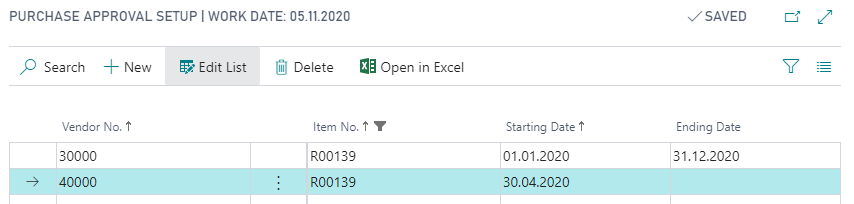
With the combination of vendor and item number in this table, the item can be purchased from the vendor, indefinitely. By adding a Starting Date an Ending Date or both, the approval can be limited to a time frame.
To check whether the approval period is valid, the following dates on the purchase document are evaluated:
- For Purchase Orders, Purchase Quotes, and Purchase Invoices: the Promised Receipt Date is used if it is filled; otherwise the Requested Receipt Date is used. When an item is first entered on a line, the Header's dates are evaluated; once the line exists, subsequent checks (date changes, line modifications, change of Buy-from Vendor No., release, posting, and copy) evaluate the Line's dates.
- For Blanket Purchase Orders: the Starting Date and Ending Date of the Blanket Purchase Order are used (see section Starting and Ending Date in Blanket Purchase Orders below).
If the evaluated date (or date range) is not covered by the Starting Date and Ending Date of a matching entry in the Purchase Approval Setup, the item cannot be added to the purchase lines and an error message will appear.
Provided, the system can't find a valid combination of an item and a vendor, an error message occurs when trying to enter an Item No. into a purchase line.
The above described functionality applies to the following documents:
- Purchase Order
- Blanket Purchase Order
- Purchase Quote
- Purchase Invoice
The approval is checked in several situations, in particular:
- when the Buy-from Vendor No. on the document header is validated,
- when an Item No. is entered on a purchase line or items are added via the Select Items dialog,
- when the Requested Receipt Date or Promised Receipt Date on the purchase line is changed,
- when the purchase document is Released, Posted (for orders: only when receiving), or Copied,
- when a requisition line is transferred from a Requisition Worksheet into a purchase order (the Due Date is used).
Extended Purchase Approval through Item Groups and Vendor Groups
The functionality described above can be extended with the Extended Sales and Purchase Approval feature, which you enable on the Yaveon Feature Management page (see Yaveon Feature Management). Enabling the feature replaces the original approval setup tables with extended tables and copies the existing approval entries into them.
Important
The Extended Sales and Purchase Approval feature requires a data update and cannot be deactivated after activation.
After the feature is enabled, an entry in the Purchase Approval Setup is no longer limited to a single item and a single vendor. Instead, each entry defines an item side and a vendor side, so you can approve entire item groups for entire vendor groups with a single entry.
The item side is defined through the following fields:
| Field | Description |
|---|---|
| Type | Determines whether the entry applies to a single Item or to an entire Item Group. |
| Code | Depending on Type, the Item No. or the SP Item Group. |
| Description | The item or item group description, depending on Type. |
To use item groups, create the required groups on the SP Item Groups page and assign an item to a group with the SP Item Group field on the item card (register Price & Sales).
The vendor side is defined through the following fields:
| Field | Description |
|---|---|
| Vendor Type | Determines the scope of the approval: Vendor No. or Vendor Group (SP Vendor Group). |
| Vendor Code | Depending on Vendor Type, the Vendor No. or the SP Vendor Group. |
| Name | The name of the selected vendor. |
For more information about the vendor groups you can reference, see Yaveon 365 SP Vendor Groups.
You can open the Purchase Approval Setup directly from the Item List and the Vendor List through Related > Purchase. Opened this way, the page is filtered on the marked item or vendor; opened via the search function, it shows all entries. The Purchase Approval Setup table supports Edit in Excel.
How overlapping entries are evaluated
If an entry exists for an item and another entry exists for an item group that contains the same item, both entries are evaluated. The approval is valid as long as the date checked on the purchase document falls within the Starting Date and Ending Date of at least one matching entry.
Example:
Item A is part of item group TEST, and the following entries exist in the Purchase Approval Setup for vendor Y:
- Item, Item A, vendor Y, Starting Date 01.01.2025, Ending Date 30.06.2025
- Item Group, item group TEST, vendor Y, Starting Date 01.01.2025, Ending Date 31.12.2025
In this case item A can be purchased from vendor Y from 01.01.2025 to 31.12.2025: until 30.06.2025 because of the item-specific entry, and from 01.07.2025 to 31.12.2025 because of the item group entry. Before 01.01.2025 and after 31.12.2025 no approval exists.
Starting and Ending Date in Blanket Purchase Orders
Purchase Approvals of Items can be limited in time, which affects the functionality of Blanket Purchase Orders, as these can also be set up with a Starting Date and an Ending Date (see Sales and Purchase Enhanced Blanket Order).
To ensure that the Vendor is approved to supply the Item for the full period of a Blanket Purchase Order, it is not possible for the Starting Date and / or Ending Date of the Blanket Purchase Order to be outside the Purchase Approval Period. The check is performed at two levels:
- When an item is added to a Blanket Purchase Order line, the Starting Date and Ending Date of the Blanket Purchase Order Header must lie completely within the Purchase Approval Period. If they do not, the item is rejected and an error message is shown.
- When the line-level Starting Date or Ending Date is changed, those line-level dates must also lie completely within the Purchase Approval Period. If they do not, the change is rejected and an error message is shown.
This means that a matching entry in the Purchase Approval Setup must exist whose Starting Date is on or before the Blanket Order's Starting Date and whose Ending Date is on or after the Blanket Order's Ending Date (empty dates in the Purchase Approval Setup are treated as "no limit" on that side).
Other dates such as the Due Date or the Expected Receipt Date of the Blanket Purchase Order are not evaluated by the Purchase Approval check and can lie outside the Purchase Approval Period.
Disable Purchase Approval for Quotes
By default, the Purchase Approval described above is also enforced in Purchase Quotes, so an approval-requiring item cannot be added to a quote line if no valid Purchase Approval exists for the vendor. Since purchase quotes are often used in the early stages of vendor negotiation before a formal approval is established, this behavior can optionally be deactivated.
If the field Disable Purchase Approval for Quotes is activated in the Yaveon 365 Sales and Purchase Setup, approval-requiring items can be entered on Purchase Quote lines even if no valid Purchase Approval exists for the vendor. This applies both to the Purchase Quote and to the Purchase Quote Manager. Instead of a blocking error message, an informative notification appears in the notification area (My Notifications) to indicate that an approval would normally be required.
Important
The Purchase Approval check remains mandatory when the quote is converted into another document. Even if the check is disabled for quotes, in the Purchase Quote the functions Create Blanket Order, Create Order, and Create Invoice remain blocked; in the Purchase Quote Manager the functions Create Orders and Create Blanket Orders remain blocked, as long as no valid Purchase Approval exists for the vendor and the item.
Disabling the check applies exclusively to Purchase Quotes (including when working through the Purchase Quote Manager). In Purchase Orders, Blanket Purchase Orders, and Purchase Invoices, the Purchase Approval is still enforced as soon as items are entered on the document lines.