Yaveon Feature Management
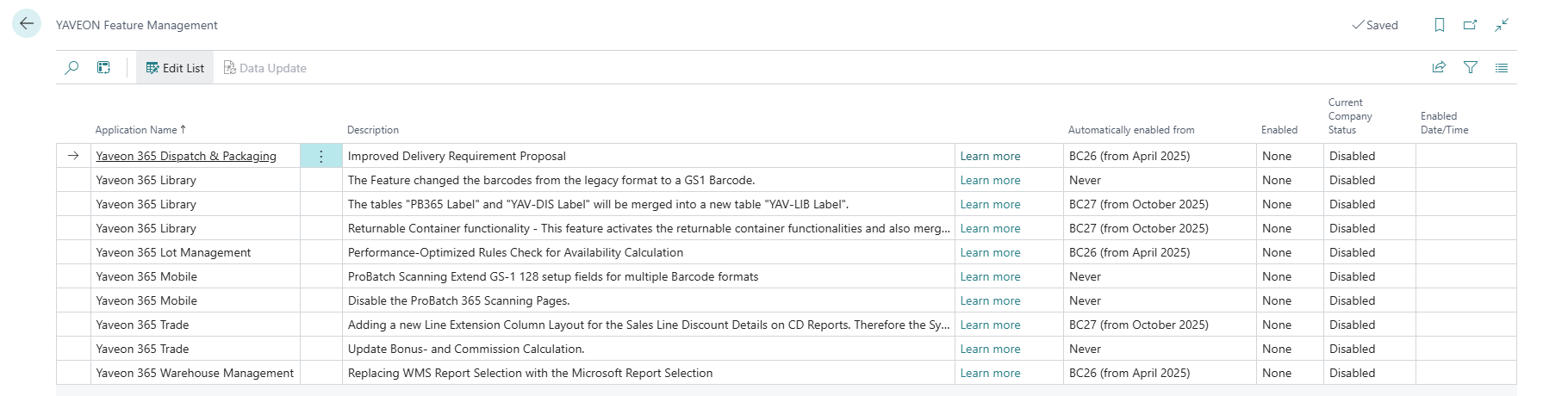
The page Yaveon Feature Management provides, similar to the Business Central Feature Management, an overview of features that can be enabled as needed. The current status of each feature can be seen in the Current Company Status field. Using the Enabled field, a feature can be activated for the current tenant by changing the option from None to All Users.
Note
As of Yaveon App 13.5, all standard Yaveon features always use the automated data update handling — see Behavior with Simplified Feature Handling Activated. The feature Simplified Feature Handling on this page only controls the handling mode for customer project-specific features that have been added to the Yaveon Feature Management page. For details on the feature itself, see Simplified Feature Handling.
| Field Name | Description |
|---|---|
| Application Name | Name of the affected Yaveon App |
| Description | Short description of the Feature |
| Automatically enabled from | Date from which the feature must be mandatorily enabled. After this date, the feature will no longer appear on the page and cannot be deactivated |
| Enabled | Option values are None and All Users. Setting this field to All Users will enable the Feature |
| Current Company Status | Shows the current status of the feature in this company |
| Update Start Date/Time | If the data update has been scheduled as a background task, this field shows the earliest date and time at which the task will be started. Only relevant when Simplified Feature Handling is activated. |
| Activation date/time | Shows the date and time when the feature was activated |
Behavior with Simplified Feature Handling Deactivated
This mode applies only to customer project-specific features that have been added to the Yaveon Feature Management page, when the Simplified Feature Handling feature is not enabled. All standard Yaveon features are not affected by this setting and always use the automated handling described under Behavior with Simplified Feature Handling Activated.
Some features require a data update. After enabling or disabling such a feature, the Current Company Status changes to Pending Data Update. The data update must then be triggered manually using the Data Update action. Features that require a data update and have been activated cannot be deactivated afterwards. A warning is shown when activating such a feature and must be confirmed.
Current Company Status Values (Simplified Feature Handling deactivated)
| Status | Description |
|---|---|
| Disabled | The feature is not active. |
| Enabled | The feature is active and ready to use. |
| Pending Data Update | The feature has been enabled or disabled, but the required data update has not been performed yet. |
| Completed Data Update | The data update has been completed successfully. |
Actions (Simplified Feature Handling deactivated)
| Action | Available when | Description |
|---|---|---|
| Data Update | Always visible; only enabled when status is Pending Data Update | Runs the data update immediately in the current session. The session is blocked until the update is complete. |
Note
The Show Log and Cancel Scheduled Job actions are not available when Simplified Feature Handling is deactivated. Protocol entries and background scheduling are only supported in the activated mode.
Behavior with Simplified Feature Handling Activated
As of Yaveon App 13.5, all standard Yaveon features always use this automated data update handling, regardless of whether the Simplified Feature Handling feature is enabled. When the Simplified Feature Handling feature is enabled, customer project-specific features that have been added to the Yaveon Feature Management page also use this automated handling.
Some features require a data update. When such a feature is enabled or disabled, the YAVEON Feature Data Update dialog opens automatically. This ensures the data update is performed directly as part of the activation or deactivation and cannot be skipped. Features that require a data update and have been activated cannot be deactivated afterwards. A warning is shown when activating such a feature and must be confirmed.
Current Company Status Values (Simplified Feature Handling activated)
The Current Company Status field reflects the current state of a feature in the company:
| Status | Description |
|---|---|
| Disabled | The feature is not active. |
| Enabled | The feature is active and ready to use. |
| Pending Data Update | The feature has been enabled or disabled, but the required data update has not been performed yet. |
| Scheduled | The data update has been scheduled to run as a background task at the configured Update Start Date/Time. |
| Updating | The data update is currently being processed in a session. |
| Completed Data Update | The data update has been completed successfully. |
| Incomplete | The data update was started but did not complete successfully. Check the log entries via the Show Log action for details. |
Data Update Dialog
When you enable or disable a feature that requires a data update, the YAVEON Feature Data Update dialog opens automatically.
The dialog guides you through two steps:
Step 1 – What is updated
A description of what will be changed during the data update is displayed. Where available, you can use the Review affected data link to inspect the records that will be affected before proceeding. To continue, you must activate the I accept the data update checkbox.
Step 2 – How to run the update
You choose whether to run the data update immediately in the current session or schedule it as a background task:
- Run in current session: Click Update to run the data update immediately. The session is blocked until the update is complete.
- Run In Background Session: Activate this option if the system supports background task scheduling. You can then either activate Run Immediately to start the task as soon as possible, or set a specific Start Date/Time and click Schedule. Once scheduled, the Current Company Status changes to Scheduled and the configured start time is shown in the Update Start Date/Time field on the Yaveon Feature Management page.
Note
If the system does not support background task scheduling, the Run In Background Session option is not available and the data update always runs in the current session.
Important
For features that are irreversible (one-way), the data update cannot be undone after completion. Read the description in Step 1 carefully before proceeding.
Actions (Simplified Feature Handling activated)
The following actions are available depending on the current status of the selected feature:
| Action | Visible when | Description |
|---|---|---|
| Data Update | Status is Pending Data Update or Incomplete | Opens the YAVEON Feature Data Update dialog to run or reschedule the data update. |
| Show Log | Status is Completed Data Update or Incomplete | Opens the Job Queue Log Entries page filtered to the protocol entries created during the data update. |
| Cancel Scheduled Job | Status is Scheduled | Cancels the scheduled background task. The status returns to Pending Data Update. |
Protocol Entries
After a data update has run—whether in the current session or as a background task—a protocol entry is written to the Job Queue Log Entries table. The entry records the feature ID, the start time of the update, and whether the update completed successfully or with an error.
Use the Show Log action to open the Job Queue Log Entries filtered to the protocol entries for the selected feature. This allows you to verify that the data update completed correctly and to review any error messages if the status is Incomplete.
Feature Overview
| Feature | Application | Description | Release Version |
|---|---|---|---|
| Label Table Merge | Yaveon 365 Library | The tables "PB365 Label" and "YAV-DIS Label" will be merged into a new table "YAV-LIB Label". | BC 27.0 / Yaveon 12.0 (new systems), BC 28.0 / Yaveon 13.0 (permanent) |
| Returnable Container Functionality | Yaveon 365 Library | The tables "PB365 WMS Load Carrier Type", "PB365 LM Container Type" and "YAV-DIS Package" will be merged into a new table Package Type. | BC 27.0 / Yaveon 12.0 (new systems), BC 28.0 / Yaveon 13.0 (permanent) |
| Performance-Optimized Rules Check | Yaveon 365 Lot Management | Optimized Rules Check on Avail. Calc. | BC 27.0 / Yaveon 12.0 |
| Sales Line Discount Details in CD Reports | Yaveon 365 Trade | Adding a new Line Extension Column Layout for the Sales Line Discount Details in CD Reports. Therefore the System Layouts need to be updated. Individual CD layouts must be adapted manually. | BC 27.0 / Yaveon 12.0 |
| Replacing WMS Report Selection | Yaveon 365 Warehouse Management | Replacing WMS Report Selection with the Microsoft Report Selection | BC 27.0 / Yaveon 12.0 |
| Improved Delivery Requirement Proposal | Yaveon 365 Dispatch & Packaging | Improved Delivery Requirement Proposal | BC 27.0 / Yaveon 12.0 |
| Pick Order Priority Value Setup | Yaveon 365 Warehouse Management | The order of the pick is changed to the priority | BC 30.0 / Yaveon 15.0 |
| Update Bonus and Commission Calculation | Yaveon 365 Trade | Update Bonus- and Commission Calculation. | BC 31.0 / Yaveon 16.0 |
| Extended GS-1 128 Setup Fields | Yaveon 365 Mobile | ProBatch Scanning Extend GS-1 128 setup fields for multiple Barcode formats | Manual activation |
| Disable Yaveon 365 Scanning Pages | Yaveon 365 Mobile | Disable the ProBatch 365 Scanning Pages. | Manual activation |
| Legacy to GS1 Barcode | Yaveon 365 Library | The Feature changed the barcodes from the legacy format to a GS1 Barcode. | Manual activation |
| Move Product Label to Library App | Yaveon 365 Library | Move Product Label to Library App for Scanning. | Manual activation |
| The storage of the warehouse extended texts is changed | Yaveon 365 Warehouse Management | The Yaveon 365 Document Texts for Warehouse Shipment, Receipt, and Activity are moved to new tables 5518355, 5518354, 5518352, when the feature is activated. This ensures correct text population, if Warehouse Shipment and Receipts are created via Get Source Documents. | BC 31.0 / Yaveon 16.0 |
| Always respect the warehouse class in Create Put-away | Yaveon 365 Warehouse Management | The put-away bin search always respects the warehouse class. The field Ignore Warehouse Class on the bin is no longer evaluated. | BC 31.0 / Yaveon 16.0 |
| Extended Sales and Purchase Approval | Yaveon 365 Sales and Purchase | The Sales and Purchase Approval setup tables are replaced by extended tables that support Item Groups on the item side and Customer Groups, Company Groups, Customer Hierarchies, and Vendor Groups on the partner side. | Manual activation |
| Simplified Feature Handling | Yaveon 365 Library | Activates the automated data update handling (background scheduling, status tracking, protocol entries) for customer project-specific features added to the Yaveon Feature Management page. All standard Yaveon features always use the automated handling regardless of this setting. | BC 31.0 / Yaveon 16.0 |
| Last Inspection Order No. in a separate table | Yaveon 365 Quality Assurance | The Last Inspection Order No. is stored in a separate table instead of on the Lot No. Information and the Serial No. Information. | BC 31.0 / Yaveon 16.0 |
Upcoming Mandatory Activation
The following features will become permanently activated in upcoming Business Central and Yaveon App versions (from BC 29.0 onward). For existing companies, these features can already be enabled manually.
Pick Order Priority Value Setup
Warning
This Feature will be automatically activated from Business Central Version 30.0 (Yaveon App 15.0) onward for existing and new systems and companies. The Feature cannot be deactivated.
When this feature is activated, the Pick Order Priority Value Setup functionality becomes available, allowing you to control and fine-tune the order in which inventory is picked for warehouse operations. Instead of relying solely on the standard calculated Priority, this functionality lets you combine multiple factors—such as expiration date, load carrier status, and bin priority—into a single calculated priority value. The entry with the lowest priority value is picked first.
Important
If this feature is required, it must be tested very thoroughly before use in a productive environment!
Impact: Improved control over pick order prioritization. Inventory entries can be sorted by a calculated priority value that considers multiple factors. For more information, see Pick Order Priority Value Setup
Update Bonus and Commission Calculation
Warning
The activation of this feature is not reversible, as tables are merged or split during activation.
Warning
This Feature will be automatically activated from Business Central Version 31.0 (Yaveon App 16.0) onward for existing and new systems and companies. The Feature cannot be deactivated.
When this feature is activated, the tables Commission Setup and Bonus Setup are moved into the Yaveon 365 Trade Setup table. The Sales Basis Data table is split into the Bonus Basis Data and Commission Basis Data tables. Additionally, Bonus Basis Data Archive and Commission Basis Data Archive tables are added to be used to archive data for performance reasons. The Boolean fields Do Not Create Bonus Basis Data and Do Not Create Commission Basis Data have been added to the Yaveon 365 Trade Setup page. When these are activated, no bonus or commission basis data will be created, and the bonus or commission calculation features can no longer be used. After activating this feature, users have various configuration options for determining which invoices are included in the bonus calculation. For example, only paid invoices (i.e., with closed customer ledger entries) can be considered in the bonus calculation. Accruals for bonuses can be created, adjusted, or reversed.
Note
Impact: Increased performance through possible data archiving. Tables are merged, which means records can be deleted, changed, or newly created. Therefore, the activation of this feature is irreversible. After activating certain fields, data cannot be restored. Customer-specific adjustments in the areas of bonus or commission calculation must be checked for compatibility before activating this feature.
The storage of the warehouse extended texts is changed
Warning
The activation of this feature is not reversible. Upon activation, existing data is automatically migrated from the legacy fields to the new tables and cannot be restored.
Warning
This Feature will be automatically activated from Business Central Version 31.0 (Yaveon App 16.0) onward for existing and new systems and companies. The Feature cannot be deactivated.
When this feature is activated, the fields PB365 WMS Ext. Text Set ID Hdr and PB365 WMS Ext. Text Set ID Ftr on the Warehouse Shipment Header, Warehouse Receipt Header, and Warehouse Activity Header tables are no longer used to reference Yaveon 365 Document texts. Instead, the document text references are stored in dedicated new tables 5518355, 5518354, 5518352 so that the correct header and footer texts are always reliably retrieved for each document, regardless of how lines are inserted.
Upon activation, all existing text set references are automatically migrated from the legacy fields to the new tables.
Note
Impact: Yaveon 365 Document Texts (header and footer text blocks) are now correctly populated on Warehouse Shipment and Warehouse Receipt documents, including when lines are added via Get Source Documents. The legacy fields PB365 WMS Ext. Text Set ID Hdr and PB365 WMS Ext. Text Set ID Ftr are no longer evaluated after activation. Custom extensions that read or write these fields must be adapted to use the new tables.
The warehouse class is always respected when creating a put-away
Warning
The activation of this feature is reversible. No data update is required and no data is changed.
Warning
This Feature will be automatically activated from Business Central Version 31.0 (Yaveon App 16.0) onward for existing and new systems and companies. The Feature can then no longer be deactivated.
When this feature is activated, the bin search for creating a put-away only considers bins whose Warehouse Class Code matches the Warehouse Class Code of the item to be put away. The field Ignore Warehouse Class on the bin is no longer evaluated.
If the feature is not activated, the bin search can additionally propose bins with a different Warehouse Class Code, provided that the field Ignore Warehouse Class is activated for them.
The feature affects all processes that use the put-away bin search:
- Creating the Put-away when posting the warehouse receipt
- The Assign new put-away bin action on the put-away
- The bin search in replenishment
Outside the put-away bin search, the field Ignore Warehouse Class remains fully effective, for example for manually entered bins, for bin movements, and for the inventory import.
Important
Before activating, check whether enough bins with a matching Warehouse Class Code exist for every warehouse class in use. Bins that were previously only reachable for the put-away via the field Ignore Warehouse Class are no longer proposed after activation.
Note
Impact: Items with a warehouse class are put away exclusively to bins with a matching warehouse class, which rules out an unintended put-away to a bin with a different warehouse class. If the bin search does not find a suitable bin, the put-away line remains without a bin. Which bins were checked with which filters can be traced in the Bin Search Log. For more information, see Bins and Extension of the put-away strategy.
The Last Inspection Order No. is stored in a separate table
Warning
The activation of this feature requires a data update and is not reversible. Upon activation, the existing values are automatically transferred to the new table.
Warning
This Feature will be automatically activated from Business Central Version 31.0 (Yaveon App 16.0) onward for existing and new systems and companies. The Feature can then no longer be deactivated.
If the feature is not activated, the Last Inspection Order No. is stored directly on the Lot No. Information or Serial No. Information. Each time the inspection order no. is updated, this record is locked. When many users work in the system at the same time, this can lead to lock conflicts and performance losses.
When this feature is activated, the Last Inspection Order No. is stored in the dedicated table Last Inspection Order No., with one entry per lot no. or serial no. information. The field Last Inspection Order No. on the Lot No. Information Card and the Serial No. Information Card displays the value from the new table and, as before, cannot be edited. The lot no. and serial no. information records themselves are no longer modified when the inspection order no. is set. As a result, lock conflicts can only occur within the quality assurance itself and are considerably less likely.
Upon activation, the Yaveon Feature Data Update dialog opens. Using the Review affected data link, you can inspect the affected tables Lot No. Information and Serial No. Information. The data update transfers every existing Last Inspection Order No. from all lot no. and serial no. information records to the new table. If the data update is run again, for example after the status Incomplete, the new table is cleared first and then completely refilled. One protocol entry is written per source table, which you can review using the Show Log action.
Note
Impact: Fewer lock conflicts and better performance, especially when many users work at the same time. The previous field Last Inspection Order No. on the tables Lot No. Information and Serial No. Information is no longer filled after activation. Custom extensions that read or write this field must be adapted to use the new table before activation. For more information, see Behavior with Simplified Feature Handling Activated.
Already Enforced Features
The following features have already been permanently activated from Business Central Version 28.0 and earlier. These features can no longer be deactivated.
The tables "PB365 Label" and "YAV-DIS Label" will be merged into a new table "YAV-LIB Label".
Warning
The activation of this feature is not reversible, as tables are merged during activation. This may result in new records being created, and existing records may be changed or deleted.
Warning
This Feature was automatically activated from Business Central Version 27.0 (Yaveon App 12.0) onward for new systems and companies. The Feature cannot be deactivated. For existing companies the Feature was still deactivated. The Feature has been permanently activated from Business Central Version 28.0 (Yaveon App 13.0) onward.
When this feature is activated, the tables Label (from the Yaveon 365 Process Base app) and Yaveon 365 Label (from the Yaveon 365 Dispatch & Packaging app) are merged into the new Label table in the ProLibrary app. The new table contains fewer fields than Yaveon 365 Label; the data previously stored there is now retrieved directly from the referenced source record instead of being stored locally in a label record.
Note
Impact: The original tables and associated pages are no longer accessible via global search. Existing records are imported in the new table when the data upgrade is executed, new records are not added to the original tables. Many fields are no longer stored in a label record but are retrieved directly from the source record. This avoids unnecessary duplication of information, which can improve performance. Existing adjustments to the Label or Yaveon 365 Label tables, as well as custom reports, must be adapted to the new table.
Returnable Container functionality
Warning
The activation of this feature is not reversible, as tables are merged during activation. This may result in new records being created, and existing records may be changed or deleted.
Warning
This Feature was automatically activated from Business Central Version 27.0 (Yaveon App 12.0) onward for new systems and companies. The Feature cannot be deactivated. For existing companies the Feature was still deactivated. The Feature has been permanently activated from Business Central Version 28.0 (Yaveon App 13.0) onward.
When this feature is activated, the Returnable Container Management functionalities are enabled. In addition, the Packaging Account table is introduced, allowing vendor-, customer-, and shipping agent-specific packaging accounts to be set up for clear and detailed tracking of packages. The tables Load Carrier Type, Container Type, and ProE-SCM 365 Package are also merged into the new Package table in the ProLibrary app to centralize data storage and unify functionalities. Furthermore, this feature enables the transfer of load carrier lines from warehouse shipment to the corresponding shipment order. From Yaveon 365 13.0 (Business Central 28.0) the feature is permanently active and the unified setup is maintained on the central Package Types page.
Note
Impact: The original tables are no longer accessible via global search. Although the functionalities are now unified in a central table, Load Carriers, Containers, and Packages are still distinct entities with different functions and applications. Load Carriers for Warehouse Management can be created from the new Package Types page. Customer-specific adjustments affecting packaging materials, containers, or load carrier types must be checked for compatibility.
Performance-Optimized Rules Check for Availability Calculation
Warning
This Feature was automatically activated from Business Central Version 27.0 (Yaveon App 12.0) onward for existing and new systems and companies. The Feature cannot be deactivated.
When this feature is enabled, Business Central checks availability rules more efficiently. For example, when creating sales lines, if many inventory entries need to be checked, only those with different rule-checking dimensions (such as expiration dates or lot statuses) are considered individually. Entries with identical dimensions are grouped and checked just once, improving performance. If no availability rules are set up, no rule check is performed. Performance is especially improved for customers who manage many lots per item or use serial number tracking. For some transactions, item availability is cached for up to one minute to reduce the number of calculations during a single transaction.
Note
Impact: Increased performance through more sophisticated filters when calculating availability.
Adding a new Line Extension Column Layout for the Sales Line Discount Details in CD Reports
Warning
This Feature was automatically activated from Business Central Version 27.0 (Yaveon App 12.0) onward for existing and new systems and companies. The Feature cannot be deactivated.
When this feature is activated, the new field Discount Amount per Unit can be printed next to Line Discount % in a new layout for sales documents. The existing Corporate Design system layouts have 8 columns for line extensions. Because adding the new field would cause awkward line breaks, a new layout with 7 columns has been implemented. All existing system layouts are updated automatically, but project-specific layouts must be updated manually.
Note
Impact: Project-specific layouts must be updated manually.
Replacing WMS Report Selection with the Microsoft Report Selection
Warning
The activation of this feature is not reversible!
Warning
This Feature was automatically activated from Business Central Version 27.0 (Yaveon App 12.0) onward for existing and new systems and companies. The Feature cannot be deactivated.
When this feature is activated, the WMS Report Selection functionality is replaced by the BC standard setup Report Selection - Warehouse, allowing multiple reports to be printed for a document type at the same time. As a result, the WMS Report Selection can no longer be used, but the settings are transferred to Report Selection - Warehouse.
Note
Impact: You can now configure multiple reports per print document. The WMS Report Selection page remains accessible via global search, but the configuration on the Report Selection - Warehouse page takes precedence over any settings on the old page.
Improved Delivery Requirement Proposal
Warning
This Feature was automatically activated from Business Central Version 27.0 (Yaveon App 12.0) onward for existing and new systems and companies. The Feature cannot be deactivated.
When this feature is activated, proposal templates with configured filters and parameters can be stored in the Automatic Delivery Requirement Fill Template field in the Yaveon 365 Delivery Requirement Automatic Batches page. If the feature is not activated, the filters and parameters for filling the proposal in the field Automatic Delivery Requirement Fill Parameter will be stored without templates.
Note
Impact: By activating this feature, you can specifically store templates for the delivery proposal. For more information, see here.
Published Features
The following features have been published and can be enabled or disabled manually.
Yaveon 365 Scanning Extended GS-1 128 setup fields for multiple Barcode formats
Warning
The activation of this feature is reversible but existing setup will be lost upon deactivation.
By activating this feature, the fields GS-1 128 FNC1 Character and GS-1 128 Starting Sequence on the Yaveon 365 Mobile Setup page are extended. This extension makes it possible to enter lists of separators and start sequences, enabling the identification and evaluation of various GS-1 barcode formats. Additionally, a new field Remove Start Sequences is added to the setup page. Here, a list of start sequences can be entered, separated by commas. The entered start sequences are automatically removed from the beginning of the barcode as soon as the record is transferred from the scanner.
Note
Impact: Extension of the recognizable scan parameters and qualifiers. If fully configured, this allows various GS-1 128 barcode formats to be read, including all common separators and start sequences. This increases flexibility when working with external barcodes, which may be delivered in different, supplier-specific barcode formats. Detailed information about GS1 barcodes and their setup can be found in the online help.
Disable the Yaveon 365 Scanning Pages
By activating this feature, the pages of the legacy scanning solution are deactivated and can no longer be accessed via global search. This affects the mobile dialogs of the Yaveon 365 Scanning App as well as the pages Mobile Users (Legacy) and Yaveon 365 Mobile Setup.
Note
Impact: The pages are no longer accessible via global search and features are deactivated. However, existing records are not deleted and will be available again after deactivating the feature. Activation of this feature is recommended when working with the Yaveon 365 Warehouse Scanning or Yaveon 365 Manufacturing Scanning apps.
The Feature changed the barcodes from the legacy format to a GS1 Barcode.
The previously used label format was ItemNo.@Variant@LotNo.@SerialNo.. By activating this feature, the format is adapted to comply with GS1 guidelines. The setup can now be found elsewhere. When this feature is activated, the field Product Label Barcode Type is removed from the Yaveon 365 Lot Management Setup page and added as Label Barcode Type to the ProLibrary Setup. The option QR can be selected as a value for Label Barcode Type. The selection determines in which format the barcodes for the Product Labels and Load Carrier Label reports are to be printed.
Note
When creating labels, please note that according to the GS1 standard, only lot numbers with a maximum length of 20 characters can be recognized. For information on how to adjust the physical appearance of the GS1 barcode (resolution, width, height), see Barcode Parameters.
Move Product Label to Library App for Scanning
When this feature is activated, the Product Label report is moved from the Yaveon 365 Lot Management app to the Yaveon 365 Library app. This makes the Product Label report available in the Yaveon 365 Manufacturing Scanning app, enabling product labels to be printed directly from manufacturing scanning dialogs without requiring the Yaveon 365 Warehouse Scanning app to be installed.
To use product label printing in the Yaveon 365 Manufacturing Scanning app, the Product Label report must be added to the Mobile Report Print Setup.
Note
Impact: The Product Label report is now hosted in the Yaveon 365 Library app and can be used across scanning apps, including the Yaveon 365 Manufacturing Scanning app. The Mobile Report Print Setup for the Yaveon 365 Manufacturing Scanning app must be configured to include the Product Label report. For more information on how to configure reports for printing, see Printing Setup.
Extended Sales and Purchase Approval
Warning
The activation of this feature requires a data update and is not reversible. Existing approval entries are automatically migrated to the new tables, and the feature cannot be deactivated afterwards.
When this feature is activated, the original Sales Approval Setup and Purchase Approval Setup tables are replaced by extended tables, and the existing approval entries are migrated into them. Instead of approving a single item for a single customer or vendor, each entry now defines an item side and a partner side, so entire groups can be approved with a single entry.
On the item side, an entry can apply to a single Item or to an entire SP Item Group. On the partner side, a sales entry can reference a Customer No., an SP Customer Group, a Company Group, or a Customer Hierarchy (the latter requires the Yaveon 365 Trade App), while a purchase entry can reference a Vendor No. or an SP Vendor Group. The extended setup tables can be opened directly from the Item List, Customer List, and Vendor List filtered to the marked record, and both tables support Edit in Excel.
Note
Impact: Approvals can be maintained for whole item and partner groups instead of individual combinations, which significantly reduces the setup effort. Because the legacy tables are replaced and the data is migrated, the activation is irreversible. For details, see Sales Approval for items and Purchase Approval for items.
Simplified Feature Handling
Warning
This Feature will be automatically activated from Business Central Version 31.0 (Yaveon App 16.0) onward for existing and new systems and companies. The Feature cannot be deactivated.
Standard Yaveon features always use the automated data update handling on the Yaveon Feature Management page, regardless of this setting. Activating this feature additionally enables the automated handling for customer project-specific features that have been added to the page. The data update dialog then opens automatically when such a custom feature requiring a data update is enabled or disabled. Background scheduling, comprehensive status tracking, and protocol entries via Job Queue Log Entries become available for those features as well.
Before activating this feature, all customer project-specific features that were previously managed with the old handling must have completed their data update. If any such feature still has a pending data update in the old mode, activation is blocked and an error message is displayed.
Note
Impact: Customer project-specific features added to the Yaveon Feature Management page switch to the automated handling. All new actions (Show Log, Cancel Scheduled Job) and status values (Scheduled, Updating, Incomplete) become available for those features. The legacy Data Update action, which previously had to be triggered manually, is replaced by the automated dialog. For details, see Behavior with Simplified Feature Handling Activated.