Inspection Equipment
The purpose of every quality control is to determine the actual quality of the inspected object. The necessary inspections can be carried out with the appropriate Inspection Equipment, which may itself be subject to an inspection - i.e. it may have to be adjusted, calibrated or verified.
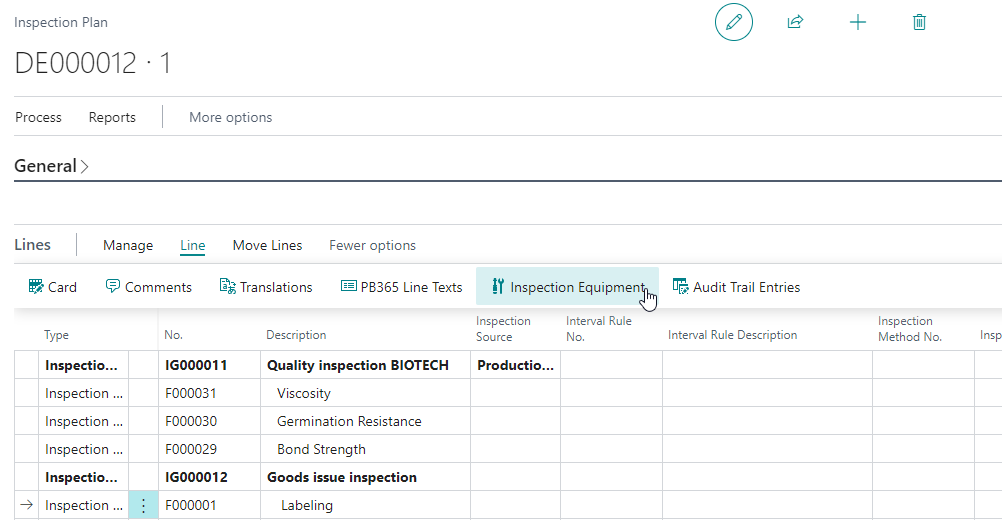
You can assign inspection equipment in Inspection Plans to feature lines
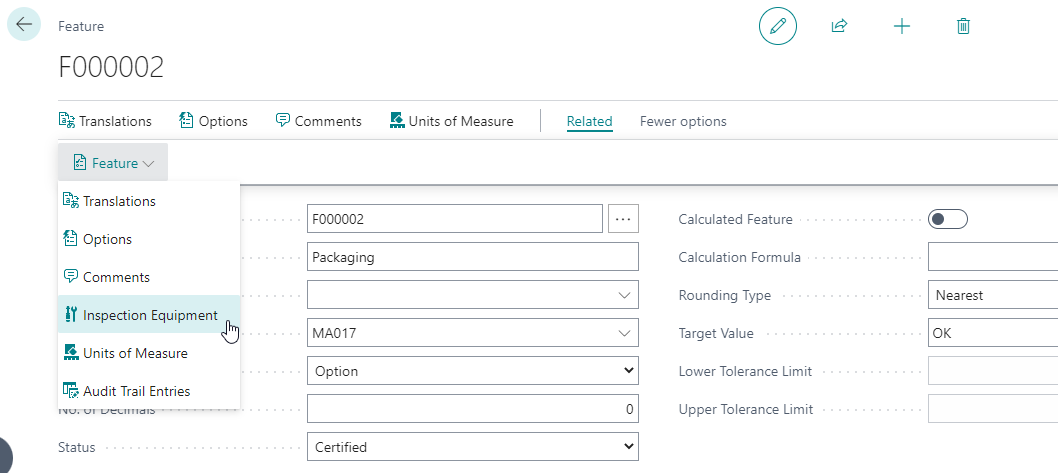
Assigning inspection equipment directly to Inspection Features) is a possible as well.
In the inspection order, you can also see which inspection equipment has to be used to carry out the inspection.
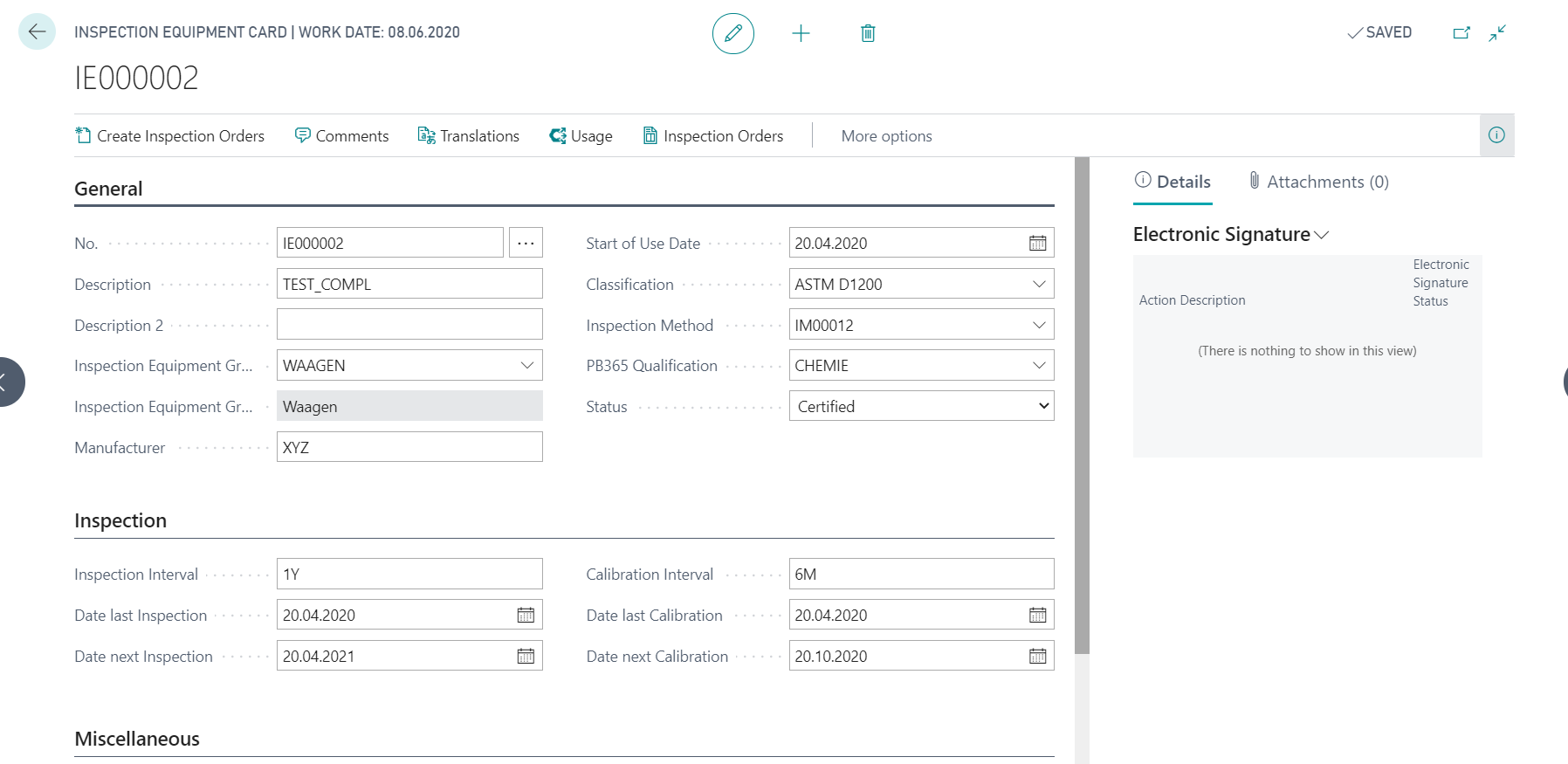
Creation of Inspection Equipment
- You can create a new Inspection Equipment Card with the action New.
- in the field No. you can automatically select the next free number from the number series by pressing Enter. You can also enter a number manually. Furthermore, you can define a Description and Description 2 for the test equipment.
- Optionally, you can assign the equipment to a equipment group using the field Equipment Group Code.
- You can define the fields Manufacturer and Start of Use Date for information purposes
- You can optionally define the fields Classification, Inspection Method and PB 365 Qualification.
Inspection Equipment Groups
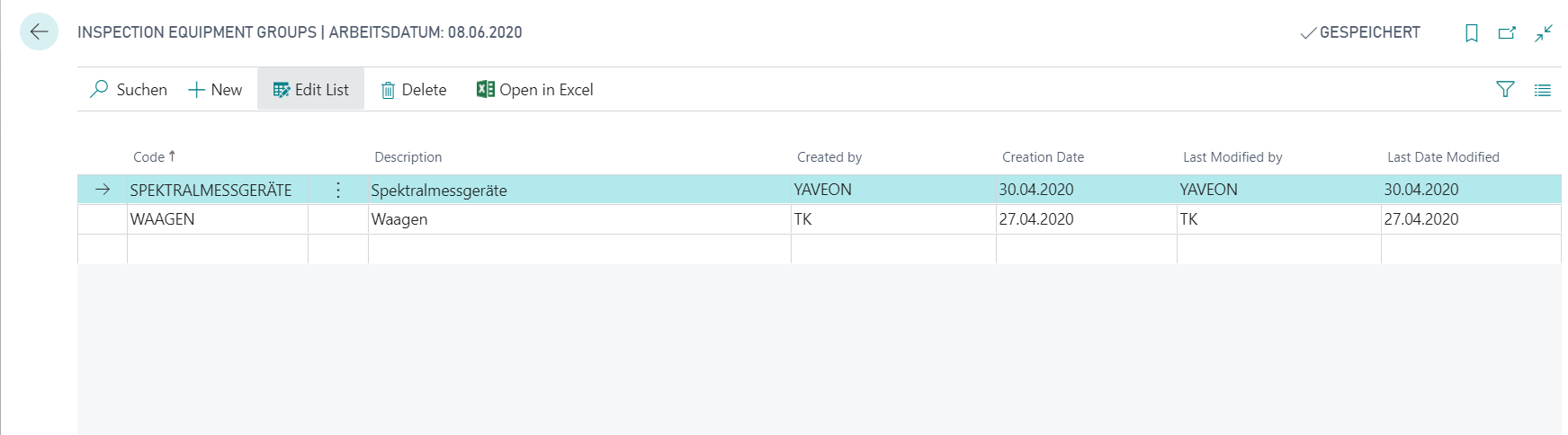
You can use the field Equipment Group Code to better structure the inspection equipment and later simplify data maintenance of inspection plans. Equipment groups can be created directly using the lookup and the action New. You only need to fill the field Code and define a Description. When creating Inspection Plans, it is now not necessary to create an inspection plan for each inspection equipment.
Manual Testing of Inspection Equipment
You can create a new inspection order for inspection equipment by using the action Create Inspection Orders. To create a new inspection order, you must have a certified Inspection Plan for the inspection equipment or the inspection equipment group. In addition, the inspection plan must contain a inspection group of the Inspection Source System.
Note
When creating inspection plans for inspection equipment, you must make sure that the Inspection Source is System. Inspection groups with a different inspection source will be ignored.
Note
The action Create Inspection Orders leads to the creation of an inspection order if only inspection orders with the status finished or cancelled exist for the inspection equipment. Otherwise, the message "Necessary inspection orders have already been created" is displayed.
Regular Testing of Inspection Equipment
To determine when test equipment must be inspected, you have to define the following fields:
| Field | Description |
|---|---|
| Inspection Interval | Here you can enter the time interval after which the inspection equipment has to be checked again. Enter a date formula here, e.g. 3M for a inspection interval of three months or 1Y for a year. |
| Date last Inspection | Here you can see the date of the last inspection of the equipment. If a inspection order for the equipment is completed, the field is updated automatically. |
| Date next Inspection | If values are entered in the fields Date last Inspection and Inspection Interval, the field is calculated automatically; it can also be changed manually. It indicates when the next equipment inspection is to be performed for the inspection equipment. |
| Calibration Interval | If the inspection equipment must be calibrated at a certain time interval, a separate interval can be entered here independently of the inspection interval. This field is only informative. |
| Date last Calibration | The date of the last calibration. This field is only informative and must be filled manually. |
| Date next Calibration | The date on which the inspection equipment must be recalibrated. This field is only informative and is calculated on the basis of the field Date of last calibration and Calibration interval. It is not used for the automatic creation of inspection orders. |
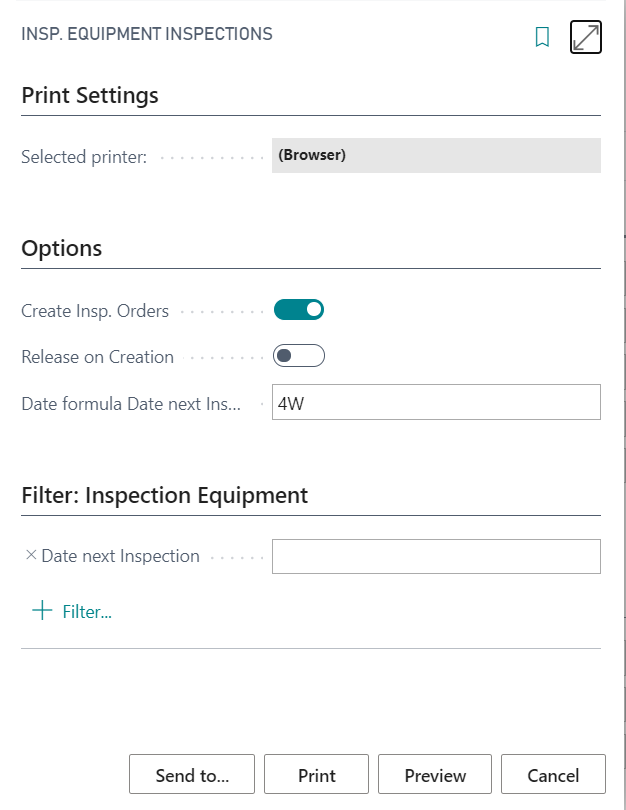
A requirement for batch processing Insp. Equipment Inspections is that the inspection interval and the corresponding Date fields are maintained. You can use batch processing to create the required inspection order for all the inspection equipment inspections within a certain period. If you only want a preview of the upcoming inspection orders, you must leave the field Create Inspection Orders deactivated. If you want the inspection orders to be created directly, you must activate the field. If, for example, the inspection orders for the next 4 weeks should be created, you can enter the value equal to 4W in the field Date formula Date next Inspection filter.
Inspection Orders for Inspection Equipment
The processing of inspection orders for inspection equipment has no differences compared to other inspection order processes. In the chapter Inspection Order, you can read about processing inspection orders. By setting the status of the inspection order to finished, the fields Date last Inspection and Date next Inspection for the inspection equipment are updated. Regardless of the inspection result, the status of the inspection equipment is not automatically updated. If a negative inspection result is determined, the status of the test equipment must be manually set to blocked, in case it is no longer intended to be used. The same applies to the other statuses of the inspection equipment.
Note
Only inspection equipment with the status certified can be used in quality control. If inspection equipment with the status blocked or inspection is in a created inspection order, the release of the inspection order is prevented. However, the processing and finishing of released inspection orders is still possible.
Further functions in the Inspection Equipment
In addition to the actions already mentioned for creating inspection orders, the following functions are available:
- You can define Translations and Comments for the inspection equipment.
- Using the action Usage, you can display an overview of the inspection orders, inspection characteristics, and inspection plans in which the inspection equipment is used. If required, you can display the respective data record from this screen using the action Show.
- Using the action Inspection Orders, you can display both finished inspection orders and inspection orders in process. You can also open and edit them using the action Card.
Mobile registration of inspection equipment
In order to be able to trace which inspections were actually carried out with which inspection equipment, the inspection equipment actually used during the test can be recorded with the help of a mobile dialogue. This makes it possible to see who used which inspection equipment and when. Further information on this can be found under Mobile registration of inspection equipment.