Inspection Features
You create or define inspection features using the Feature Card. The inspection features defined here are the basis for creating Inspection Groups and Inspection Plans.
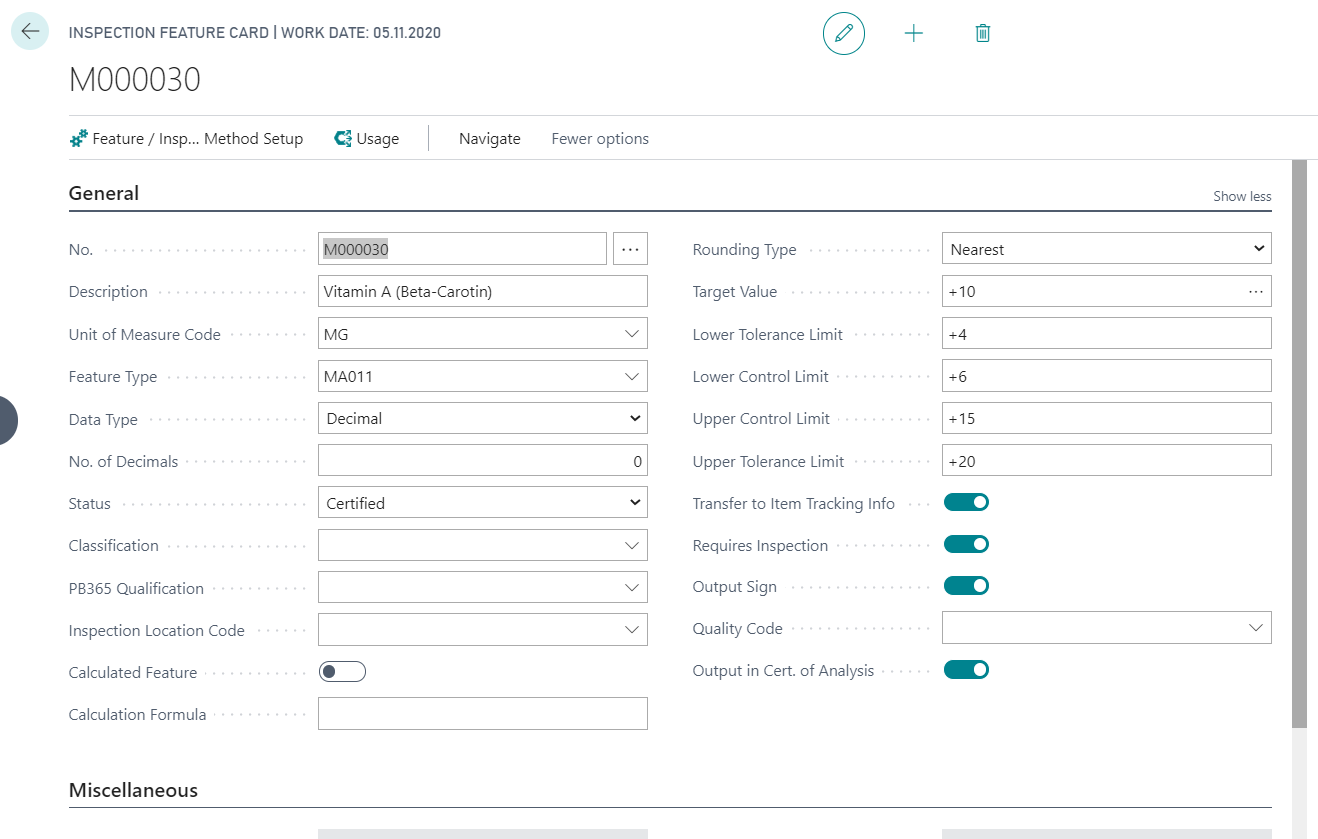
New creation of Inspection Feature - General fields
- You can create a new Inspection Feature Card via the action New.
- in the No. field, you can automatically assign the next free number from the number series by pressing Enter. Alternatively, you can enter a number manually. You can also define a Description for the inspection feature.
- You must assign a type to the inspection feature using the Feature Type. You can only assign a feature type when the Quality Assurance field is activated. For more information, see Feature Types.
- If an inspection feature should be used in an inspection order, you must activate the field Requires Inspection. If the field is not activated, the inspection feature can be defined in the inspection plan, but it will not be inspected in the inspection order.
- You can use the Output in Cert. of Analysis field to decide whether the inspection feature should be transferred to the Cert. of Analysis and printed on the certificate of analysis at a later date.
- If you want the inspection feature values to be accessible via the Additional lot data after the inspection has been completed, you must activate the field Transfer to Item Tracking Info.
- You can optionally define the fields Classification, PB365 Qualification and Target Value.
New creation of Inspection Feature - Data Type dependent fields
Different fields can be filled depending on the Data Type of the inspection feature.
Note
You can maintain the Target Value, as well as the Tolerance and Control Limits for the Inspection Feature (if useful). These values are then used as default values in the Inspection Feature and Inspection Plan. When creating an inspection plan line with Type = Inspection Feature, the target value and limits are copied from the item feature if the field Use Target Values of Item is set to YES in the Quality Assurance Setup. If the flag is NO or no item feature exists, the values are copied from the Inspection Feature. When copying an Inspection Plan the value is copied as well.
Data Type Decimal
If the Data Type Decimal is used, the Tolerance and Control fields can be edited and maintained. If the decimal value is to be measured in a specific unit, you can create a new unit for the inspection feature using the Unit of Measure Code field and then assign it. You can define the output of decimal places in the No. of Decimals field. If you also want to output the decimal value with a +/- sign, you must activate the field Output Sign.
It is also possible to define a Rounding Type for feature values. The default setting for this field is Nearest The values Up and Down are available as additional options.
Data Type Decimal - Special case calculated Inspection feature
If the actual value of an inspection feature should be calculated on the basis of actual values determined in other inspection features, you must activate the Calculated Feature field. The actual value is then calculated using the formula stored in the Calculation Formula field. As a result of this setting, you cannot enter the Target Value for the corresponding inspection feature directly. For more information on the available calculation characters and formulas, refer to the chapter Calculation Formula.
Data Type Option
With Data Type Option, the feature option can be maintained using the action Options. You can define any number of options for the inspection feature here. It is also possible to translate the option values. You can use the action Translations to define one or more Language Codes in the options and enter the corresponding translation in the Description field.
Important
If an inspection feature with the data type option is already used in an inspection plan, you can use the field Update Option Values in the ProBatch 365 Quality Assurance Setup to control whether it is still possible to add option values. If the field is activated, you can add further option values. These option values are then transferred to existing and certified inspection plans as well as existing inspection orders. If you want to prevent this, you must deactivate the field. It is then not possible to add option values if the inspection feature is already being used.
Further Data Types
If you assign the Data Type Date to an inspection feature, you can only define values in date format as target and actual values. For example, if you enter the value "t" as the actual value, the system uses the system date to determine today's date and enters it.
With the Data Type Boolean you can only enter the values yes or no in the Target Value and Actual Value fields.
If you assign the Data Type Text to an inspection feature, you can enter a text for the inspection feature.
Closing Creation Inspection Feature
To be able to enter an inspection feature in a inspection group or inspection plan, the Status must be set to Certified. Other statuses that can be assigned to an inspection feature are:
- New
- Under Development
- Closed
You can no longer change certified inspection features. If you want to make changes, you must reset the status to Under Development or New. Likewise, closed inspection features cannot be edited and cannot be used. The status of the inspection feature is checked when the inspection feature is transferred to the inspection plan or inspection group. When an inspection order is created, the status of the inspection feature will not be checked. In existing inspection plans and inspection groups, the feature must be removed manually.
Further Inspection Features, Data Maintenance and Information
An Inspection Equipment can be assigned to a feature. You will find more information about the setup and function at Inspection Equipment.
Using the action Usage, you can display an overview of the inspection plans and inspection orders in which the inspection feature is used. If required, you can display the respective data record from this screen using the action Display.
You can also call up and maintain the Feature/Inspection Method Setup. You can read about the advantages of this option under Feature Inspection Method Setup.
You can also define Comments and Translations for the inspection feature.