Specifications
In addition to the possibility of creating lot-specific specifications in the form of Certificates of Analysis, you can also create Specifications for items.
The specifications can be vendor- or customer-specific, but also neutral without reference.
In the specification, a lot of quality-relevant data is brought together that is already available in other places in the application. To avoid having to maintain this data manually in the specification, it is possible to automatically copy the required existing data from the corresponding areas of the application into the specification.
In addition, it is also possible to work with text modules in the specification or to enter quality-relevant data manually.
Create a specification
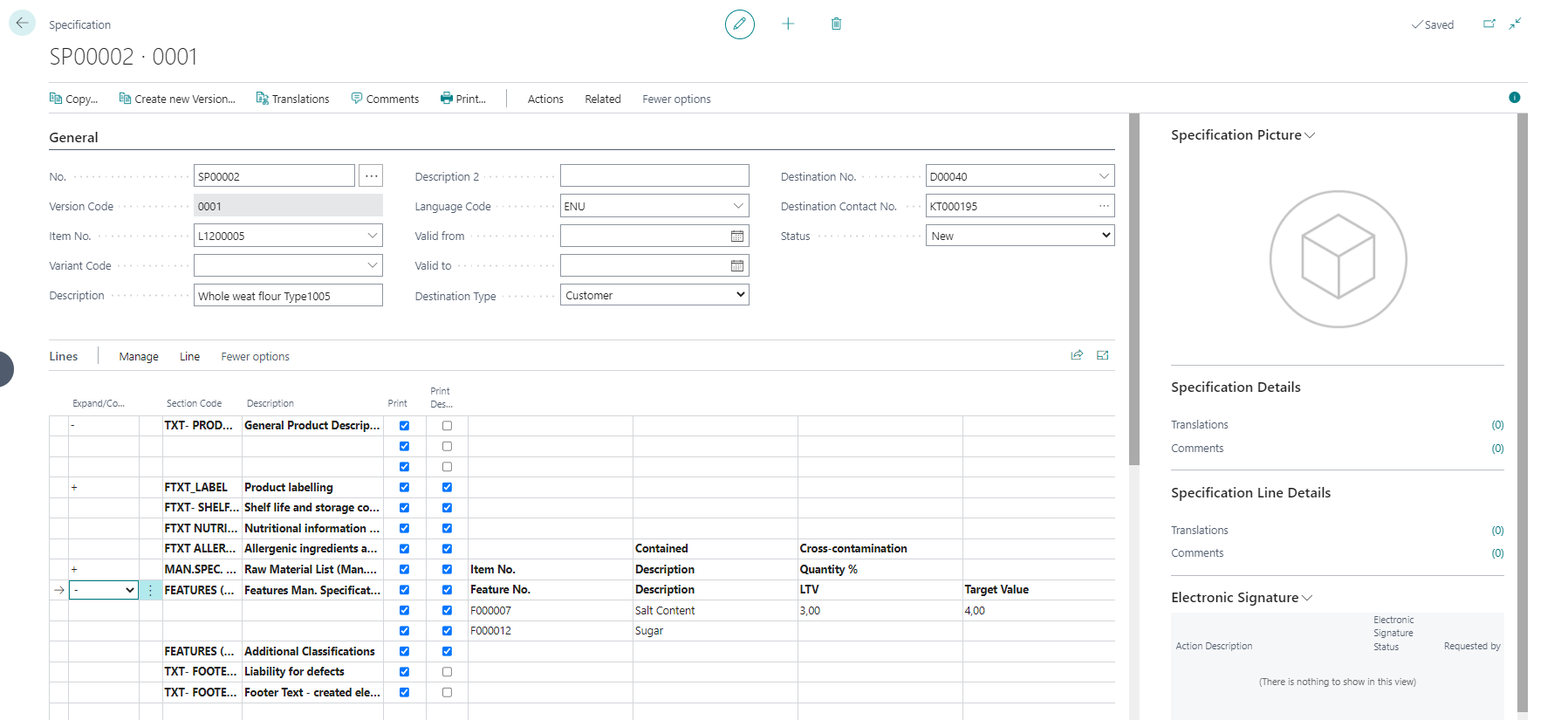
To create a specification open the specification list central via search function, or open it via item-, customer- or vendor card. When open the specification via card already existing specifications for the master data set are displayed.
Press +NEW to create a new specification.
The field No. contains a unique number of the specification. The field is filled automatically according to the setup of the number series that is assigned in the ProBatch 365 Quality Assurance Setup.
One specification can have several versions. The Version Code is filled automatically by the system.Enter the Item No. of the item, the specification belongs to. Additionally you might enter a Variant Code. The Description and Description 2 is filled automatically and can be changed manually.
Enter any Language Code. The data of the specifications are displayed and printed in the entered language if the Translations are filled.
With the fields Valid from and Valid to the specification can get a validity period. The Valid to-date will be printed as well.
With the fields Destination Type, Destination No. and Destination Contact No. you can define it the specification is customer- or vendor-specific or general (neutral).
You may assign a contact number, even if there is no vendor or customer linked to it. This is relevant for product-developments to create or send samples for interessted persons / companies.
Adress Data are displayed in the Infotab Customer/Vendor Info.The fields in the info tab item information are filled with the currently valid data of the item. The highest version is used in each case. This data are the basis for filling the lines later.
The actual specification contents are entered in the Lines info tab. The desired specification section can be entered in the Section code field. The data displayed in this window cannot be edited. The fields Print and Print description can be used to control whether the data of the section or the description should be printed. Detailed examples of this are described in the Printing the Specification section below.
The determination of which data is displayed in which columns depends on the settings of the respective specification section code.To enter or change the data of the respective specification sections, there is a separate page for each specification section, which can be opened with the function Edit in the line. These pages are described in more detail below.
In the info box area you will see the following information:
an existing specification picture, which is taken over from the item.
The specification details show whether translations or comments are stored for the specification header.
The specification line details show whether translations or comments are stored for the specification line.
Edit specification contents
Depending on the type of the specification-section, you call up the actual contents of the specification in the line via Edit.
Specification component lines
Specification component lines are used for specification sections of the type Man. Spec. Lines, Dev. Recipe Lines and BOM/Routing lines.
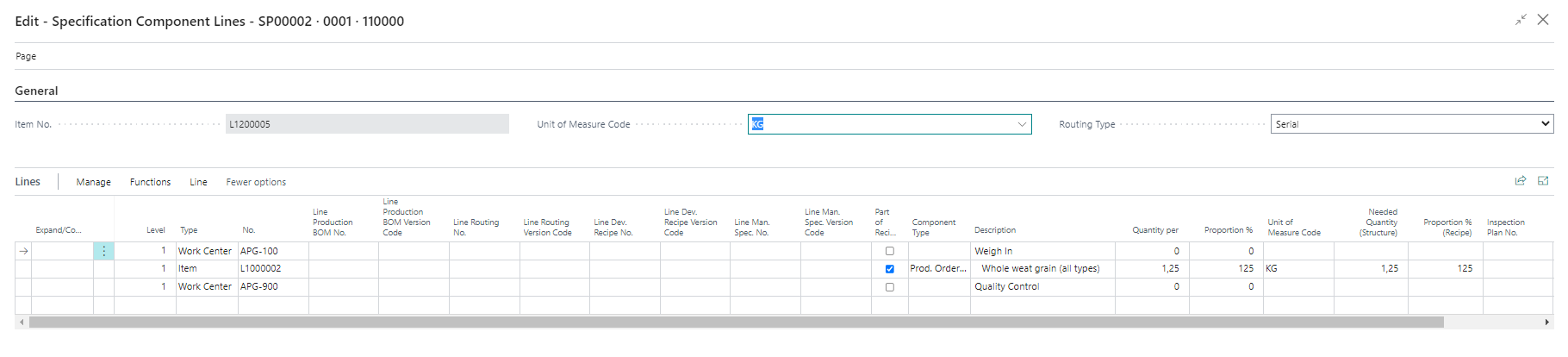
Whether and which data is entered automatically depends on the settings of the specification section. You can also fill in this table manually. A detailed description of the individual fields is not given here. They correspond to the fields of the original table (e.g. manufacturing specification).
In the line functions you will find the following functions:
Extrapolate: This function normalises the first level (level 1) of the manufacturing specification, bill of material or recipe to 100%.
Extrapolate (line): In the case of multi-level structures, this function can be used to normalise a subordinate assembly (level >1) to 100%.
Explode Recipe: Here you can determine whether inserted components that themselves have a structure (e.g. intermediate products) are exploded in the specification and thus displayed as a substructure in the specification.
Copy...: Here it is possible to copy an already existing manufacturing specification, recipe or bill of material.
In the line actions you will find the following calls via line:
Translations: Translations are saved here.
New line - sublevel: To insert a new sublevel, you must call this function. This way you can develop a complete (manufacturing specification) structure within a specification.
New line - Same level: To insert a new level at the same level, you must call this function. This way you can develop a complete (manufacturing specification) structure within a specification.
Expand / Collapse, Expand All / Collapse All: Here you can display the display of the individual levels in a multi-level specification.
Specification Raw Material List
Specification Raw Material Lists are used for specification sections of the type Man. Spec. - Raw Mat. List, Dev. Recipe Raw Mat. List and BOM Raw Material List.
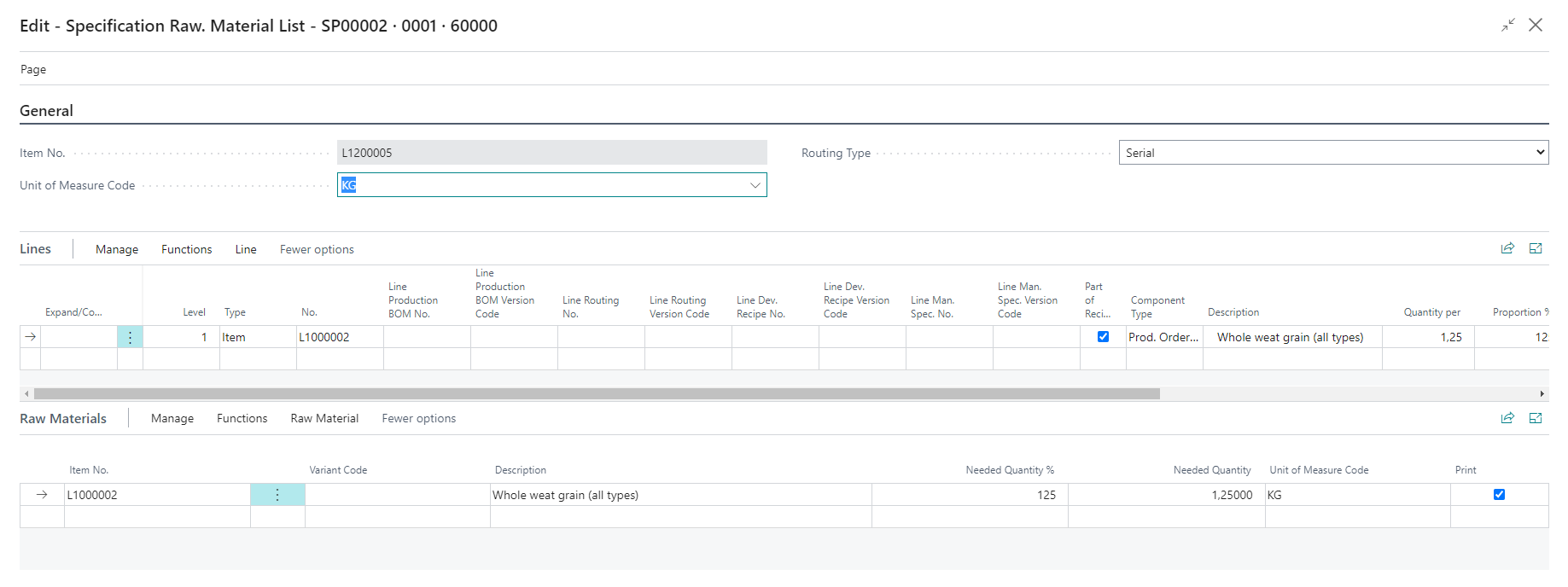
Whether and which data is entered automatically depends on the settings of the specification section. You can also fill in this table manually.
All items and their percentage share in the product are shown here on the basis of the underlying Manufacturing specification (or Dev.Recipe or BOM). The structure can be displayed on several levels. A detailed description of the individual fields is not given here. They correspond to the fields of the original table (e.g. master batch record). The calls (function and line) of the Line info tab correspond to the calls in the Specification component lines page and are not described again here.
In the Info Tab Raw Materials you can see the requirement quantities per raw material. The requirement quantity is added up in several levels and thus shows the sum of the requirement quantity (structure) field of this component from the specification component. Via Update raw materials, the raw materials as well as the requirement quantities can be updated manually.
Specification Features
Specification features are used for specification sections of the type Man. Spec. Features, Dev. Recipe Features and Item Features.

You can automatically transfer features from the original table here. This depends on the setting in the specification section. Otherwise you can fill in this table manually. A detailed description of the individual fields is not given here. The fields correspond to the fields of the origin document.
Specification Text Card
Specification text cards are used for specification sections of the type text.
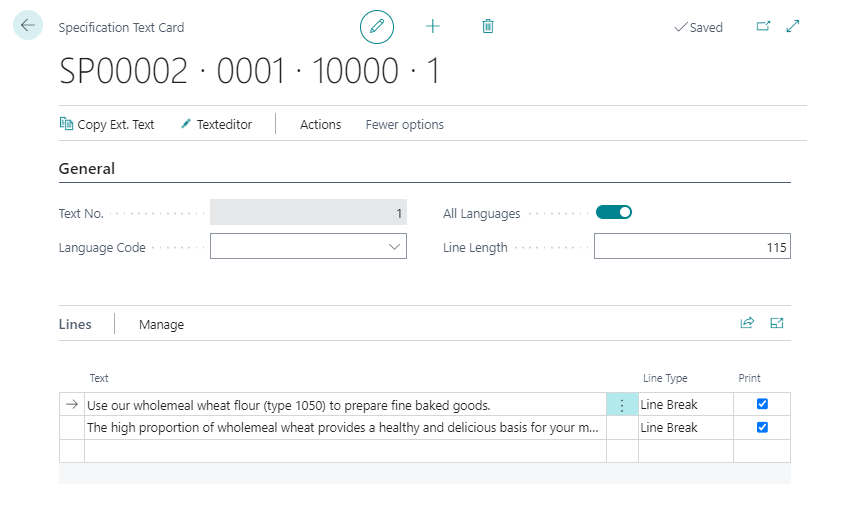
Each text is clearly identified by a number. The number is automatically assigned by the system.
Any language code can be entered. Depending on the language code, the data of the specification are displayed and printed in the corresponding language, provided that the corresponding translations are maintained. Alternatively, the text can be valid for all languages.
The actual text can be entered in the Text column. You can enter the text as continuous text via the Text editor or copy standard texts from the ProBatch text module via the call Copy text module.
The line type determines whether a line break is to be made or not. Depending on the setting in the specification section lines, the text is also displayed in the specification line.
Specification Free Text Card
Specification Free Text Cards are used for specification sections of the type Free Text.
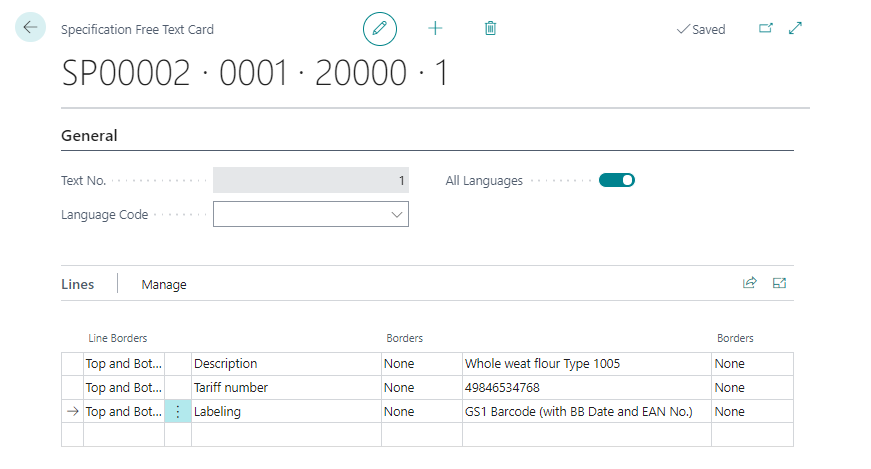
In contrast to the specification section with the type Texts, where language-dependent text modules can be used, in many cases there is also the requirement that freely recordable data in the specification should be recorded or printed out in the form of tables. This requirement can be fulfilled via the type free text.
As many columns are automatically created as have been specified in the Number of columns field in the specification section. For each line and for each column, you can define line frame and frame in the fields.
Specification Inspection Plan Lines
Specification Inspection Plan Lines are used for specification sections of the type inspection plan lines.
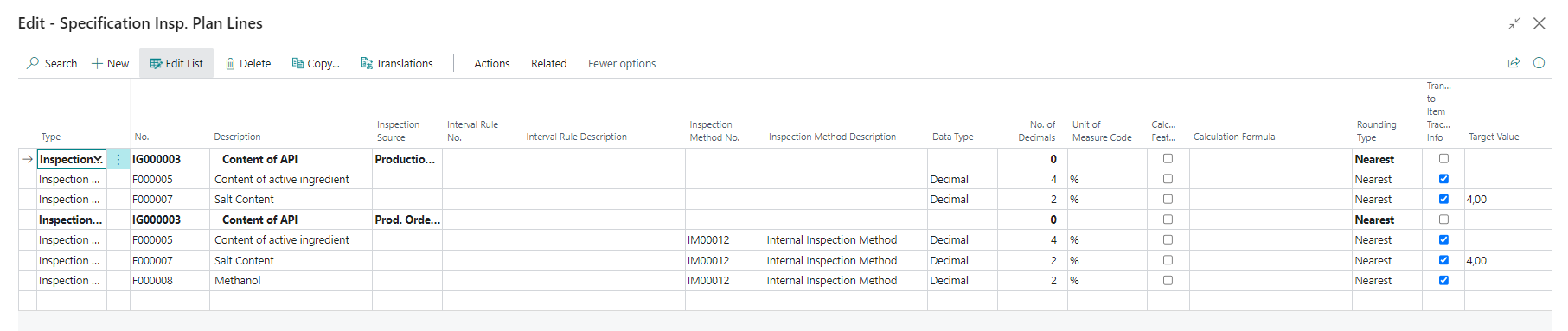
You can transfer the inspection plan automatically. This depends on the setting in the specification section. Otherwise you can fill in this table manually. A detailed description of the individual fields is not given here. The fields correspond to the fields of the test plan.
Update specification
The data of the specification can be updated with function Update data, i.e. the data of the master record (e.g. manufacturing specification, inspection plan, features) can be transferred again. When the function is executed, the specification sections of the specification are updated.
Certify a specification
The status of the specification is displayed in the Status field.
The following statuses are available for selection:
New (Assigned automatically when a new specification is created).
Certified (must be set manually)
Under development (must be set manually)
Expired (must be set manually)
If a specification has the status Certified or Expired, no data in the specification can be changed.
Changing the status can be secured with an electronic signature. This functionality can be found in the infobox of the same name. A description can be found in the chapter Electronic signature.
Copy specification
With the call Copy you display the specification overview in which you select the specification to be copied (cursor must be on the desired line). After you have selected a specification and confirmed the selection, all specification lines for the selected specification are displayed.
In this screen you can now select one or more lines and copy them into the specification. When copying, all associated sub-tables (comments, translations, specification data) are also copied along with the specification line.
Print the specification
With the call Print the specification can be printed in a selectable language. All specification sections marked with "Print = yes" and the data they contain are printed in sequence.
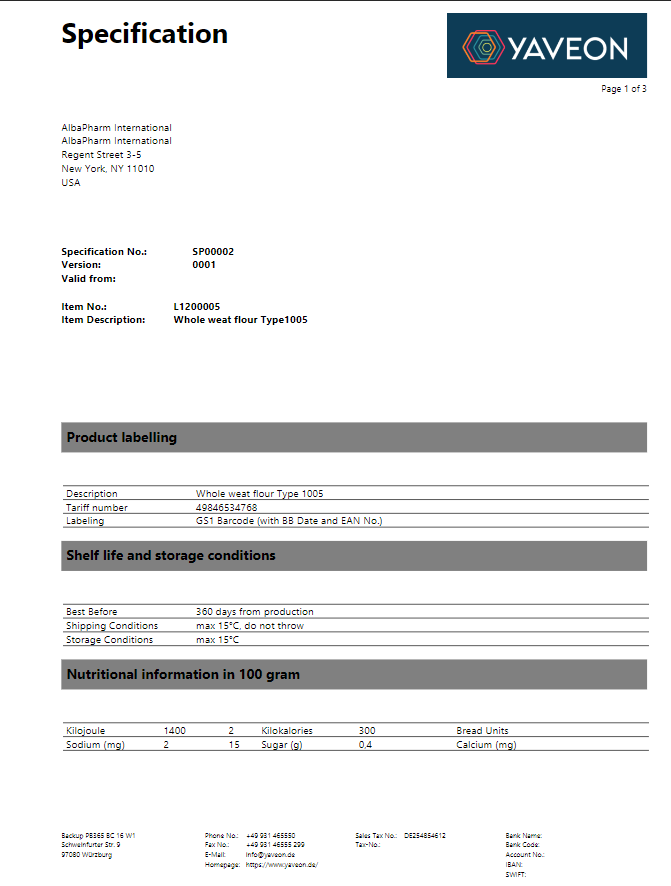
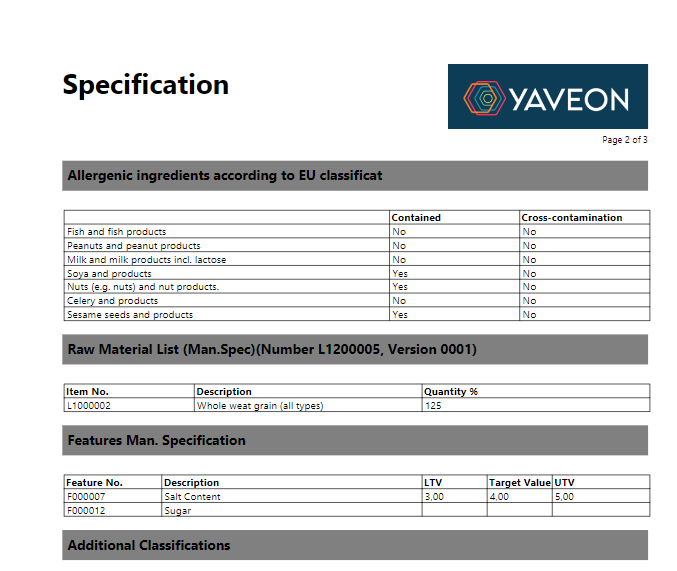
To illustrate how it is possible to control which data or sections are to be printed, details follow here:
In the line containing the specification section, the Print checkbox can be used to determine whether the complete section, i.e. the heading including the individual data lines, should be printed or not. The default setting is made in the specification section and can be overridden here.
In the line containing the specification section, the Print description checkbox can be used to determine whether the section heading line, i.e. the print line with a gray background, should be printed or not. The default setting takes place in the specification section and can be overridden here.
To specify the printing of individual data lines in more detail, please open the Edit mask in the line. Depending on the BC or browser version, it may look like the Print and Print Description checkboxes are directly editable in the expanded data rows. This is not the case - the control must take place via the Edit mask. There the checkmark Print can be switched on or off per line.