Extension of the put-away strategy
The search for a suitable bin has been extended by two criteria in Yaveon 365 Warehouse Management: One criterion is the load carrier to be stored, the second criterion is the item to be stored.
Order priority
The configuration of which strategy(ies) are to be followed is made in the Put-away Template via the field Order priority. You can choose between the following order priorities:
| Order priority | Description |
|---|---|
| Empty | The default template is used. |
| Zone | The bin search only considers item-related criteria via the put-away group on the item. For put-away lines with a load carrier, the bin capacity is checked as well. |
| Bin Class | The bin search only considers criteria of the load carrier to be put-away. |
| Zone -> Bin Class | The bin search first considers the criteria according to the option zone and then checks according to the option bin class. |
| Bin Class -> Zone | The bin search first considers criteria from the option bin class and then from the option Zone. |
Note
You can only specify an order priority on a line where the field Find Floating Bin is activated and the fields Find Fixed Bin, Find Same Item and Find Unit of Measure Match are disabled. If one of these fields is changed afterwards, the order priority is reset.
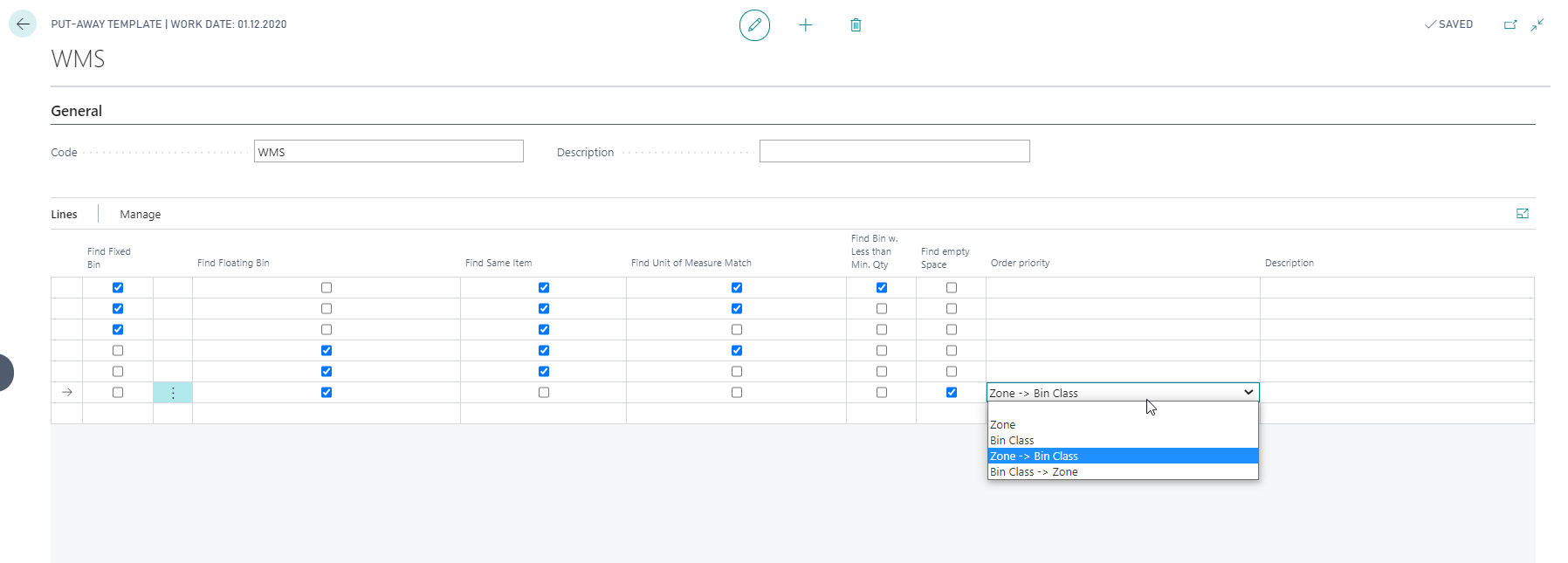
On the put-away template lines, the field Find empty Space is shown instead of the standard field Find Empty Bin. Activating Find empty Space also activates Find Empty Bin.
Order priority bin class
The criteria related to the load carrier can be used via the order priority bin class. The procedure is shown in the figure on the left.
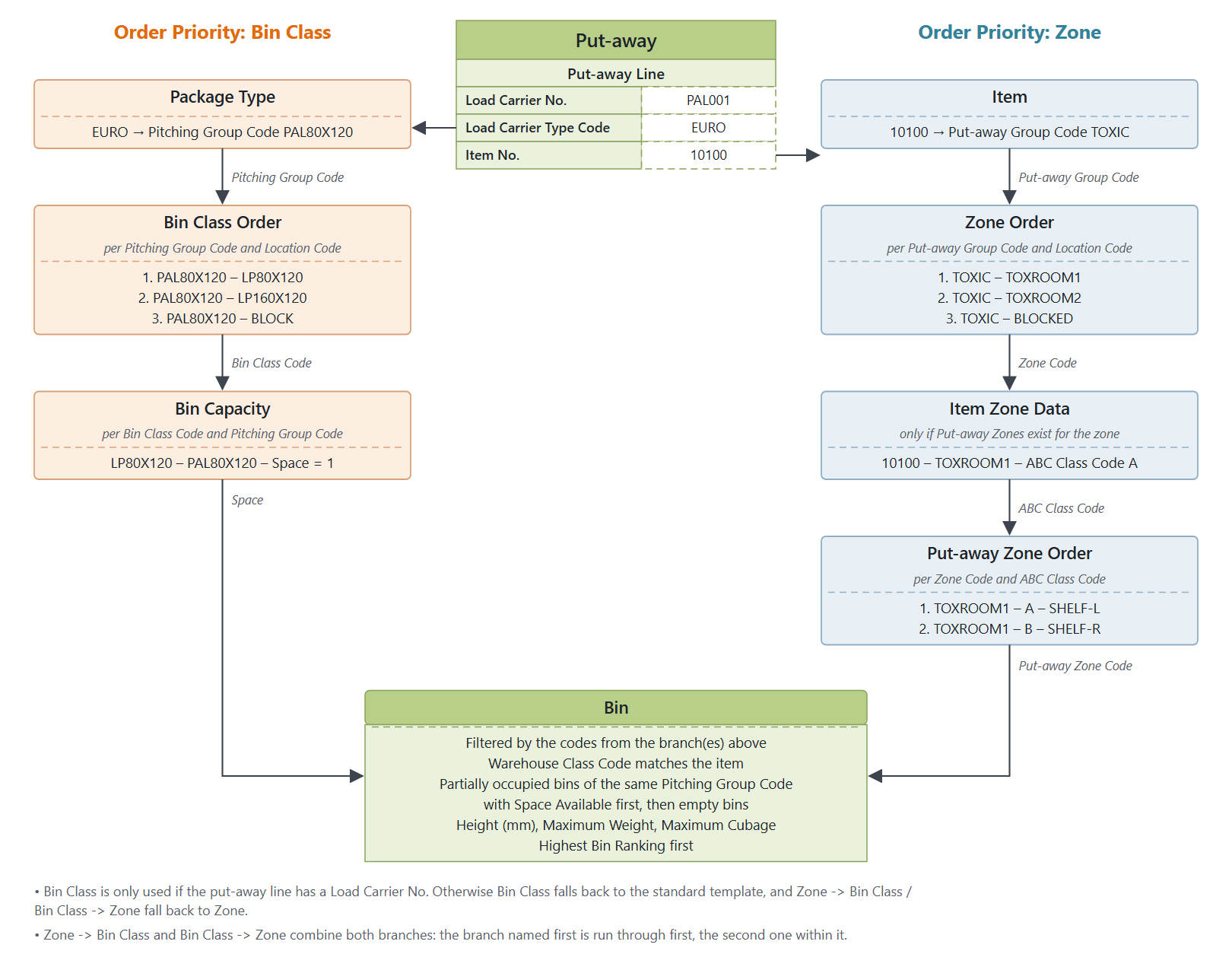
Starting from the put-away line, the system reads the Load Carrier Type Code and determines the Pitching Group Code of this package type, for example package type EURO with pitching group PAL80X120. In the Bin Class Order, only the lines for this pitching group and the location of the put-away are taken into account and processed in sequence. For example, line 1 contains the bin class LP80X120, line 2 contains the bin class LP160X120. As a result, the system first searches for bins of bin class LP80X120 and then, if no suitable bin could be found, for bins of bin class LP160X120. The Bin Capacity of the bin class and pitching group defines how many load carriers fit into a bin (Space). Partially occupied bins of the same pitching group with free space are used before empty bins. The height of the load carrier is checked against the Height (mm) of the bin class; depending on the Bin Capacity Policy of the location, weight and cubage are checked as well.
The order priority bin class only applies if the put-away line has a Load Carrier No. Without a load carrier, the order priority Bin Class is handled like an empty order priority, and Zone -> Bin Class and Bin Class -> Zone are handled like Zone.
Order priority zone
The criteria related to the item can be used via the order priority zone or zone order. The procedure is shown in the figure on the right. If the criteria are to be used in relation to the item, the order priority zone is to be used. Starting from the item to be put away in the put-away, the put-away group of the item is determined. Only rows that contain this put-away group are then taken into account in the zone order. For example, item 10100 - TOXIC with the put-away group TOXIC. The zone order is then run through in sequence and searches for free bins for each zone specified there. For example, line 1 contains the zone TOXROOM1, line 2 TOXROOM2 and line 3 BLOCKED for the put-away group TOXIC. This means that in this example, the system first searches in zone TOXROOM1, then in zone TOXROOM2 and finally in zone BLOCKED for a free bin for item 10100.
If put-away zones are set up for a zone that is passed through, the ABC class is first determined based on the item zone data of the item for this zone. The ABC class determined is then used to search for put-away zones in the put-away zone order for this zone. If no line exists for this ABC class, the lines without ABC class are used. If a put-away zone could be determined, this further restricts the possible bins, otherwise the zone continues to be the criterion for the bin search. Zone and put-away zone can be freely defined for each bin. In our example, an entry could exist in the put-away zone order so that the put-away zone SHELF-L is defined for zone TOXROOM1 and ABC class A. If the item 10100 now has item zone data for zone TOXROOM1 with ABC class A, the bins are restricted to the put-away zone SHELF-L. The possible bins determined according to these criteria are further checked for weight and cubage, depending on the Bin Capacity Policy of the location. For put-away lines with a load carrier, the bin capacity and the height are checked as well.
Order priority zone and bin class
Alternatively, both strategies can be combined. To do this, use the value Zone -> Bin Class or Bin Class -> Zone in the Order priority field in the put-away template, depending on which strategy is to be given priority.
If several bins are found using the strategy(ies) applied, the bin with the highest Bin Ranking is used first. The bin ranking can be freely defined for each bin.
Warehouse class in the bin search
Regardless of the selected Order priority, the bin search checks whether the warehouse class of the bin matches the item to be put away. How this check is performed is controlled by the feature The warehouse class is always respected when creating a put-away in the Yaveon Feature Management.
| Feature | Behaviour of the bin search |
|---|---|
| Activated | Only bins whose Warehouse Class Code matches the Warehouse Class Code of the item are considered. If the item has no Warehouse Class Code, only bins without a Warehouse Class Code are considered. The field Ignore Warehouse Class on the bin is not evaluated. |
| Not activated | Bins with a different Warehouse Class Code are considered in addition, provided that the field Ignore Warehouse Class is activated for them. |
The check applies equally to bins and bin contents and therefore to all lines of the Put-away Template.
If the feature is not activated, a bin that is rejected because of a different warehouse class is logged in the Bin Search Log with the Reason Warehouse Class. If the feature is activated, the bin search restricts the bins to the matching Warehouse Class Code from the start. In that case, no individual log lines with this Reason are created; the applied filter on the Warehouse Class Code is however visible in the log (see Put-away).
The bin search, and therefore the warehouse class check, is used in the following processes:
- Creating the Put-away when posting the warehouse receipt
- The Assign new put-away bin action on the put-away
- The bin search in replenishment
Note
From Business Central Version 31.0 (Yaveon App 16.0) onward, the feature is permanently activated. Make sure beforehand that enough bins with a matching Warehouse Class Code exist for every warehouse class in use. Bins that were previously only reachable via the field Ignore Warehouse Class are then no longer proposed. For more information about the field, see Bins.