Manufacturing Specifications
Manufacturing Specifications are a combination of bills of material (BOM) and routings. They describe which components are to be processed in which quantities, in which sequence, how and for how long to produce a finished product. Furthermore, a Manufacturing Specifications typically contains work instructions for the manufacture of a product.
An item is assigned to exactly one Manufacturing Specification number. A Manufacturing Specification No. can be assigned to different bills of material/routing numbers and versions
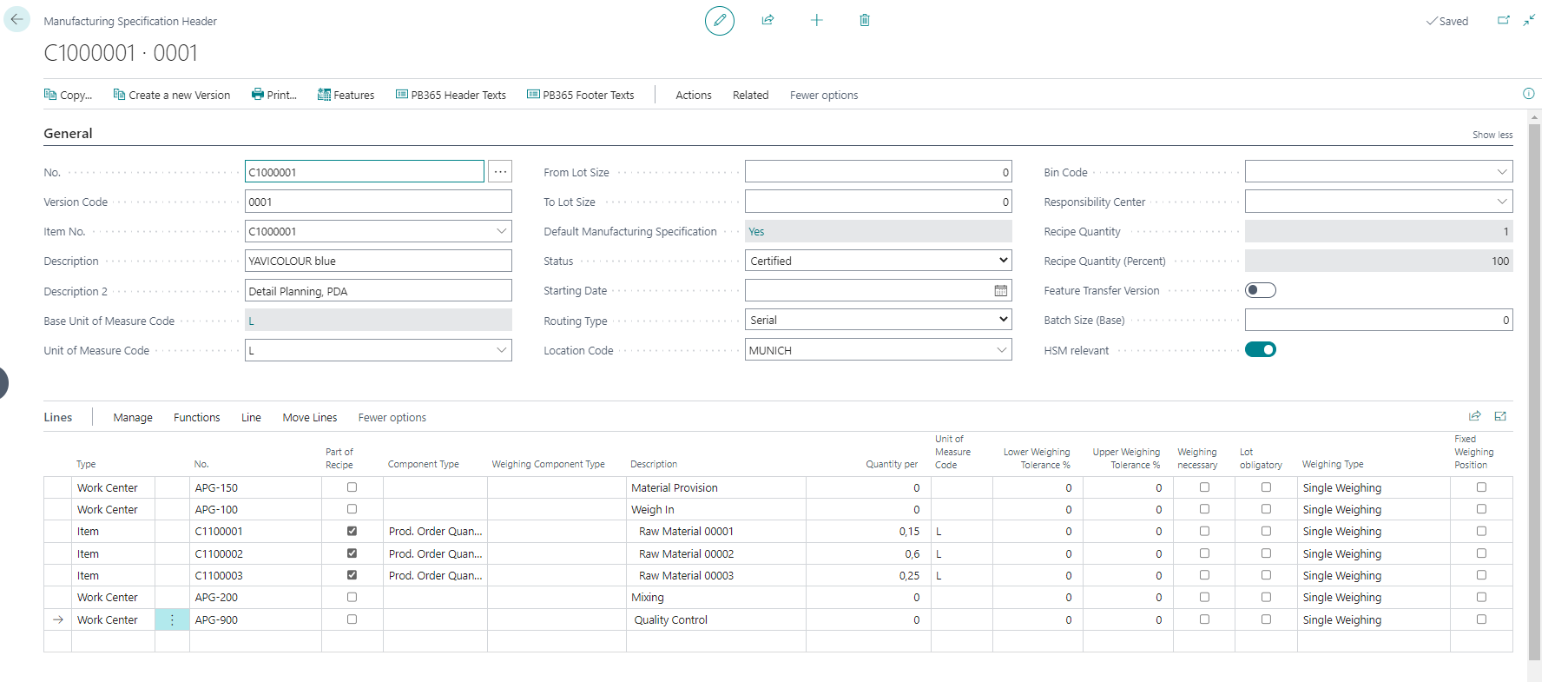
Create a new Manufacturing Specification
create a new Manufacturing Specification with +NEW. The number is assigned according to the number series in the ProBatch 365 Manufacturing Setup. If required, you can assign numbers identical to the item number using manual number assignment.
the first Manufacturing Specification created for a number will get the version 0001. Each subsequent Manufacturing Specification with the same number is incremented by the version (+1).
Alternatively, the version code can be entered manually. If a new version is created using the action Create new version, an additional window opens in which a manual version number can be assigned.
A manufacturing specification always refers to the production of a specific item. Enter this in the Item no. field. In turn, the number of the manufacturing specification can be found on the item card in the Replenishment info tab. The description of the item is taken over and can be changed.
In the Base unit of measure field you will see the base unit of the selected item for information purposes. In the Unit of Measure Code field, enter the unit for which this manufacturing specification is to be used. For the conversion of the unit in the line and in the header, the system also uses the information in the general unit conversion.
In the fields From lot size and To lot size, enter the lot size (in base unit) from or up to which this Manufacturing Specification version is to be used in production. When certifying the Manufacturing Specification, the system checks whether the "from/to lot size" overlaps with the lot size range of an existing version. If this is the case, a message is displayed and the user can cancel the certification. Depending on the lot size, a new BOM or routing number is created during certification.
Note
If there are overlapping values, ProBatch 365 Manufacturing selects the specification with the highest version number.
The starting date controls from when the Manufacturing Specification version is valid.
Select a Location Code and Bin Code. These data are used for output posting. When a production order is calculated, if a location is specified in the header, the manufacturing specification with the corresponding location is used. Otherwise the manufacturing specification with the highest version number is used. This depends on the setup in the field Manufacturing Specification per Location of the PB365 Manufacting Setup.
When insert or modify the work or machine center in the line of the Manufacturing Specification the output bin code of the work or machine center are inserted into the Manufacturing Specification Header if it is the last operation.
For more information on locations and production provision, see the chapter Locations.the fields Batch-based production and Batch size (base) are used for batch-based production. You can indicate that the production of this item is to be carried out in batch sizes and define the size of a batch. Production then takes place in these batch sizes.
Enter the data on the necessary steps and items in the lines of the Manufacturing Specification. Always enter the work step first and then the required items.
For the type of work- or machine center, its number must be selected. The set-up and processing times are particularly relevant here.
The necessary items are added below an operation.
Hereby the Routing Link Code that connects operations and components is entered automatically. You can use the field Operation No. Material Provision to enter the operation (or its routing link) for which the components are to be made available. When the due date of the components is calculated, the starting date of the operation (routing link) specified here is used as the due date. If this field is not filled in, the starting date of the operation linked to the component via the routing link code is used.
Example: Although the component is not used until the fourth work step and is therefore found after the fourth operation in the manufacturing specification, the provision and therefore the due date of the components falls at the start of production – in other words during the first work step.Select the Component Type:
- Prod. Order Quantity depended component: These components are extrapolated to the production quantity in the production order.
- Prod. Order Qty. independent component: These components are NOT extrapolated to the production quantity in the production order. The field formula is set to fixed quantity.
- Filler: For fillers, the proportions of different fillers can be entered in the Filler Proportion field. Fillers are always production order quantity-dependent.
Fill in the Quantity per with the quantity required for this component in order to manufacture the final product. The Quantity per determines the proportion for all parts of recipe. The function Extrapolate scales the parts such that they (ideally) total 100%.
Specify whether the components are to be from-the-same-lot or responsible for inheritance to the end product.
- From the same lot: Only a single lot (but this with several splits) may be used.
- Lot No. Inheritance: If this indicator is set, then the lot number of this component is inherited to the final product. It is to be checked that this component is defined as from-the-same-lot. In addition, only one component per manufacturing specification or production order may be marked in this way.
- Expiration Date Inheritance: If this flag is set, then information about the expiration date of this component is inherited to the final product. This includes expiration date, number of expiry date extensions and maximum expiry date. If the manufacturing specification (or Production Order) contains several components marked with expiration date inheritance, the component with the earliest expiration date is determined and its data inherited.
- Status Inheritance: If this indicator is set, then information about the status of this component item is inherited by the end product. This includes: Status, Date of first release, Date of last release.
- Feature Inheritance: If this indicator is set, the lot features of this component item are inherited by the end product.
- Production Date Inheritance: You can define that the Production Date is to be inherited from the used component to the finished product during production. It is checked that the component is from the same lot and only one component is marked. The flags are inherited from the Item card to the Product BOM line or the Manufacturing Specification line to the PO component and can be changed there. To use this flag the item must be handled with lots.
Add the location or bin from which the component is to be taken. When entering an item, the location or bin of the assigned operation or location is entered.
For in-process inspections in the context of quality control (see QA App), fill the fields Inspection Plan No. and Inspection Group No.. In the Inspection Group No. field, an inspection group of all certified inspection plan versions with type "operation" can be assigned, if the assigned inspection location is not "external".
Extended Texts can be entered for the Manufacturing Specification lines. This allows you to enter detailed for specific operations.
Fetures that are relevant to production can be entered in the Manufacturing Specifications lines or header.
Note
There are several fields available when working with ProBatch 365 Scale Integration. Fields like Weighing Necessary, Lot Obligatory and Weighing Component Type are explained in the online help for ProBatch Scale Integration
Certification of the manufacturing specification
You can then set the status of the Manufacturing Specification to Certified. Only then it can be used.
The fields BOM no., BOM version, Routing no. and Routing version are also filled. This is done according to the following logic:
If a new Manuf. Spec. version differs in the fields From / To lot size and / or Location, a new BOM / routing number is created. Otherwise, an existing BOM / routing no. is used with a new version.
The version code of Manuf. Spec., routing and BOM are always kept identical.
The number of the Manuf. Specification is entered on the item card
If no default Manufacturing Specification exists yet, it is set to default = yes.
If the fields BOM no. and Routing no. on the item card are still empty, they are copied.
Additionally it is checked whether a manufacturing specification with overlapping lot sizes exists. If yes, a warning message is shown.
Certification can be secured with an electronic signature.
Set Manufacturing Specification as default
The BoM as well as the routing that are assigned to a Manufacturing Specification can be defined as default on the certified Manufacturing Specification using the action Set as default. BOM no. and Routing no. are entered on the Item card. They are used for the following standard BC functions, for example:
- Bill of material explosion
- where-used list
- Cost price calculation over several levels
On the Manufacturing Specification card, the field default Manuf. Specification is marked with YES if the corresponding bill of material and routing are stored for the item. If one Manufacturing Specifications is set as default, the other Manufacturing Specifications that have another BOM and routing assigned and have already been marked as default for the item are reset to default = No. There can only ever be one BOM and routing that are set as default - but several Manufacturing Specificications that are using the same BOM and routing.
If there is no default Manufacturing Specification for the item yet, it is set to default during certification and the routing and BOM are entered on the item card.
If a manufacturing specification is set to expired, which is the only one that is marked as default, the user must ensure that another default manufacturing specification is defined. The default Manufacturing Specification fillst the fields BOM no. and Routing no. on the Item Card. Otherwise, it could be the case that outdated BOM no. and Routing no. are used for the standard BC functions mentioned above.
Note
The field Default Manuf. Specification is NOT used to specify, if a Manufacturing Specification is used in the calculation of a Production Order. This is determined by other factors, which are described in the page: Determine the Manufacturing Specification version to be used.
Deleting a Manufacturing Specification
In principle, a Manufacturing Specification can be deleted. If a Manufacturing Specification Version is used in a production order, the system issues a message to this effect. The production order can no longer be processed correctly without the Manufacturing Specification.